When organizations think about protecting data on a NAS, they often start with RAID or a backup copy stored on an external drive. Those technologies are important, but they do not fully address one of the most common causes of data loss: accidental deletion, unwanted file changes, ransomware encryption, or application errors that affect a large number of files at once.
This is where snapshots become valuable. A snapshot lets a storage system preserve the state of data at a specific point in time. Instead of restoring an entire backup set, an administrator can browse an earlier version of a shared folder, copy back a deleted file, or restore data to the state it was in before an incident occurred.
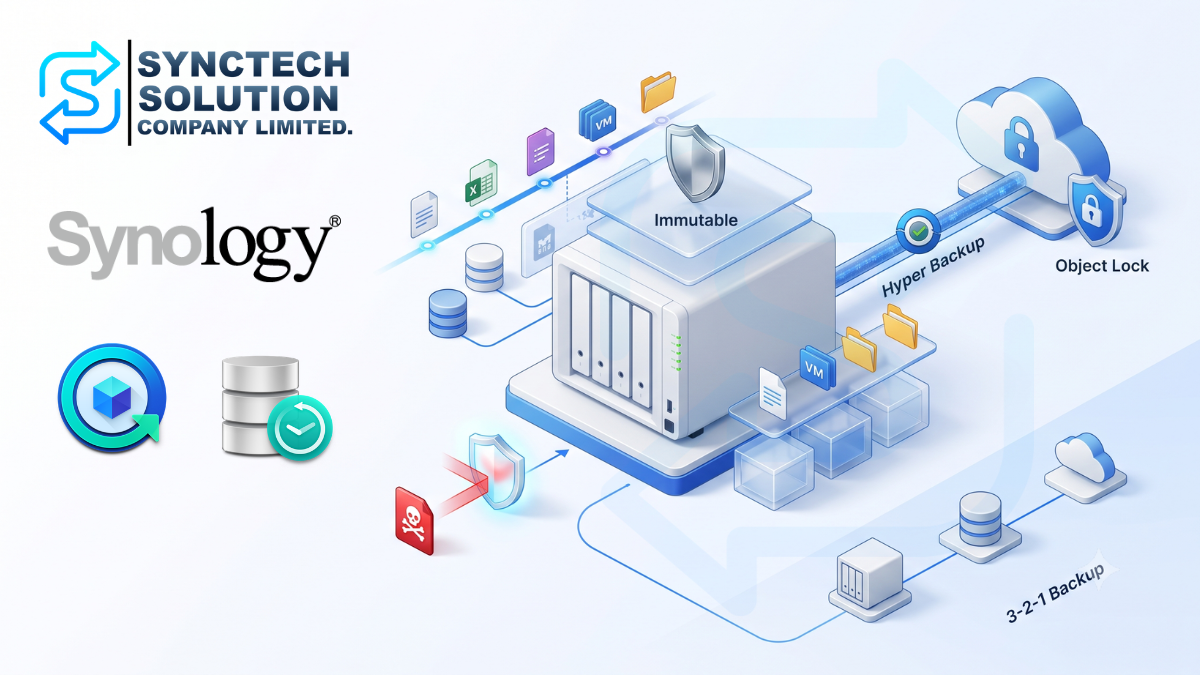
However, a snapshot is not the same as copying an entire folder, and it is not a complete replacement for backup. This article explains what a snapshot is, how Synology snapshots work, why some snapshots show a size of 0 GB, how deleted data continues to consume storage, how Snapshot Replication differs from backup, and how Immutable Snapshots, Hyper Backup, Wasabi Object Lock, and the 3-2-1 or 3-2-1-1-0 backup strategies can be used together.
Document reviewer: Codex (AI) • Reviewed: 2026-10-07 • Thai and English content checked against the manufacturer documents cited in this article. This review is not a backup/restore test or certification of a deployed system.
About the example: Day 1–Day 8 illustrates block retention and snapshot rotation. The figures are illustrative, not measured production results or guaranteed size readings across DSM versions. Read the example alongside the manufacturer documentation on snapshot space usage below.
What Is a Snapshot?
A snapshot is a point-in-time representation of data. It records the state of a shared folder, LUN, or file system at a particular moment so the system can later return to, browse, or recover data from that state.
The word “snapshot” does not mean that the system immediately duplicates every file. Instead, the storage system creates a reference to the existing data blocks and preserves older blocks only when they are changed or deleted after the snapshot is taken.
On supported Synology NAS models, shared-folder snapshots are managed through Snapshot Replication and require a Btrfs volume. Support depends on the NAS model and DSM version.
Manufacturer documentation: Snapshot Replication Quick Start Guide; Snapshot Replication Technical Specifications (DSM 7.2).
A Snapshot Is Not a Full Copy of the Folder
Suppose a shared folder contains 5 TB of data. If the entire folder is copied to another location, the system must read and write approximately 5 TB, which requires significant time, bandwidth, and storage capacity.
A snapshot works differently. When the snapshot is created, the system records the current state of the data without immediately duplicating all 5 TB. Storage consumption begins to increase when data that existed at the time of the snapshot is modified or deleted and the snapshot must preserve the older blocks.
Current Shared Folder
        │
        ├── Snapshot at 09:00
        ├── Snapshot at 12:00
        └── Snapshot at 15:00

The snapshots do not need separate copies of every file.
Unchanged blocks can be referenced by multiple snapshots.
How Copy-on-Write and Block-Level Storage Work
To understand snapshots, it is easier to think of a file as a collection of blocks rather than one single object. For example, a database file may consist of many storage blocks.
Database.db
[Block A] [Block B] [Block C] [Block D]
After a snapshot has been created, an application may modify only Block B. The storage system must preserve the original Block B for the older snapshot, while the current file system writes the updated data to a new block.
Original snapshot: [A] [Old B] [C] [D]
Current data:      [A] [New B] [C] [D]
This is why snapshot growth is primarily related to the amount of data that changes, not simply the total size of the shared folder. A 10 TB shared folder that changes by only 20 GB per day does not automatically add 10 TB of snapshot data every day.
Actual usage can still differ from a simple manual calculation because snapshots operate at the block level. Metadata, allocation behavior, repeated changes to the same blocks, and blocks shared between multiple snapshots can all affect the reported size.
Why Can the First Snapshot Be 0 GB?
When the first snapshot is created, the live file system and the snapshot initially reference the same blocks. No old blocks need to be preserved yet, so the snapshot can show an additional size of 0 GB.
If new files are added after the snapshot, the older snapshot may still remain at 0 GB because those new files did not exist in the snapshot. Snapshot storage normally increases when:
Manufacturer documentation: How can I free up the space consumed by snapshots?; Snapshots | Snapshot Replication.
- Files that existed before the snapshot are deleted
- Existing files are modified or overwritten
- Databases or virtual machines change large numbers of blocks
- File operations cause older blocks to be retained for recovery
How Snapshot Size Is Calculated: Day 1 to Day 8
The following example creates one snapshot per day and retains up to five days. It assumes that no recycle bin, file clone, or other reference retains the old blocks outside the snapshots shown.
Day 1: Creating the First Snapshot
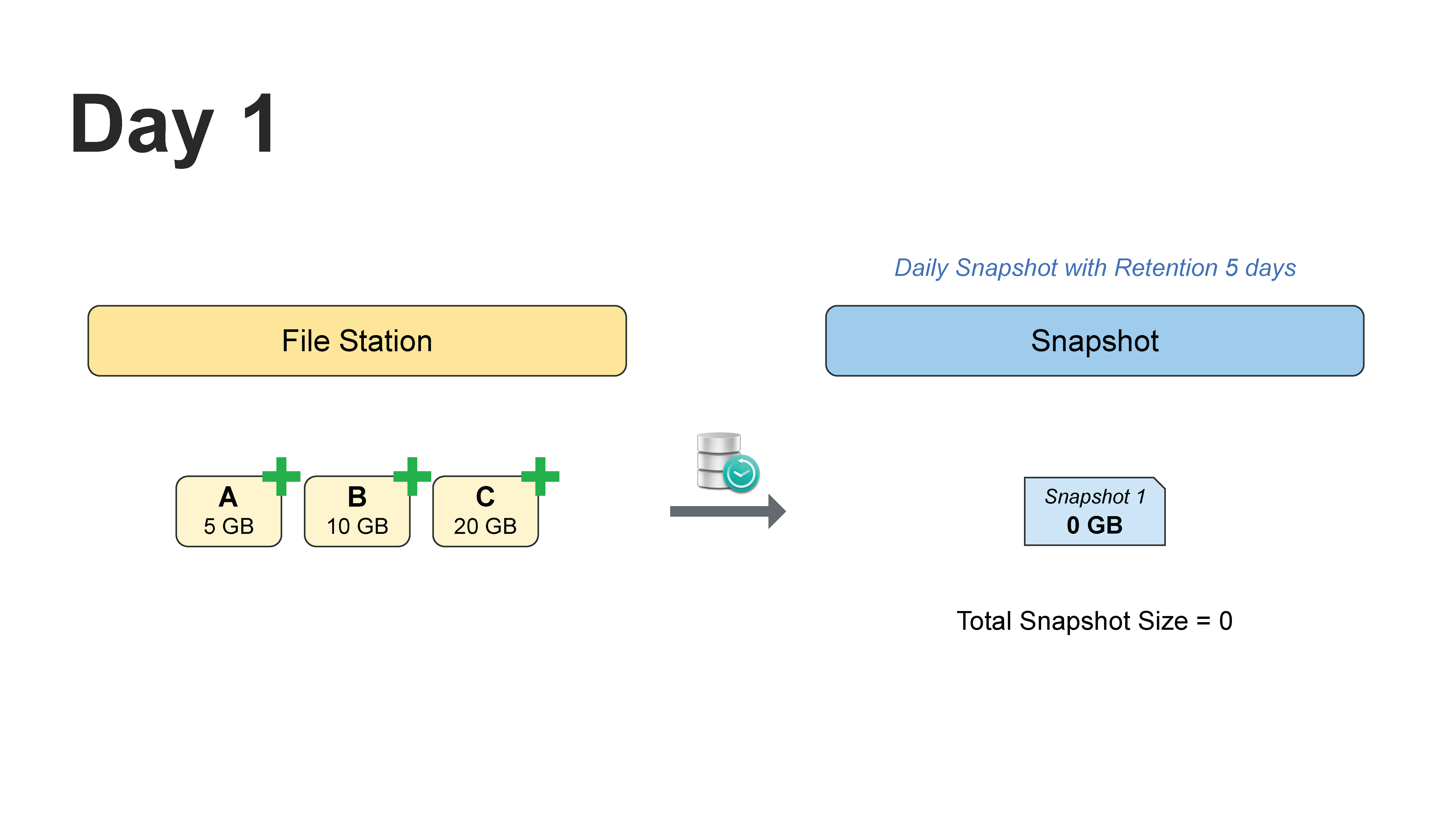
On Day 1, File A is 5 GB, File B is 10 GB, and File C is 20 GB. When Snapshot 1 is created, it references the same blocks as the current file system. No additional old blocks are required, so Snapshot 1 shows a size of 0 GB.
The important point is that the snapshot does not create another 35 GB copy. It records the point-in-time state of the data.
Day 2: Adding File D Does Not Increase the Snapshot Size
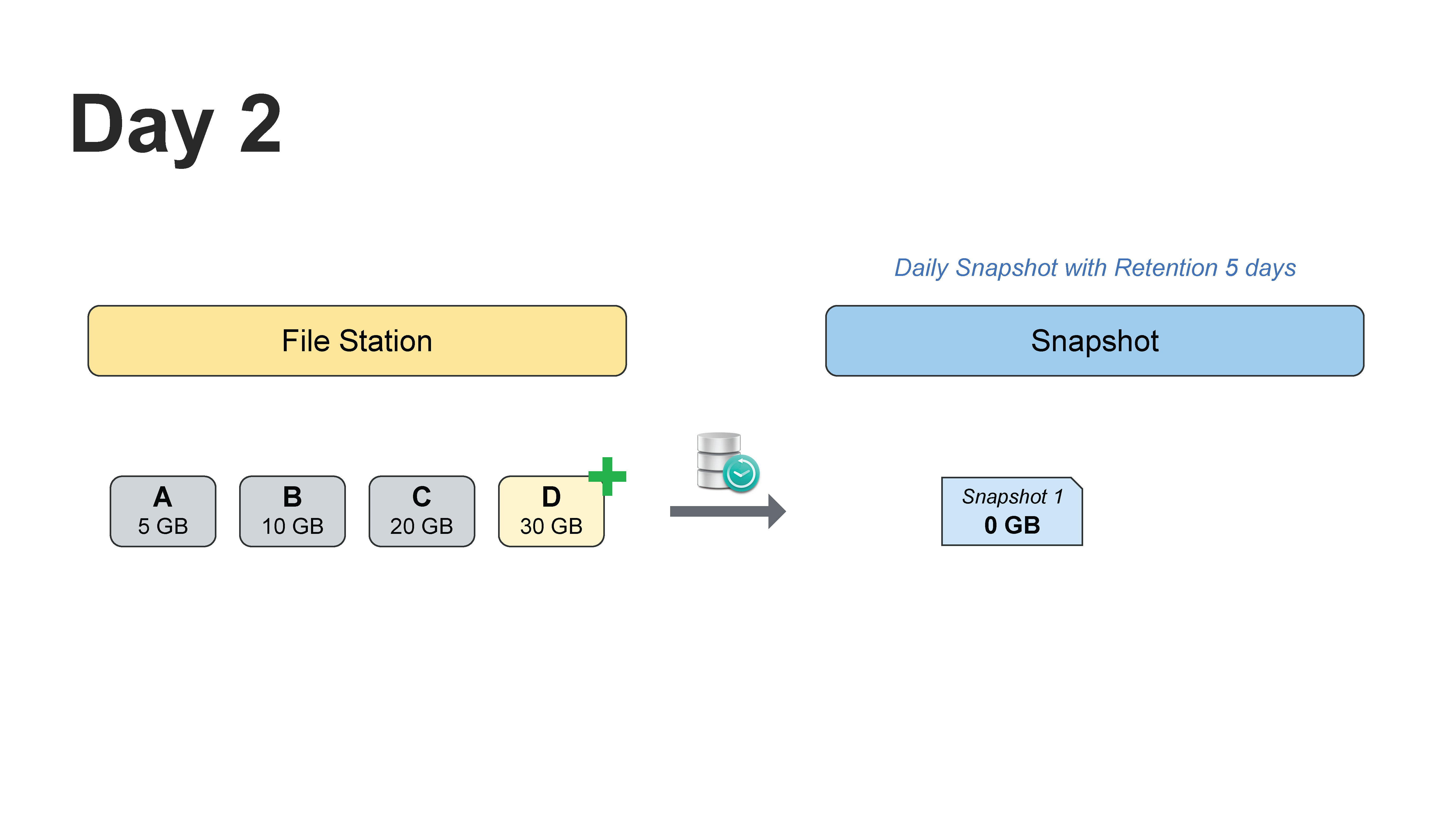
On Day 2, File D with a size of 30 GB is added. Files A, B, and C remain unchanged. Because File D did not exist in Snapshot 1, the older snapshot does not need to preserve a previous version of it.
Snapshot 1 can therefore remain at 0 GB, even though the current shared folder is now larger.
Day 3: File A Is Deleted, but Its Blocks Are Still Retained
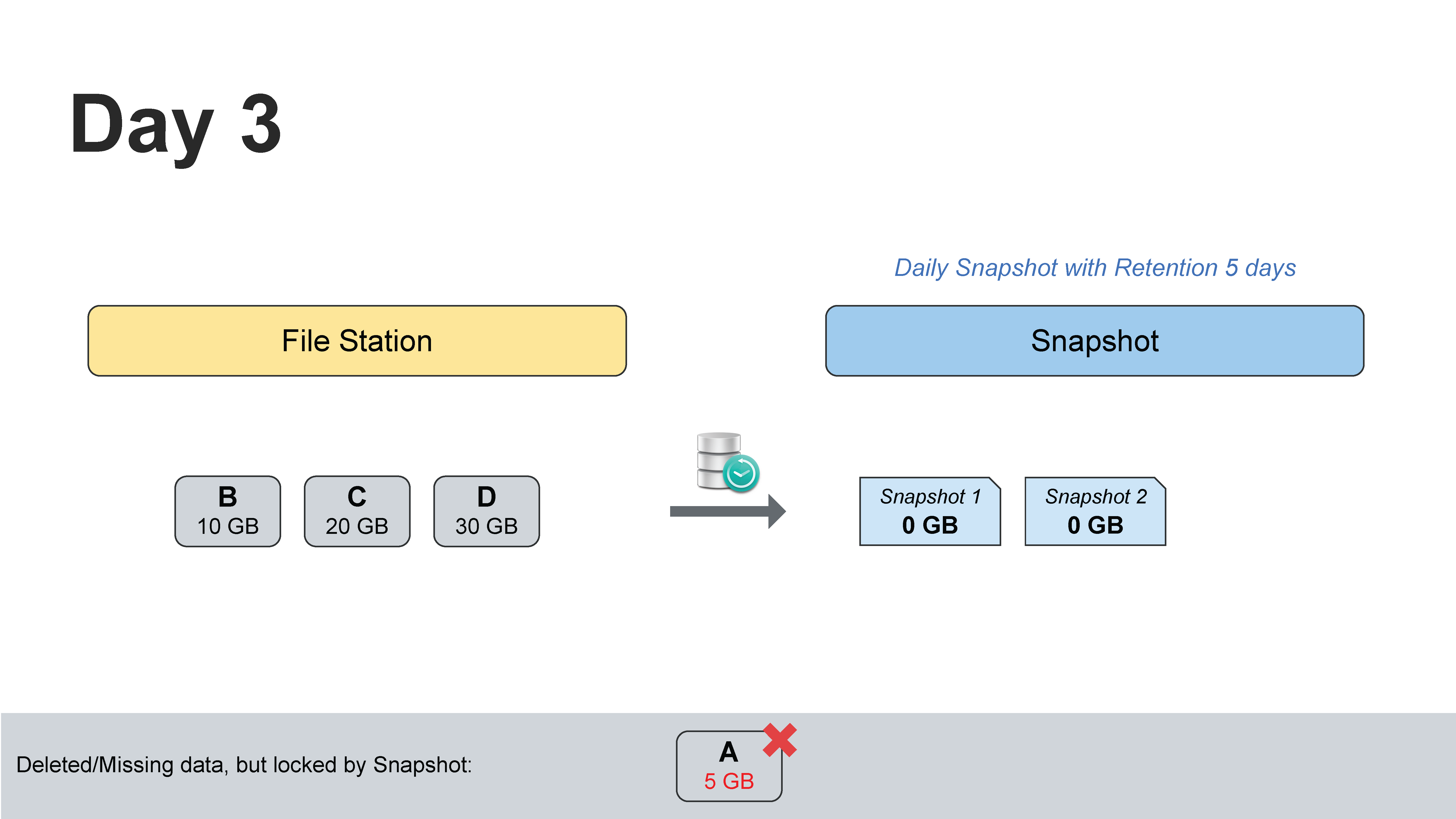
On Day 3, File A is deleted from the shared folder. Users can no longer see it in the current file system, but the earlier snapshot must still be able to restore it. The storage system therefore keeps the 5 GB of blocks associated with File A.
In other words, File A is missing from the live view, but it has not yet been physically released from storage because a snapshot still references it.
Day 4: Snapshot Storage Begins to Show 5 GB
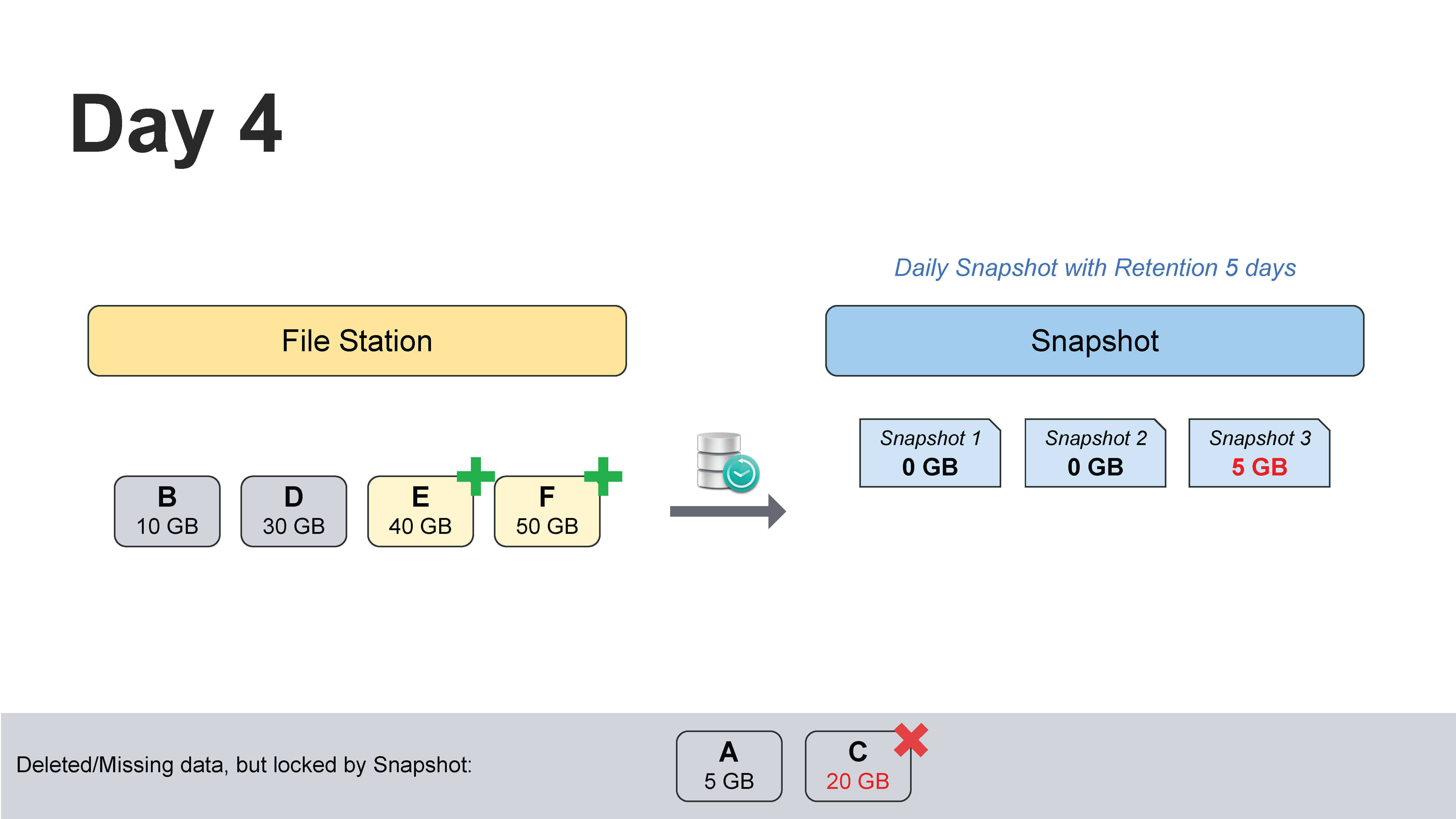
On Day 4, File C is deleted and Files E and F are added. Snapshot 3 shows 5 GB because it must preserve the blocks that belonged to File A.
When File C is deleted, its old blocks remain retained immediately while a pre-deletion snapshot references them. The figure attributes changes to snapshot versions to explain the sequence; it does not mean storage for C starts being consumed only after the next snapshot is created.
Day 5: Snapshot Storage Includes File C
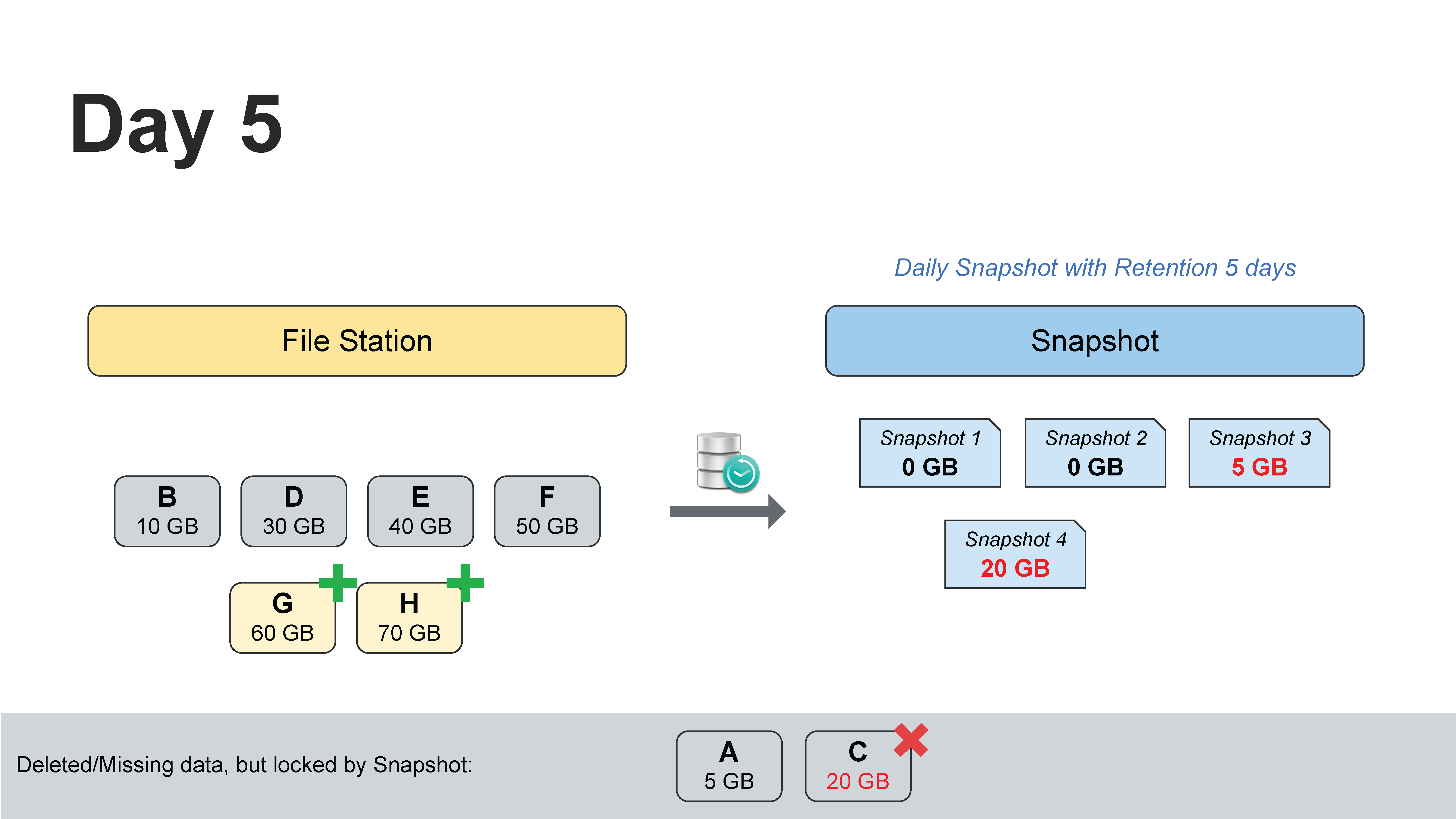
By Day 5, Snapshot 3 uses 5 GB for File A and Snapshot 4 uses 20 GB for File C. The total amount of old data retained because of snapshots is approximately 25 GB.
New Files G and H do not increase the size of older snapshots because they did not exist in those earlier points in time.
Day 6: Snapshot Rotation Begins
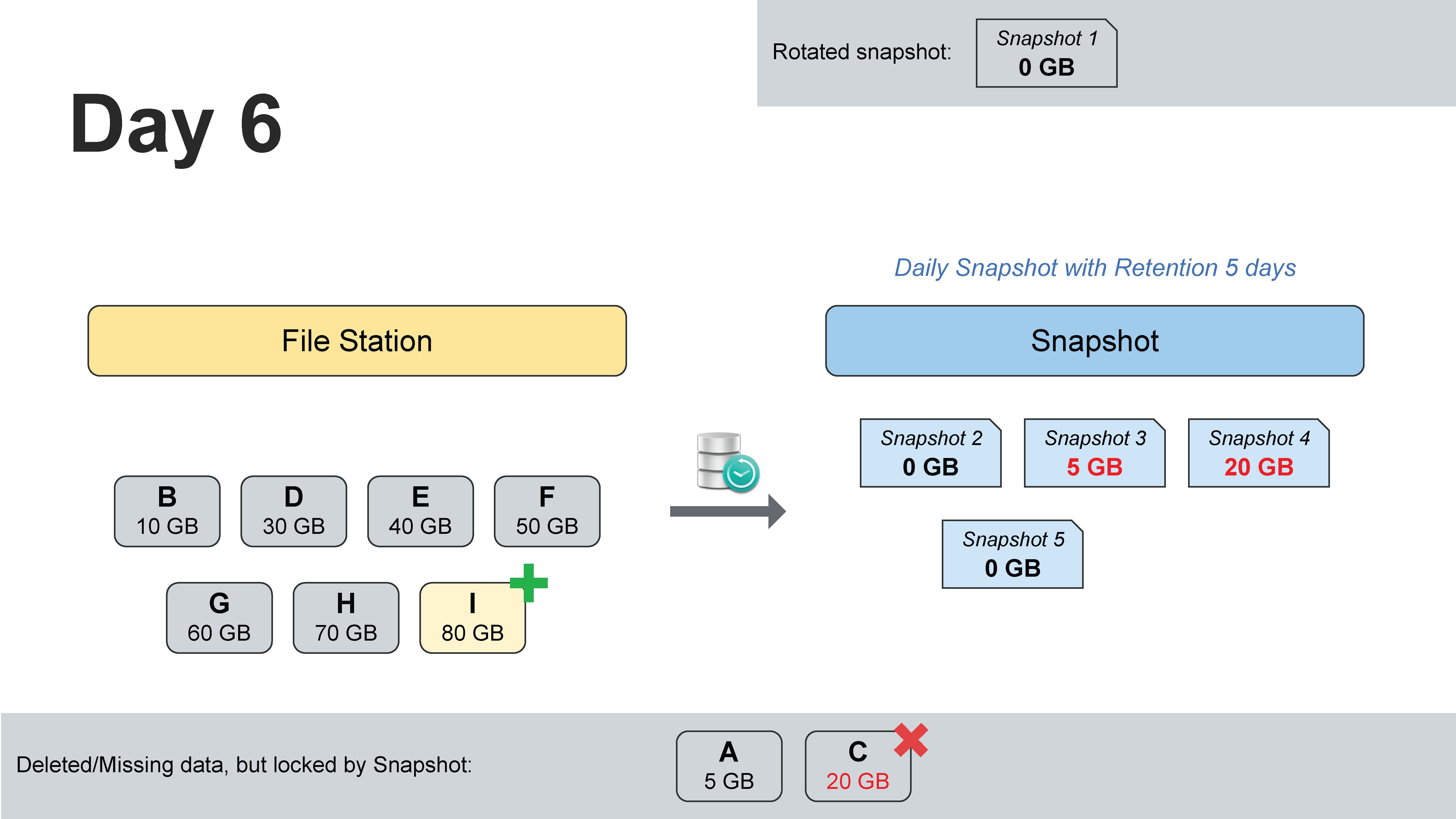
Because retention is limited to five days, the oldest snapshot begins to rotate out. However, deleting one snapshot does not always release storage immediately.
The same block can still be referenced by another snapshot. As long as at least one remaining snapshot needs that block for recovery, the block cannot be released.
Day 7: More Snapshots Rotate Out, but Some Blocks Remain
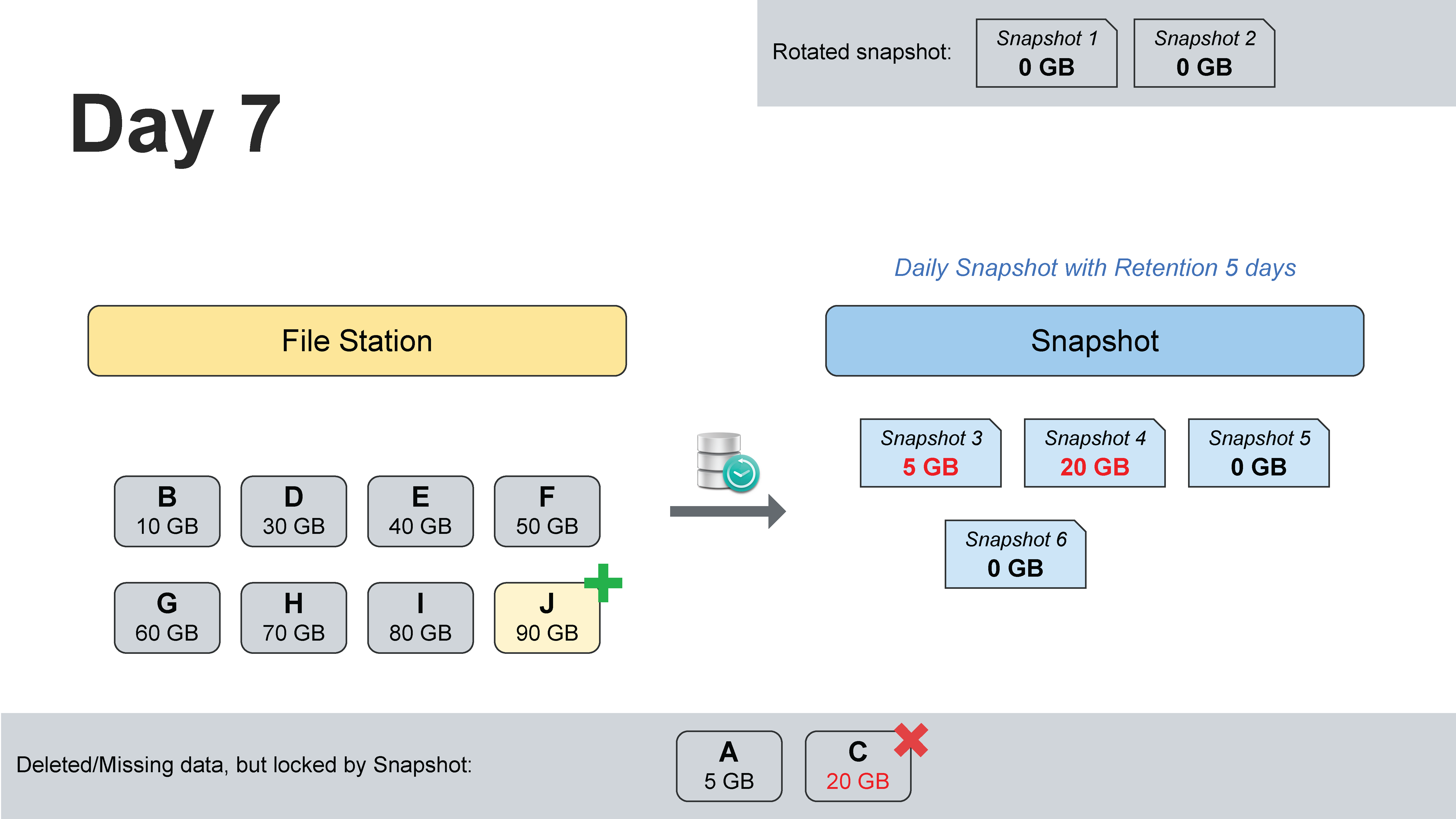
On Day 7, more old snapshots have been rotated out, but the blocks belonging to Files A and C are still retained because other snapshots still depend on them.
This explains why an administrator may delete one or two snapshots and see little or no immediate increase in free space. The storage system is not malfunctioning; it is preserving blocks that remain necessary for other recovery points.
Day 8: The Final Snapshot Referencing File A Expires
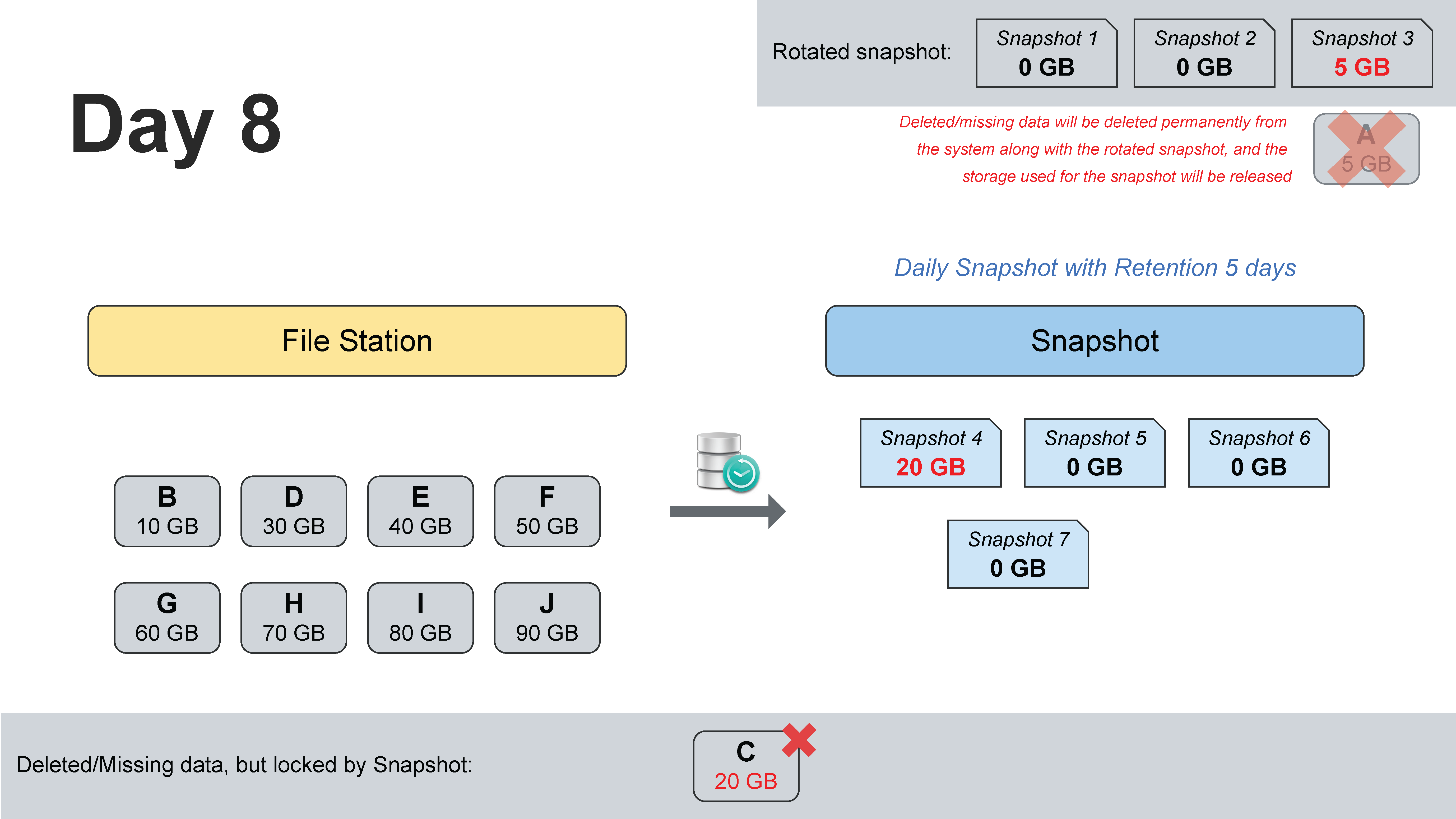
On Day 8, Snapshot 3, which was the last snapshot that needed File A, rotates out. No remaining snapshot references File A, so the system can permanently remove those blocks and return approximately 5 GB to available storage.
Actual space reclamation may run later on its configured schedule. Recycle bins, file clones, or other remaining references can also prevent blocks from being released.
File C still remains in snapshot storage because Snapshot 4 still references its 20 GB of blocks.
A Simple Way to Understand Snapshot Storage
Approximate snapshot storage
=
Old blocks that were modified or deleted
and are still referenced by at least one snapshot
It is therefore incorrect to calculate snapshot usage as:
Shared folder size × Number of snapshots
Multiple snapshots can share unchanged blocks. For example, if a 10 TB shared folder changes by only 50 GB per day, 30 daily snapshots do not automatically require 300 TB. The real requirement depends on the block change rate, repeated modifications, deleted data, metadata, and retention.
Why Does Free Space Not Increase Immediately After Deleting Files?
When snapshots exist, deleting a file in File Station does not always release its physical storage. If an older snapshot still needs the file, its blocks must remain available for recovery.
Storage is released only when both conditions are true:
- The block is no longer part of the current file system
- No snapshot references the block anymore
Administrators should therefore avoid deleting snapshots only to reclaim space without first checking whether those recovery points are still required by the organization’s RPO and retention policy.
Manufacturer documentation: How can I free up the space consumed by snapshots?; Snapshots | Snapshot Replication.
What Can a Snapshot Recover?
Snapshots are useful for recovering from incidents such as:
- Accidental file or folder deletion
- Documents overwritten with the wrong version
- Application errors affecting many files
- Ransomware encryption of user-accessible data
- Database or application data corruption after a change
- The need to inspect or copy data from an earlier point in time
Synology Snapshot Replication can be used to browse snapshots, copy individual files, restore shared folders, and replicate snapshots to another supported Synology NAS.
Database and virtual-machine recovery also requires application-consistency checks. A standard snapshot does not guarantee application consistency. Application-consistent LUN snapshots require supported configuration and Synology Storage Console; test recovery in the actual environment.
Manufacturer documentation: Snapshot Replication Quick Start Guide; Snapshots | Snapshot Replication.
Advantages of Snapshots
1. Fast Snapshot Creation
Because a snapshot does not immediately duplicate every file, it can usually be created quickly with relatively low impact compared with a full backup.
2. Fast Recovery
Administrators can restore a shared folder or recover individual files without waiting for an entire backup set to be restored.
3. Efficient Storage Usage
Unchanged blocks can be shared between the live file system and multiple snapshots. Storage growth is therefore linked mainly to changed or deleted blocks.
4. Frequent Recovery Points
Snapshots can often be scheduled more frequently than traditional backups, helping reduce potential data loss between recovery points.
5. Convenient File-Level Recovery
With appropriate permissions and configuration, users or administrators can browse previous versions and recover individual files without restoring an entire shared folder.
Limitations and Disadvantages of Snapshots
1. Local Snapshots Do Not Protect Against Complete NAS Failure
If the NAS is stolen, destroyed by fire, or suffers severe storage-pool corruption, local snapshots may be lost together with the production data.
2. A Local Snapshot Is Not Always an Independent Copy
Local snapshots still depend on the source storage pool and file system. They should not automatically be counted as an off-device backup.
3. High-Change Workloads Can Consume Significant Space
Databases, virtual machines, surveillance data, and large files that are frequently overwritten can change many blocks and cause rapid snapshot growth.
Synology does not recommend Snapshot Replication for Surveillance Station recording folders. Rotated recordings can retain old blocks and consume unexpected storage. Evaluate Archive Vault, Hyper Backup, or C2 Backup for Surveillance for that workload.
Manufacturer documentation: How can I configure Snapshot Replication for optimal system performance?.
4. Excessive Retention Can Fill the Volume
Frequent snapshots combined with long retention periods can consume a large amount of storage if the change rate is high.
5. Standard Snapshots May Be Deleted by Privileged Accounts
If an administrator account is compromised, an attacker may attempt to delete snapshots before encrypting production data. This is one reason to consider Immutable Snapshots and an offsite immutable backup.
Snapshot vs Backup
| Topic | Snapshot | Backup |
|---|---|---|
| Main purpose | Fast point-in-time recovery | Independent data copy for recovery after source failure or loss |
| Storage location | Local snapshots are usually stored on the same NAS or storage system | Can be stored on another NAS, external drive, backup server, or cloud |
| Creation speed | Usually very fast | Usually slower, especially for the initial backup |
| Restore speed | Usually fast for files and shared folders | Depends on backup location, data volume, and connection speed |
| Protection against complete NAS failure | Local snapshot alone is not sufficient | Yes, when stored on another device or offsite |
| System configuration and application backup | Not its main purpose | Hyper Backup can protect data, selected packages, and system settings |
The correct approach is not to choose either snapshots or backups. Use snapshots for fast operational recovery and backups for independent, long-term, or offsite protection.
Snapshot vs RAID
RAID helps a storage system continue operating after one or more disk failures, depending on the RAID level. It does not restore deleted files, reverse unwanted changes, or create an offsite copy.
Snapshots preserve earlier states of data, but local snapshots can still be lost if the storage pool is destroyed.
Backups create a separate copy on another destination so data can be recovered even if the source NAS is no longer available.
RAID       = Availability during certain disk failures
Snapshot   = Point-in-time recovery
Backup     = Independent copy for disaster recovery
What Is Snapshot Replication?
Snapshot Replication is the Synology package used to create and manage snapshots for shared folders and LUNs and to replicate supported snapshots to another Synology NAS.
Replication differs from a local snapshot because the data is transferred to a second device. If the source NAS fails, the destination NAS may still contain replicated recovery points and can be used as part of a disaster-recovery process.
Source Synology NAS
Shared Folder + Snapshots
          │
          │ Replication
          ▼
Destination Synology NAS
Replicated Snapshots
After the initial replication, later jobs primarily transfer changed data rather than sending the entire data set again. Bandwidth, retention, available capacity, and network reliability must still be planned carefully.
What Is an Immutable Snapshot?
An Immutable Snapshot is a snapshot that cannot be modified or deleted during a defined protection period. Synology describes this capability as a form of WORM: Write Once, Read Many.
While an immutable snapshot is protected, even a privileged administrator should not be able to delete it before the protection period expires. Storage areas containing protected snapshots are also subject to restrictions intended to prevent bypassing the protection mechanism.
Standard Snapshot
Administrator ──► May be able to delete it

Immutable Snapshot
Administrator ──► Cannot delete it during the protection period
Immutable snapshots can reduce risk from:
- Compromised administrator accounts
- Ransomware attempting to destroy recovery points
- Accidental deletion by an administrator
- Malicious activity by an insider
Support depends on DSM version and NAS model. Synology documents immutable snapshots for supported systems running DSM 7.2 or later. The correct protection period should be based on risk, storage capacity, and organizational policy.
Manufacturer documentation: What is an immutable snapshot? How do I use it?; Which Synology models support WriteOnce and immutable snapshots?.
Is an Immutable Snapshot the Same as a Standard Snapshot?
The point-in-time and block-sharing concepts are similar. The main difference is whether the snapshot can be deleted or changed during the protection period.
| Topic | Standard Snapshot | Immutable Snapshot |
|---|---|---|
| Point-in-time recovery | Yes | Yes |
| Block-efficient storage | Yes | Yes |
| Can be deleted early | Possibly, by an authorized administrator | No, during the protection period |
| Ransomware resistance | Helpful, but still vulnerable to privileged-account abuse | Stronger because deletion is restricted |
| Operational flexibility | More flexible | Less flexible because protected data must remain until expiration |
Important Considerations Before Enabling Immutable Snapshots
Immutability improves protection, but it also limits administrative flexibility. If the protection period is too long or storage is miscalculated, protected snapshots cannot simply be deleted to reclaim space.
- Measure the daily data change rate
- Choose a protection period that balances security and capacity
- Maintain sufficient free space in the volume and storage pool
- Configure storage alerts and notifications
- Avoid starting with an unnecessarily long protection period
- Test recovery procedures regularly
Can an Immutable Snapshot Be Sent Directly to Wasabi?
This requires an important distinction between a snapshot and a backup object.
Synology Snapshot Replication does not replicate snapshots directly to Wasabi. Snapshot Replication uses another compatible Synology NAS as its destination, not a general public-cloud object-storage service.
Hyper Backup can back up to Wasabi through S3-compatible storage using Wasabi’s guide. That guide does not establish Object Lock integration for Hyper Backup: S3 backup support does not by itself establish cloud immutability support. For Object Lock, select an application and version explicitly supported by the manufacturer and test retention, rotation, and restore. Wasabi documents Object Lock with ActiveProtect Manager separately.
Manufacturer documentation: Synology Hyper Backup With Wasabi; Immutability: Compliance and Object Lock; Synology ActiveProtect Manager With Wasabi.
Production data on Synology NAS
        ├── Local / Immutable Snapshot
        └── Hyper Backup ──► Wasabi (Offsite Backup)

Cloud immutable backup
Object Lock-supported application ──► Wasabi Object Lock
The correct design is therefore:
- On Synology: use Immutable Snapshots to protect file-system recovery points
- On Wasabi: use Hyper Backup to create an offsite backup in S3-compatible storage
- For cloud immutability: use Object Lock with an explicitly supported application/version and verify retention mode and deletion permissions
Always test backup, retention, deletion behavior, expiration, and restore operations before production deployment. Object Lock can prevent deletion before the retention period expires and may continue to consume billable storage during that time.
Wasabi Object Lock vs Synology Immutable Snapshot
| Topic | Synology Immutable Snapshot | Wasabi Object Lock |
|---|---|---|
| Location | Synology NAS or another Synology destination | Cloud object storage |
| Protection level | Shared-folder or LUN snapshot | Objects inside a bucket |
| Data-transfer tool | Snapshot Replication between Synology systems | An application explicitly supporting Wasabi Object Lock; S3 compatibility alone is insufficient |
| Offsite protection | Only if the destination NAS is in another location | Yes, as a cloud copy |
| Recovery speed | Usually fast for local or nearby recovery | Depends on internet bandwidth, data volume, and restore process |
These technologies do not replace each other. They protect different layers of the recovery architecture.
Object Lock protects object versions with retention, rather than guaranteeing an entire bucket is locked. Enabling the feature alone does not set retention. Governance mode can permit authorized changes or removal of protection; Compliance mode restricts reducing or removing retention on protected objects. Choose the mode and permissions for the intended risk.
Manufacturer documentation: Immutability: Compliance and Object Lock; Object Lock: Setting for a Bucket or Object.
What Is the 3-2-1 Backup Rule?
The 3-2-1 backup rule reduces the risk of a single point of failure:
- 3 Copies: Keep at least three copies of the data, including production
- 2 Media: Store the data on at least two different types of storage
- 1 Offsite: Keep at least one copy in another location
A Synology and Wasabi example might look like this:
Copy 1: Production data on the Synology NAS
Copy 2: Backup on another Synology NAS or external storage
Copy 3: Hyper Backup in Wasabi

At least two storage types:
- Local NAS storage
- Cloud object storage

At least one offsite copy:
- Wasabi
A local snapshot improves recovery speed and adds more recovery points, but it should not replace an offsite backup because it may remain on the same device or in the same physical location.
Manufacturer documentation: Backup & Data Protection.
What Is the 3-2-1-1-0 Backup Strategy?
Organizations concerned about ransomware often extend the 3-2-1 rule to 3-2-1-1-0:
- 3: At least three copies of data
- 2: At least two different storage types
- 1: At least one offsite copy
- 1: At least one immutable, offline, or air-gapped copy
- 0: Zero unresolved errors after backup verification and restore testing
An example architecture is:
Users and Servers
        ▼
Production Synology NAS
        ├── Hourly snapshots (example)
        ├── Immutable snapshots for 7–14 days (risk assessment required)
        ├── Snapshot Replication to another Synology NAS
        └── Hyper Backup to Wasabi (Offsite Backup)

For an immutable copy in Wasabi:
Use an application/version explicitly supporting Object Lock
and test and document recovery.
This design combines fast local recovery, protected short-term recovery points, another NAS for disaster recovery, and an offsite cloud copy.
Manufacturer documentation: When Only Immutable Backups Survive; What is an immutable snapshot? How do I use it?.
How Should Snapshots, Immutability, Replication, and Wasabi Be Used Together?
| Protection Layer | Technology | Main Purpose |
|---|---|---|
| Layer 1 | RAID / SHR | Maintain availability during certain disk failures |
| Layer 2 | Snapshot | Recover quickly from deletion or unwanted changes |
| Layer 3 | Immutable Snapshot | Prevent protected recovery points from being deleted early |
| Layer 4 | Snapshot Replication | Keep replicated recovery points on another Synology NAS |
| Layer 5 | Hyper Backup to Wasabi | Create an offsite cloud backup |
| Layer 6 | Wasabi Object Lock with a supported application and version | Prevent protected backup objects from being deleted or modified early |
Example Retention Policy
No single retention policy fits every organization. The following is only a starting point.
| Type | Example Frequency | Example Retention | Purpose |
|---|---|---|---|
| Local Snapshot | Every hour | 48–72 hours | Fast recovery from recent incidents |
| Daily Snapshot | Once per day | 30 days | Daily historical recovery points |
| Immutable Snapshot | Based on risk and policy | 7–14 days or as required | Protection against ransomware and privileged deletion |
| Hyper Backup to Wasabi | Daily or more frequently | 30–365 days depending on policy | Offsite protection and long-term retention |
The correct values should be based on RPO, RTO, daily change rate, internet bandwidth, budget, compliance, and business impact.
How RPO and RTO Relate to Snapshots
Recovery Point Objective (RPO) is the acceptable data-loss target, commonly expressed as a time window such as one hour. Hourly snapshots can support that target, but jobs must succeed and usable recovery points must cover the required application data. A schedule alone does not guarantee the achieved RPO.
Recovery Time Objective (RTO) is the maximum acceptable time required to restore service. Snapshots often provide a shorter RTO than restoring from cloud backup because the data is local and can be accessed quickly.
If the NAS fails completely, however, local snapshots are no longer sufficient. Recovery must use replicated snapshots or another backup destination, which may have a different RTO.
Manufacturer documentation: Data protection for Synology systems.
How to Estimate Snapshot Capacity
Do not estimate snapshot capacity from total shared-folder size alone. Review:
- Current shared-folder size
- New data added each day
- Existing data modified or deleted each day
- Workload type, such as office files, databases, VMs, or surveillance
- Snapshot frequency
- Retention and immutable protection period
- Safety margin for growth and abnormal change events
For example, a 20 TB shared folder with a daily block change rate of 100 GB may require roughly 1.4 TB for 14 daily recovery points, plus overhead and safety margin. It does not require 280 TB. A VM or database workload may have a much higher block change rate than the visible amount of new files in File Station.
100 GB × 14 = 1,400 GB is only an illustrative decimal-unit budget, assuming 100 GB of older blocks actually need retaining each day. It is not a capacity guarantee. Measure the change rate and use Snapshot Replication’s Calculate Size alongside overhead, recycle bins, file clones, and a free-space margin.
Manufacturer documentation: How can I free up the space consumed by snapshots?; Snapshots | Snapshot Replication.
Best Practices for Synology Snapshots
- Use Btrfs and confirm that the NAS model supports Snapshot Replication
- Separate shared folders according to business criticality and change behavior
- Set snapshot frequency according to RPO, not simply the highest possible frequency
- Use tiered retention such as hourly, daily, weekly, and monthly
- Enable Immutable Snapshots for critical data with a manageable protection period
- Configure storage notifications and free-space thresholds
- Use Snapshot Replication to another Synology NAS for fast disaster recovery
- Use Hyper Backup to Wasabi or another cloud destination for offsite protection
- Use separate credentials for backup jobs
- Enable MFA and reduce the number of administrator accounts
- Test file-level, shared-folder, and cloud restores regularly
- Document restore-test results to support the “0 errors” objective in 3-2-1-1-0
Frequently Asked Questions
Does a snapshot double the size of all files?
No. A snapshot does not create a full duplicate of every file. It grows mainly when old blocks must be preserved after data is modified or deleted.
Is a snapshot enough to replace backup?
No. A local snapshot may be lost together with the NAS or storage pool. Use another device and an offsite copy as part of a complete backup strategy.
Does deleting a snapshot immediately free storage?
Not always. If another snapshot still references the same blocks, those blocks remain in use until the final reference expires or is removed.
Can snapshots protect against ransomware?
Snapshots can help restore data to a point before encryption, but standard snapshots may still be vulnerable if an administrator account is compromised. Immutable Snapshots and an offsite immutable backup provide stronger protection.
Can an Immutable Snapshot be deleted?
It cannot be deleted during its defined protection period. After that period expires, it can be managed according to the retention policy.
Can an Immutable Snapshot be uploaded directly to Wasabi?
Not through Snapshot Replication. Hyper Backup provides offsite backup following Wasabi’s guide. A cloud immutable copy requires an application and version explicitly supporting Object Lock; S3 connectivity alone does not establish that support.
Manufacturer documentation: Can I back up snapshots to other storage devices?; Synology Hyper Backup With Wasabi; Immutability: Compliance and Object Lock.
Can Snapshot Replication use Wasabi as a destination?
No. Snapshot Replication is designed for supported Synology NAS destinations. Wasabi is used through S3-compatible backup tools such as Hyper Backup.
Do RAID, snapshots, and backup all serve different purposes?
Yes. RAID improves availability during disk failure, snapshots provide point-in-time recovery, and backups create an independent copy for disaster recovery.
Conclusion
A snapshot is a point-in-time recovery technology that allows a Synology NAS to preserve the state of data without immediately duplicating every file. Snapshot storage grows when older blocks must be retained after data is modified or deleted. This explains why an initial snapshot can show 0 GB and why deleting a file does not always increase free space immediately.
Snapshots provide fast operational recovery, but they are not a complete replacement for backup. A resilient design uses multiple layers: RAID or SHR for availability, snapshots for rapid recovery, Immutable Snapshots for protected recovery points, Snapshot Replication for another Synology copy, and Hyper Backup to Wasabi for offsite protection.
With an offsite copy, an immutable or offline copy supported by the application and destination, and documented backup verification and restore tests with errors resolved, the 3-2-1-1-0 strategy has evidence behind it. It reduces risk; it does not guarantee protection or recovery in every incident.
References
- Snapshot Replication Quick Start Guide
- Snapshots | Snapshot Replication
- How can I free up the space consumed by snapshots?
- What is an immutable snapshot? How do I use it?
- Which Synology models support WriteOnce and immutable snapshots?
- Snapshot Replication Technical Specifications (DSM 7.2)
- Synology Hyper Backup With Wasabi
- Immutability: Compliance and Object Lock
- Object Lock: Setting for a Bucket or Object
- Synology ActiveProtect Manager With Wasabi
- Backup & Data Protection
- When Only Immutable Backups Survive
- How can I configure Snapshot Replication for optimal system performance?
- Hyper Backup Technical Specifications (DSM 7.2)
- Data protection for Synology systems
- Can I back up snapshots to other storage devices?
Need expert advice or would like to request a quotation? Contact us today:
E-mail: [email protected]
LINE Official: @sync.co.th

The Company reserves the right to correct any typographical or printing errors and shall not be held liable for any inaccuracies resulting from such errors.
*** This article is the intellectual property of SyncTech Solution Company Limited. Reproduction, modification, or redistribution of this content, in whole or in part, is strictly prohibited without prior written permission from the Company. ***