
Technology newsroom
Windows 11 Start Button or Taskbar Unresponsive? Practical Solutions
This guide for office users and SMEs addresses a frozen or unresponsive Taskbar and Start button in Windows 11. It covers common causes and provides practical, safe, step-by-step solutions, including restarting Windows Explorer, scanning system files, and essential updates.
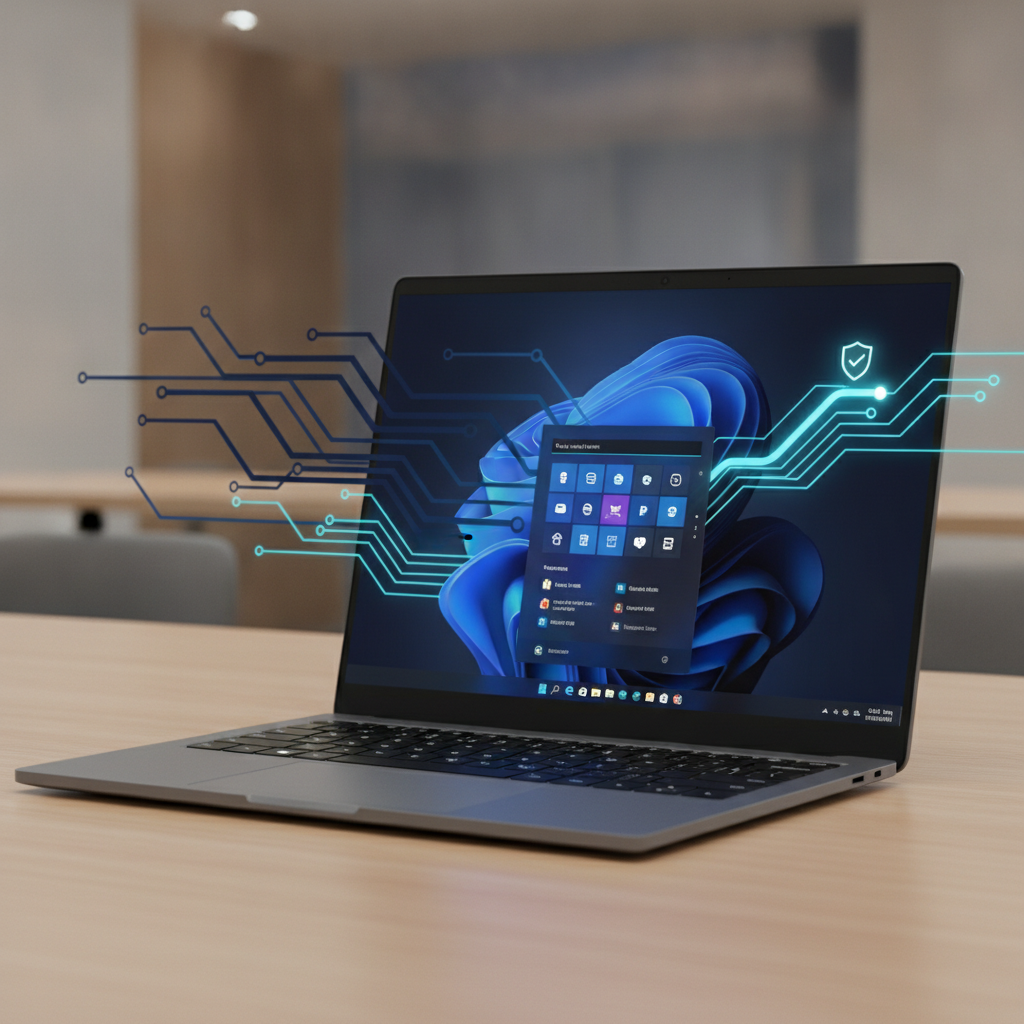
Have you ever been working smoothly, only for the Start button or Taskbar icons in Windows 11 to suddenly become unclickable? This problem can be frustrating and disrupt your workflow. This article from SyncTech Solution will guide you through the causes and provide safe, step-by-step basic solutions to get your computer working normally again.
### Understand Before You Fix: Why Does the Taskbar Freeze?
The Taskbar, Start Menu, and the entire Windows desktop are controlled by a core process called "Windows Explorer" (or explorer.exe). Its unresponsiveness often stems from a few causes, such as a temporary error within the process itself, corrupted system files, or issues arising from incomplete software or driver updates. Most solutions therefore focus on restarting the relevant processes and checking the integrity of system files.
### Before You Start: Get Prepared
Before attempting any fixes, to ensure data safety and a smooth process, please prepare as follows:
1. **Save Open Work:** Even if the Taskbar is frozen, you can usually still switch between open application windows by pressing `Alt` + `Tab`. Try to save all your pending work.
2. **Prepare to Restart Your Computer:** Some steps may require a computer restart for the fix to be complete.
3. **Observe Symptoms:** Did this issue occur after any specific action, such as installing new software or a recent Windows update? This information might be helpful if you need expert assistance later.
### Safe Solutions: 5 Steps to Restore Your Taskbar
Please try these steps in order, from easiest to most complex.
**1. Restart Windows Explorer (The Quickest Method)**
This is a frequently effective temporary fix that doesn't require restarting your entire computer.
* **WHAT:** Instructs the process controlling the Taskbar and Start Menu to restart completely.
* **WHERE/HOW:**
1. Press `Ctrl` + `Shift` + `Esc` simultaneously to open Task Manager.
2. In the Task Manager window, look for the "Processes" tab.
3. Scroll to find "Windows Explorer" (it may have a yellow folder icon).
4. Right-click "Windows Explorer" and select "Restart".
* **WHY:** Restarting clears temporary errors occurring within the Windows Explorer process, allowing it to function normally again.
* **EXPECTED RESULT:** The screen may flicker black briefly, then the Taskbar, desktop icons, and Start Menu will disappear and reappear. They should now be clickable and functional.
**2. Check for and Install Windows Updates**
Sometimes, the issue stems from an operating system bug for which Microsoft may have released a fix in a recent update.
* **WHAT:** Search for and install the latest Windows 11 updates.
* **WHERE/HOW:**
1. Press `Windows` + `I` to open Settings.
2. Navigate to the "Windows Update" menu on the left side.
3. Click the "Check for updates" button.
* **WHY:** Updating the operating system to the latest version helps resolve discovered bugs, including security and performance issues.
* **EXPECTED RESULT:** If updates are available, the system will download and install them automatically. This may take some time and require a computer restart. Once completed, test if the Taskbar is functioning normally again.
**3. Scan and Repair System Files (SFC Scan)**
If system files related to the User Interface are corrupted, this could be the cause of the problem.
* **WHAT:** Use the System File Checker (SFC) tool to check for and repair corrupted system files.
* **WHERE/HOW:**
1. Press `Ctrl` + `Shift` + `Esc` again to open Task Manager.
2. Go to the "File" menu and select "Run new task".
3. In the opened box, type `cmd`.
4. **VERY IMPORTANT:** Check the box "Create this task with administrative privileges."
5. Click OK. A Command Prompt window (black screen) will appear.
6. In that window, type the command `sfc /scannow` and press `Enter`.
* **WHY:** This command instructs Windows to verify all critical system files. If any files are found to be corrupted or modified, the system will attempt to replace them with correct original versions.
* **EXPECTED RESULT:** The system will take some time to scan (5-15 minutes). Once complete, it will display a summary message, which might be "Windows Resource Protection did not find any integrity violations." (no issues found) or "...found corrupt files and successfully repaired them." (found and repaired files). Afterward, restart your computer once.
**4. Update Graphics Card Drivers**
Outdated or problematic graphics card drivers can also affect the display of the entire Windows UI.
* **WHAT:** Check for and install the latest version of your graphics card driver.
* **WHERE/HOW:**
1. First, identify your graphics card brand (NVIDIA, AMD, or Intel).
2. Visit the graphics card manufacturer's official website (e.g., nvidia.com, amd.com) to download the latest driver version compatible with your specific graphics card model and Windows 11.
3. Install the downloaded driver and restart your computer.
*Recommendation: Avoid using third-party driver updater programs, as they might install incompatible versions or bundled unwanted software.*
* **WHY:** Newer driver versions often include performance improvements and bug fixes related to display stability.
* **EXPECTED RESULT:** After restarting your computer, the overall display may become smoother, and the Taskbar freezing issue might be resolved.
### Verify the Results
After following these steps, please check the functionality of the Taskbar and Start Menu as follows:
* **Left-Click:** Try left-clicking the Start button, search icon, and various application icons on the Taskbar to see if menus or programs open instantly.
* **Right-Click:** Try right-clicking on an empty space on the Taskbar or on application icons to see if the Context Menu appears correctly.
* **Responsiveness:** Experiment with opening and closing multiple programs. Observe if the overall operation is smooth, without lag or freezing.
### If the Problem Persists
If you've tried all methods and the problem still persists, it might indicate a more complex issue, such as a corrupted User Profile or deeper system file problems.
* **Create a New User Account:** Try creating a New User Account in Windows and logging in. If the problem doesn't occur in the new account, your original profile might be corrupted. Migrating your data to a new account might be the best solution.
* **System Restore:** If you have System Restore enabled, try reverting your system to a point in time before this issue began.
* **Contact IT Support or a Specialist:** If this is a company computer, you should inform your IT department for further in-depth investigation. If it's a personal computer, consulting a qualified technician is a safe option.
Although a frozen Taskbar or Start Menu in Windows 11 can be annoying, it can often be resolved with basic steps like restarting Windows Explorer, updating the system, and repairing system files. Keeping your computer updated is the best preventative measure to reduce the chances of these issues occurring in the future.