
Technology newsroom
Windows 10 Nearing End of Support: Upgrade to Windows 11 or Continue Use? A Complete Decision Guide
A guide for Windows 10 users to prepare for the end of support, helping them decide whether to upgrade to Windows 11 or purchase a new device, complete with spec checks and secure upgrade steps for general users and SMEs.
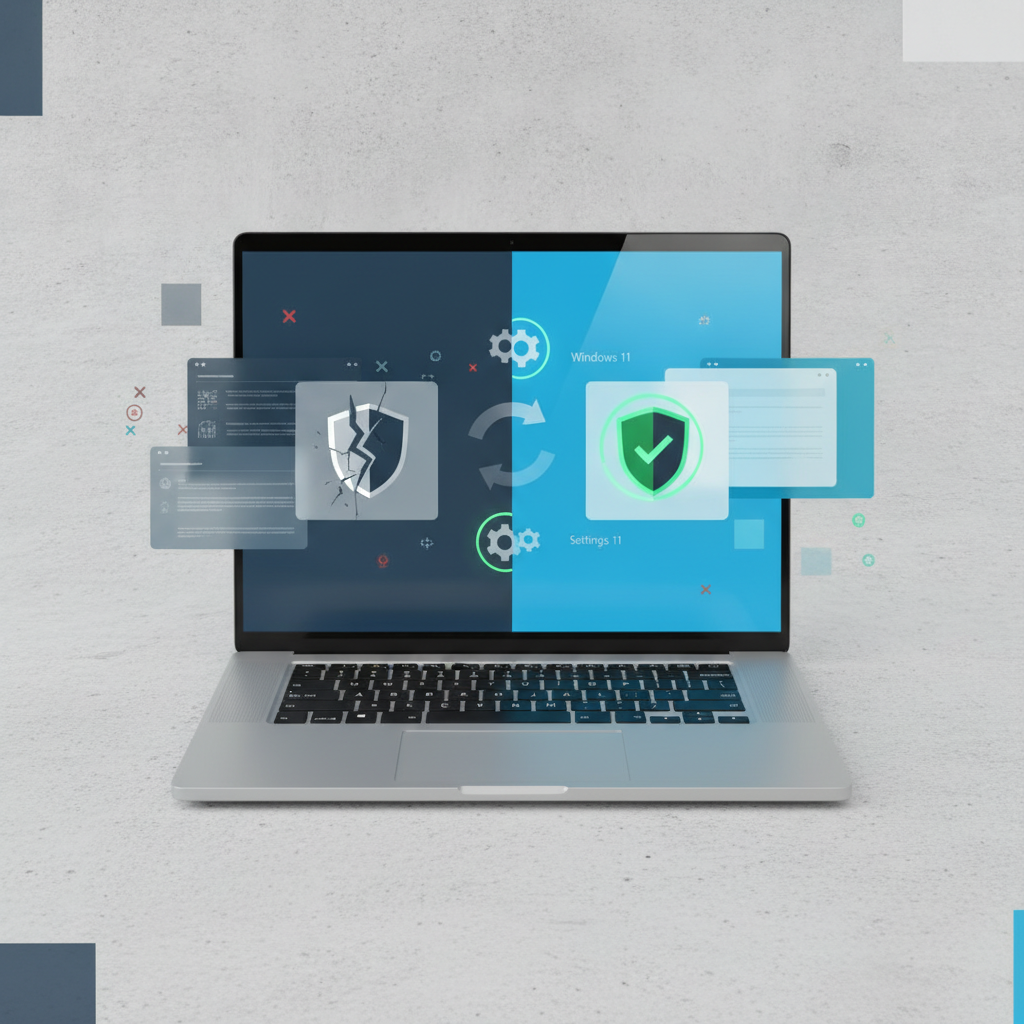
Many Windows 10 users in offices and among SMEs may have started hearing news about the approaching End of Support for Windows 10 in October 2025. This article from SyncTech Solution will help you understand what this event means and how to decide on the most suitable and secure path for your business, whether it's upgrading, continuing to use, or replacing your device.
Understanding Before Acting: What is “End of Support” and Why is it Important?
When Microsoft announces “End of Support” or “End of Life (EOL)” for Windows 10, it means that from October 14, 2025, onwards, computers still running Windows 10 will no longer receive security updates, bug fixes, or new features.
What are the main risks?
- Security: Your computer will become an easier target for viruses, malware, and ransomware because newly discovered vulnerabilities will not be patched.
- Compatibility: New programs and devices may no longer support Windows 10, preventing you from using the latest software versions.
- Reliability: For businesses, using an outdated operating system can affect trustworthiness in the eyes of customers and partners, and may fail to meet certain security compliance standards.
What are the benefits of Windows 11?
Windows 11 is designed with a more modern interface, stronger security from the hardware level (e.g., enforcing TPM 2.0), and features that improve multitasking, such as Snap Layouts. However, upgrading has stricter hardware requirements than Windows 10.
Before You Start: Get Ready Before Deciding
Before taking any action, good preparation will help reduce risks and ensure a smooth process.
1. Back up important data: This is the most crucial step. Regardless of your chosen path, always back up all your work files, documents, photos, and other important data to an external hard drive or cloud service (OneDrive, Google Drive).
2. Gather a list of programs and License Keys: Note down all programs essential for your work. Prepare their installation files and License Keys or login information, as some programs may need to be reinstalled after the upgrade.
3. Allow sufficient time: The checking and upgrading process can take several hours. Choose a time when you do not need to use your computer urgently.
How to Do It Safely: 5 Steps to Decision and Upgrade
Follow these steps to evaluate and proceed with confidence.
Step 1: Check your computer's compatibility
- WHAT: Use Microsoft's official tool to check if your computer's hardware supports Windows 11.
- WHERE/HOW: Download and install the “PC Health Check” program from the official Microsoft website. Once installed, open the program and click the “Check now” button in the Windows 11 section.
- WHY: To get a definite and clear result on whether your computer can be upgraded, preventing failed installations or poor performance after upgrading. Common reasons are unsupported CPU, lack of a TPM 2.0 chip, or Secure Boot not being enabled.
- EXPECTED RESULT: The program will display “This PC meets Windows 11 requirements” or list incompatible components.
Step 2: Evaluate options based on the check result
- WHAT: Decide on the most suitable approach based on the PC Health Check results.
- WHERE/HOW:
- If compatible: You can plan to upgrade to Windows 11 for free via Windows Update.
- If not compatible: You have 2 main options: 1) Plan to purchase a new computer that comes with Windows 11 Pro for long-term security and performance, or 2) Temporarily continue using Windows 10, but accept the increased security risks after October 2025.
- WHY: To choose an approach that aligns with your business's security, budget, and needs. Forcing the use of an old system may save money in the short term but carries high risks in the long term.
- EXPECTED RESULT: You will have a clear plan to “upgrade the existing device”, “buy a new device”, or “accept risks and continue using the existing device temporarily”.
Step 3: Start the upgrade using the safest method (for compatible devices)
- WHAT: Perform the upgrade through the Windows Update channel on your system.
- WHERE/HOW: Go to Settings > Update & Security > Windows Update (in Windows 10). If your computer is ready for the upgrade, the system will display a banner recommending to “Upgrade to Windows 11”. Click “Download and install”.
- WHY: This is the easiest and safest method because Microsoft automatically handles most steps and attempts to preserve most of your files, programs, and settings.
- EXPECTED RESULT: The computer will download installation files, restart multiple times, and eventually boot into the Windows 11 interface. This process may take 1-2 hours or more, depending on your machine's speed and internet connection.
Step 4: Choose the right Edition for your business: Home vs Pro
- WHAT: Review and understand the differences between Windows 11 Home and Pro.
- WHERE/HOW: Typically, an upgrade will retain your current edition (e.g., Windows 10 Pro will become Windows 11 Pro). However, if you are purchasing a new device, you should always choose the Pro edition for organizational use.
- WHY: The Pro edition includes features essential for businesses that are not available in the Home edition, such as:
- BitLocker Drive Encryption: Encrypts data on the hard drive, preventing data leakage if the computer is lost or stolen.
- Remote Desktop: Allows you or your IT department to remotely control the machine.
- Group Policy Management: A tool for IT departments to centrally configure security and usage policies.
- EXPECTED RESULT: You are using Windows 11 in the appropriate edition for your organization's needs. You can check the edition at Settings > System > About.
Verify Results: Check Everything After Upgrading
After the upgrade is complete, check these items to ensure everything is working normally:
1. Activation: Go to Settings > System > Activation to check that your Windows status is “Active”.
2. Files and Data: Verify that important files in your Documents, Desktop, and Pictures folders are intact.
3. Key Programs: Try opening the programs you use regularly, such as Microsoft Office, accounting software, or other specialized programs, to ensure they function correctly.
If Issues Persist: Initial Solutions and When to Call an Expert
- Revert to Windows 10: If you encounter severe problems after upgrading, Windows 11 offers an option to revert to Windows 10 within the first 10 days. Go to Settings > System > Recovery and select “Go back” (menu name may vary slightly across versions).
- Programs not working: If some programs malfunction, try visiting the program developer's website to download the latest version that supports Windows 11.
- When to contact IT: If the upgrade fails, essential devices (such as printers) stop working, or your computer significantly slows down, you should stop troubleshooting yourself and consult your IT department or a SyncTech Solution expert for proper diagnosis and resolution.
In summary, preparing for the transition from Windows 10 is an investment in future security and performance. Thorough hardware readiness checks and data backups are key to ensuring a smooth and secure transition for your business.