
Can't Sign In to Google? Official Steps for Personal Account Recovery
Technology news
A structured guide based on Help Desk Geek's reporting on recovering a personal Google account across forgotten passwords, lost 2SV devices, hijacking, and disabled statuses.
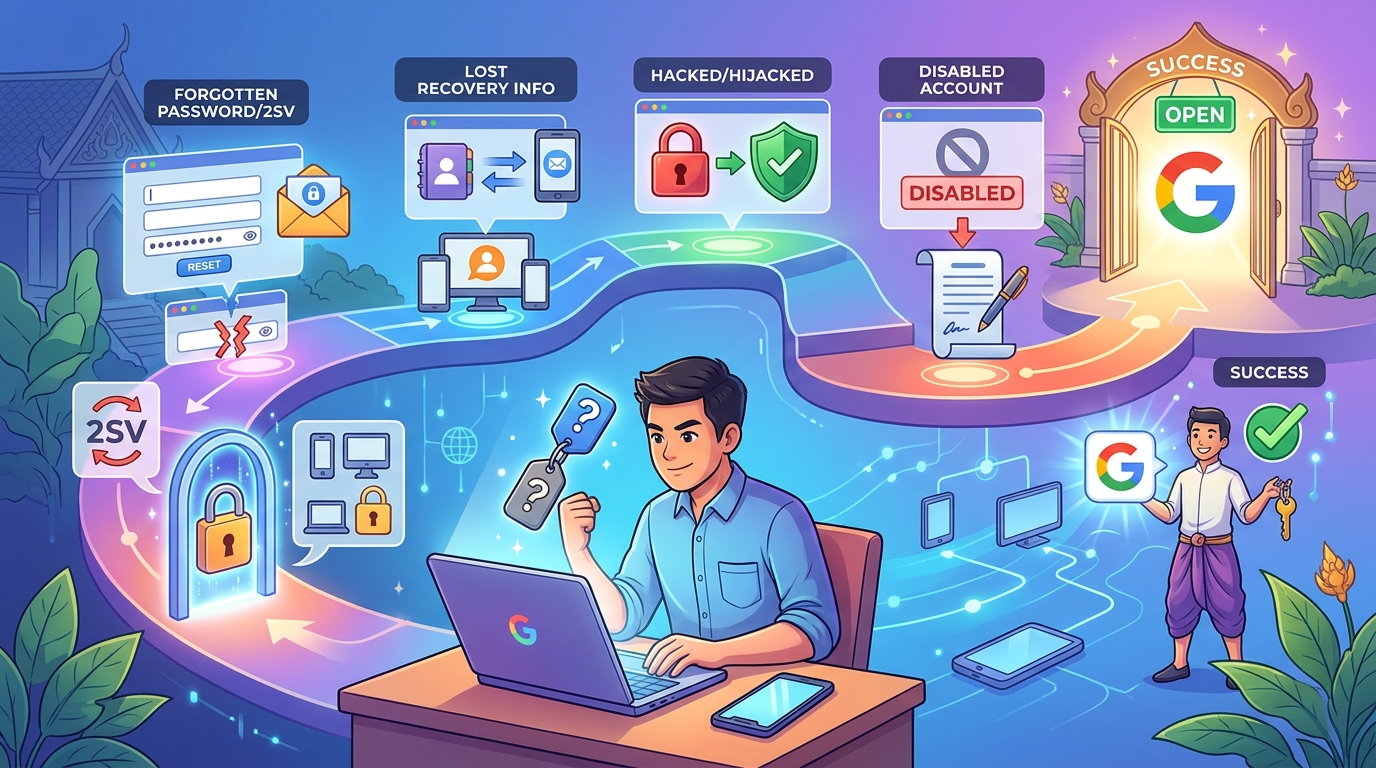
Primary Resolution for Google Account Sign-In Failures
When attempting to log in, encountering messages like “Google couldn’t verify this account belongs to you” or repeated sign-in rejections generally stems from one of four situations: forgotten passwords, unavailable second-step credentials (phones, security keys, or codes), account takeover, or account disabling. According to Help Desk Geek, the official recovery process must be handled exclusively through Google's dedicated web interfaces, specifically accounts.google.com or accounts.google.com/signin/recovery. Google provides no consumer phone or chat assistance and offers no paid account recovery services.
Step-by-Step Recovery Procedures by Lockout Cause
Recovery workflows differ depending on why access was lost, following the steps outlined by Help Desk Geek:
- Forgotten Passwords or Usernames: Access
accounts.google.comvia a standard browser on your usual PC. Enter your identifier and select "Forgot password?" Answer the provided questions, providing the most recent password remembered. If resetting is allowed, assign a strong, unique password. If the email address itself is forgotten, click "Forgot email?" on the initial screen and supply the registered recovery phone or recovery email to locate matching accounts. - Inaccessible Recovery Phone or Email: If Google directs a verification code to a deactivated number or closed inbox, select "Try another way" on the verification screen to cycle through alternative verification paths configured on the account.
- Lost 2-Step Verification (2SV) Devices: When prompted for 2SV without access to the primary device, click "Try another way." Use a previously established fallback: a prompt sent to another active device, SMS/call to an alternate registered number, an 8-digit single-use backup code, or an existing passkey on another machine. If no fallback exists, the standard recovery flow must be used; Google indicates that identity checks in this specific 2SV circumstance can take 3 to 5 business days.
- Unrecognized Environment ("Couldn’t verify") Warnings: Return to a device and web browser previously used to access the account. Connect via the regular home or work network, disabling any active VPN. Rerun recovery at
accounts.google.com/signin/recoveryand answer all prompt fields without skipping, providing best estimates where exact details are uncertain. - Compromised Accounts with Altered Settings: Initiate recovery immediately from a known device. Once access is restored and the password reset, navigate to Google Account > Security. Check recent security events, then visit
myaccount.google.com/recovery/phoneandmyaccount.google.com/recovery/emailto remove unauthorized information. Note that Google states recovery info changes can take up to 7 days to take full effect. - Disabled Accounts: A disabled notice signifies enforcement due to policy violations or suspicious activity, which cannot be fixed via password resets. Users must submit an appeal directly through the review option embedded within the disabled notice, preferably from their standard device and network.
Practical Applicability and Context
These procedures apply solely to standard personal Google Accounts encompassing services such as Gmail, Photos, and Play. Managed accounts belonging to educational institutions or business enterprises are governed by organization-specific administration, requiring affected users to seek support from their internal administrators instead. Users should also note that some security settings may face temporary restrictions immediately following account recovery, and assigning a trusted recovery contact requires 7 days to activate after acceptance.
Limitations and Cautions
Help Desk Geek highlights that while Google imposes no cap on recovery attempts and incorrect answers do not immediately disqualify a user, certain verification channels (such as code delivery) can be temporarily throttled after repeated failed entries. Crucially, recovery is not guaranteed, particularly for accounts lacking sufficient pre-configured recovery information. Users must remain vigilant against fraud; Google does not initiate calls, text messages, or emails asking for passwords or verification codes, and any entity requesting payment for account restoration is fraudulent.
Source: helpdeskgeek.com (https://helpdeskgeek.com/google-account-recovery-cant-sign-in/)