
How to Split 2.4GHz and 5GHz Wi-Fi Bands to Stop Connection Drops
Technology news
MakeUseOf reports that disabling Band Steering or Smart Connect to split 2.4GHz and 5GHz bands into separate SSIDs resolved dropped connections on smart plugs and PC stutter.
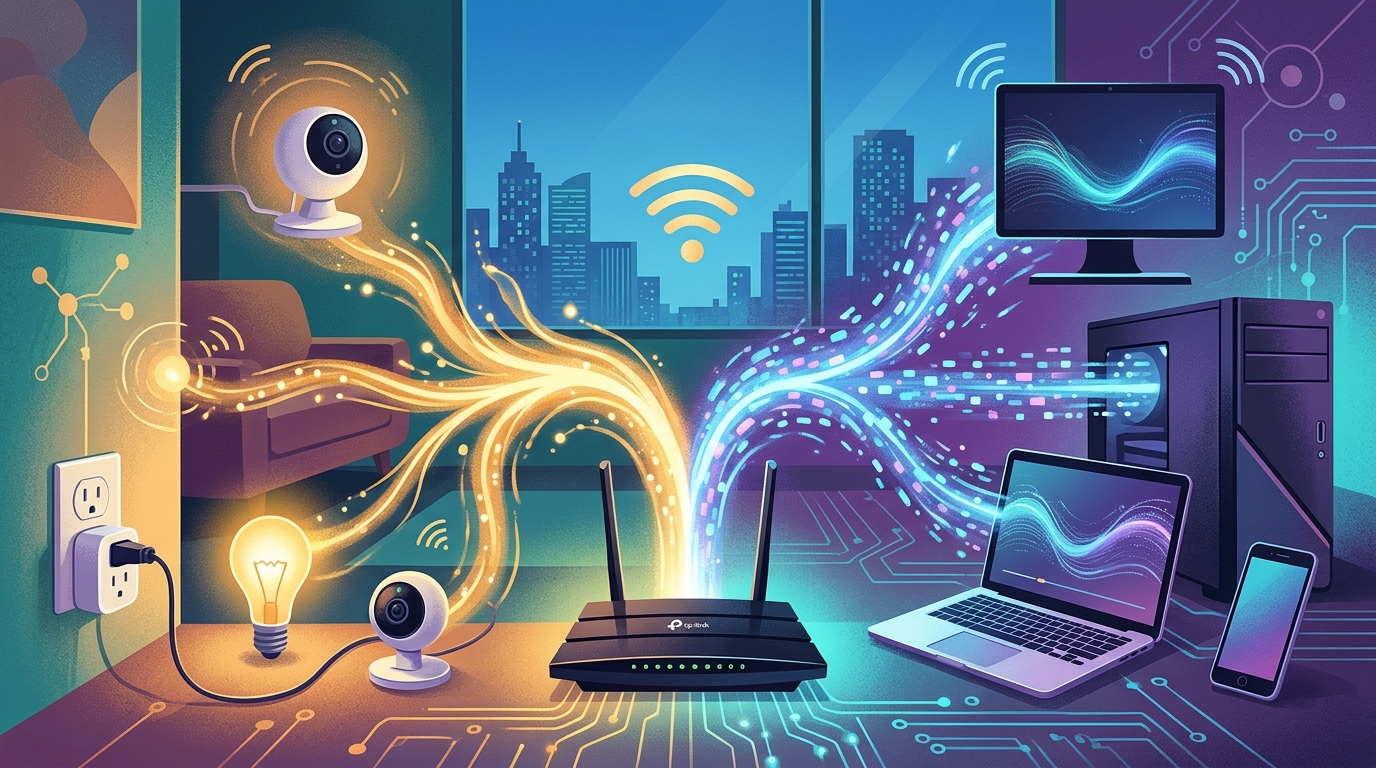
Splitting 2.4GHz and 5GHz Bands to Fix Wi-Fi Connection Drops
According to a report by Pankil Shah on MakeUseOf, recurring Wi-Fi drops on smart plugs and connection stuttering during PC video calls were traced back to a single shared SSID for both 2.4GHz and 5GHz bands. ISP-supplied routers frequently combine both frequencies under one name using band steering to automatically switch devices based on signal strength and congestion. However, because older hardware and IoT devices often cannot handle band switching cleanly or connect to 5GHz at all, and PCs can get relegated to the slower 2.4GHz band despite congestion, separating the bands resolved these drops.
Step-by-Step Guide to Disabling Band Steering and Splitting SSIDs
To separate the bands on a supported router, follow these steps via a standard web browser:
- Open a web browser and navigate to the router's admin panel by typing its IP address, typically
192.168.1.1or192.168.0.1. - Navigate to the Wireless or WLAN settings section.
- Locate the setting labeled Smart Connect or Band Steering and turn it off.
- Create two distinct SSIDs—one for the 2.4GHz band and one for the 5GHz band. Configure a password for each band (the same password may be used for both to simplify connecting devices).
- Save the changes to finalize the split configuration.
Practical Device Allocation Across Separate Frequency Bands
Once the two SSIDs are broadcast, MakeUseOf recommends assigning devices based on their bandwidth requirements and hardware capabilities:
- 5GHz Band: Connect high-priority or high-bandwidth devices, such as PCs, smartphones, smart TVs, and gaming consoles, ensuring they stay on the faster band rather than dropping to 2.4GHz.
- 2.4GHz Band: Connect smart plugs, smart speakers, security cameras, and other IoT equipment. These devices often require 2.4GHz and benefit from its broader physical range and signal penetration without interfering with primary computing hardware.
Router Limitations and Implementation Caveats
MakeUseOf highlights that not all wireless routers provide the option to split frequency bands; for example, the Google Nest Wi-Fi Pro does not permit splitting 2.4GHz and 5GHz bands, whereas the author's TP-Link router did. Exact menu labels and steps also vary by manufacturer. Finally, the author cautions that separating bands is only warranted if you are actively experiencing disconnects or roaming issues; if current device connections are stable, changing router configurations is unnecessary.
Source: makeuseof.com (https://www.makeuseof.com/splitting-wifi-bands-fixed-connection-drops/)