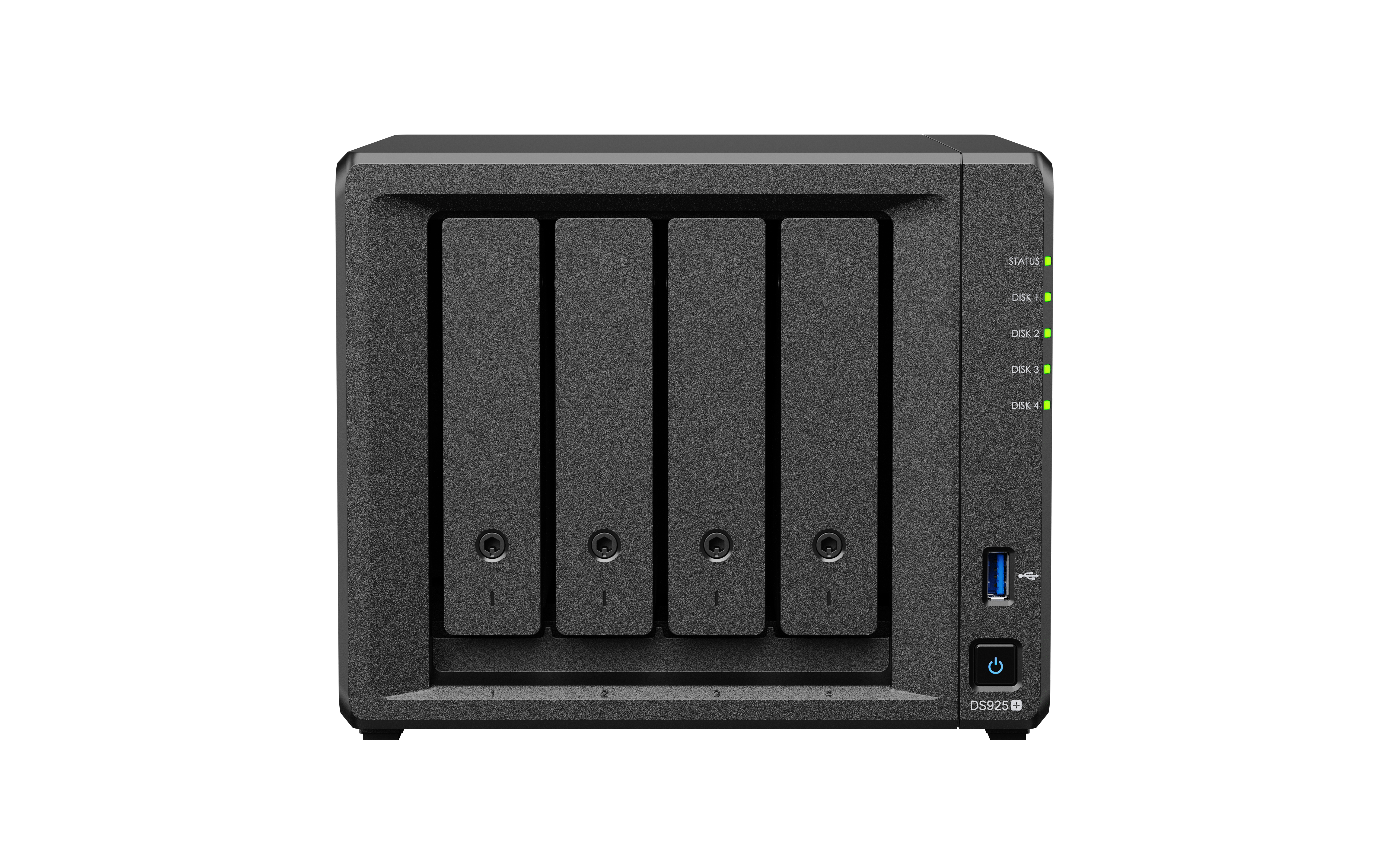
In the digital age where data and files are no longer stored on just a single computer, whether it is photos, videos, work documents, accounting files, customer information, or backup files from multiple devices, having a centralized storage space that is easily accessible and secure has become essential for homes, home offices, and organizations.
One of the popular solutions is NAS (Network Attached Storage) or network storage devices. One of the popular and user-friendly brands is Synology, which comes with the DSM (DiskStation Manager) operating system that allows users to conveniently store, share, back up, and manage data through a web browser.
This article will introduce you to what Synology NAS is, how it works, its advantages, and what kind of usage it is suitable for.
What is NAS (Network Attached Storage)?
NAS stands for Network Attached Storage, which refers to a data storage device connected to a network, allowing multiple users to access shared files from various devices such as computers, laptops, smartphones, tablets, or other devices within the same network.
To put it simply, NAS is a "central storage space" that does not require connecting a hard drive directly to a computer, but you can access files through a network system, whether at home, in the office, or accessed externally through a securely configured system.
Why choose Synology NAS?
1. Easy to use with the DSM system
The highlight of Synology is its operating system DSM (DiskStation Manager), which has an easy-to-use interface through a web browser. Users can create folders, share files, set up user accounts, install applications, and monitor system status without needing to be IT experts.
2. Full Features for File Work and Backup
Synology NAS has packages available for installation through the Package Center, such as Synology Drive, Synology Photos, Hyper Backup, Snapshot Replication, Active Backup, and Surveillance Station. This makes the NAS not just a file storage space, but also allows it to be extended into a Private Cloud system, Backup Server, Photo Management, File Server, and surveillance system.
3. Supports Multi-User Usage
Administrators can create user accounts, group them, and assign file access permissions. For example, some people can only read, some can edit files, or certain folders are only allowed for the relevant department.
4. Can adjust and expand according to usage
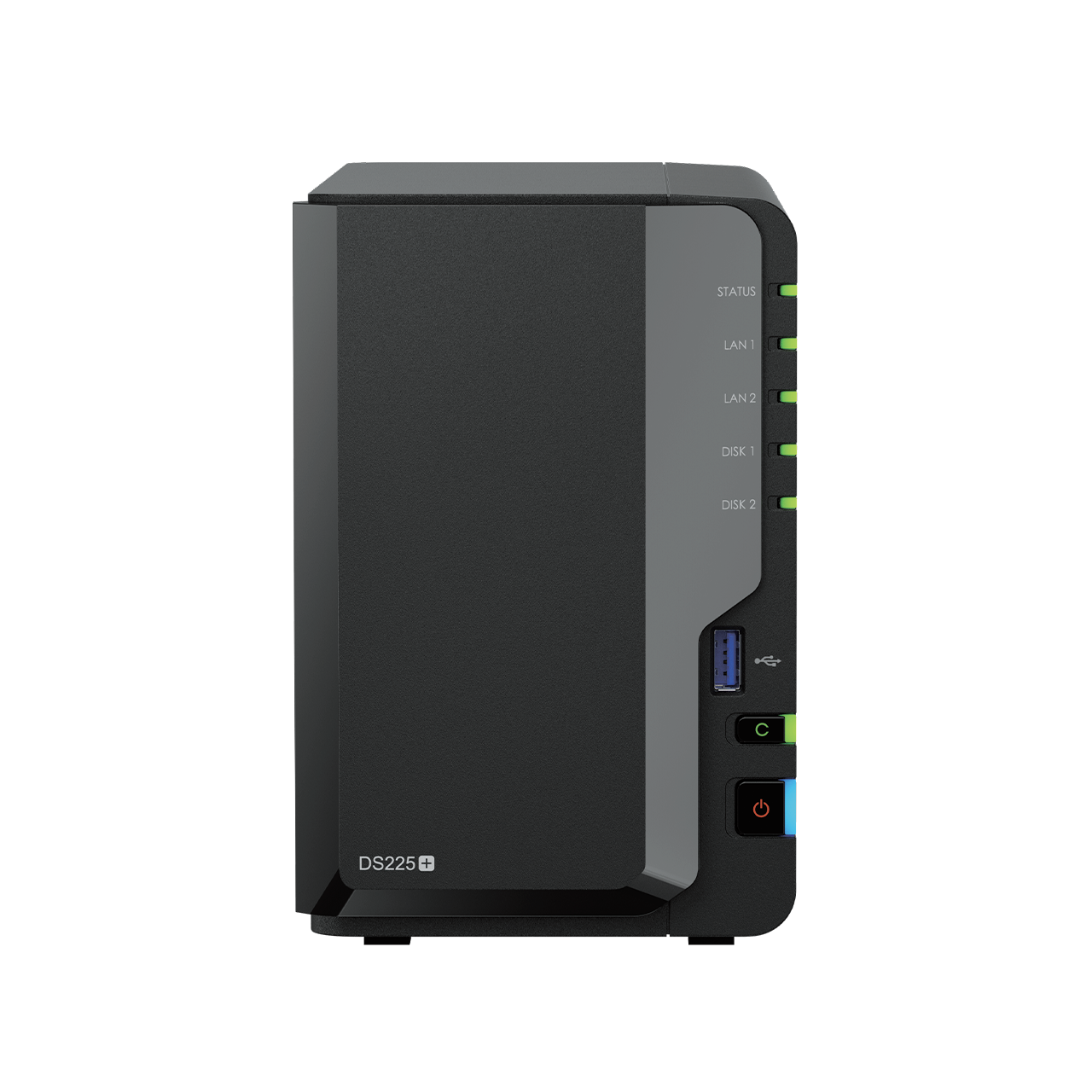
Synology NAS comes in various models, ranging from 1-bay, 2-bay, and 4-bay models to business-level models that support multiple drives. Some models allow RAM upgrades, adding M.2 NVMe SSD cache, or connecting an expansion unit to increase storage capacity in the future.
5. Security and Continuous Updates
Synology regularly updates DSM and Packages to add features and close security vulnerabilities. It also has protective tools such as Firewall, Auto Block, Account Protection, 2-Factor Authentication, and Security Advisor.
How Synology NAS Works
1. Connect the NAS to the network
Generally, Synology NAS connects to a Router or Switch via a LAN cable. Once connected, the NAS receives an IP Address within the network, allowing other devices to access files and various services on the NAS.
For offices or organizations, NAS should be connected via LAN cable instead of Wi-Fi to achieve better speed and stability, especially for large file sharing or backing up a large amount of data.
2. Store Data on Storage Pool and Volume
After installing a hard disk or SSD, users must create a Storage Pool and a Volume to store data. Then, they create a Shared Folder to allocate usage space, such as Documents, Backup, Photos, or Department Folder.
3. Use RAID or SHR to increase system resilience
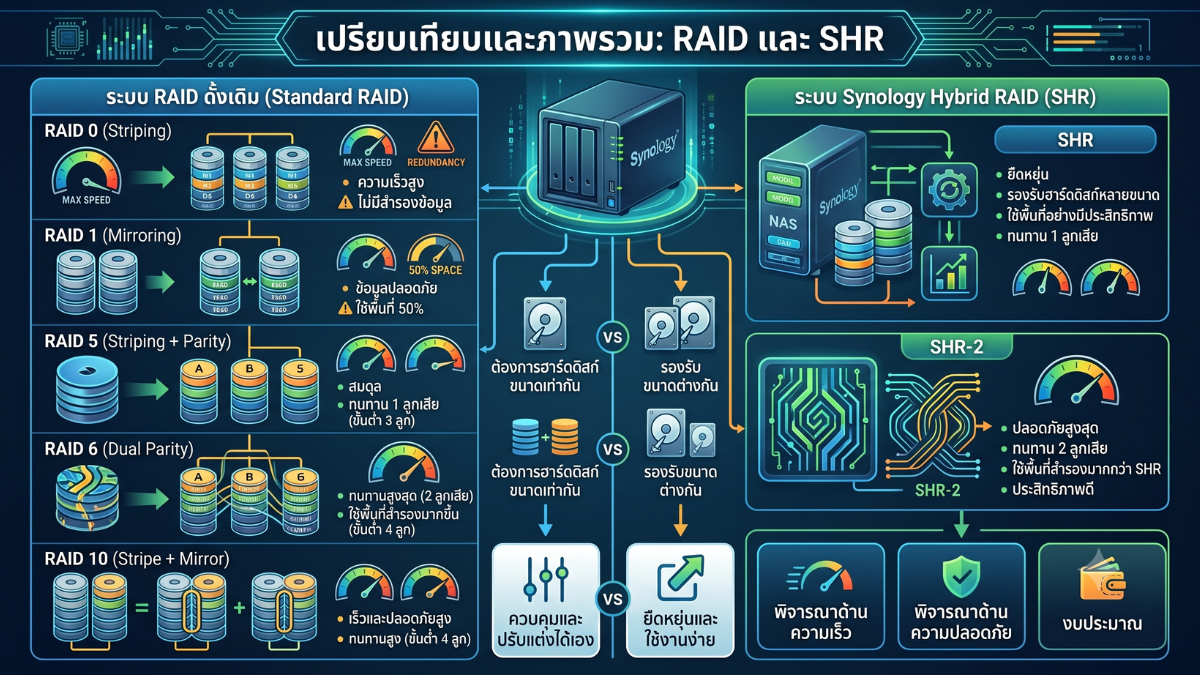
Synology NAS supports RAID and SHR (Synology Hybrid RAID) to help the system continue operating when some drives fail, especially NAS with multiple bays such as 2 Bay, 4 Bay, or more.
Note: RAID or SHR is not a backup, but a system that only increases durability when a drive fails. If files are accidentally deleted, encrypted by ransomware, or the entire NAS is damaged, data may still be lost. Therefore, a separate backup system should always be in place.
4. Share Files and Set Access Permissions
Users can create a Shared Folder and assign permissions to each account or each group, such as administrators, accounting department, sales department, or regular users. This helps information to be organized and secure.
5. Access from outside safely
Synology NAS can be accessed from outside through various methods, such as QuickConnect, DDNS, or VPN. Security settings should be properly configured, such as enabling HTTPS, using a strong password, enabling 2FA, and avoiding opening unnecessary ports to the Internet.
Key Features of Synology NAS
1. File Sharing & Collaboration
Synology NAS can function as a central File Server for homes or organizations. Users can access the same files from multiple devices, share files with the team, or send links to external individuals according to the specified permissions.
If you use Synology Drive, you can sync files between your computer and NAS similar to Cloud Storage services, but the data is stored on our own device.
2. Synology Photos for Storing Photos
Synology Photos helps store, back up, and manage photos from smartphones or computers. You can create albums, search for photos, and share photos with others. It is suitable for general users, families, and businesses that need to store project images or product photos.
3. Backup Solution
Synology NAS has various backup tools, such as
- Hyper Backup: Back up data from NAS to an External Drive, another NAS, or the Cloud
- Active Backup for Business: Back up PC, Server, or Virtual Machine data for organizations
- Active Backup for Microsoft 365 / Google Workspace: Back up data from organizational Cloud services
- Synology Drive Client: Back up or sync files from a computer to NAS
4. Snapshot Replication
For models that support the Btrfs file system, you can use Snapshot Replication to create snapshots of Shared Folders and quickly recover files. It is suitable for preventing errors from file deletion, incorrect file modifications, or helping to reduce the impact of Ransomware.
5. Surveillance Station
Synology NAS can work with CCTV cameras through Surveillance Station to record footage, view playback, and manage IP cameras. It is suitable for homes, shops, offices, and warehouses.
6. Container Manager and Virtual Machine Manager
Some Synology NAS models support Container Manager for running containers, and some models support Virtual Machine Manager for creating virtual machines, suitable for advanced users, developers, or organizations that need to run additional internal services.
Who is Synology NAS suitable for?
| User Group | Appropriate Usage |
|---|---|
| General home user | Store photos, videos, personal documents, and back up data from mobile phones or computers |
| Family | Share photos, videos, and files within the household while managing user permissions |
| Home Office | Share work files, back up computer data, and access files from outside |
| Small business | Set up File Server, Backup Server, Synology Drive, file sharing system, and CCTV system |
| Organization | Backup Server, PC, VM, Microsoft 365, Google Workspace, and manage user permissions |
| Creator / Content Production Team | Store image files, video files, large work files, and share files with the team |
Getting Started with Synology NAS Made Easy
- Choose a NAS model suitable for your usage
For example, 2-Bay for beginners, 4-Bay for those who need more space, or Plus/Business models for enterprise work - Choose a supported HDD or SSD
You should check Synology's Compatibility List before purchasing a drive, and you should use a drive that is suitable for NAS operation. - Install drives in NAS
Insert the HDD or SSD into the drive tray according to the user manual of your model - Connect the NAS to the network
Plug the LAN cable from the NAS into the Router or Switch, then turn it on - Install DSM
Use a computer on the same network, open a web browser, and go to https://finds.synology.com/ to find the NAS and start installing DSM - Create a Storage Pool and Volume
Choose RAID or SHR suitable for the number of drives and your data security requirements - Create Shared Folder and Users
Create a folder for storing data and assign user permissions as appropriate - Install necessary packages
such as Synology Drive, Synology Photos, Hyper Backup, Snapshot Replication, or Surveillance Station - Set Security
Enable 2FA, Firewall, Auto Block, HTTPS, and update DSM/Package to the latest version - Plan Backup
Backup data to an External Drive, another NAS, or Cloud to prevent data loss
Precautions for Using NAS
- RAID or SHR is not a backup; data should always be backed up separately
- You should use strong passwords and enable 2FA for admin accounts
- DSM and Packages should be updated regularly
- Ports should not be opened to the internet if not necessary
- If access from outside is needed, QuickConnect or VPN should be used appropriately
- UPS should be used to reduce the risk from power outages or surges
- HDD/SSD status should be checked and alert notifications set for any abnormalities
- Compatibility List should be checked before purchasing HDD, SSD, RAM, or M.2 NVMe
Summary
Synology NAS is a network storage solution that makes storing files, sharing files, backing up data, and accessing information from multiple devices easier. It is suitable for general users, families, home offices, and organizations that need a centralized data management system.
The highlight of Synology NAS is the DSM system, which is easy to use and feature-complete. It supports file sharing through Synology Drive, Synology Photos, Hyper Backup, Snapshot Replication, Surveillance Station, and other packages that make the NAS more than just a typical storage device.
If you are looking for a device to solve scattered data problems, want to share files securely, or want to have a backup system that you can control yourself, Synology NAS is an interesting option and can be extended for long-term use.
Need expert advice or would like to request a quotation? Contact us today:
E-mail: [email protected]
LINE Official: @sync.co.th

The Company reserves the right to correct any typographical or printing errors and shall not be held liable for any inaccuracies resulting from such errors.
*** This article is the intellectual property of SyncTech Solution Company Limited. Reproduction, modification, or redistribution of this content, in whole or in part, is strictly prohibited without prior written permission from the Company. ***