
Technology newsroom
Turn Your Synology NAS into an Ultimate Media Server with Silo Server, Easy Docker Installation 🎬
Introducing Silo Server, a new media server for Synology NAS packed with features like Hardware Transcoding and Parental Controls, along with a detailed installation guide via Docker and Portainer.
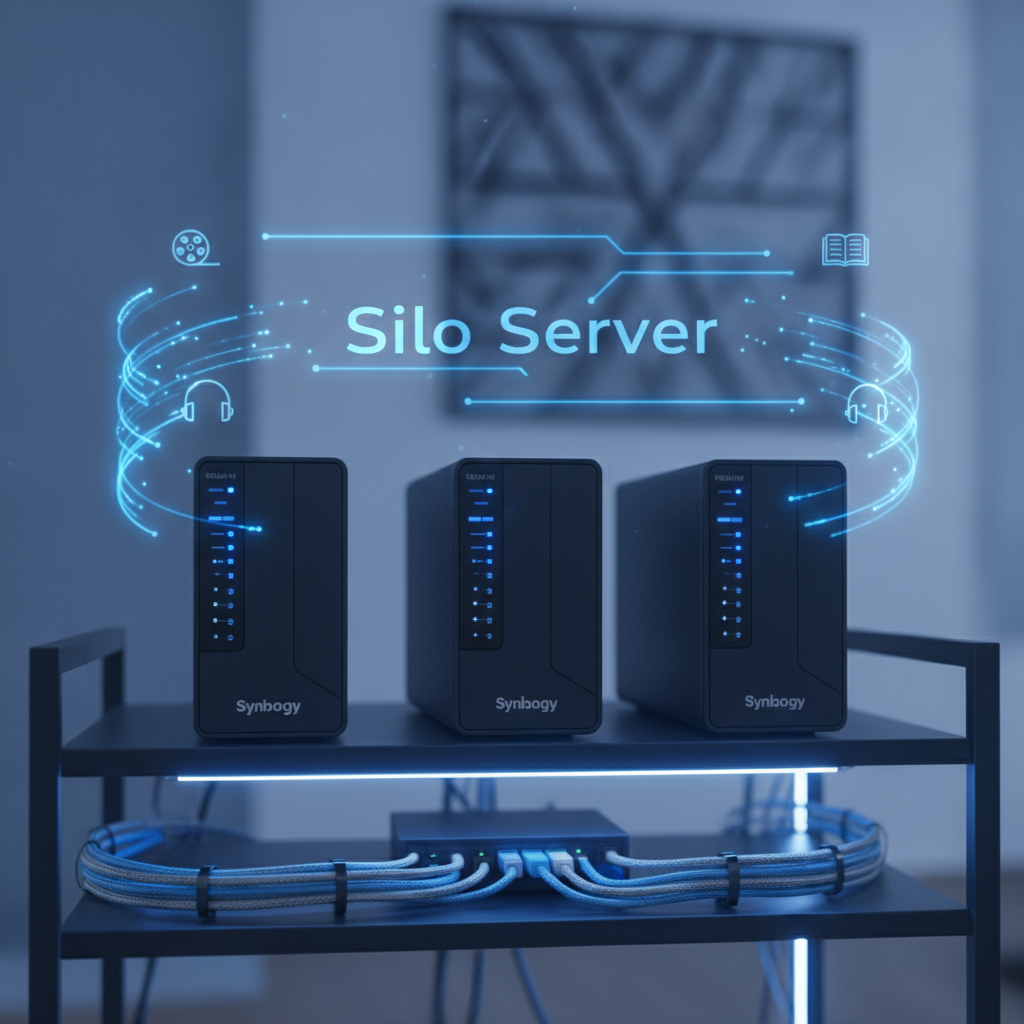
📌 Key Highlights:
- Silo Server is a self-hosted media server for streaming movies, music, series, and books.
- Easily installable on Synology NAS via Docker and Portainer using Docker Compose.
- Comes with prominent features like Hardware Transcoding, Parental Controls, and Jellyfin/Emby API support.
For Synology NAS users looking for a new Media Server beyond Plex or Jellyfin, today we introduce another interesting option: Silo Server. It's a self-hosted Media Streaming Server software that supports various media file types, including movies, TV shows, music, and even books.
Silo Server is designed for easy installation and management, requiring just a single Docker Compose command for deployment via Portainer on your Synology NAS. Its key strengths include comprehensive streaming capabilities, supporting Direct Play, Remuxing, and most importantly, Hardware-accelerated Transcoding. This ensures smooth video conversion for playback on various devices without consuming excessive NAS processing power.
✨ Features and Capabilities
Silo Server comes with a complete built-in Web Client and Admin Interface. Users can create multiple profiles for family members and set up Parental Controls to manage content appropriateness for children. Furthermore, it utilizes a Plugin-based Metadata Provider system, offering flexibility in fetching cover art and media details. Notably, it features an API compatible with Jellyfin and Emby, allowing existing client apps to connect instantly.
🚀 Basic Installation Steps
Following the guide from mariushosting, the installation begins with preparation on your Synology NAS by first installing Portainer. Next, create the necessary folders within the 'docker' folder to store container data. The crucial step involves entering the provided Docker Compose code into the Stacks section of Portainer. Users will need to modify important values such as Time Zone (TZ), PUID/PGID to match their system, as well as create SECRET_KEY and MEILI_MASTER_KEY for security. Afterwards, click "Deploy the stack" to initiate the installation.
Once the installation is complete, users must perform initial setup via the Web UI for both RustFS, which serves as the Storage Backend, and Silo Server itself. This involves creating an administrator account, connecting storage, and creating libraries for your media files. All steps are clearly explained, making it easy for even novice users to follow.
💬 Is anyone looking for a new Media Server to use on their Synology NAS? Interested in trying Silo Server? Feel free to share your thoughts!