
Technology newsroom
How to Uninstall Windows Media Player Legacy to Reduce Redundancy in Windows
Learn how to safely uninstall unnecessary Windows Media Player Legacy from Windows 11 and 10 to reduce redundancy and streamline your system, along with how to set a new default media player and reinstall it.
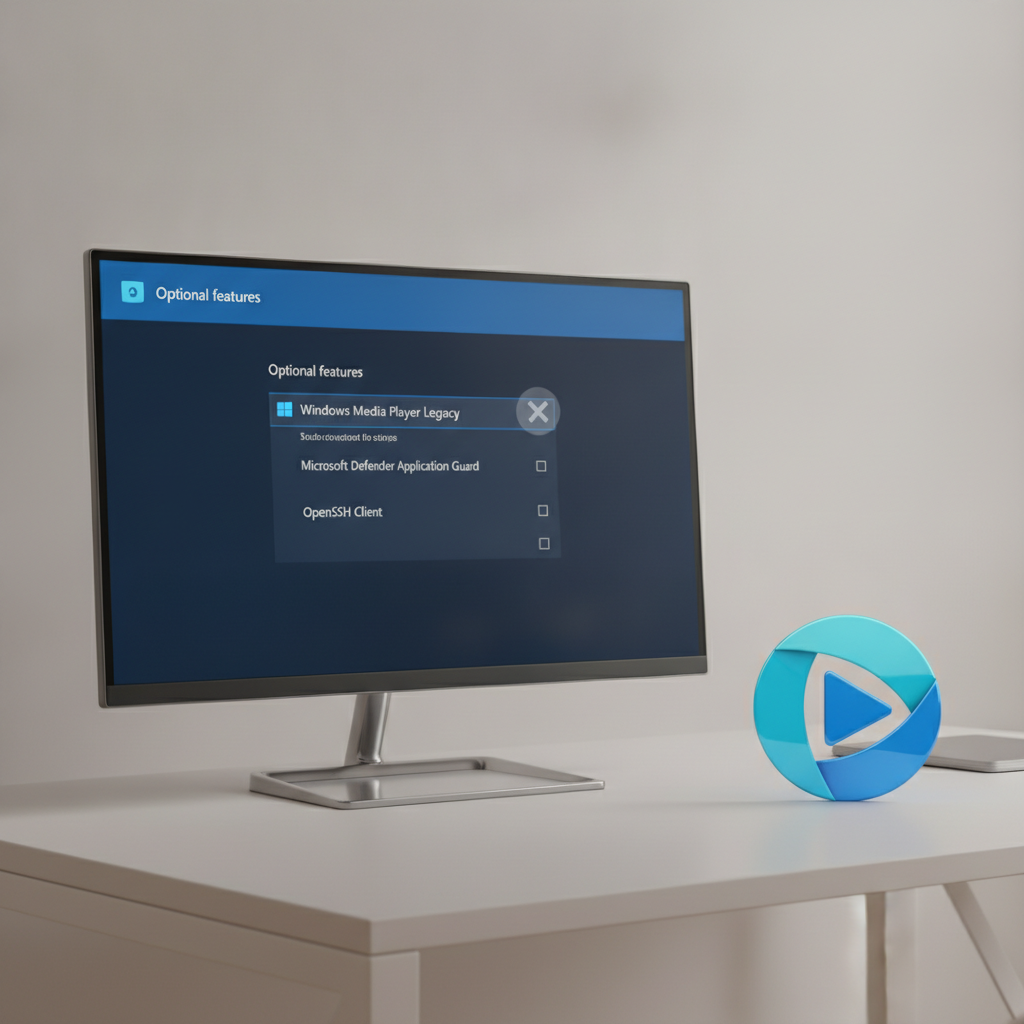
For Windows users who have already installed another media player as their primary program, Windows Media Player, which comes pre-installed with the operating system, may feel unnecessary and redundant. This article from SyncTech Solution will guide you on how to safely uninstall Windows Media Player Legacy (the older version) from Windows 11 and 10, including how to set a new default media player and how to reinstall it if you wish to use it again.
### Understand Before You Begin
The Windows Media Player discussed here is the classic version, which Microsoft refers to as "Windows Media Player Legacy." This program has been a staple of Windows for many years, primarily to maintain compatibility with older devices or file formats, even though Windows 11 now features a newer, more modern Media Player app.
This uninstallation does not involve deleting critical system files; it merely removes an "Optional Feature" from your system. This is a safe process and can be reversed at any time by reinstalling it. Removing it will help reduce redundancy in the 'Open with...' menu and make your system appear slightly cleaner.
### Before You Start
This operation carries very low risk and does not require backing up any critical data. However, to ensure smooth computer usage after uninstallation, please prepare as follows:
1. **Install your preferred media player:** Ensure you have already installed the video and audio player you wish to use as your primary program, such as VLC Media Player, PotPlayer, or other applications.
2. **No need to note any settings:** This process does not involve complex network or system settings, so there's no need to record any values.
### Safe Procedure
Follow these steps to uninstall Windows Media Player Legacy:
**1. Open the Settings Window**
* **WHAT:** Access the main Windows settings.
* **WHERE/HOW:** Click the Start Menu button and select the gear icon (Settings), or press `Windows` + `I` on your keyboard.
* **WHY:** This is the central hub for managing system applications and features.
* **EXPECTED RESULT:** The Windows Settings window will appear.
**2. Go to Optional features management**
* **WHAT:** Locate the section used for adding or removing non-essential Windows components.
* **WHERE/HOW:**
* For **Windows 11**: Go to the left-hand menu, select `Apps`, then click `Optional features`.
* For **Windows 10**: Go to `Apps` > `Apps & features`, then click the `Optional features` link at the top.
* **WHY:** Windows Media Player Legacy is categorized here, allowing for safe management.
* **EXPECTED RESULT:** You will see a list of installed optional features.
**3. Find and Uninstall Windows Media Player Legacy**
* **WHAT:** Instruct the system to remove the program.
* **WHERE/HOW:** On the `Installed features` page, scroll or type `Windows Media Player Legacy` into the search box. Once found, click on the item, then click the `Uninstall` button.
* **WHY:** This initiates the process of removing the program and its associated components from the system.
* **EXPECTED RESULT:** The program will take a moment to uninstall. Once complete, `Windows Media Player Legacy` will disappear from the list. A message might recommend restarting your computer for the changes to take full effect.
**4. (Important) Set Default Apps**
* **WHAT:** Configure video and audio files to automatically open with your preferred program.
* **WHERE/HOW:** Go back to Settings > `Apps`, then select `Default apps`. You can then configure this in two main ways: 1) Search for your desired program (e.g., VLC) and set all associated files to open with that program, or 2) Search by file extension (e.g., `.mp4`, `.mkv`, `.mp3`) and change the default program for each file individually.
* **WHY:** If this step is not performed, when you double-click a video file, Windows might ask which program to use or open it with another unwanted program. This setting ensures smooth usage.
* **EXPECTED RESULT:** When you view video or music files in File Explorer, their icons will change to the logo of your newly chosen program, and double-clicking them will open the files instantly in that program.
**5. (Optional) How to Reinstall Windows Media Player Legacy**
* **WHAT:** Reinstall the program if you change your mind or need to use it.
* **WHERE/HOW:** Go back to Settings > Apps > `Optional features` again. At the top, click `View features` or `Add an optional feature`. Then, search for `Windows Media Player Legacy`, check the box, and click `Next` > `Install`.
* **WHY:** This allows users to revert the changes at any time, making the initial decision to remove it risk-free.
* **EXPECTED RESULT:** Windows will download and reinstall the feature. Once complete, Windows Media Player Legacy will reappear in your list of programs.
### Verify the Results
After following all the steps, you can verify whether the process was successful:
1. **Search in the Start Menu:** Press the Start button and type "Windows Media Player." The Legacy version (with the orange/blue icon) should no longer appear in the search results.
2. **Open with... menu:** Right-click on a video or audio file, select `Open with` > `Choose another app`. You should not see Windows Media Player Legacy as an option in the list.
3. **Double-click a file:** Try double-clicking an .mp4 or .mp3 file. It should automatically open with the new program you set as the default.
### If Problems Persist
Normally, this process should complete successfully. However, if you encounter issues such as:
* **The Uninstall button is grayed out:** It's possible your computer is governed by organizational policies. In this case, you should not attempt to fix it yourself but should contact your company's IT department for further information.
* **Other issues after uninstallation:** If you experience unexpected file playback problems, try reinstalling your preferred media player (e.g., VLC) or reinstall Windows Media Player Legacy by following Step 5 to see if the issue resolves. If problems persist, it may be due to other unrelated causes, and you should have a specialist examine it.
### Conclusion
Managing optional features like uninstalling Windows Media Player Legacy is a simple and safe way to customize Windows to better suit your usage. It helps reduce redundancy and streamline your system without risk to your data or core system functions, and you can always reinstall it whenever needed.