
Technology newsroom
How to Change Touch Keyboard Colors and Themes in Windows 11
Learn how to customize the Touch Keyboard in Windows 11, including changing color themes, size, and creating personalized themes with custom background images, to make typing on touchscreens more visually appealing, readable, and comfortable.
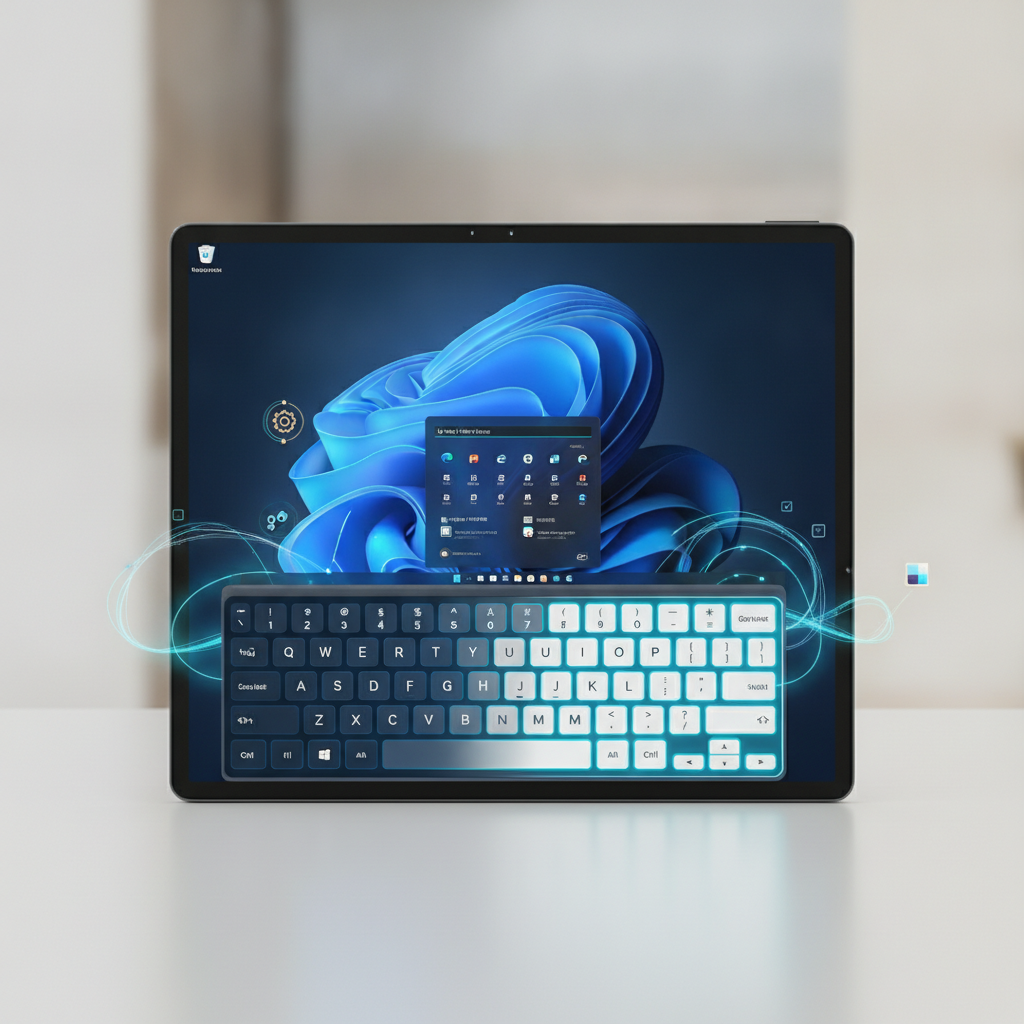
For users of Windows 11 on touch-enabled devices such as tablets or 2-in-1 laptops, customizing the appearance of the on-screen keyboard (Touch Keyboard) is not just about aesthetics. It also enhances typing convenience and visual comfort. This article will provide detailed and safe instructions on how to customize themes, sizes, and create your own keyboard style.
### Understand Before You Modify
Windows 11 features two main types of on-screen keyboards: the "On-Screen Keyboard (OSK)," which is an older program found in the Accessibility category, and the "Touch Keyboard," a modern keyboard designed specifically for touchscreens. The latter automatically appears when you tap a text input field in tablet mode.
The customizations we will make today apply only to the "Touch Keyboard," which is what most users encounter in their daily lives. Changing its colors or themes has no impact on system performance but directly affects the user experience. It helps reduce eye strain by adjusting the brightness or clarity of characters and also makes device usage feel more personal and aligned with your style.
### Before You Begin
The most crucial step before starting customization is to ensure the Touch Keyboard icon is displayed on the taskbar (the bottom bar of the screen) for easy access and testing. If it's not there, follow these steps first:
**WHAT:** Enable the Touch keyboard icon on the taskbar
**WHERE/HOW:**
1. Right-click on an empty area of the taskbar, then select "Taskbar settings."
2. In the window that opens, look for "Taskbar corner icons" (or "System tray icons" in some versions) and expand the menu.
3. Find the "Touch keyboard" option and slide the switch to "On."
**WHY:** This allows you to immediately call up the keyboard to see the results of your changes, without having to switch to tablet mode or find a text input field to test.
**EXPECTED RESULT:** You will see a keyboard icon appear in the bottom-right corner of the screen, near the clock.
### Safe Procedure
All these customizations are performed via standard Windows settings menus and pose no risk to the system.
**1. Open the Settings window**
* **WHAT:** Access the main Windows settings window.
* **WHERE/HOW:** Press the `Windows + I` keys on your keyboard, or right-click the Start Menu button and select "Settings."
* **WHY:** All personal settings for Windows 11 are consolidated within this application.
* **EXPECTED RESULT:** The Windows 11 Settings window will appear.
**2. Go to the Personalization menu**
* **WHAT:** Navigate to the section used for customizing the system's appearance.
* **WHERE/HOW:** From the left menu of the Settings window, click "Personalization."
* **WHY:** Settings for themes and colors of various components, such as the keyboard, are categorized here.
* **EXPECTED RESULT:** You will see options for customizing Background, Colors, Themes, and more.
**3. Select the Touch keyboard menu**
* **WHAT:** Access the settings page specifically for the on-screen keyboard.
* **WHERE/HOW:** On the Personalization page, scroll down and click on the "Touch keyboard" menu.
* **WHY:** This screen consolidates all Touch Keyboard customization options in one place.
* **EXPECTED RESULT:** A new screen will appear, showing a keyboard preview at the top and customization options below.
**4. Choose size and pre-set themes**
* **WHAT:** Adjust the size and select from available color themes.
* **WHERE/HOW:** Use the "Keyboard size" slider to adjust the keyboard's size to your preference (larger or smaller). Then, try clicking to select from the more than 15 available themes below.
* **WHY:** This is the easiest and fastest way to change the keyboard's appearance for better aesthetics and comfortable typing.
* **EXPECTED RESULT:** The keyboard preview displayed at the top will immediately change size and color according to your selection.
**5. Create your own theme (Custom theme)**
* **WHAT:** Begin the process of creating your unique theme.
* **WHERE/HOW:** From the list of themes, select "Custom theme," then click the "Edit" button that appears.
* **WHY:** For users who want detailed control over the keyboard's colors and transparency, or wish to add a personal background image.
* **EXPECTED RESULT:** A new window titled "Create custom theme" will open, with tabs for customization.
**6. Customize colors and background**
* **WHAT:** Set the colors for text, keys, transparency, and the keyboard background.
* **WHERE/HOW:**
* **Text tab:** Select the color of the text on keys (Key text color) and the color of suggestion text (Suggestion text color).
* **Keys tab:** Select the key background color (Key background) and adjust its transparency (Key background transparency) as desired.
* **Window tab:** Choose whether to use a solid background color (Solid color) or an image (Picture) as the background for the keyboard frame.
* **WHY:** To create a uniquely styled keyboard or adjust it for high contrast to ensure maximum readability.
* **EXPECTED RESULT:** Each time you change a value, the preview in this window will update immediately to show the effect.
**7. Save and apply the new theme**
* **WHAT:** Save all settings and put them into effect.
* **WHERE/HOW:** Once satisfied with your customizations, click the "Save" button at the bottom of the "Create custom theme" window.
* **WHY:** To confirm the changes and make your created theme the currently active one.
* **EXPECTED RESULT:** The theme creation window will close, and on the Touch keyboard page, you will see that your "Custom theme" is selected.
### Verify Results
1. **Click the taskbar icon:** Click the Touch Keyboard icon in the bottom-right corner of the screen. The keyboard that appears should reflect the theme and size you most recently configured.
2. **Test typing:** Open a simple program like Notepad or click in the Start Menu search bar. The keyboard should display with the new theme and function normally for typing.
### If Issues Persist or Encounter Problems
- **Changes not appearing:** If you've applied settings but the keyboard remains unchanged, try restarting your computer once. This often resolves minor system issues.
- **Menus are grayed out/unclickable:** If some customization options are grayed out and cannot be clicked, it's possible that your computer is under an organizational policy that restricts personal customization rights. In this case, you should contact your company's IT department for more information.
- **Cannot find the Touch Keyboard menu:** Ensure your Windows 11 is updated to the latest version, as some features may only be available in newer versions.
### Conclusion
Customizing the Touch Keyboard in Windows 11 is a simple way to significantly enhance the user experience on touch-enabled devices. Whether adjusting for personal aesthetic style or for clearer character visibility and more comfortable typing, take a few minutes to create the perfect keyboard for you.