
Technology newsroom
How to Ensure Your Computer is Malware-Free: A Safe DIY Guide
Learn practical steps to check your computer for malware, from updating Windows and performing thorough virus scans to removing unfamiliar programs and checking browser extensions, ensuring safe and efficient computer use.
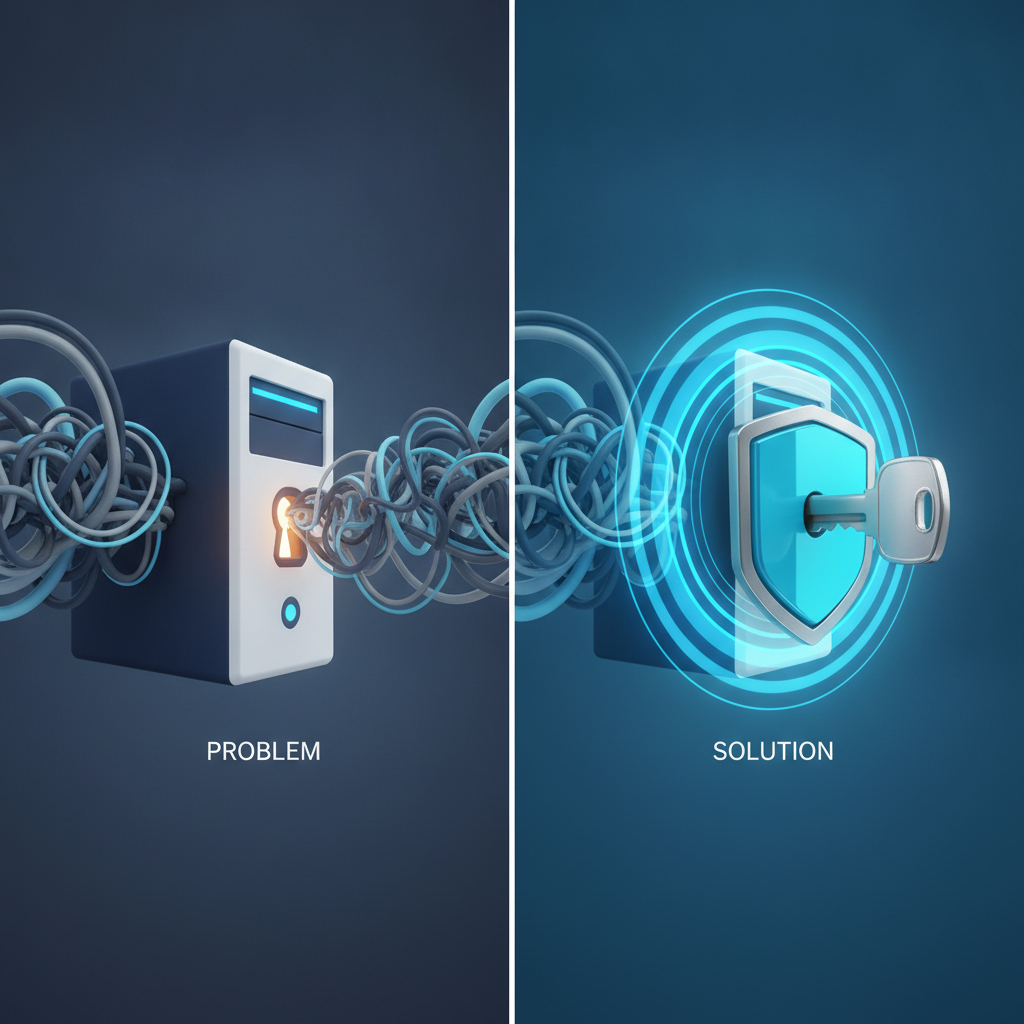
Often, when your computer starts running slow, strange ads pop up, or programs misbehave, the first question that comes to mind is, “Is my computer infected with a virus?” This article from SyncTech Solution will guide you step-by-step through basic methods to check for and remove malware (Malware), so you can use your computer with greater peace of mind and security.
### Understand Before You Fix
The truth is, we cannot 100% guarantee that a computer will remain malware-free forever. The best approach is to build multiple layers of defense and regularly check. Malware isn't just viruses that destroy files; it also includes spyware that intercepts passwords, adware that displays annoying ads, and even ransomware that encrypts files for ransom.
The principle of prevention is to “reduce risk” and “detect quickly.” Updating your operating system and various programs closes vulnerabilities that malware might exploit as an entry point. Scanning with antivirus software, on the other hand, is about finding intruders that may have already slipped through. Following these steps will significantly reduce the chances of your computer becoming infected with malware.
### Before You Start
Before you start checking and fixing, prepare a little to ensure data safety:
1. **Back up important data:** Although scanning is generally safe, there's a slight risk that important files might be quarantined or deleted if infected with malware. Always back up your work files, photos, or crucial documents to an External Hard Drive or Cloud Storage service beforehand.
2. **Save your work and close programs:** To ensure the scan runs efficiently and uninterrupted, save all pending work and close any unnecessary programs first.
3. **Connect to the internet:** Some types of scans require an internet connection to update to the latest virus definitions, which improves detection accuracy.
### Safe Methods
**1. Update Windows to the latest version**
* **WHAT:** Check for and install the latest updates for the Windows operating system.
* **WHERE/HOW:** Go to `Settings` > `Update & Security` > `Windows Update` (or in Windows 11, `Settings` > `Windows Update`), then click `Check for updates`. If updates are available, download and install them, then restart your computer as instructed.
* **WHY:** These updates often include fixes for security vulnerabilities that malware exploits. Updating your system is like patching holes in your house to prevent burglars.
* **EXPECTED RESULT:** The system will report “You’re up to date” and no critical updates are pending.
**2. Update definitions and scan with Microsoft Defender**
* **WHAT:** Update the virus definitions for the antivirus program included with Windows and perform a thorough full system scan.
* **WHERE/HOW:** Go to `Settings` > `Update & Security` > `Windows Security` > `Virus & threat protection`. Click `Virus & threat protection updates` to update definitions first. Then, return to the previous page, click `Scan options` > select `Full scan` > click `Scan now`.
* **WHY:** Quick Scan only checks critical areas where malware often resides, but Full Scan inspects every file and program on your machine. This may take hours, but it provides a more thorough and reliable check.
* **EXPECTED RESULT:** The scan will proceed to completion. Once finished, the system should report “No current threats.” If threats are found, the system will recommend removal or quarantine.
**3. Use a second-opinion scanner**
* **WHAT:** Use an on-demand malware scanner to perform a second check.
* **WHERE/HOW:** Download a reputable scanner such as Malwarebytes Free or Microsoft Safety Scanner directly from the manufacturer's official website. Install and run a full system scan (Full/Threat Scan).
* **WHY:** No antivirus is 100% perfect. Using a second tool helps detect malware that the first program might have missed. Crucially, these types of programs are designed to work alongside your primary antivirus without conflicts because they do not run constantly.
* **EXPECTED RESULT:** The scan results should confirm no abnormalities were found, or it might identify junk files/Potentially Unwanted Programs (PUPs) that Microsoft Defender may not categorize as severe threats. Remove them as recommended by the program.
**4. Check and uninstall unknown programs**
* **WHAT:** Review the list of installed programs on your machine and remove any unfamiliar programs you didn't install or no longer use.
* **WHERE/HOW:** Go to `Control Panel` > `Programs and Features` (or `Settings` > `Apps` > `Apps & features`). Scroll through the entire list of programs. If you find an unfamiliar name or a program you're sure you didn't install yourself, right-click it and select `Uninstall`.
* **WHY:** Sometimes malware or adware disguises itself as add-on programs, toolbars, or free software inadvertently installed. Removing these programs helps reduce risk and free up space on your machine.
* **EXPECTED RESULT:** Unwanted programs are completely removed from your machine, and there are no more alerts or strange behaviors from those programs.
**5. Check browser extensions**
* **WHAT:** Review and remove unnecessary or untrustworthy extensions from your browser (Google Chrome, Microsoft Edge, Firefox).
* **WHERE/HOW:** In Chrome or Edge, click the three-dot menu (...) > `Extensions` > `Manage Extensions`. Then, disable or click `Remove` for any unfamiliar or unused extensions.
* **WHY:** Browser extensions are a popular avenue for adware and spyware to embed themselves, stealing usage data or displaying unwanted advertisements.
* **EXPECTED RESULT:** No strange ads or pop-ups appear while browsing the internet. Your browser's homepage and default search engine return to your preferred settings.
### Verify Results
After completing all steps, observe your computer's behavior:
1. **Speed:** Does your computer respond faster? Have lags or freezes decreased?
2. **Ads:** No more strange pop-ups or ads appearing on your screen or in your browser.
3. **Functionality:** Programs return to normal operation, with no unexplained error messages.
### If the Problem Persists
If you've followed all steps but the problem remains:
* **Could be a system issue:** Slowness or freezes might not always stem from malware. It could be due to a failing hard drive, insufficient RAM, or driver problems.
* **Deeply embedded malware:** It might be advanced malware, such as a rootkit, which is adept at hiding and difficult to remove.
* **Contact an expert:** At this point, it's advisable to consult your company's IT department or a computer specialist. Attempting to fix complex issues yourself might worsen the situation. The ultimate, guaranteed solution is to back up your data and perform a complete reinstall of Windows.
### Conclusion
Keeping your computer safe from malware is not a one-time task but an ongoing routine. Regularly updating your system, scanning for viruses, and checking for unfamiliar programs will reduce risks and ensure you can use your computer confidently in the long term.