
Technology newsroom
Automate Windows Screen Organization: No More Daily Dragging with PowerToys
Solve the problem of time wasted arranging program windows every morning, especially for multi-monitor users, with PowerToys Workspaces, a free tool from Microsoft that helps save and restore all application positions with a single click.
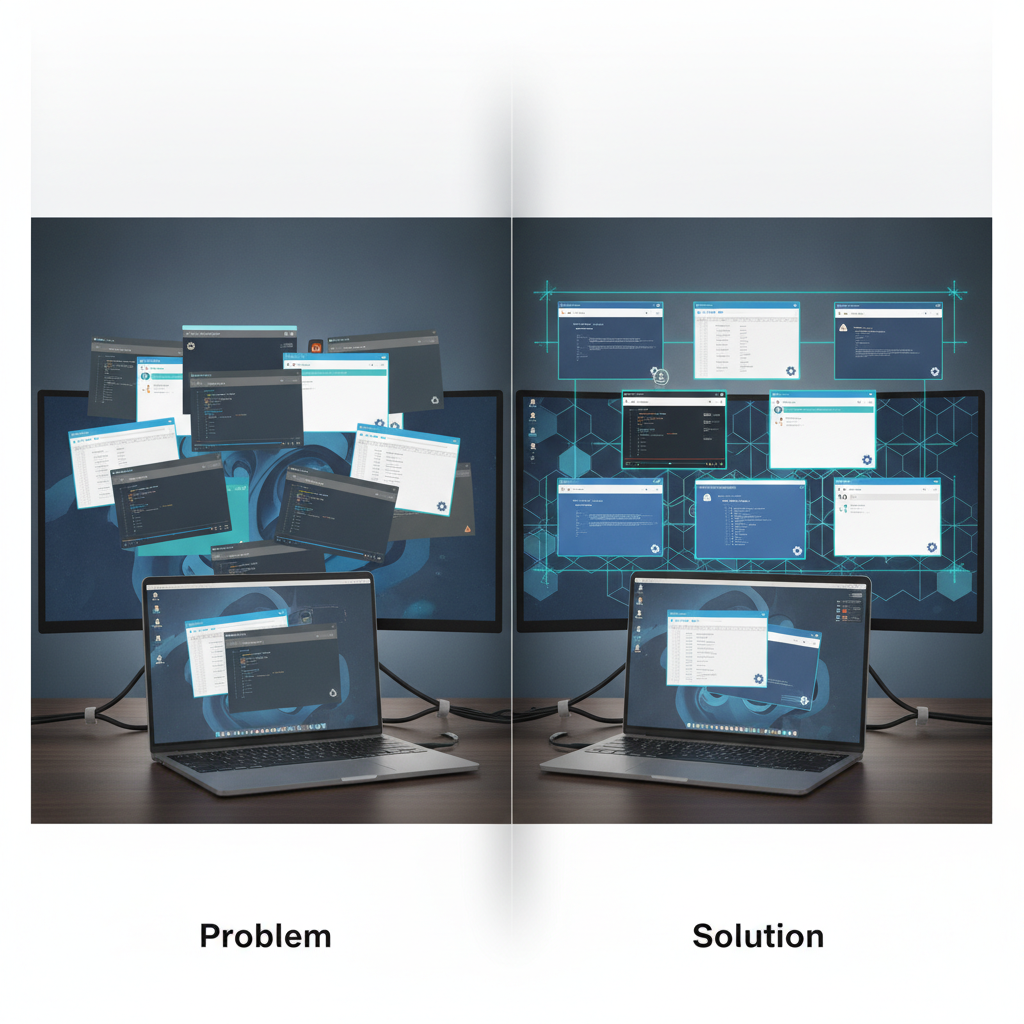
For office workers or anyone using multiple computer monitors, starting the workday often involves wasting time opening programs and dragging windows back to their usual positions every morning. This article from SyncTech Solution will introduce a free tool from Microsoft that helps you save and restore all window positions with a single click.
### Understand Before You Fix: Why Do Program Windows Keep Moving?
This problem often occurs when there are display changes, such as unplugging a laptop from an external monitor for a meeting, or when the computer enters Sleep mode and wakes up again. The Windows operating system attempts to manage windows that were on the missing display, often consolidating all windows onto the primary connected monitor. This forces us to waste time rearranging them every time.
The solution is to use a tool that can "remember" the position and size of each application window. One of the best and safest tools for this is **PowerToys**, a suite of utility tools developed by Microsoft itself. The feature we will be using is **Workspaces**, which acts like taking a snapshot of your screen arrangement, allowing you to recall it whenever needed.
### Before You Begin: Preparing to Install PowerToys
The only things you need are a computer running Windows 10 or Windows 11 and the permission to install programs from the Microsoft Store. Generally, personal computers can do this immediately. If it's a company computer, you might need to ask your IT department to check the security policies.
- **Required Program:** Microsoft PowerToys (Free of charge)
- **Where to Find It:** The Microsoft Store is the easiest and safest channel.
### Safe Method: Saving and Restoring Screen Layouts with Workspaces
Follow these steps to configure your application window position memory.
**1. Install Microsoft PowerToys**
- **WHAT:** Install the PowerToys program on your computer.
- **WHERE/HOW:** Open the **Microsoft Store** app on Windows (search from the Start Menu). Then, in the search box, type `PowerToys` and press Enter. Once you find the app, click the **Get** or **Install** button to begin the installation.
- **WHY:** To allow access to the Workspaces feature, as it is not included with Windows by default.
- **EXPECTED RESULT:** Once installed, you will find the PowerToys program icon in the System Tray (in the bottom-right corner of the screen, near the clock) and can double-click it to open the settings window.
**2. Enable the Workspaces Feature**
- **WHAT:** Enable the Workspaces tool within the PowerToys suite.
- **WHERE/HOW:** Open the PowerToys settings window. From the left-hand menu, locate and click **Workspaces**. Then, in the right-hand pane, toggle the switch under **Enable Workspaces** to the **On** position.
- **WHY:** By default, some PowerToys features are disabled to avoid disturbing users. Therefore, we need to enable the desired feature first.
- **EXPECTED RESULT:** The various options on the Workspaces page will become active and ready for configuration or use.
**3. Arrange Your Dream Application Window Layout**
- **WHAT:** Open your programs and arrange all windows according to the positions and sizes you regularly use.
- **WHERE/HOW:** Open programs you use daily, such as Outlook on the left monitor, a web browser full-screen on the right monitor, a chat application (e.g., Teams or LINE) as a small window in the corner, etc. Arrange everything neatly, exactly as you would like to see it every morning.
- **WHY:** This step is about creating a 'template' or layout that we will instruct the program to save. A good arrangement will help you work most conveniently.
- **EXPECTED RESULT:** Your computer screen will be in a state ready for optimal work performance.
**4. Save the Current Layout as a New Workspace**
- **WHAT:** Save the current window arrangement.
- **WHERE/HOW:** There are 2 convenient methods:
1. Right-click the PowerToys icon in the System Tray > Hover over the **Workspaces** menu > Click **Save new Workspace**
2. Use the default shortcut: **Win + Ctrl + Alt + S**
- **WHY:** To create a 'snapshot' of all window positions at that moment, allowing us to restore this layout in the future.
- **EXPECTED RESULT:** A small window will appear, prompting you to name this Workspace, e.g., 'Morning Work Setup' or 'Morning Setup'. Then click Save.
**5. Restore the Saved Workspace**
- **WHAT:** Instruct the program to rearrange windows back to the layout we saved.
- **WHERE/HOW:** When program windows are scattered (e.g., after connecting a new monitor), do the following:
1. Right-click the PowerToys icon in the System Tray > Hover over the **Workspaces** menu > Click on the name of your saved Workspace (e.g., 'Morning Work Setup')
2. Use the default shortcut: **Win + Ctrl + Alt + R**
- **WHY:** This is the practical usage step that will save you time every day, instead of having to manually drag windows.
- **EXPECTED RESULT:** Already open programs will immediately move and resize back to the layout you saved.
**Important Note:** The Workspaces feature only *arranges the positions* of programs that are *already running*. It will not automatically open programs that are not yet launched.
### Check the Results
- **Test Arrangement:** Try dragging 2-3 program windows to random locations, then attempt to restore the saved Workspace. The windows should immediately return to their original positions.
- **Test Monitor Connection (for laptop users):** If you use a laptop with an external monitor, try unplugging the external monitor cable, wait for all windows to consolidate on the laptop screen, then plug the external monitor cable back in. Afterwards, restore the Workspace. The windows should redistribute back to the external monitor according to their saved positions.
### If It's Still Not Fixed
- **Nothing happens when restoring:** Ensure that the programs you want to arrange are already running. If a program is closed, Workspaces cannot position it.
- **Cannot find PowerToys icon:** Open PowerToys settings, go to the **General** menu, and verify that the **Run at startup** option is enabled for the program to run every time you start your computer.
- **Cannot install the program:** If it's a company machine, there might be a policy preventing software installation. Consult your organization's IT department for assistance in installing PowerToys, which is a safe and direct tool from Microsoft.
Using PowerToys Workspaces is a simple and efficient way to reduce minor daily work hassles, helping you get into work mode faster and minimize frustration from repetitive screen arrangement.