
Technology newsroom
Find Deleted Apps in 5 Minutes: How to View App Download History on iPhone and Android
Have you ever deleted an app and forgotten its name, or want your favorite apps back on a new device? SyncTech Solution provides a guide to viewing your complete app download history, linked to your Apple ID and Google accounts, with simple steps for reinstallation.
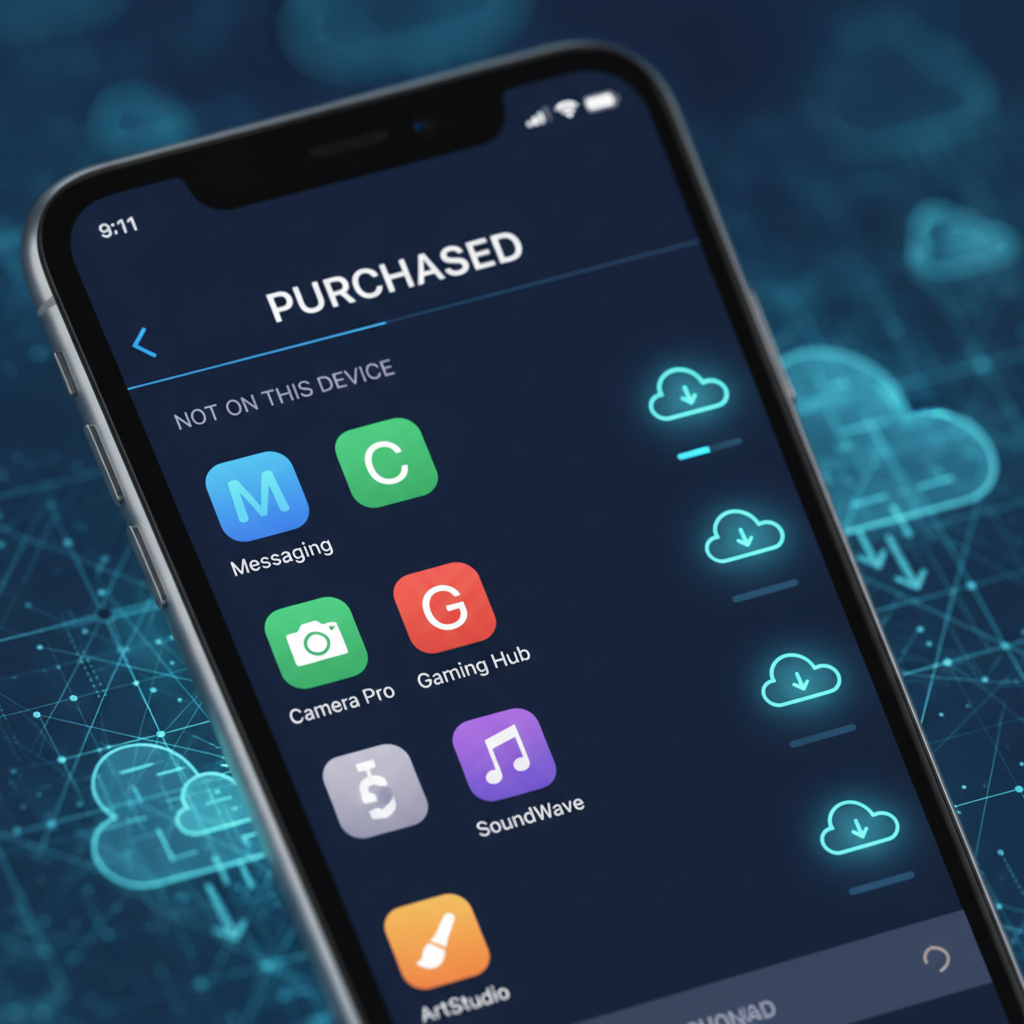
Have you ever deleted an application and forgotten its name, or just got a new phone and want all your old apps back? No need to waste time searching for apps one by one. This article from SyncTech Solution will show you how to view the complete download history of all apps linked to your account, on both iPhone and Android, so you can easily reinstall your old apps.
### Understand Before You Fix
Your app download history is not stored on your phone itself, but is directly linked to your Google account (for Android) or Apple ID (for iPhone/iPad). It acts like a digital receipt, recording every app you have ever 'acquired' from the App Store or Play Store, whether free or paid.
The advantage is that when you switch to a new device, simply signing in with the same account will bring your entire history with you, allowing you to instantly reinstall familiar apps. However, this history is not a backup of the app itself. If an app has been removed from the Store by its developer or does not support newer operating system versions, you may not be able to download and install it again.
### Before You Start
- **Prepare your account and password:** Ensure you are signed in with the correct Google account or Apple ID on your device, which is the same account you used to download those apps. If prompted for a password to verify your identity, you should remember it.
- **Internet connection:** Viewing history and installing apps requires a Wi-Fi or mobile internet connection.
### How to Safely Do It: For Android Users (Google Play Store)
1. **WHAT:** Open the Google Play Store app.
**WHERE/HOW:** Locate and tap the "Play Store" icon on your home screen or in the app drawer.
**WHY:** To access the central app management hub for Android.
**EXPECTED RESULT:** The Play Store app opens to its main page.
2. **WHAT:** Access the app management menu.
**WHERE/HOW:** Tap your profile icon in the top-right corner of the screen, then select "Manage apps & device".
**WHY:** This menu centralizes tools for viewing, updating, and managing all apps on your device and in your account.
**EXPECTED RESULT:** The screen will switch to the "Overview" section of app management.
3. **WHAT:** Go to the "Manage" tab.
**WHERE/HOW:** Tap the "Manage" tab located at the top of the screen, next to the "Overview" tab.
**WHY:** To view a detailed list of all apps, which can be filtered and managed individually.
**EXPECTED RESULT:** You will see a list of all apps currently installed on your device.
4. **WHAT:** Filter the list to show uninstalled apps.
**WHERE/HOW:** Tap the filter button, which typically says "Installed", then select "Not installed" from the appearing menu.
**WHY:** This command instructs the Play Store to display all apps previously downloaded with this Google account but not currently installed on the device.
**EXPECTED RESULT:** The app list will change, showing older apps you previously installed and deleted. You can scroll, search, or select desired apps for immediate reinstallation.
### How to Safely Do It: For iPhone and iPad Users (App Store)
1. **WHAT:** Open the App Store app.
**WHERE/HOW:** Locate and tap the "App Store" icon on your Home Screen.
**WHY:** To access the store and Apple account management section.
**EXPECTED RESULT:** The App Store app opens to its main page.
2. **WHAT:** Access your account page.
**WHERE/HOW:** Tap your profile icon or picture in the top-right corner of the screen.
**WHY:** To access account settings, purchase history, and subscriptions.
**EXPECTED RESULT:** The "Account" screen will appear.
3. **WHAT:** View your purchase history.
**WHERE/HOW:** Tap the "Purchased" menu on this page. If you use "Family Sharing", you might need to tap "My Purchases" again.
**WHY:** This menu compiles the download history of all apps, both free and paid, linked to your Apple ID.
**EXPECTED RESULT:** You will see a list of all apps you have ever downloaded.
4. **WHAT:** Filter to show apps not on this device.
**WHERE/HOW:** Tap the "Not on this iPhone" or "Not on this iPad" tab.
**WHY:** To hide apps already installed and show only apps you previously owned but are not currently on this device, making it easier to find accidentally deleted apps.
**EXPECTED RESULT:** The list will show only uninstalled apps. You can scroll to find the desired app and tap the cloud icon to download it immediately.
### Verify Results
- You can scroll through the list of old apps you might have forgotten.
- Once you find the desired app, tap the download icon (cloud icon for iPhone or install/download button for Android). The app will automatically start downloading and installing on your device.
- For apps you have previously purchased, you can redownload them for free, as long as you use the same account and the app is still available.
### Troubleshooting
- **App not found in history:** It's possible you used a different account (Google/Apple ID) to download that app. Try to ensure you are signed in with the correct account.
- **Unable to download:** The app might have been removed from the Store by the developer, or it may not be compatible with your phone or its new operating system version. In this case, it cannot be installed.
- **Hidden app (for iPhone):** In some cases, apps might be hidden from your purchase history. You may need to manage this through your account settings on a computer to unhide them. If unsure, consult Apple Support.
If you follow these steps and still encounter issues, or are unsure about the account you are using, you can contact your organization's IT department or mobile service provider for further assistance.
### Conclusion
Viewing your app download history is a quick and easy way to find your favorite deleted apps or to streamline setting up a new mobile device without starting from scratch. By following a few steps in the Play Store or App Store, you can access your personal app library whenever you need it.