
Technology newsroom
Forgot your Wi-Fi password? Check the password from your Android phone easily in 2 minutes without installing any additional apps.
Forgot your Wi-Fi password? This article teaches you how to view Wi-Fi passwords that have been connected on an Android phone using existing features. No need to install additional apps. It's easy to follow, safe, and suitable for general users and SMEs.
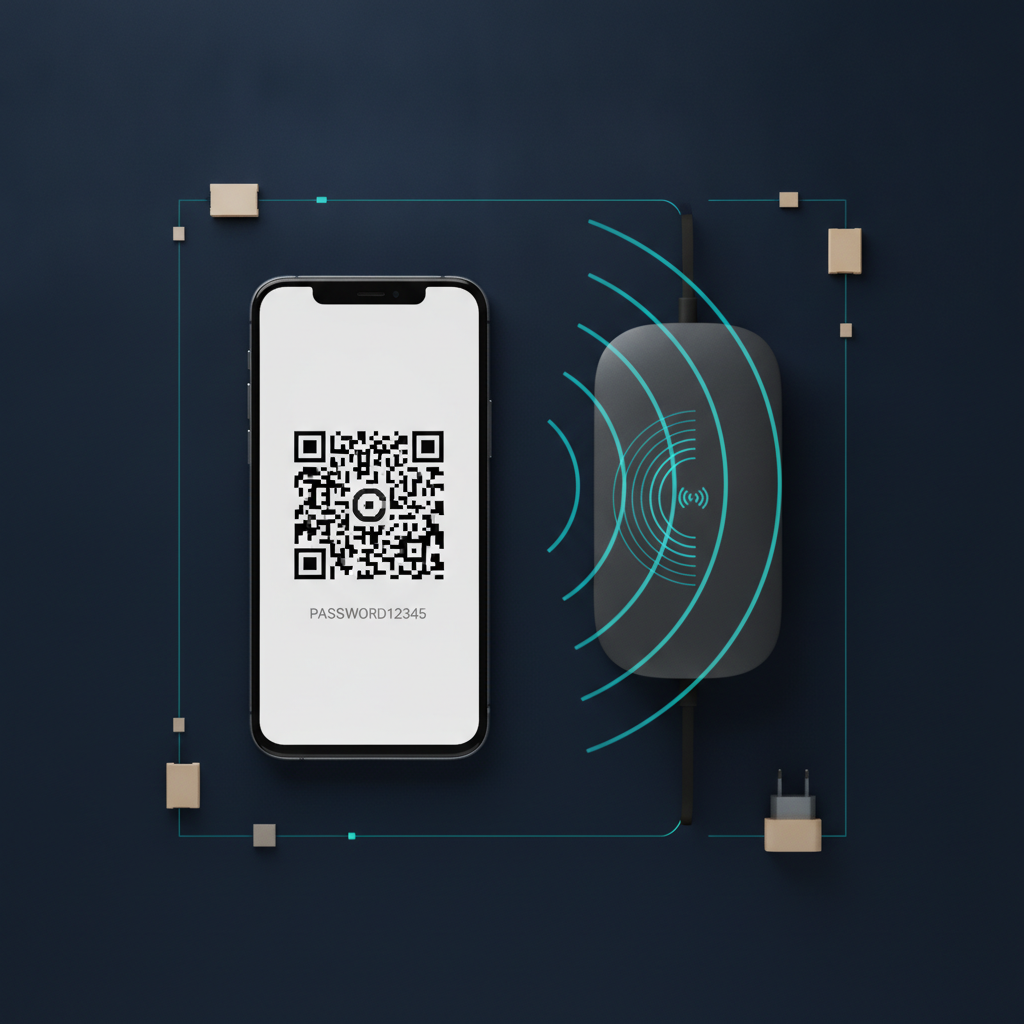
Have you ever had the experience when friends come over or you want to connect a new device to Wi-Fi but forget the password you set a long time ago? This problem is common and often encountered in daily life. But don't worry, because the Android phone you are using has safely saved those passwords. This article from SyncTech Solution will teach you how to easily view your Wi-Fi passwords from your own phone without having to install additional apps that could compromise security.
Understand before fixing
Normally, when we connect to Wi-Fi for the first time, the Android operating system automatically saves the network name (SSID) and password on the device so that next time it can connect immediately without having to re-enter the information. This information is stored in a secure area of the system and is encrypted. To access this information, identity verification of the device owner is required first, such as using a fingerprint, PIN, or screen unlock password, which is a basic security measure of Android.
The feature we will use is “Wi-Fi Sharing,” which has been available since Android 10. When we use the sharing function, the system will generate a QR Code for other devices to scan and connect immediately. Importantly, the system will also display the password in plain text below the QR Code, allowing us to write it down or copy it for use.
Before Starting
To follow the steps smoothly, please check these items first:
1. The phone must have previously connected to that Wi-Fi network: This method is used only to view the password of networks that the device has already saved. It cannot be used to hack or view the password of networks that have never been connected to.
2. Know your screen unlock code: You need to be able to verify your identity using the PIN, pattern, password, or fingerprint/face used to unlock your phone.
3. Android 10 or later operating system: This feature is standard for Android 10 and newer. Most phones manufactured since 2019 generally support this feature.
How to do it safely
The steps may vary slightly depending on the brand and model of the phone, but the overall principle is similar.
Step 1: Enter the Settings menu (Settings)
- WHAT: Open the main settings screen of the phone
- WHERE/HOW: Swipe down from the top of the screen and tap the gear icon, or find the “Settings” app in the application page
- WHY: The settings menu is the central hub for accessing all system management, including network settings
- EXPECTED RESULT: You will see the screen of the phone's various settings list
Step 2: Go to the Network and Internet menu
- WHAT: Find and go to the menu for managing Wi-Fi and networks
- WHERE/HOW: Tap on the menu named “Network & internet” or “Connections” on a Samsung phone
- WHY: This menu contains all settings related to Wi-Fi, mobile data, and other connections
- EXPECTED RESULT: You will see a list of options, such as Wi-Fi, mobile network, hotspot, etc.
Step 3: Select the Wi-Fi network whose password you want to view
- WHAT: Select the network you are connected to, or a saved network
- WHERE/HOW:
- For the network you are connecting to: Tap the “Wi-Fi” or “Internet” menu, then tap the gear icon next to the connected Wi-Fi name
- For networks that have been connected to but are not currently connected: On the Wi-Fi page, look for the option “Saved networks” and then select the desired network name from the list
- WHY: To go to the details screen of that Wi-Fi network
- EXPECTED RESULT: You will enter the details page of the selected network, which will contain various information such as signal strength, speed, and other options.
Step 4: Press the “Share” button
- WHAT: Look for and press the button to share network information
- WHERE/HOW: On the network details page, look for a button that says “Share” or a button with a QR Code icon
- WHY: This command tells the system to generate a QR Code and display the password for connection
- EXPECTED RESULT: The phone will display a screen for identity verification
Step 5: Verify your identity
- WHAT: Unlock to access password information
- WHERE/HOW: Use a fingerprint, scan your face, or enter the PIN/Pattern/password that is used to unlock your phone screen
- WHY: It is an important security step to prevent others who pick up your phone from being able to see the saved Wi-Fi passwords.
- EXPECTED RESULT: If the identity verification is successful, the phone will immediately display a new screen
Step 6: View and note the password
- WHAT: Read the password displayed on the screen
- WHERE/HOW: On the screen, a large QR Code will appear, and below the QR Code, there will be the text “Wi-Fi Password” followed by the correct password displayed in plain text.
- WHY: Now you can use this password on other devices
- EXPECTED RESULT: You see the correct password and can use it to successfully connect to other devices
Check Results
1. See the password: Make sure the password is clearly displayed under the QR Code
2. Test the connection: Take the password you see and try entering it on another device (such as a notebook or tablet) to make sure you can successfully connect to the Wi-Fi.
3. Try scanning (if you have another device): Try using another phone to open the camera and scan the QR Code on the screen. It should automatically prompt to connect to Wi-Fi.
If not yet recovered
- Can't find the menu: Some phone models may have different menu names. Try using the search function (magnifying glass icon) on the Settings page and type “Wi-Fi” or “Saved networks” to find the related menu more quickly.
- No share button: If you are using an Android version older than 10, this feature may not be available. The easiest way is to look at the password from the sticker on the router, or log in to the router directly (this method is suitable for users with technical knowledge).
- Organization Wi-Fi: If it is a workplace Wi-Fi that uses Enterprise authentication (WPA2/WPA3-Enterprise), which requires each person's specific username and password, this method will not work. You need to contact the company's IT department to request connection information.
Viewing Wi-Fi passwords from an Android phone is one of the most convenient and safest methods because it is a feature that comes directly with the system. It helps solve immediate problems quickly without having to rely on untrustworthy apps.