
Technology newsroom
Cannot Print from Edge? How to Solve Web and PDF Printing Issues in Windows 11
Troubleshoot Microsoft Edge printing issues in Windows 11 when unable to print web pages or PDF files, using a systematic approach from checking the print queue and repairing the browser to safely updating drivers.
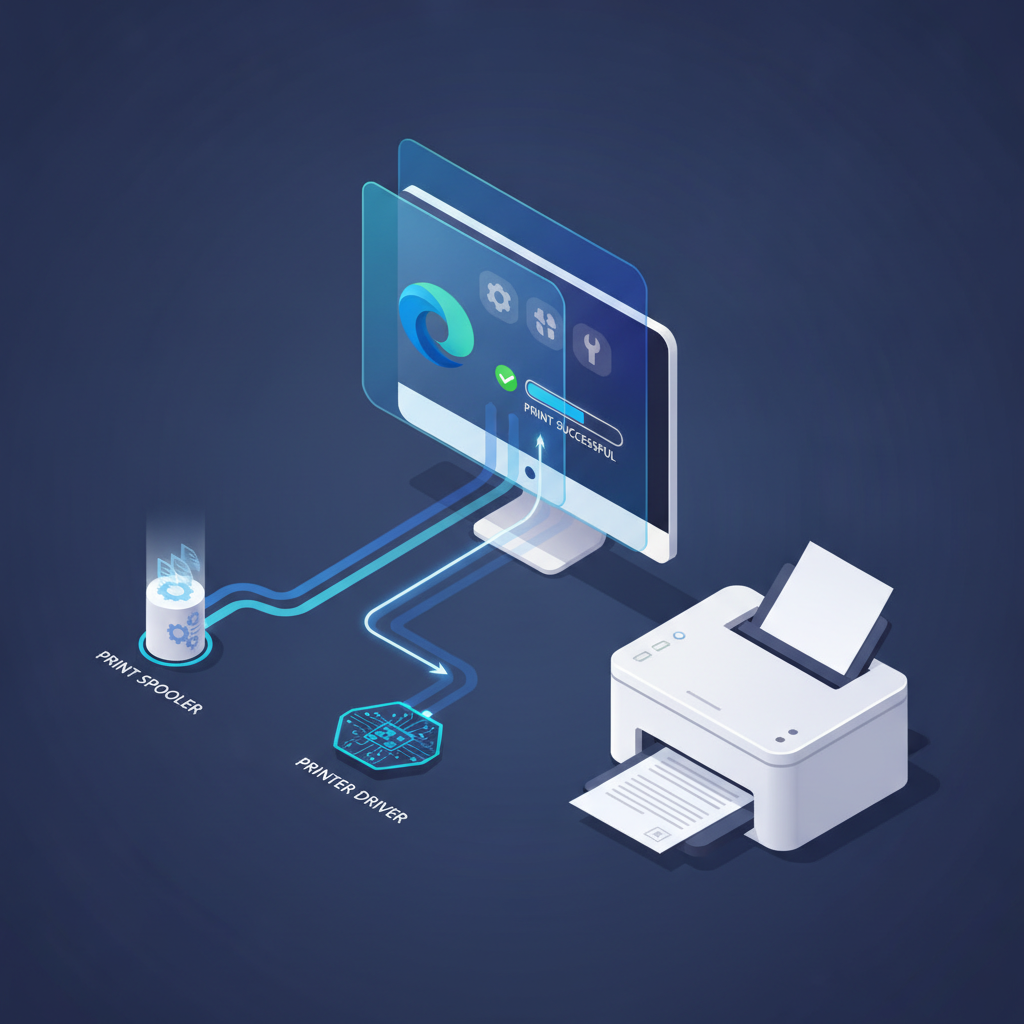
Often, office workers or general users encounter issues where pressing “Print” from the Microsoft Edge browser results in no output, or the printout differs from what is displayed on screen, especially when printing web pages or PDF files. This article will provide systematic methods to diagnose and resolve these problems, allowing you to resume printing normally without wasting time searching for causes aimlessly.
### Understand Before Troubleshooting
The process of printing from a computer is not sent directly from the program to the printer; there are steps behind it. When you click print in Edge, the command is sent to a Windows system called the "Print Spooler," which queues print jobs. Windows then uses software called a "Driver" to translate the data into a language your printer understands before sending it for actual printing. Therefore, problems can arise at several points: the Edge browser itself, the opened PDF file, a stuck print queue in Windows, or a malfunctioning printer driver. Understanding this overview will help us pinpoint the problem effectively.
### Before You Begin
Before proceeding with software fixes, check these basic factors first, as they are the most common causes.
1. **Check the printer**: Ensure the printer is turned on, has enough paper, ink/toner, and no orange or red status lights indicating an error.
2. **Check the connection**: If it's a USB printer, try unplugging and re-plugging the cable. If it's a network printer (Wi-Fi/LAN), ensure both your computer and the printer are connected to the same network.
3. **Restart devices**: Turn off and then turn on both your computer and the printer. This can often resolve temporary system errors.
4. **Try printing from another program**: Open a simple program like Notepad, type a short message, and try printing. If you can print from Notepad, your printer and drivers are likely working correctly, and the problem might be with Microsoft Edge itself. However, if you cannot print from Notepad either, the issue likely stems from the Windows system or the printer.
### Safe Methods
After conducting the preliminary checks, if you still cannot print from Edge, follow these steps in order.
**1. Test with Microsoft Print to PDF**
* **WHAT**: Try changing the print destination from your physical printer to a PDF file to test if Edge's print generation process is working correctly.
* **WHERE/HOW**: In Microsoft Edge, press Print (Ctrl+P). In the Print Preview window, under the "Printer" field, change from your printer's name to "Microsoft Print to PDF" and then click the "Print" button.
* **WHY**: If Edge can generate a PDF file, it indicates that the browser itself is not faulty, but the problem likely lies in the communication between Windows and your printer. However, if this step also fails, the issue might be with Edge itself.
* **EXPECTED RESULT**: A "Save Print Output As" window will appear, allowing you to choose a location and name for the .pdf file. After saving, try opening the file to check if the content is complete.
**2. Clear Print Queue**
* **WHAT**: Remove old print jobs that may be stuck in the system and blocking new ones.
* **WHERE/HOW**: Go to Settings > Bluetooth & devices > Printers & scanners > Click on your printer's name > Click "Open print queue." In the new window that opens, go to the "Printer" menu and select "Cancel All Documents."
* **WHY**: Sometimes, corrupted or miscommunicated print jobs get stuck in the queue, preventing new jobs from being processed. Clearing the queue makes way for new jobs to run.
* **EXPECTED RESULT**: The list of documents in the Print Queue window will be completely empty.
**3. Try the System Print Dialog**
* **WHAT**: Invoke the classic Windows print dialog instead of Edge's Print Preview window.
* **WHERE/HOW**: While in Edge's Print Preview page (where you see the document preview), press the shortcut keys `Ctrl+Shift+P` simultaneously.
* **WHY**: Edge's Print Preview window is a new feature that might have compatibility issues with certain drivers. Using the direct System Print Dialog, which is traditional, helps eliminate problems that might stem from Edge's Preview page.
* **EXPECTED RESULT**: A familiar, simple, small print dialog window will appear instead. Try selecting your printer and clicking Print from this window.
**4. Repair Microsoft Edge via Settings**
* **WHAT**: Use the built-in Windows repair tool to fix potentially corrupted Edge program files.
* **WHERE/HOW**: Go to Settings > Apps > Installed apps > Scroll to find Microsoft Edge, click the three dots (...) next to it, and select "Modify" > In the window that appears, click the "Repair" button.
* **WHY**: Repairing restores Edge's system files to their normal state without affecting personal data such as bookmarks, passwords, or browsing history. It is a safe method to resolve issues originating from the browser itself.
* **EXPECTED RESULT**: The system will take a moment to download and install new files. Once complete, try opening Edge and printing again.
**5. Update or Reinstall Printer Drivers**
* **WHAT**: Download and install the latest driver version for your printer directly from the manufacturer's website.
* **WHERE/HOW**: Note your printer's model name (e.g., HP LaserJet Pro M15w) and search on Google to find the official manufacturer's website (HP, Canon, Epson, Brother). Then, download and install the driver for Windows 11. For a clean installation, it is recommended to go to Settings > Printers & scanners, uninstall (Remove device) the old printer first, and then install the newly downloaded driver.
* **WHY**: Outdated or corrupted drivers are a common cause of printing problems. Installing the latest version ensures that the software responsible for communication between your computer and the printer is correct and complete.
* **EXPECTED RESULT**: The driver installation is successful, and the printer returns to normal operation. A computer restart may be required after installation.
### Verify Results
After following the steps, try checking the following:
* Open a general web page in Edge and try printing it to your physical printer. Observe if anything happens at the printer.
* Open a PDF file that previously had issues in Edge and try printing it again.
* Observe the printer icon in the bottom right corner of the screen (Taskbar). If the print job is successfully sent, the icon will appear briefly and then disappear.
### If the Problem Persists
If you have followed all steps and still cannot print, the problem might be more complex.
* **Use Windows Troubleshooter**: Go to Settings > System > Troubleshoot > Other troubleshooters, then click the "Run" button under "Printer" to let Windows automatically analyze and resolve the issue.
* **Reset Edge settings**: If you are certain that other programs can print normally, you might need to try resetting Edge's settings (Settings > Reset settings). However, this method will remove extensions and some settings (but not bookmarks and passwords).
* **Contact IT**: If it's a company computer, there might be complex security policies or network settings. It is best to report the issue to your organization's IT Support for investigation.
In summary, printing problems from Edge are often caused by minor software errors. Systematically diagnosing and resolving issues step-by-step, from simple checks to updating drivers, will usually help you get back to work as usual.