
Technology newsroom
Installing Unauthorized Apps on Mac is Riskier Than You Think! Check and Prevent Fake Programs from Stealing Data
Learn how to protect yourself and your business from fake Mac installers embedded with data-stealing malware. This article provides steps to verify download sources, configure security settings, and identify anomalies for safe Mac usage.
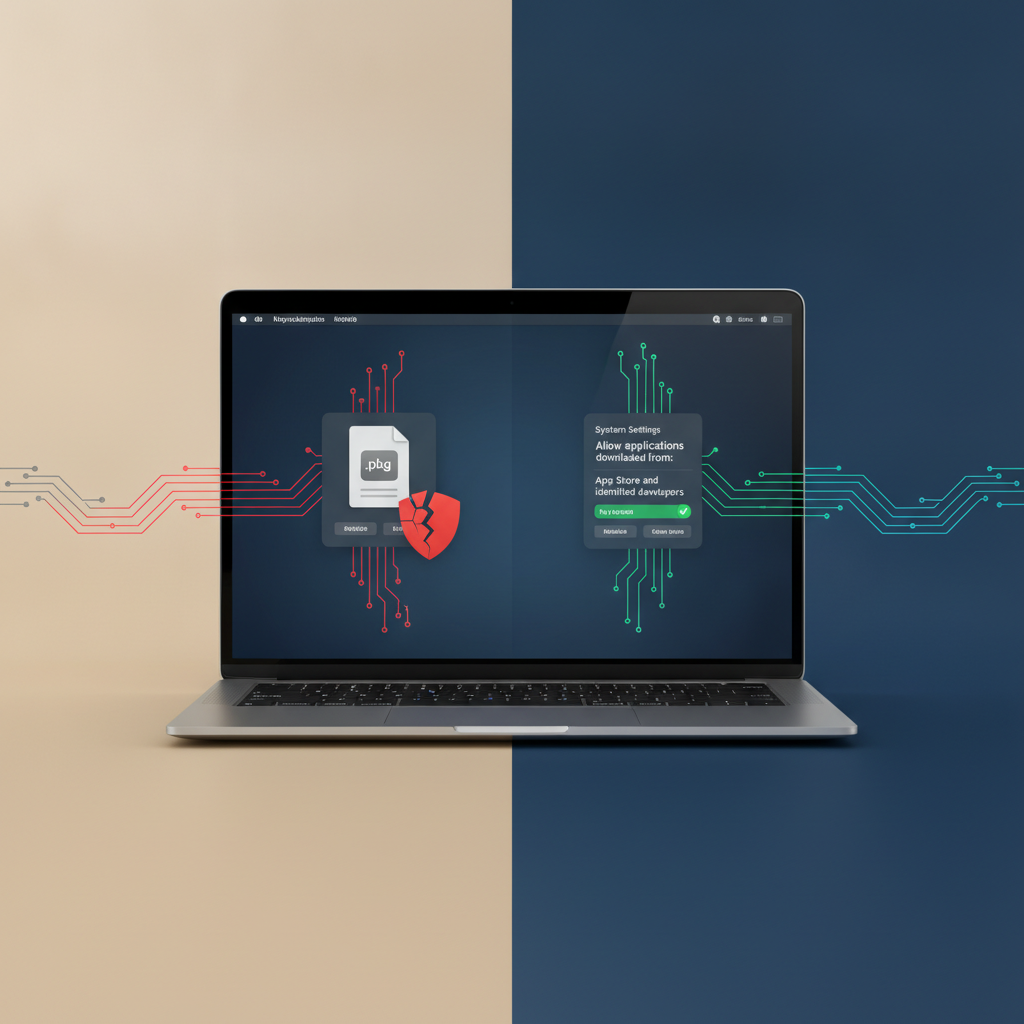
Downloading programs to a Mac has become easy and essential for professionals, but this convenience comes with risks many overlook, especially when installing popular apps like Zoom, Microsoft Office, or Adobe Photoshop from untrusted sources. This article will explain how fake programs embed themselves to steal data and recommend steps for safely verifying and downloading applications, helping you and your business avoid cyber threats.
### Understand Before You Fix: Why Fake Installers Are Dangerous
Ever wondered why hackers create fake installers? The answer is simple: it's an easy way to trick us into “allowing” malware onto our machines ourselves. macOS typically has a security system called Gatekeeper, which acts like a security guard, checking if the program we're about to install comes from a registered and trusted developer.
However, hackers constantly try to find new ways to bypass Gatekeeper. A common technique is to create installer files that look exactly like legitimate ones. When we download and install them, these fake programs often install the real application for us to use normally, so we don't suspect anything. But at the same time, they secretly install data-stealing programs (infostealers) or other malware, which operate in the background, intercepting our passwords, credit card information, or critical business data and sending it back to the hackers.
The frightening thing is that everything happens silently. Your machine might not slow down or show any obvious symptoms, leaving you unaware that your data is being leaked.
### Before You Start: Get Ready
The most crucial step before making any changes to your computer is to back up your data to ensure that you can recover important information if an error occurs.
* Backup with Time Machine: Ensure you have configured and backed up your latest data via Time Machine, a built-in macOS feature. If you haven't, connect an External Hard Drive and go to System Settings > General > Time Machine to set it up. This is your best defense.
* Be Prepared to Check: Prevention starts with attention. Taking a moment to verify the origin of a file is better than spending time and money later to resolve data breaches.
### How to Do It Safely: 5 Steps to Download and Install Apps on Mac
Follow these steps to reduce the risk of installing fake programs.
**1. Go to the Source: Always Download Directly from the Developer's Website**
* WHAT: Searching for and downloading programs from the manufacturer's official website.
* WHERE/HOW: Instead of searching for “download Zoom free” on Google, which might lead to fake, advertised links, search for the company name “Zoom” and go directly to its main website (e.g., zoom.us). Then look for the Download or Products menu. This method works for all programs.
* WHY: Official websites are the safest source for downloading the latest, malware-free versions of files. Downloading from free software aggregate sites or unknown links carries a very high risk.
* EXPECTED RESULT: You will reach the legitimate download page, recognizable by the correct URL and professional website design.
**2. Check the Gatekeeper: Configure Gatekeeper Settings Appropriately**
* WHAT: Verifying that macOS's Gatekeeper security system is enabled and correctly configured.
* WHERE/HOW: Go to System Settings (or System Preferences in older macOS versions) > Privacy & Security. Scroll down to the Security section and ensure the “Allow applications downloaded from” option is set to “App Store and identified developers”.
* WHY: This setting prevents you from inadvertently installing programs from untrusted developers. If you try to open a suspicious app, macOS will immediately warn you and block its operation.
* EXPECTED RESULT: The system will only allow installation of apps from the App Store and those from Apple-identified developers.
**3. Observe During Installation: Don't Rush to Click “Next”**
* WHAT: Reading and observing the windows that appear during the installation process.
* WHERE/HOW: While the program is installing, observe what permissions it requests, such as access to Contacts, Calendar, or an Administrator Password unnecessarily.
* WHY: Legitimate programs only request permissions necessary for their operation. For example, a video conferencing app might request camera and microphone access. But if it requests access to other irrelevant personal data, you should suspect it might be a fake program.
* EXPECTED RESULT: The installation process should be straightforward and request reasonable access permissions.
**4. Clean Up: Delete Installer Files After Use**
* WHAT: Deleting installer files (.dmg or .pkg) from your machine after the program has been installed.
* WHERE/HOW: After dragging the app icon to the Applications folder and verifying it works, go to your Desktop or Downloads folder, drag the installer file to the Trash, and then Empty Trash.
* WHY: Keeping installer files on your machine can cause confusion, lead to accidental re-installations in the future, or provide an entry point for other malware. Deleting them reduces unnecessary risk.
* EXPECTED RESULT: Your Downloads folder will be cleaner, and no old installer files will remain.
**5. Verify After Installation: Check Application Information**
* WHAT: Performing a basic check of the program you just installed.
* WHERE/HOW: Open the program, then click on the program's name in the menu bar at the top of the screen (next to the Apple logo). Select the “About [Program Name]” menu, e.g., “About Zoom”.
* WHY: Genuine programs will have a clear window displaying correct version and copyright information. If this menu is missing or looks unusual, it could be a sign of a fake program.
* EXPECTED RESULT: The “About” window will display the correct version, developer company name, and copyright details.
### Check the Results: How to Know If You're Safe
After following these steps, how can you be sure your machine is clean and secure?
* Normal Machine Operation: No unusual slowdowns, no strange pop-up advertisements, and no unknown programs running on their own.
* Check Activity Monitor: Open Activity Monitor (located in Applications > Utilities) to see if there are any unusual processes using abnormally high CPU or network resources.
* Scan with Antivirus Program: Use a trusted Antivirus program for Mac to perform a full system scan for an extra layer of confidence.
### If the Problem Persists: When You Suspect Malware Infection
If you have already installed a suspicious program and notice unusual symptoms, follow these steps immediately:
1. Disconnect from the Internet: Turn off Wi-Fi or unplug the LAN cable to prevent the malware from sending your data externally.
2. Delete the Suspicious Program: Drag that program from the Applications folder to the Trash.
3. Restore from Time Machine: If you are unsure if everything has been removed, restoring your system from a Time Machine backup created before the problematic program was installed is the safest method.
4. Consult an Expert: If you are uncomfortable fixing it yourself or if it's a company machine, notify your IT department immediately so that experts can properly inspect and resolve the issue.
Downloading and installing software carefully is a critical skill in the digital age. Taking a little time to verify for security is better than having to fix data breach issues that could cause immense damage to you and your organization.