
Technology newsroom
Resolve Remote Desktop (RDP) Security Pop-ups: Connect with Confidence
Explains why the Remote Desktop (RDP) security warning window appears, along with guidance on verifying the destination computer's name and secure connection steps to prevent the warning from reappearing for trusted machines.
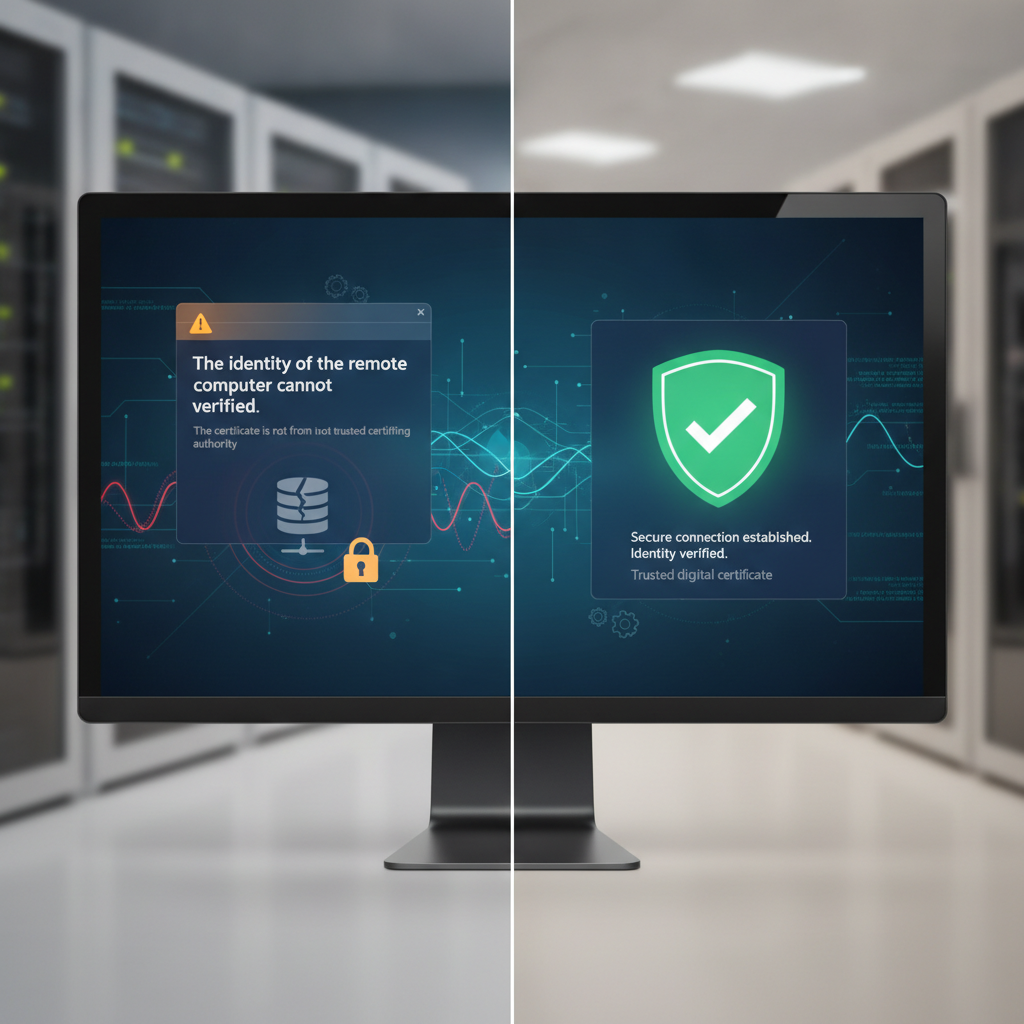
Many who work from home or remotely access company servers are well familiar with Remote Desktop Connection (RDP). However, they may have encountered a security notification window appearing before connecting, causing uncertainty about how to proceed. This article will explain what this warning is and provide instructions for office workers and general SMEs on how to verify and connect securely.
### Understanding the Issue
The warning window "The identity of the remote computer cannot be verified. Do you want to connect anyway?" is not an error but a legitimate Windows security mechanism performing its function correctly. The main reasons this warning appears are:
1. **Unknown Publisher:** The .rdp file or connection you are attempting to use is not certified by a trusted Digital Certificate from an organization recognized by Windows. This is very common for small and medium-sized businesses that do not purchase certificates for internal servers.
2. **Self-signed Certificate:** The destination server may be using a self-signed certificate to encrypt the connection. While this helps secure data in transit, Windows still doesn't trust it because it doesn't come from a generally accepted certifying authority.
This warning acts like a guard asking, "Are you sure you want to connect to this computer? I don't recognize or certify it." Our role is to verify the information before clicking connect.
### Before You Start
To ensure a smooth and secure verification and connection, you need to have accurate information ready.
* **Correct Computer Name or IP Address:** Obtain this information from your IT department or system administrator. Record it accurately, as this is the most crucial piece of information for verification.
* **Username and Password:** Have your login credentials for the destination computer ready.
### How to Connect Securely
When you double-click an .rdp file or click Connect in the program and encounter the warning window, follow these steps calmly:
**1. Stop and Read the Warning Window**
* **WHAT:** Read and thoroughly understand the information displayed in the warning window. Do not rush to click any buttons.
* **WHERE/HOW:** Look for the line that says **"Remote computer:"** or **"Computer:"**, which will display the name or IP Address of the destination machine you are about to connect to.
* **WHY:** To confirm that you are connecting to the correct machine, not an unfamiliar one that might intercept your data.
* **EXPECTED RESULT:** You will see the computer name or IP Address displayed in the warning window.
**2. Verify the Destination Computer Name Against Your Information**
* **WHAT:** Compare the computer name or IP Address seen in Step 1 with the information received from your IT department.
* **WHERE/HOW:** Match the information on the screen with the information you recorded. If they match character for character, it is correct.
* **WHY:** This is the most critical identity verification step. If the names do not match, it indicates a possible misconfiguration of the .rdp file or a potential security risk.
* **EXPECTED RESULT:** The computer name or IP Address in the warning window exactly matches your information.
**3. Edit and Review .rdp File Settings (If Using an .rdp File)**
* **WHAT:** Instead of double-clicking to connect immediately, try to review the file's internal settings first.
* **WHERE/HOW:** Right-click on your .rdp file and select **"Edit"**. The Remote Desktop Connection program will open with the settings saved in that file. Check the **"Computer"** field to ensure it's correct. You can also click **"Show Options"** to view additional settings.
* **WHY:** To verify the destination and other settings, such as sharing drives or printers, before initiating the actual connection. This gives you more control.
* **EXPECTED RESULT:** The Remote Desktop Connection program window will open, allowing you to view and edit the settings.
**4. Save Trusted Connections to Prevent Repeated Warnings**
* **WHAT:** If you have verified that the computer name is correct and it's a machine you regularly use, mark it so Windows remembers this connection.
* **WHERE/HOW:** In the security warning window, check the box **"Don't ask me again for connections to this computer"**.
* **WHY:** Doing this tells Windows that you trust this connection. The next time you connect to the same computer with the same settings, Windows will not display this warning again, allowing for faster and more convenient work.
* **EXPECTED RESULT:** A checkmark will appear in the checkbox. Then, when you click **"Connect"** or **"Yes"**, the connection will initiate.
**5. Connect and Log In**
* **WHAT:** Initiate the connection and enter your login credentials.
* **WHERE/HOW:** After completing Step 4, click the **"Connect"** or **"Yes"** button. After a moment, the system will prompt you to enter the username and password for the destination computer.
* **WHY:** This is the final step to access the destination computer.
* **EXPECTED RESULT:** You can successfully log in and view the desktop of the destination computer.
### Verify the Result
You will know the settings are successful when:
1. The next time you connect to the same computer, the security warning window will no longer appear.
2. You can access the destination computer as usual.
### If the Issue Persists
If you still see the warning window every time, it might be due to the following reasons:
* **Organizational Policy:** In some companies, the IT department may set a security policy (Group Policy) to enforce this warning every time for maximum security. In this case, you cannot disable the notification yourself.
* **Connection Change:** If the IP Address or name of the destination server changes, Windows will consider it a new connection and display the warning again.
If you are unsure or encounter other connection problems, the safest course of action is to contact your organization's IT Support for assistance. Do not attempt to modify system settings yourself.
In summary, the RDP security warning window is a valuable feature that prompts us to pause and verify before connecting. By simply learning how to read and confirm information correctly, you can work remotely with greater confidence and security.