
Technology newsroom
How to Easily Fix Blurry, Shaky, Unclear Snapchat Camera Issues
This article provides a step-by-step guide to fix blurry, shaky, or unclear Snapchat camera issues. It covers everything from external checks and diagnosis against the native camera app to in-app software solutions, empowering general users and SMEs to troubleshoot problems independently.
Have you ever encountered this problem? When taking photos or videos via Snapchat, the resulting images are blurry, shaky, or zoom in on their own, which is annoying, even though your phone's regular camera works perfectly fine. This issue frustrates general users, office workers, and even SMEs that use Snapchat for marketing communication. This article from SyncTech Solution will guide you through analyzing the causes and resolving the problem step-by-step, helping you capture sharp Snaps again.
### Understand Before Fixing
The issue of an unclear camera in the Snapchat app doesn't have a single cause, but it typically stems from three main factors: physical problems, environmental problems, and software problems.
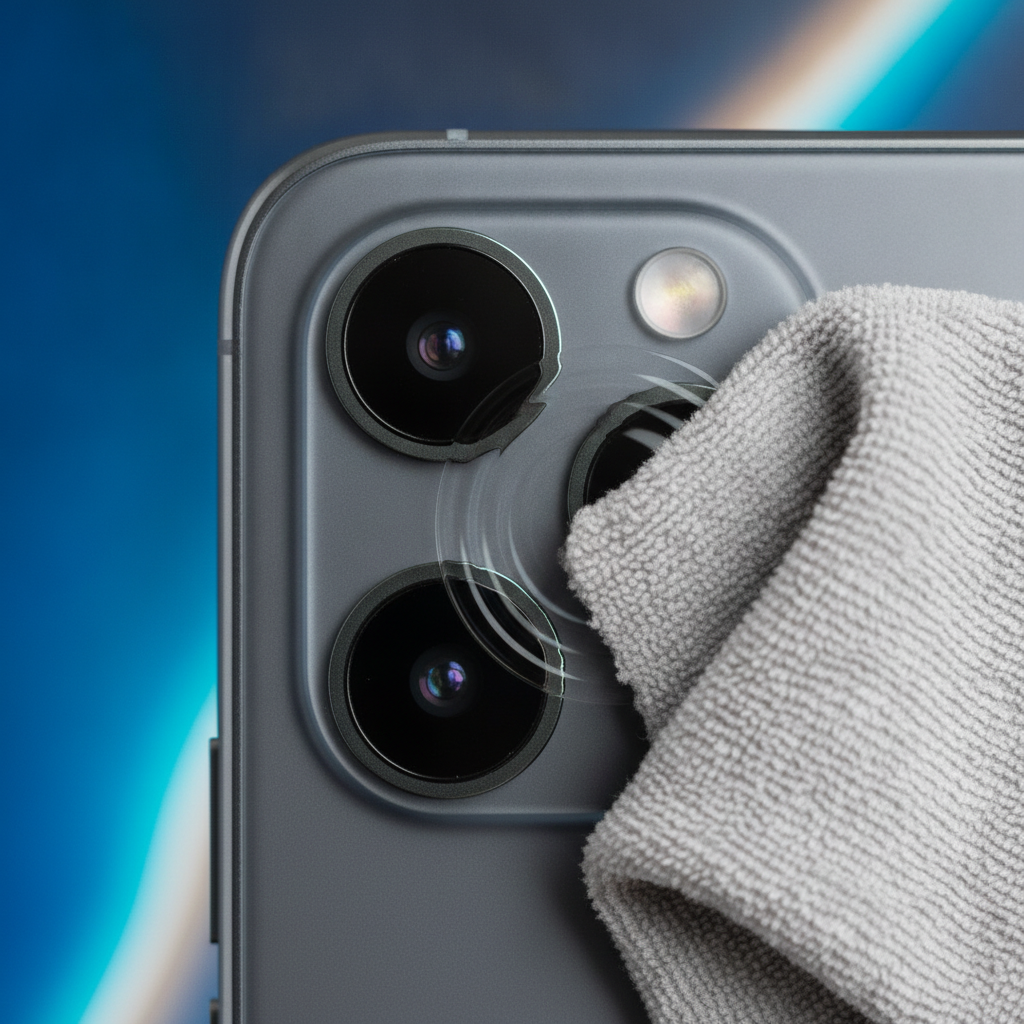
1. **Physical Problems:** The simplest and most common issue is a dirty camera lens, smudges from fingerprints, dust accumulation, or a phone case edge obstructing the lens, preventing the camera from focusing or resulting in blurry images.
2. **Environmental Problems:** Taking photos in overly low light conditions forces the camera sensor to work harder, which can result in unclear images or noticeable noise (grainy spots in the picture).
3. **Software Problems:** These can arise from errors (bugs) within the Snapchat app itself, corrupted cache files accumulated in the app, or an outdated app version that is incompatible with the mobile operating system's newer version.
The key principle in troubleshooting is to “differentiate” whether the root cause originates from the phone's camera hardware or solely from the Snapchat app. We will always start by checking the simplest points first.
### Before You Begin
To ensure smooth and safe troubleshooting, prepare a few things:
* **Check Memories Backup:** Snapchat typically backs up Memories (saved photos and videos) to the cloud automatically. However, to be sure, go to the Memories screen and check if the status indicates "Backup Complete".
* **Prepare a Microfiber Cloth:** Prepare a clean cloth specifically for cleaning camera lenses to avoid scratches.
* **Connect to Wi-Fi:** Updating or installing new apps should be done via a stable Wi-Fi connection for faster speeds and to save mobile data.
### Safe Troubleshooting Steps
**1. Check and Clean the Camera Lens**
* **WHAT:** Clean both the front and rear camera lenses and check the phone case.
* **WHERE/HOW:** Gently wipe both camera lenses with a clean, dry microfiber cloth. If you have a case on, try removing it temporarily to see if its edge is obstructing the lens.
* **WHY:** Grease from fingerprints, dust, or case edges are primary causes of blurry or hazy images.
* **EXPECTED RESULT:** After cleaning, try opening the Snapchat app again. The image on the camera screen should immediately become clearer and sharper if this was the cause of the problem.
**2. Compare Quality with the Phone's Native Camera App**
* **WHAT:** Open the built-in camera app (Camera App) to compare quality.
* **WHERE/HOW:** Close the Snapchat app and open your phone's Camera app. Try switching between the front and rear cameras in the same lighting conditions and angles where you experienced issues in Snapchat.
* **WHY:** This step is crucial for diagnosis as it helps determine if the problem is due to camera hardware (if the Camera app is also blurry) or Snapchat software (if the Camera app is clear).
* **EXPECTED RESULT:** If the image from the Camera app is clear, your camera hardware is functioning normally, and the problem lies with the Snapchat app; proceed to the next step. However, if the image from the Camera app is also blurry or shaky, it may indicate an issue with the phone's camera itself.
**3. Clear Cache in the Snapchat App**
* **WHAT:** Delete temporary data files created and stored by the app, which may be causing errors.
* **WHERE/HOW:** Open Snapchat > Tap your profile icon > Tap the gear icon (Settings) > Scroll down to "Account Actions" and select "Clear Cache" > Tap "Clear" to confirm (Clearing cache will not delete your Memories, Snaps, or Chats).
* **WHY:** Over time, the cache can become large or corrupted, potentially interfering with the app's normal operation, such as camera image processing.
* **EXPECTED RESULT:** After clearing the cache, the app will close itself. When reopened, camera malfunctions may be resolved.
**4. Check and Update the Snapchat App**
* **WHAT:** Install the latest version of the Snapchat app.
* **WHERE/HOW:** Go to the App Store (for iPhone) or Google Play Store (for Android). Search for "Snapchat" and see if an "Update" button is available. If so, tap to update.
* **WHY:** App developers frequently release updates to fix bugs found in previous versions, which may include camera-related issues.
* **EXPECTED RESULT:** Once updated to the latest version and the app is reopened, the previously experienced issues may be resolved.
**5. Restart Your Mobile Phone**
* **WHAT:** Completely power off and restart your phone.
* **WHERE/HOW:** Press and hold the Power button until the power menu appears. Then, select "Restart" or "Reboot." If these options are not available, select "Power Off," wait a moment, and then power your phone back on.
* **WHY:** Restarting clears temporary memory (RAM) and reinitializes all system processes, which can resolve minor software glitches.
* **EXPECTED RESULT:** After the phone restarts, try opening the Snapchat app again. The problem may be gone as the system has fully reinitialized.
### Verify the Solution
After following these steps, check if the problem has been resolved by:
1. Opening the Snapchat app and checking if the images from both the front and rear cameras are sharp and clear.
2. Trying to take a photo and record a short video to see if the resulting images are still blurry or shaky.
3. Sending a newly captured Snap to a trusted friend or another one of your accounts to verify that the image quality does not degrade after sending.
### If the Problem Persists
If you have followed all steps and the problem still exists:
* **If the phone's native camera app is also blurry:** It is highly likely that the problem is due to camera hardware issues. You should take your device to the manufacturer's service center or a specialized repair shop for inspection.
* **If it's only blurry in Snapchat:** The last resort is to uninstall and then reinstall the Snapchat app. Remember to ensure your Memories are fully backed up before performing this step. If reinstalling doesn't resolve the issue, you should contact Snapchat support directly through their website to report the problem.
### Conclusion
Most issues with a blurry or shaky Snapchat camera can be resolved independently by starting with simple external checks like the lens and lighting. Then, compare with the native camera app to diagnose the problem, and gradually address software issues within the app, such as clearing the cache, updating, or restarting the device. Following these steps will help you resolve the problem effectively and safely.