
Technology newsroom
Type Faster Than Ever on Android: Unlocking Keyboard Features
Unlock your Android typing potential with keyboard features many overlook. Learn Glide Typing, Voice Typing, Clipboard management for repetitive text, and Handwriting to speed up your work and communication.
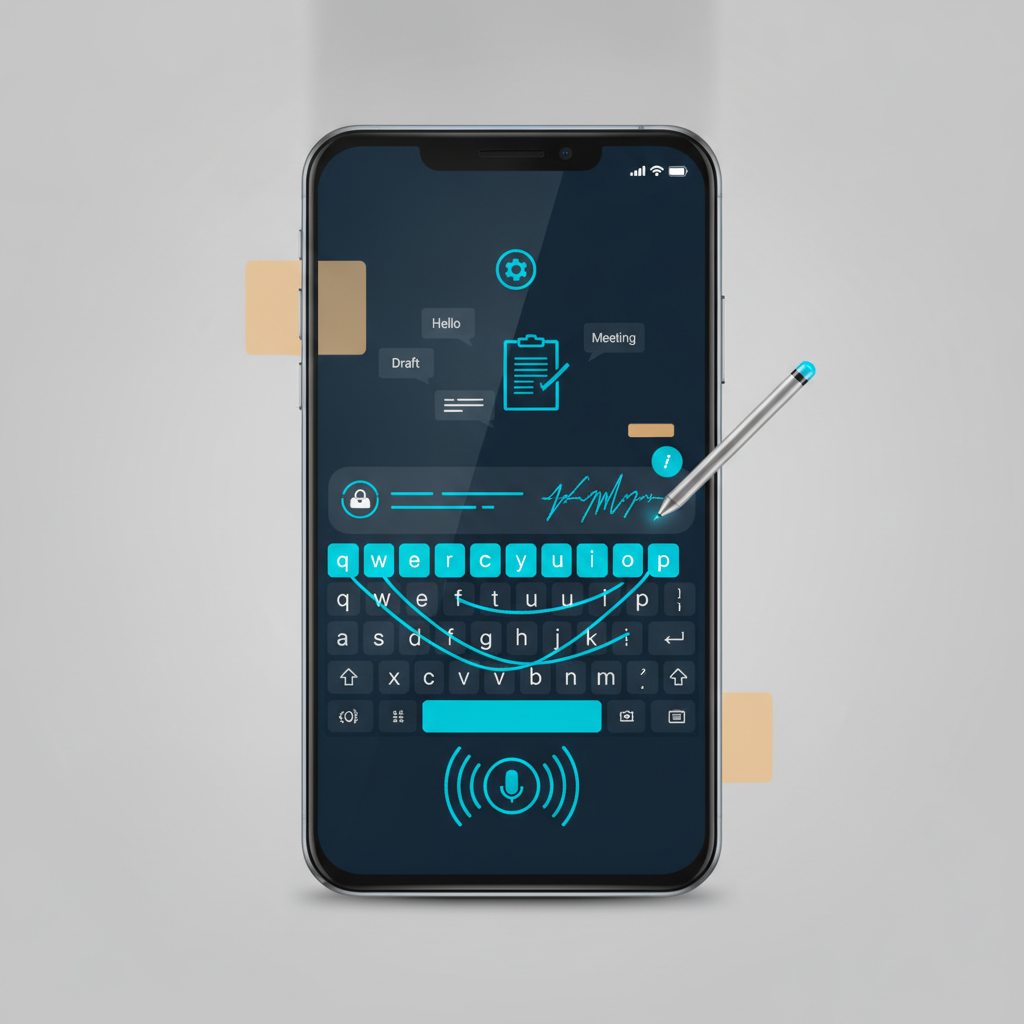
Many Android smartphone users are accustomed to traditional typing, which involves tapping each letter individually. While this basic method works well, it may not always be the fastest way. In this article, SyncTech Solution will introduce you to other typing features hidden within your keyboard that can incredibly enhance your mobile communication and work speed and convenience.
### Understand Your Keyboard
Today's Android mobile keyboards, whether it's Gboard (from Google), Samsung Keyboard, or keyboards from other brands, are no longer just simple keypads. They are powerful applications packed with various tools. Manufacturers have developed multiple input methods to meet diverse usage scenarios, from urgent one-handed typing and typing when your hands are occupied, to managing frequently used repetitive text. Learning these methods is like upgrading your mobile usage skills to a professional level, without needing to install any additional apps.
### Before You Start
Keyboard settings pose no risk to your device's data. However, to easily revert to your original settings if unfamiliar, we recommend the following steps first:
1. **Check Your Current Keyboard:** Go to **Settings > General management > Language and input > On-screen keyboard** (menu names may vary slightly by brand). Then, identify your primary keyboard app, such as Gboard or Samsung Keyboard, to know which app you will be configuring.
2. **Observe Keyboard Icons:** Open any app where you can type text and observe the toolbar at the top of the keyboard. Note what icons are present, such as a gear (Settings), microphone, clipboard, or emoji. Knowing the location of these icons will help you follow the steps more easily.
### Safe Implementation Steps
Try enabling these features in order to see which method best suits your usage style.
**1. Enable Glide Typing (Swipe Typing)**
* **WHAT:** Typing by continuously dragging your finger across the letters of the desired word, instead of lifting your finger for each letter.
* **WHERE/HOW:**
1. Open any app where you can type text to make the keyboard appear.
2. Tap the **gear** or **Settings** icon on the keyboard's toolbar.
3. Look for the menu named **"Glide typing"** or **"Swipe to type"**.
4. Enable this feature.
* **WHY:** This method is ideal for one-handed typing, allowing you to type messages much faster and more continuously, especially for common words the system recognizes well.
* **EXPECTED RESULT:** When you return to the typing interface, you can place your finger on the first letter of a word and drag it across the other letters that form the word. When you lift your finger, the word will appear in the text field.
**2. Try Voice Typing**
* **WHAT:** Speaking to have the system automatically convert speech into text.
* **WHERE/HOW:**
1. Open the keyboard.
2. Tap the **microphone** icon, which is usually located in the upper-right corner of the keyboard.
3. When the prompt to start speaking appears, clearly speak the message you want to type.
* **WHY:** This is the most convenient method when you cannot use your hands to type, such as while driving (using accessories for safety), cooking, or holding items. It is also suitable for quickly drafting long messages or emails.
* **EXPECTED RESULT:** The text you speak will appear in the typing field in real-time, and you can also speak commands for spaces or new lines (e.g., say "space" or "new paragraph").
**3. Manage Frequently Used Text with Clipboard**
* **WHAT:** Accessing the history of texts you have copied, with the ability to pin frequently used texts.
* **WHERE/HOW:**
1. On the keyboard's toolbar, tap the **clipboard** icon (it might be hidden in a three-dot menu ...).
2. A small window will display a list of texts you recently copied.
3. To save any text permanently, tap and hold that text, then select **"Pin"**.
* **WHY:** This saves time typing repetitive information such as addresses, bank account numbers, emails, or standard customer replies, eliminating the need to retype or switch apps to copy them.
* **EXPECTED RESULT:** You can quickly retrieve and paste previously copied texts, and pinned texts will remain even after restarting your device.
**4. Switch to Handwriting**
* **WHAT:** Transforming the keyboard area into a canvas for writing with your finger or a stylus.
* **WHERE/HOW:**
1. Go to **Keyboard settings > Languages**.
2. Select your desired language (e.g., Thai) and look for the **"Handwriting"** layout option, then add it.
3. When back on the typing screen, tap the **globe** icon or tap and hold the Spacebar to switch the input method to handwriting mode.
* **WHY:** Ideal for those who prefer writing over typing, or for languages with complex characters that are difficult to find on a keyboard. It also offers a more natural feel when used with a stylus.
* **EXPECTED RESULT:** The keyboard will transform into a blank area, allowing you to write text with your finger. The system will then automatically convert your handwriting into typed text.
### Verify Results
After trying these setup steps, test them in practice to ensure everything works correctly:
1. Open a chat app and try typing a message using Glide Typing. Check if basic words appear correctly and quickly.
2. Tap the microphone icon and try speaking a long sentence to test the accuracy of speech-to-text conversion.
3. Copy 2-3 sentences and open the Clipboard to see if items are available to paste. Try pinning one item.
### If Problems Persist
If some features don't work or you cannot find a menu, it might be due to an outdated keyboard version or a non-standard keyboard. Try the following:
* **Update the Keyboard App:** Go to the Google Play Store, search for your keyboard name (e.g., Gboard), and update it to the latest version.
* **Check Language Settings:** Some features, such as voice typing, may require correct language settings in the **Language and input** menu before use.
* **Reset Keyboard Settings:** In the keyboard app's settings page, there is often an option to **"Reset to default settings"**, which will clear all your custom settings but will not affect other data on your device.
* If problems persist, consulting your organization's IT department or service provider is a safe option.
### Conclusion
Taking a little time to explore and learn the various features on your everyday Android keyboard can significantly transform your typing experience, making it much faster and more efficient. Try selecting the method that suits each situation, and you'll find that mobile communication is no longer a tedious task.