
Technology newsroom
Revive a Hidden Windows 11 Feature: Shake to Clear Windows, Reduce Clutter
Easily manage cluttered windows on Windows 11 with the hidden 'shake to clear' feature. Learn how to enable it in a few steps to clear your desktop and immediately refocus on your current tasks.
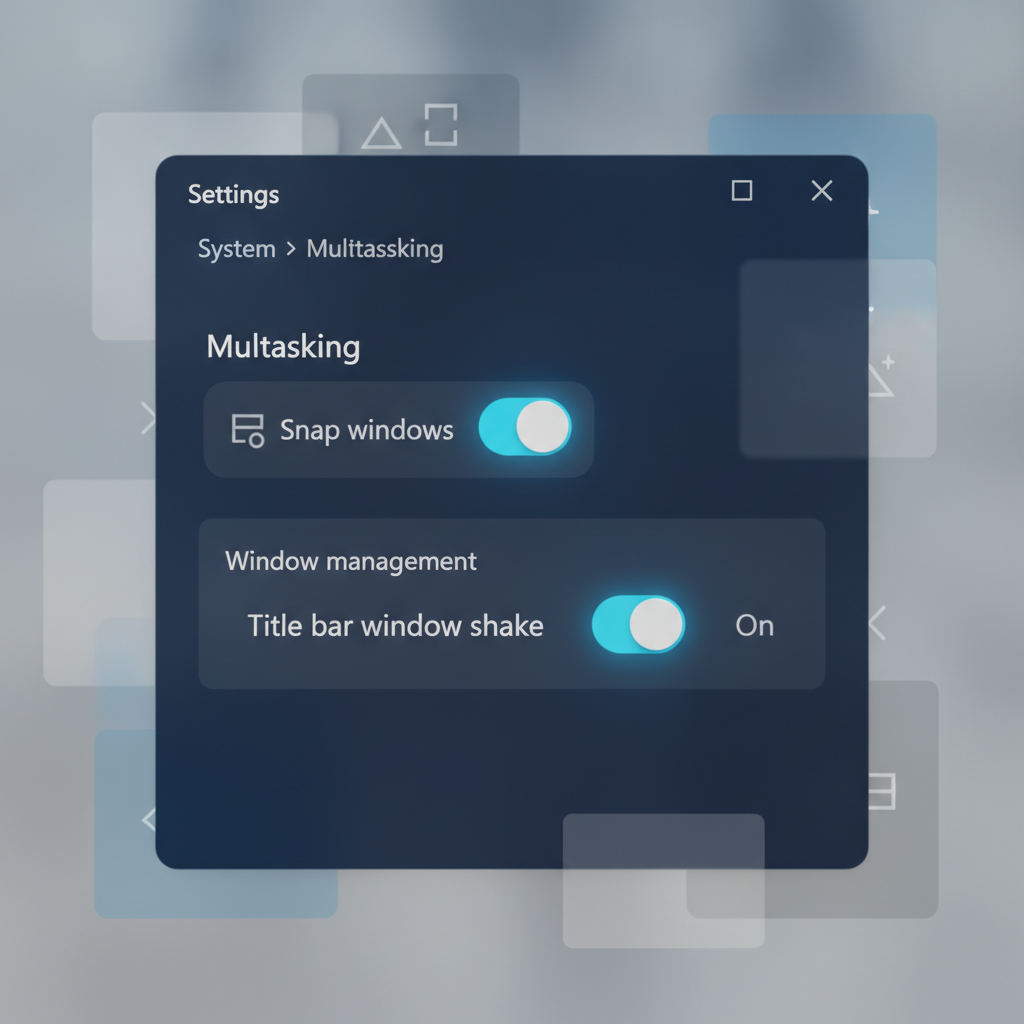
Have you ever been multitasking, only to find your computer screen overwhelmed with open program windows—browsers, emails, chat applications, document files—making it hard to see and find the window you need? This article from SyncTech Solution will introduce you to and show you how to enable a small but powerful hidden feature in Windows 11 that will help you clear your cluttered screen in an instant with just one mouse shake.
### Understand Before You Fix
This feature is officially named “Title bar window shake,” but many long-time computer users might be familiar with its previous name, “Aero Shake,” from the Windows 7 era. Its working principle is very simple: when you have multiple program windows open simultaneously and want to focus on just one, simply click and hold the mouse on that window’s top title bar, then quickly shake the mouse back and forth (left-right). All other windows will immediately be minimized to the Taskbar, leaving only the window you are currently working on. This clears your desktop and allows you to concentrate on the task at hand. And when you shake it again, the minimized windows will return to their previous state.
In Windows 11, Microsoft has disabled this feature by default, perhaps because some users might accidentally activate it. However, for those who multitask, enabling this feature can significantly speed up window management.
### Before You Begin
This setting enables a standard Windows function, so there is no risk to your data or system operations. No data backup is required before proceeding. You can follow the steps safely.
### How to Safely Enable
Follow these steps to enable the Title bar window shake feature.
**1. Open the Settings Window**
* **WHAT:** Access the main Windows settings window.
* **HOW:** The fastest way is to press `Windows + i` on your keyboard, or right-click the Start Menu button and select “Settings”.
* **WHY:** The Settings window is the central hub for customizing and controlling various operating system functions.
* **EXPECTED RESULT:** The “Settings” application window will appear on your screen.
**2. Go to the System Menu**
* **WHAT:** Select the settings category related to the overall system.
* **HOW:** In the left-hand menu of the Settings window, locate and click on “System,” which is usually the very first menu item.
* **WHY:** Settings related to multitasking are stored in this category.
* **EXPECTED RESULT:** You will see a list of various system-related settings displayed on the right side of the window.
**3. Access the Multitasking Menu**
* **WHAT:** Find and navigate to the window management settings page.
* **HOW:** On the System settings page, scroll down until you find the “Multitasking” menu and click on it.
* **WHY:** The feature we want to enable is part of the tools that help manage windows and multitasking.
* **EXPECTED RESULT:** The screen will change to display various options related to window arrangement (Snap windows) and switching screens.
**4. Enable Title bar window shake**
* **WHAT:** Toggle the switch to activate the window shake feature.
* **HOW:** Look for the “Title bar window shake” heading (in some versions, it might be “Shake window title bar”). Then, click the switch on the right to change its status to “On”.
* **WHY:** Enabling this switch allows the Windows system to respond to mouse shakes on a window's title bar.
* **EXPECTED RESULT:** The switch will change color (mostly blue) and display “On” status, completing the setup.
### Verify the Result
After enabling, you can immediately test if the feature works correctly.
1. **Open multiple windows:** Try opening 3-4 programs, such as a web browser, Notepad, and File Explorer.
2. **Select the window to focus on:** Left-click and hold the mouse on the title bar of the window you want to remain visible.
3. **Shake the mouse:** While still holding the click, quickly move the mouse back and forth (left and right) 2-3 times. The expected result is that all other windows will immediately minimize to the Taskbar.
4. **Restore windows:** Try shaking the same window again. All previously minimized windows should reappear.
### If It Still Doesn't Work
Generally, this setting works immediately. However, if it doesn't work after trying, you might consider the following:
* **Restart your computer:** Sometimes, certain setting changes may require a restart for the system to function completely. Try turning your computer off and on once.
* **Check Windows Update:** Make sure your Windows 11 is up to date, as updates can help resolve minor errors that might occur.
* **Organizational Policy:** If you are using a company computer, this option might be disabled by the IT department and cannot be changed. In this case, you should consult your organization's IT department for further guidance.
### Conclusion
The Title bar window shake feature is a small, hidden tool that is extremely useful for those who work with multiple programs simultaneously. Taking a little time to enable this feature will help you quickly manage a chaotic screen and better focus on important tasks. Try applying it, and your workflow on Windows 11 will become even smoother.