
Technology newsroom
Troubleshoot Google Docs Formatting and Sync Issues in 5 Minutes
This guide from SyncTech Solution helps office users and SMEs resolve common Google Docs issues like incorrect formatting, garbled text, or unsynced files. Learn the causes and follow simple, safe steps to restore your documents and ensure a smooth workflow.
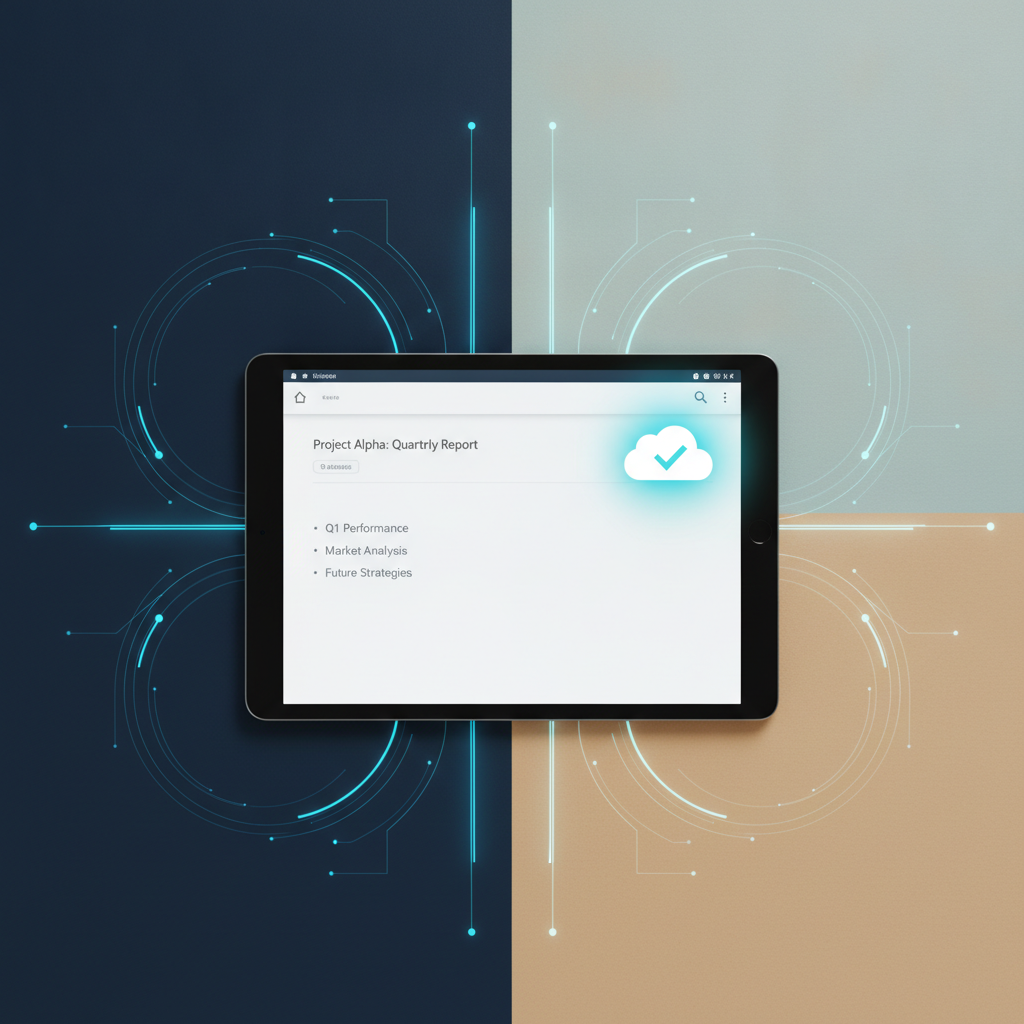
Have you ever encountered these problems while working in Google Docs? Suddenly, fonts change on their own, paragraphs shift unexpectedly, or, even worse, you edit a document on your computer only to find the changes aren't visible on your mobile device. These issues can be frustrating and potentially lead to important work being lost or damaged. This article from the SyncTech Solution team will guide you through understanding the causes and safely resolving both formatting and file synchronization problems yourself.
Understand Before You Fix
Google Docs is a cloud-based application. Every time you type or make edits, the system instantly saves the data to Google's servers, allowing you to continue working from any device. However, this convenience can also be a source of problems.
- **Sync Issue:** Occurs when your edits aren't saved to the cloud, or other devices fail to retrieve the latest information. Common causes include unstable internet connections, being logged into a Google account for an extended period, or browser-related issues.
- **Formatting Issue:** Often arises from copying text from other sources (such as websites, PDF files, or Word documents) and pasting it into Google Docs, bringing along invisible styles or code. Additionally, certain browser extensions might interfere with web page rendering, causing document formatting to appear incorrect.
Before You Start
For safety and a smooth troubleshooting process, prepare as follows:
1. **Back up important data:** Although Google Docs has a Version History system, if you prefer, copy all document content into a simple text editor (like Notepad) for safekeeping.
2. **Verify your account:** Ensure you are logged in with the correct Google account, especially if you share a computer or have multiple accounts.
3. **Prepare login credentials:** If you need to sign in again, make sure your Google account email and password are ready.
Safe Troubleshooting Steps
Follow these steps to resolve problems, moving from easiest to most complex.
**1. Check Connection Status and Save Icon**
- **WHAT:** Verify that your internet is working normally and Google Docs has saved your work.
- **WHERE/HOW:** Look for the cloud icon at the top of the document, near the file name. If it's a cloud with a checkmark ✔️, it means it's saved. If it says “Saving…” or “Reconnecting…”, there's a connection issue. Try checking your Wi-Fi signal or LAN cable.
- **WHY:** This is the most basic step. If your internet connection is lost, Google Docs cannot save your work to the cloud, leading to synchronization problems.
- **EXPECTED RESULT:** The icon should change to a cloud with a checkmark, and a message stating “All changes saved in Drive” should appear.
**2. Clear Cache and Browsing Data**
- **WHAT:** Delete old data stored by your browser, which might be causing display errors.
- **WHERE/HOW:** In Google Chrome or Microsoft Edge, go to the menu (three dots in the top right corner) > Settings > Privacy and security > Clear browsing data. Select "All time" for the time range and tick only "Cached images and files," then click Clear data.
- **WHY:** Browsers typically store data from previously visited websites to speed up subsequent loading. However, sometimes this stored data can be old or corrupted, leading to incorrect rendering of web pages, including Google Docs. Clearing the cache is like instructing the browser to reload all data anew.
- **EXPECTED RESULT:** After clearing the cache and refreshing the Google Docs page, any incorrect formatting should return to normal.
**3. Try Incognito/Private Mode**
- **WHAT:** Open the document in a special browser mode that does not load most extensions and private data.
- **WHERE/HOW:** Right-click on your Google Docs link and select “Open link in Incognito window” (for Chrome) or “Open link in InPrivate window” (for Edge), then log in to open the document.
- **WHY:** This is the quickest way to test if the problem is caused by a browser extension, as this mode temporarily disables all extensions.
- **EXPECTED RESULT:** If the document displays and syncs normally in this mode, then the root cause of the problem is definitely one of your installed extensions. Proceed to step 4.
**4. Disable Extensions**
- **WHAT:** Turn off unnecessary extensions one by one to identify the culprit.
- **WHERE/HOW:** In your normal browser window, go to Menu > Extensions > Manage Extensions (menu names may vary slightly). Then, try toggling off extensions one by one and refreshing the Google Docs page each time to see if the problem resolves. Start with extensions related to text editors, ad blockers, or VPNs.
- **WHY:** Some extensions try to "help" modify web pages but end up interfering with Google Docs' functionality, causing formatting issues or blocking connections to Google's servers.
- **EXPECTED RESULT:** Once you disable the problematic extension, Google Docs formatting and syncing should immediately return to normal.
**5. Paste without formatting**
- **WHAT:** Insert text from another source into your document without retaining its original styles.
- **WHERE/HOW:** Instead of pressing Ctrl+V (or Cmd+V) as usual, use the keyboard shortcut **Ctrl+Shift+V** (or **Cmd+Shift+V** on Mac) or right-click and select "Paste without formatting."
- **WHY:** When you copy text from a webpage or another file, it often includes invisible formatting code. This code can conflict with Google Docs' styles, leading to garbled text, strange spacing, or incorrect colors.
- **EXPECTED RESULT:** The pasted text will immediately adopt the font style and size set in Google Docs, without any incorrect formatting being carried over.
**6. Use Version History to Revert**
- **WHAT:** Review and restore a previous version of the document that was unaffected by the problem.
- **WHERE/HOW:** Go to File > Version history > See version history. Google Docs will display a list of saved versions by date and time. You can click on each version to preview it, and if you find the correct version, click the “Restore this version” button at the top.
- **WHY:** If formatting is severely damaged or some data is lost due to faulty syncing, this method acts like a time machine, allowing you to revert to a point where the document was still intact.
- **EXPECTED RESULT:** Your document will revert to the version you chose to restore.
Verify Results
After following these steps, check the following:
1. **Synchronization:** Open the same document on another device (e.g., a mobile phone or tablet) or share it with a colleague to see if the latest changes are consistent.
2. **Formatting:** Try typing new text, copying and pasting without formatting, and verify that everything displays as intended.
3. **Status Icon:** The cloud icon should quickly show a checkmark ✔️ after typing.
If the Problem Persists
If you've tried all methods and the problem still persists, it might be a more complex issue:
- **Try a different browser:** Attempt to open the document in another browser you have (e.g., Firefox) to see if the problem is specific to your original browser.
- **Check Google Drive storage:** Although rare, if your Google Drive space is full, it could affect saving new files.
- **Contact IT support:** If it's a company account, certain policies set by your IT department might be causing the problem. You should inform your organization's IT department for further investigation.
Most Google Docs issues are minor problems that you can resolve yourself. Understanding the causes and troubleshooting them step-by-step will help you return to work smoothly and confidently.