
Technology newsroom
How to Enable Dark Mode in Google Sheets: Protect Your Eyes on Desktop and Mobile
Solve the problem of bright white Google Sheets screens even with system Dark Mode enabled. This guide provides the correct settings for mobile devices and outlines how to use a secure browser extension for computers, helping to protect your eyes and work more comfortably.
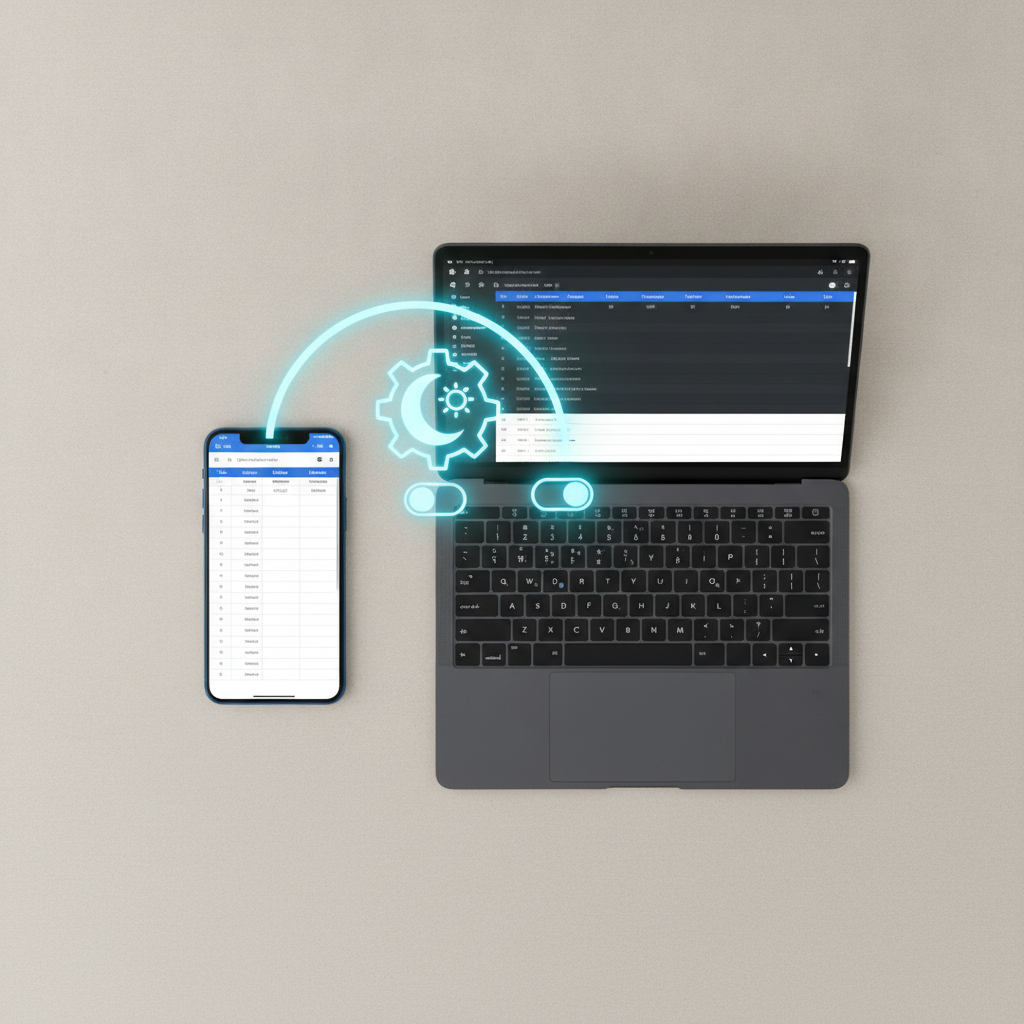
Many who work with spreadsheets at night have likely encountered this problem: even after enabling Dark Mode in Windows or macOS, opening Google Sheets still results in a glaring white table background that strains the eyes. This article from SyncTech Solution will explain the reason and provide a step-by-step guide to enable Dark Mode in Google Sheets on both computers and mobile devices, allowing you to work more comfortably.
### Understand Before You Fix
The reason why your operating system's Dark Mode settings (Windows/macOS) don't affect Google Sheets on your computer is that the web browser version of Google Sheets does not yet have a direct Dark Mode feature. This differs from the mobile application (Android/iOS), which comes with this function pre-installed. Therefore, solving this problem on a computer requires the use of a browser extension, rather than settings within the system or Google Sheets itself.
### Before You Start
The preparation for this method is not complicated, but to ensure smooth operation, you should check these points first.
1. For computers: Prepare the latest version of your web browser, such as Google Chrome, Microsoft Edge, or Firefox. Having an updated browser helps extensions perform optimally and securely.
2. For mobile devices: Ensure your Google Sheets application is the latest version. You can update it via the Play Store (for Android) or the App Store (for iPhone/iPad).
3. Save your work: Although the steps are safe, you should save any open work in your browser before installing extensions, in case the browser needs to restart.
### Safe Implementation Guide
We will divide the process into two parts: a simple method for mobile devices and a method for computers that requires an additional tool.
**Part 1: Settings on Mobile Devices (Android and iOS/iPadOS)**
1. WHAT: Open the Google Sheets application.
* WHERE/HOW: Tap the Sheets app icon on your smartphone or tablet's home screen.
* WHY: To access the main screen of the app to begin the settings process.
* EXPECTED RESULT: The app will open, displaying a list of your recent spreadsheet files.
2. WHAT: Access the main menu.
* WHERE/HOW: Tap the three-line icon (☰), also known as the "hamburger menu," typically located in the top-left corner of the screen.
* WHY: To open the navigation menu and various app options.
* EXPECTED RESULT: A menu will slide out from the side, showing options such as "Recent," "Starred," and "Settings."
3. WHAT: Select "Settings."
* WHERE/HOW: Tap "Settings" within the menu bar.
* WHY: To access the screen for customizing all app functions.
* EXPECTED RESULT: You will see a list of various app settings.
4. WHAT: Select "Theme."
* WHERE/HOW: On the settings page, look for the "Theme" section and tap it.
* WHY: To change the color display style of the app.
* EXPECTED RESULT: A window or options will appear with three choices: "Light," "Dark," and "System default."
5. WHAT: Enable Dark theme.
* WHERE/HOW: Tap the "Dark" option.
* WHY: This instantly instructs the app to change its color scheme to a dark tone.
* EXPECTED RESULT: The entire Google Sheets app screen will change to dark gray or black, and the text will become white, making it noticeably more comfortable for your eyes.
**Part 2: Settings on Computers (Windows and macOS)**
This method involves installing a reliable browser extension. We recommend "Dark Reader," which is popular and has good reviews.
1. WHAT: Open your browser's extension store.
* WHERE/HOW: For Chrome, go to the Chrome Web Store; for Edge, go to Microsoft Edge Add-ons. You can find these names by searching on Google.
* WHY: To safely find and install extensions from official sources.
* EXPECTED RESULT: You will arrive at a web page that functions like a marketplace for browser extensions.
2. WHAT: Search for and select the "Dark Reader" extension.
* WHERE/HOW: Use the search bar on the store's web page, type "Dark Reader," and press Enter. Then, click to select the correct result (look for the icon and a high number of users).
* WHY: To find an extension that can automatically adjust the colors of various web pages to dark mode.
* EXPECTED RESULT: A list of extensions will appear. Select "Dark Reader," which should be one of the first results.
3. WHAT: Install the extension into your browser.
* WHERE/HOW: On the Dark Reader details page, click the "Add to Chrome" or "Get" button for Edge. The browser will ask for installation permission; click to confirm.
* WHY: To add new functionality to your browser.
* EXPECTED RESULT: After installation, the Dark Reader icon (resembling a Darth Vader mask) will appear in the top-right corner of your browser.
4. WHAT: Test the functionality in Google Sheets.
* WHERE/HOW: Open a new tab and go to sheets.google.com, or refresh any open Sheets web page.
* WHY: To verify that the extension works correctly with the Google Sheets website.
* EXPECTED RESULT: The Google Sheets web page, including tables and menus, will automatically switch to a dark theme. You can click the Dark Reader icon to enable/disable it for specific websites.
### Check Results
1. On a computer: Open any spreadsheet file. Check that the cell backgrounds, menus, and surrounding areas are dark, but the text remains clearly legible.
2. On a mobile device: Verify that the main screen and spreadsheet editing screen are in the dark theme as configured.
3. Note: The colors of graphs or custom-colored cells might appear slightly distorted in Dark Mode. You may need to adjust the colors for better visibility when working with highly colorful data.
### If It Still Doesn't Work
- On a computer: If you've installed the extension but the website is still white, try restarting your browser or clicking the extension icon and toggling it on and off again. If it still doesn't work, try disabling other extensions that might be conflicting.
- Company Policy: In some companies, the IT department may restrict browser extension installations. If you are unable to install it, you should consult your IT department for assistance or to check security policies.
- On a mobile device: If the settings don't change, it might be because the app version is too old. Try updating the application to the latest version.
Adjusting Google Sheets to Dark Mode might require some assistance on a computer, but the result is long-term visual comfort, especially for those who spend extended periods staring at screens in low-light environments.