
Technology newsroom
Migrating Password Managers on Android: Securely Transferring Passwords and Passkeys
Learn how to securely and completely migrate your password and Passkey data between Password Manager apps on Android. This guide provides step-by-step instructions for exporting, importing, and verifying data, along with crucial precautions to prevent data leaks. Ideal for office users and SMEs.
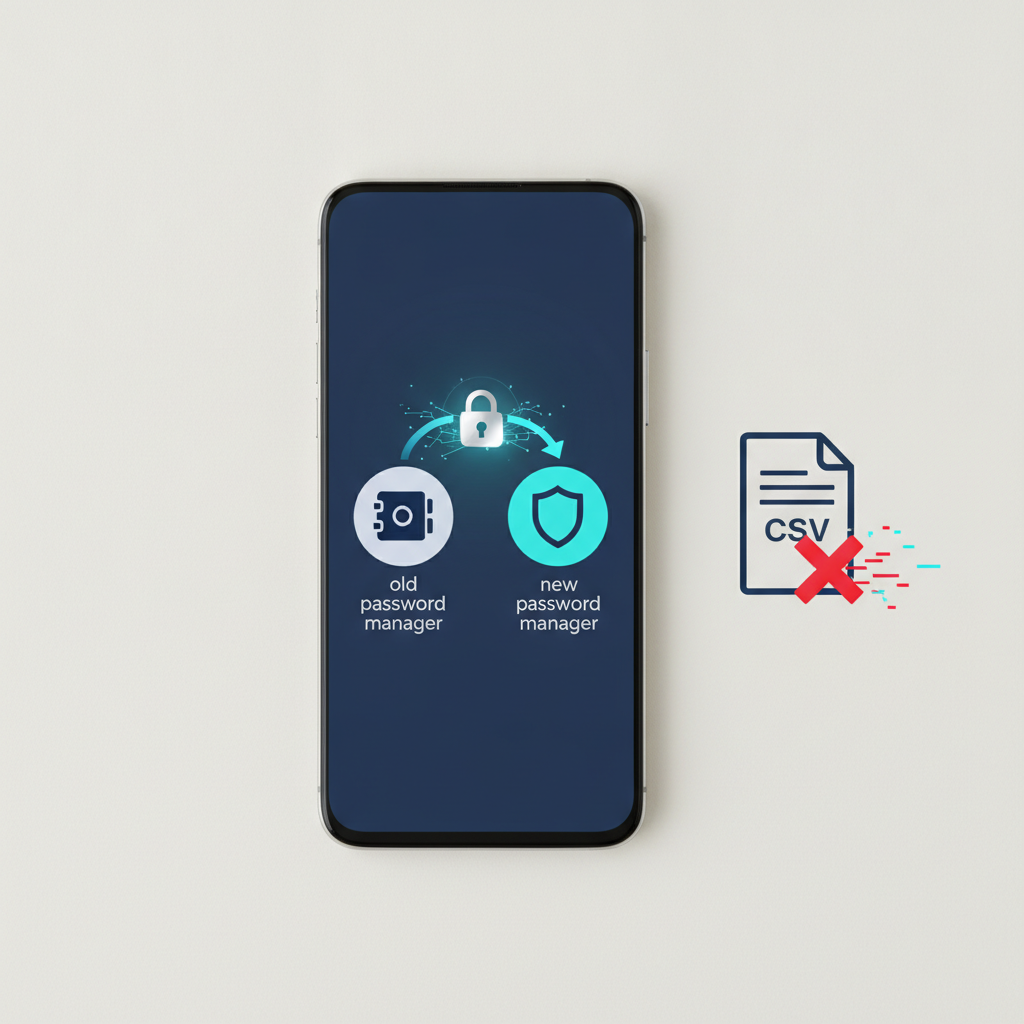
Many people have started using Password Managers to handle complex and unique passwords for various services, which is an excellent practice. However, after using one for a while, you might find another application that better suits your needs, whether it's due to features, price, or usability. This article will guide you through safely transferring password and Passkey data from your old Password Manager to a new app on Android, step-by-step, so you can switch to your preferred tool without worrying about losing important information.
### Understand Before You Act
A Password Manager, or password management app, functions like a digital safe for storing all your login information in one place. It encrypts and protects this data with a single Master Password. The advantage is that it helps us create and use strong, unique passwords for each website without having to memorize them all.
Passkey is a new login technology that eliminates the need for passwords. Instead, it uses biometric authentication (such as fingerprints or facial scans) directly on our devices, which is significantly more secure than traditional passwords.
Migrating data between these apps fundamentally involves "exporting" all data from the old app into a file, and then "importing" that file into the new app. Most apps support standard file formats like CSV (Comma-Separated Values). However, this file will be in an unencrypted format, meaning that during the data migration process, you must handle this file with the utmost care.
### Before You Start
Good preparation will ensure the data migration process is smooth and as secure as possible.
1. **Select and Install Your New Password Manager:** Decide on your desired new app and install it on your Android phone.
2. **Update Your Old App:** Ensure your old Password Manager is running the latest version for full data export functionality.
3. **Prepare Your Master Password:** You will need the Master Passwords for both your old and new apps during the process. Keep them ready.
4. **Back Up Data as a File:** While some apps may offer direct migration, exporting your data as a backup file beforehand is the best contingency plan. The exported file will typically be in `.csv` format. **Crucial Warning:** This file is like a vault key containing all your passwords in plain text, readable by anyone. Do not under any circumstances send this file via email or upload it to insecure cloud services.
### How to Do It Safely
The following steps are general guidelines; menu names or locations may vary between applications. It is recommended to consult the app developer's manual for specific instructions.
**1. Export Data from Your Old Password Manager**
* **WHAT:** Create a data backup file containing all your passwords and login information.
* **WHERE/HOW:** Open your old Password Manager app. Go to **Settings** or **Security**. Look for a menu option called **Export**, **Export Vault**, or **Backup**. The app will ask you to verify your identity with your Master Password or fingerprint, then prompt you to save the file (often with a `.csv` or `.1pif` extension) to your phone's storage.
* **WHY:** To create the raw data file for use with the new app.
* **EXPECTED RESULT:** You will have one data file saved in your Downloads folder or a folder you selected on your phone.
**2. Import Data into Your New Password Manager**
* **WHAT:** Transfer data from the file created in the first step into the new app.
* **WHERE/HOW:** Open your new Password Manager app. Log in. Go to **Settings** and look for a menu option called **Import**, **Import from another manager**, or **Import data**. The app will prompt you to select the app you are migrating from (e.g., 1Password, Bitwarden, LastPass) or choose CSV file type. Then, select the file you just exported.
* **WHY:** To securely transfer all your login information into the new app's storage.
* **EXPECTED RESULT:** The new app will display all imported accounts and passwords. The number of items should be similar to your old app.
**3. Verify Data Accuracy**
* **WHAT:** Randomly check if the imported data is complete and correct.
* **WHERE/HOW:** In the new app, try viewing login information for important services such as email, Facebook, or banking apps. Compare usernames and passwords with the data in your old app to ensure they match.
* **WHY:** To confirm that no data was lost or corrupted during the import process, which could prevent you from logging into important services.
* **EXPECTED RESULT:** The data for randomly checked accounts in the new app matches the old app perfectly.
**4. Permanently Delete the Exported Data File**
* **WHAT:** Remove the high-risk `.csv` file from your device.
* **WHERE/HOW:** Open the **File Manager** app on your phone. Navigate to the folder where the exported file was saved (e.g., Downloads). Press and hold the file, then select Delete. Afterwards, go to the **Trash** or **Recycle Bin** within your File Manager and select to **Delete Permanently**.
* **WHY:** This is the most crucial step for security! If the `.csv` file, containing all your unencrypted passwords, falls into the wrong hands, it could lead to severe damage. Deleting it immediately after use is essential.
* **EXPECTED RESULT:** The exported data file is completely and unrecoverably removed from your device.
**5. Set the New App as the Default Autofill Service**
* **WHAT:** Configure your Android system to automatically use your new Password Manager when encountering login screens.
* **WHERE/HOW:** Go to Android **Settings** > **Passwords & accounts** > **Autofill service** (menu name may vary by device manufacturer). Then, select your new Password Manager app.
* **WHY:** To ensure smooth and convenient usage, as the new app will automatically pop up to help you fill in passwords.
* **EXPECTED RESULT:** When you access a login screen for an app or website, a window from the new Password Manager will appear to assist with data entry.
### Verify Results
1. **Test Logins:** Try logging into 2-3 websites or applications using the autofill feature from your new app to confirm it works correctly.
2. **Compare Item Counts:** Check the total number of items in the new app. It should be equal to or very close to the number in your old app.
3. **Delete Old Account (Optional):** Once you are 100% confident that all data has been successfully migrated and is functional, you may consider deleting your account in the old Password Manager to prevent confusion.
### If Problems Persist
If data import fails or is incomplete, first check if you selected the correct file type or source app during the import process. Sometimes, the exported file format may not be compatible with what the new app requires. You may need to consult the new app's manual to see if there are specific requirements for importing files from your old app.
If the problem persists, especially if it involves critical company data, and you are unsure how to resolve it yourself, you should stop and contact the support team of the new Password Manager app developer or consult your organization's IT department for correct and secure guidance.
**Conclusion**
Migrating data between Password Managers on Android doesn't have to be daunting. With careful preparation and execution of the steps, the most critical aspect is handling the exported data file cautiously and deleting it immediately after use. This ensures you can fully and securely utilize your new, preferred tool.