
Technology newsroom
How to Enable Stolen Device Protection on iPhone to Protect Data and Money
Learn how to activate Stolen Device Protection, a security feature in iPhone (iOS 17.3+) that prevents thieves who steal your device and know your passcode from easily accessing your data and financial apps by enforcing Face ID and a security delay.
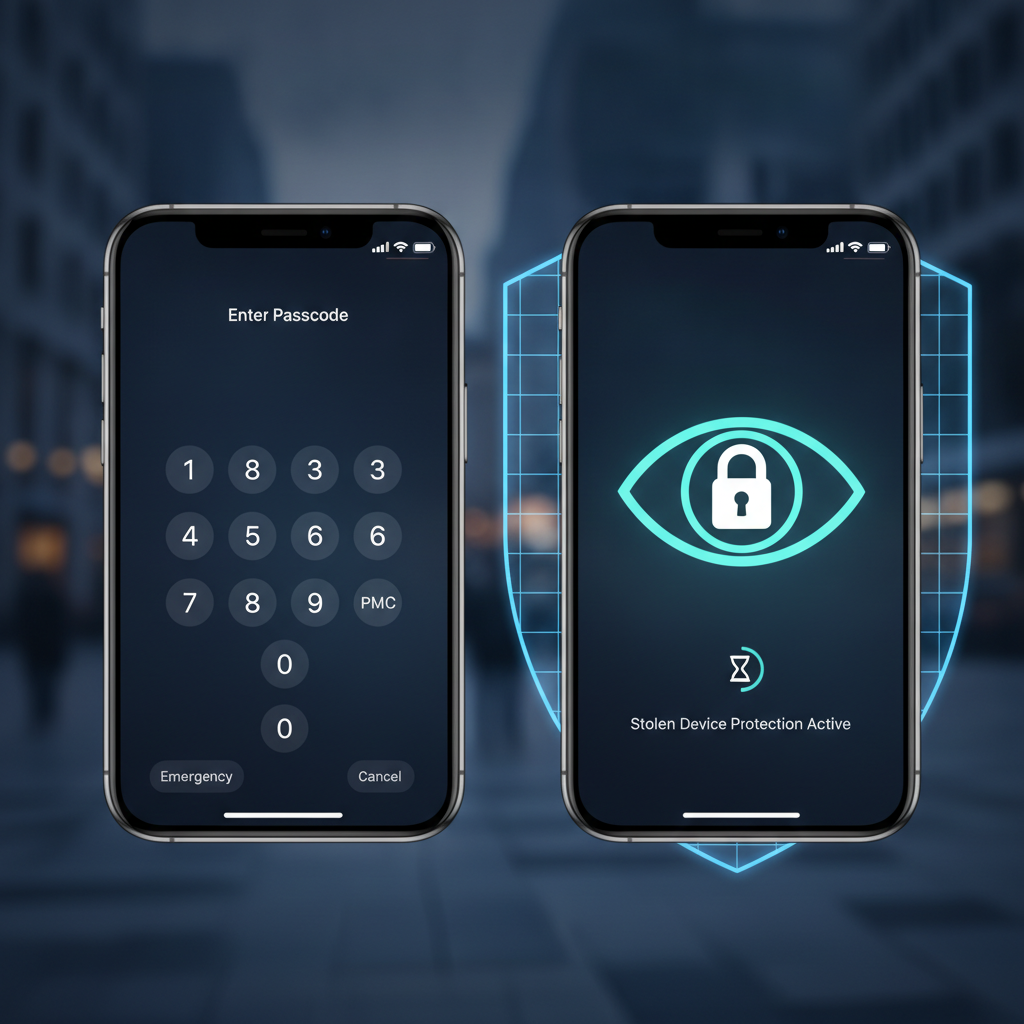
We often hear news that criminals not only steal phones but also secretly observe our passcodes beforehand, then use them to change Apple ID passwords, access banking apps, and transfer all funds from accounts. This article from SyncTech Solution will guide you on how to enable a high-security feature hidden in your iPhone specifically to prevent such incidents, allowing you to use your iPhone with greater peace of mind.
### Understand Before Acting: How Stolen Device Protection Works
Normally, when performing important actions on an iPhone, such as changing an Apple ID password or screen passcode, if Face ID or Touch ID scans fail multiple times, the system allows you to use a numeric passcode instead. This is a vulnerability that criminals exploit if they know your passcode.
The “Stolen Device Protection” feature is specifically designed to close this loophole. Once enabled, if your iPhone is not in a “Familiar Location” such as your home or workplace, high-risk actions will encounter two layers of protection:
1. **Biometric Enforcement Only:** Access to sensitive data, such as saved passwords, or changing your Apple ID password, will require Face ID or Touch ID exclusively. A numeric passcode cannot be used as an alternative.
2. **Security Delay:** For the most critical actions, such as changing your Apple ID password or turning off Find My iPhone, the system will require an initial Face ID/Touch ID scan, followed by a one-hour wait, and then another scan to re-authenticate. This delay is intended to give the legitimate owner time to suspend accounts or locate the device via Find My before the thief can successfully take over accounts.
### Before You Start: Preparation
Before enabling this feature, you must ensure that your device's basic settings are ready.
* **Compatible Device:** Must be an iPhone capable of updating to iOS 17.3 or later.
* **Face ID or Touch ID Enabled:** This feature relies on biometric authentication.
* **Find My Enabled:** “Find My” must be enabled to track the device's location and manage it remotely.
* **Two-Factor Authentication (2FA) for Apple ID Enabled:** This is mostly enforced by default and provides two-factor authentication for your account.
* **Significant Locations Enabled:** This is crucial for the device to recognize your “Familiar Locations.”
### Secure Setup: Enabling Stolen Device Protection
Follow these steps to enhance your iPhone's security.
**1. Update iOS to the Latest Version**
* **WHAT:** Check and install the latest iOS version to ensure Stolen Device Protection is available.
* **WHERE/HOW:** Go to **Settings > General > Software Update**.
* **WHY:** This feature is available from iOS 17.3 onwards. Updating the operating system also helps close other security vulnerabilities.
* **EXPECTED RESULT:** The screen will show that your iOS is up to date, or present options to download and install a new version.
**2. Verify Find My is Enabled**
* **WHAT:** Confirm that the “Find My” service is enabled.
* **WHERE/HOW:** Go to **Settings > [Your Name] (at the top) > Find My > Find My iPhone**.
* **WHY:** Stolen Device Protection works in conjunction with Find My. If Find My is disabled, this feature may not function or cannot be activated.
* **EXPECTED RESULT:** The “Find My iPhone” option should be in the “On” state.
**3. Check Location Services and Significant Locations Settings**
* **WHAT:** Enable Location Services and Significant Locations to allow the device to learn your “Familiar Locations.”
* **WHERE/HOW:** Go to **Settings > Privacy & Security > Location Services** and enable it. Then scroll down to the bottom, select **System Services > Significant Locations** and enable it.
* **WHY:** If this section is not enabled, your iPhone will not know where your home or workplace is, which might cause the Security Delay to activate all the time, even when you are at home, potentially leading to inconvenience.
* **EXPECTED RESULT:** The switches for “Location Services” and “Significant Locations” should be in the “On” state.
**4. Enable Stolen Device Protection**
* **WHAT:** Enable the “Stolen Device Protection” feature, which is the final step.
* **WHERE/HOW:** Go to **Settings > Face ID & Passcode** or **Touch ID & Passcode**. Then enter your screen passcode.
* **WHY:** This enables the core protection mechanism as we described above.
* **EXPECTED RESULT:** Scroll down to find the section **“Stolen Device Protection.”** Tap to **“Turn On Protection.”** The switch will change to the “On” state.
### Verify Results
How will you know this feature is working?
1. **Menu Status:** Go back to **Settings > Face ID & Passcode.** You will see that the “Stolen Device Protection” option shows “On” status.
2. **No Change in Normal Use:** When you are at home or work (a Familiar Location), you can use your iPhone normally. There will be no interfering delays.
3. **Testing (for advanced users):** If you want to see it in action, you can try traveling to an unfamiliar location and then attempt to change your Apple ID password. You will see a notification about the 1-hour security delay (not recommended to complete the full process unless necessary).
### Troubleshooting
* **Cannot find the menu:** If you cannot find the “Stolen Device Protection” menu, the main reason is that your iOS version is not 17.3 or higher. Please return to Step 1 to update iOS first.
* **Cannot enable:** If the option is grayed out or cannot be enabled, please recheck the settings in the “Before You Start” section, especially Find My and Location Services, which must be enabled first.
* **Inconvenience:** If you find that the Security Delay activates regularly in places you frequent, it might be because the device has not adequately learned your Significant Locations. Continue using it for a while to allow the system to adapt, or recheck the Significant Locations settings. If the problem persists and impacts your workflow, you can temporarily disable this feature from the same menu, but you must accept the reduced security risk.
In summary, Stolen Device Protection is a powerful and essential security feature for all iPhone users today. Taking a few minutes to enable it will significantly enhance the protection of your personal data and assets should an unexpected event occur.