
Technology newsroom
How to Lock ChatGPT Chats: Hide Important Conversations and Prevent On-Screen Snooping
Learn how to use ChatGPT's new Locked Chats feature to hide important conversations from prying eyes using a PIN or Biometrics. Includes essential instructions and precautions for secure usage.
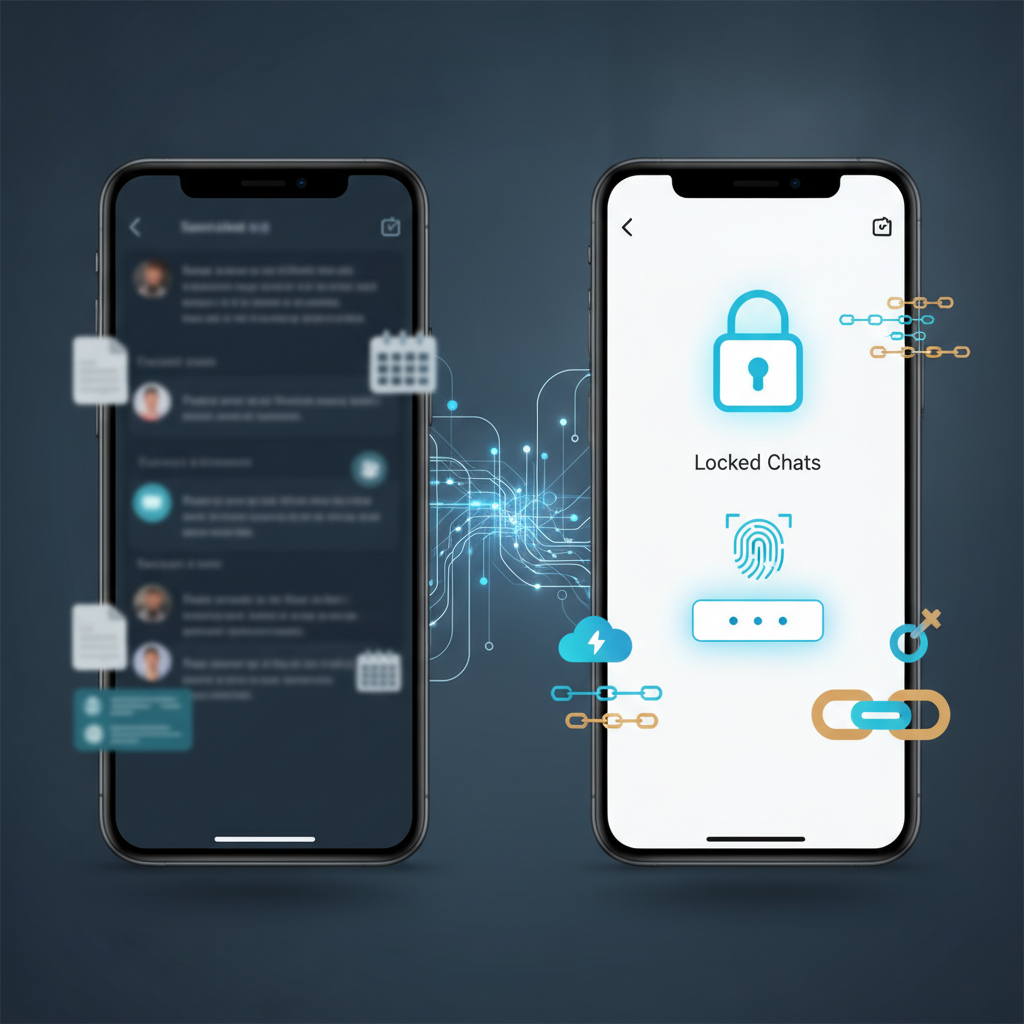
Many times, we use ChatGPT to draft important emails, prepare internal information, or even discuss personal ideas, but we worry that others sharing the computer or walking past our desk might glimpse these conversations. ChatGPT now offers a new “Locked Chats” feature to help hide desired chats from others' view. This article from SyncTech Solution will teach you how to use this feature in detail, securely, and with an understanding of its limitations.
Understand Before You Start: How Locked Chats Works
The Locked Chats feature does not encrypt data from OpenAI; instead, it hides your selected conversations from the regular chat history sidebar. They will only reappear when you enter your PIN or use the configured Biometrics (fingerprint/face scan).
Its operation is similar to creating a secret folder on a phone: it hides items from the main screen for privacy. It's suitable for preventing colleagues, family members, or anyone who might access your computer or phone while you're still logged into ChatGPT. However, it does not prevent OpenAI from accessing data for model development (if you haven't configured data controls) and does not protect against hackers who might breach your account.
Before You Begin: Preparation and Important Notes
The most important thing to know before activating this feature is: “If you forget your PIN, you will not be able to recover locked chats.” Resetting the PIN will permanently delete all locked chats. Therefore,
1. Choose a PIN: Select a PIN you can remember easily but is difficult for others to guess. Avoid simple PINs like 1234, 0000, or your birthdate.
2. Decide whether to use Biometrics: If your device supports fingerprint or face scanning, enabling this option will be more convenient and secure than typing your PIN every time.
3. Back up data (if necessary): If you have highly important information in a chat you intend to lock, consider copying the content to a secure document beforehand, in case you forget your PIN in the future.
How to Safely Set Up and Use Locked Chats
Follow these steps to activate and start locking your desired chats.
Step 1: Enable the Locked Chats Feature
* WHAT: Open settings to begin using chat locking.
* WHERE/HOW: On the ChatGPT screen, click on your profile name (usually in the bottom left corner) > Select 'Settings' > Go to the 'Data controls' tab > Locate the 'Locked Chats' option and toggle it on.
* WHY: This enables the system for the feature. If this step is not completed, the option to lock individual chats will not appear.
* EXPECTED RESULT: The toggle switch will turn green or to an 'On' status, and the system may prompt you to set a PIN immediately in the next step.
Step 2: Set a PIN or Biometrics
* WHAT: Create a 4-digit PIN for unlocking.
* WHERE/HOW: After enabling the feature in Step 1, a 'PIN' setup window will appear. Enter your desired 4-digit PIN and confirm it. If your device and browser support it, an option to use Biometrics (Use fingerprint, Face ID) may also be available.
* WHY: The PIN is the primary key to access locked chats. This setup is only required the first time.
* EXPECTED RESULT: The system will confirm successful PIN setup, and the settings window will close.
Step 3: Lock Desired Conversations
* WHAT: Select chats you wish to hide from the regular list.
* WHERE/HOW: Return to the main ChatGPT page. Hover your mouse over the conversation title in the left-hand chat history sidebar. You will see a '...' (three dots) icon or a padlock icon appear. Click on this icon and select 'Lock chat'.
* WHY: To move that conversation into the locked section, preventing it from appearing in the regular list.
* EXPECTED RESULT: The selected conversation will immediately disappear from the chat list.
Step 4: Access and View Locked Chats
* WHAT: View hidden conversations.
* WHERE/HOW: At the top of the chat list, a new section titled 'Locked chats' will appear. Click on this section. The system will then display a window prompting you to enter your PIN or scan your fingerprint/face.
* WHY: This is an authentication step to access hidden information.
* EXPECTED RESULT: Once the correct PIN is entered, all previously locked chats will appear, allowing you to open and read them as usual.
Step 5: Permanently Unlock Chats
* WHAT: Return previously locked chats to the regular list.
* WHERE/HOW: Access the 'Locked chats' section as per Step 4. Then, hover your mouse over the chat you wish to unlock. Click on the '...' icon or the padlock icon, and select 'Unlock chat'.
* WHY: When privacy is no longer needed for a chat, it can be moved back to the regular list for easier access.
* EXPECTED RESULT: The chat will disappear from 'Locked chats' and immediately reappear in the regular chat history list.
Check Your Results
After following these steps, check the following:
1. Did the chat disappear?: The conversation you chose to lock should not be visible in the left-hand chat list.
2. Is a PIN required?: Try clicking on the 'Locked chats' section to see if the system prompts you to enter a PIN before granting access.
3. Can it be unlocked?: Try unlocking one of the chats and see if it correctly reappears in the regular list.
If It Still Doesn't Work, or Additional Precautions
* Repeat: Forgot PIN = Chats Deleted: If you forget your PIN and reset it, all locked chats will be permanently deleted for security. This is the most crucial limitation.
* Locks are Device-Specific: Chat lock settings apply only to the browser or app you are currently using. If you log into ChatGPT on another computer or phone, you might need to set up or unlock them separately.
* Not for Data Breach Protection: This feature is for on-screen privacy; it does not protect against account hacking or data access by OpenAI. For overall account security, you should set a strong password and enable Two-Factor Authentication for your OpenAI account.
If you encounter usage issues or cannot find the mentioned menu, it's possible that this feature is not yet enabled for your account, or you may need to update the application to the latest version. You should check the OpenAI help page directly for information.
In summary, Locked Chats is an easy-to-use and highly beneficial privacy tool for those who work in open spaces or share computers. By understanding and accepting the risk of forgetting your PIN, you can use it with peace of mind.