
Managing ChatGPT History: Delete, Export, and Privacy Controls
Technology news
A comprehensive guide for general users and businesses on managing ChatGPT data and chat history, from exporting and archiving to permanent deletion and configuring privacy settings to prevent data use for AI training.
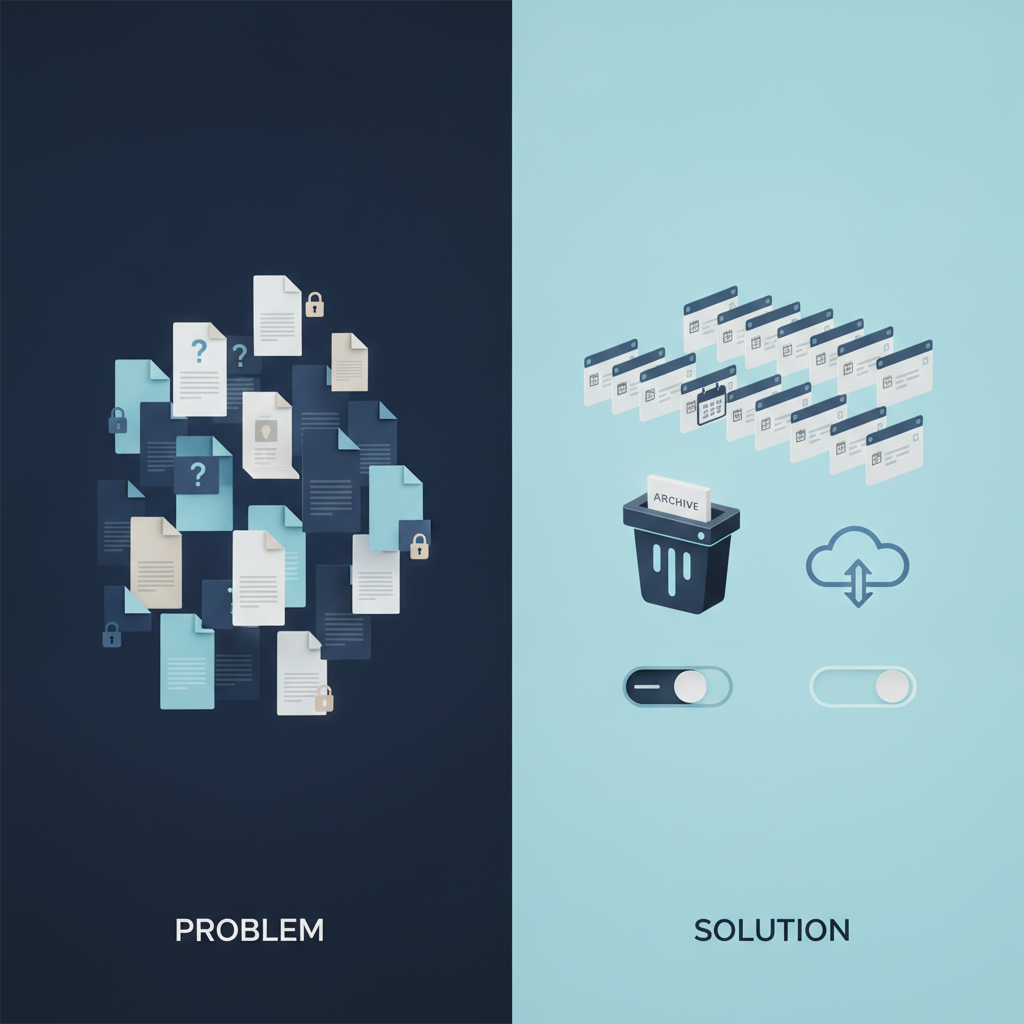
Often, we use ChatGPT to brainstorm ideas, answer personal questions, or even draft important documents. Have you ever wondered where those conversations are stored and how you can manage them? This article from SyncTech Solution will provide a detailed guide on managing your data and chat history in ChatGPT, empowering you to confidently control your own information, whether it's deleting, exporting, or configuring privacy settings.
### Understand Before You Act: Where Does Your Data Go in ChatGPT?
By default, ChatGPT saves all your conversations to your account, allowing you to revisit them. This data (anonymized) may also be used to further develop the AI model in the future. Therefore, data management has multiple levels, not just 'deletion.' Imagine it like your office desk:
* **Archive:** Similar to filing away infrequently used documents in a cabinet behind your desk, it tidies up your workspace (the chat history sidebar) but doesn't erase the documents; they're still there.
* **Delete:** Like shredding documents, this is a permanent deletion (though there's a period before it's truly purged from the system) and cannot be recovered.
* **Export:** Similar to making copies of all your documents and storing them securely before handling the originals.
* **Memory & Training Settings:** Like setting policies on who can read documents on your desk to learn from them, and what ChatGPT should remember about you for future conversations.
Understanding these distinctions will help you manage your data most effectively and securely according to your needs.
### Before You Begin
Before deleting or altering any settings, the most crucial step is to decide what you want to do with your data.
1. **Do you need to keep a copy?** If conversations contain important information you might need to reference in the future, always export your data as a backup first.
2. **Log in:** Ensure you are logged into your ChatGPT account via a web browser on a computer. This provides full access to all settings menus for the most convenient management.
### Secure Methods
Here are the steps to manage your ChatGPT data, which you can follow immediately.
**1. Export All Data**
* **WHAT:** Creates a backup file containing all your conversations and account data.
* **WHERE/HOW:**
1. In the bottom-left corner of the screen, click your profile name, then select **Settings**.
2. In the Settings window, select the **Data controls** tab.
3. Click the **Export** button.
4. Read the description and click **Confirm export**. The system will begin preparing the file and send a download link to your registered email address (this may take a moment).
* **WHY:** To ensure you have a copy of all your data before deleting anything, or to use the data in other formats. This is the most recommended step if you are unsure whether to delete any data.
* **EXPECTED RESULT:** You will receive an email from OpenAI with a link to download a .zip file, which will contain your conversation data in HTML and JSON formats.
**2. Archive Conversations Temporarily**
* **WHAT:** Removes conversations from the main list on the left sidebar for a cleaner interface, without deleting the data.
* **WHERE/HOW:**
1. Hover your mouse over the name of the conversation you wish to archive in the left sidebar.
2. Click the box icon with a downward arrow (Archive chat).
* **WHY:** Ideal for conversations that are finished but you might want to revisit later. It's an excellent way to organize without risking data loss.
* **EXPECTED RESULT:** The conversation will disappear from the main list. To view or restore it, go to **Settings > General > Archived chats** and select **Unarchive**.
**3. Permanently Delete Conversations**
* **WHAT:** Permanently removes conversations from your account.
* **WHERE/HOW:**
* **Delete individually:** Hover your mouse over the conversation name, then click the trash can icon (Delete chat).
* **Delete all:** Go to **Settings > Data controls**, then click the **Delete** button next to the **Delete all chats** heading.
* **WHY:** Use this when you are certain you no longer need the conversation, especially if it contains sensitive information. Deletion ensures the data no longer appears in your account.
* **EXPECTED RESULT:** The conversation will immediately disappear from your history and will be scheduled for permanent deletion from OpenAI's systems within 30 days. You will not be able to recover it.
**4. Disable ChatGPT's Memory Feature**
* **WHAT:** Disables the feature that allows ChatGPT to learn and remember information about you and your conversation style for future use.
* **WHERE/HOW:**
1. Go to **Settings > Personalization**.
2. Find the **Memory** section and toggle it off.
3. You can also click **Manage** to view and individually delete what ChatGPT has remembered about you.
* **WHY:** To enhance privacy and prevent the AI from building a profile about you from your conversations. Ideal for those who prefer each chat to be independent.
* **EXPECTED RESULT:** ChatGPT will no longer remember new information from conversations after you disable this feature.
**5. Prevent Data from Being Used for AI Training**
* **WHAT:** Configures OpenAI not to use your future conversations to train and develop subsequent AI models.
* **WHERE/HOW:**
1. Go to **Settings > Data controls**.
2. Find the **Improve the model for everyone** section and toggle it off (it should turn gray).
* **WHY:** This is the most crucial privacy setting. If you are concerned about your usage data being used in any way, disabling this option will limit its utilization.
* **EXPECTED RESULT:** All new conversations from this point forward will not be used in OpenAI's AI training process (but it will not retrospectively affect data previously provided).
### Verify Results
* **Check History Sidebar:** Verify that conversations you deleted or archived have indeed disappeared from the left sidebar.
* **Check Settings:** Revisit the **Data controls** and **Personalization** menus to confirm that your Memory and AI training settings remain in the "off" status you selected.
* **Check Email:** If you initiated a data export, check your inbox to see if you have received an email with a download link from OpenAI.
### If Issues Persist
By generally, managing data in ChatGPT involves account settings, not complex technical troubleshooting.
* **Cannot find menu:** Menu names or locations may change with version updates. Try searching for keywords such as "Data controls", "Settings", "Personalization," or check OpenAI's official Help Center directly.
* **Accidentally deleted data:** If you deleted data without backing it up first, it cannot be recovered. This is why exporting data beforehand is a critical step.
* **Want to delete account permanently:** If you wish to stop using and delete everything associated with your account, go to **Settings > Data controls** and select **Delete account**. This action **cannot be reversed**.
If there are concerns regarding organizational data security policies, consult your IT department to establish appropriate usage guidelines together.
### Conclusion
Taking a few minutes to understand and configure ChatGPT's data management settings will allow you to use this powerful tool with greater peace of mind and security. From simple organization to advanced privacy protection, you can always maintain control over your own data.