
Windows 11 Troubleshooting Steps for Boot Failures and Update Errors
Technology news
A structured Windows 11 triage guide based on Help Desk Geek reporting, detailing symptom classification, file backup prerequisites, and DISM before SFC repair steps.
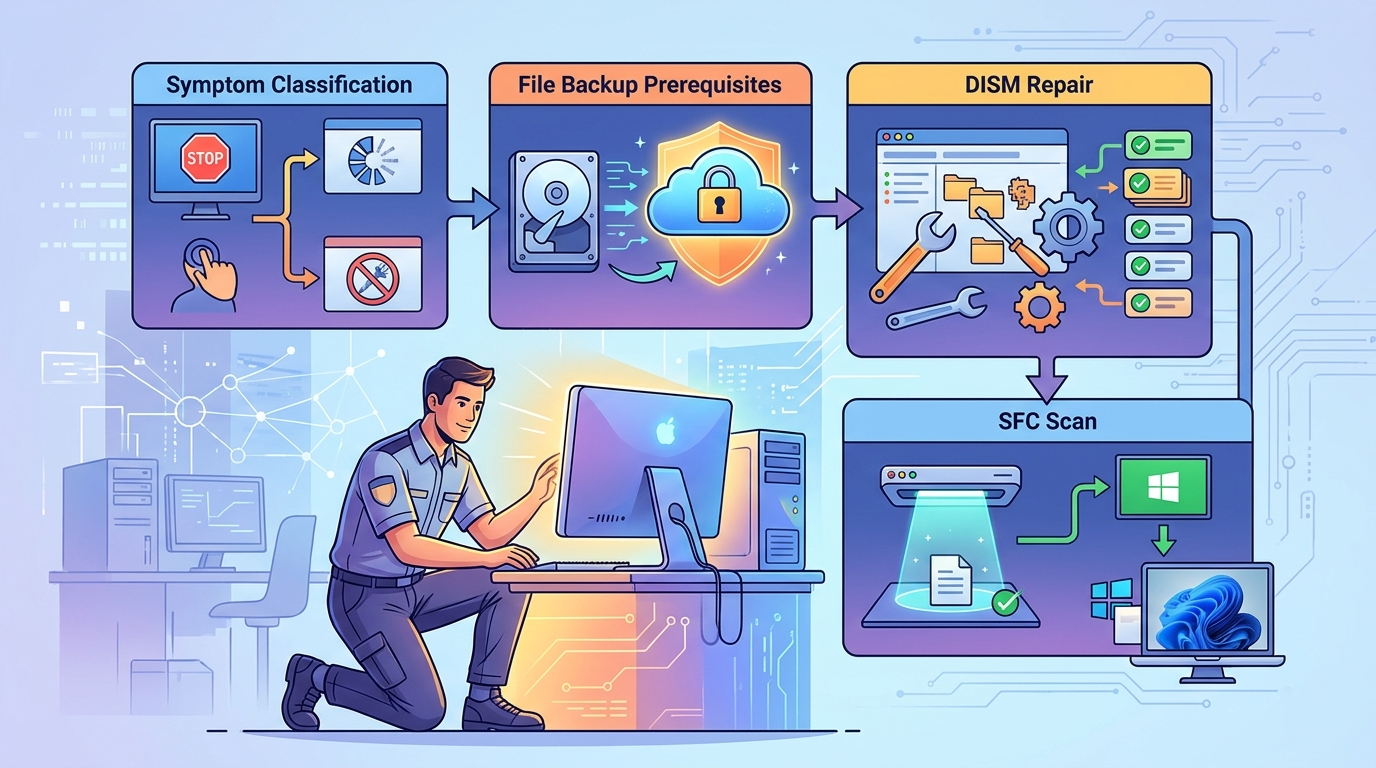
Initial Symptom Classification and Evidence Gathering
When Windows 11 encounters boot failures, recurring crashes, or update errors, Help Desk Geek advises that the safest first step is classifying the failure state before altering system settings or reinstalling the OS. Users must determine whether the PC boots to the desktop, enters only the Windows Recovery Environment (WinRE), or fails to display any environment.
Key diagnostic data must be documented prior to any system modifications. This includes the full error message, Stop Codes, Windows release and edition (such as Home or Pro), specific update identifiers, and any software or hardware changes made immediately preceding the fault. Distinguishing between a failure during an update installation and an issue that manifests after an update is critical, as post-update symptoms require matching against documented compatibility issues.
Step-by-Step Desktop Repair via DISM and SFC
If the operating system still boots to the desktop, Microsoft's official troubleshooting procedure requires executing the Deployment Image Servicing and Management (DISM) tool prior to running the System File Checker (SFC). The exact sequence is as follows:
- Type
cmdinto the Search box, right-click Command Prompt, and select "Run as administrator." - Execute
DISM.exe /Online /Cleanup-image /Restorehealthand wait for the process to complete, which may take several minutes. DISM utilizes Windows Update as its default repair source (if Windows Update is broken, Microsoft documentation specifies using/Sourceand/LimitAccessflags pointing to an alternative source). - After DISM finishes, run
sfc /scannowand do not close the console window until system verification reaches 100%.
For isolating third-party software conflicts via a clean boot, open msconfig with administrator credentials, navigate to the Services tab, select "Hide all Microsoft services," and click "Disable all." Then, open Task Manager from the Startup tab, disable all enabled startup applications while recording each modified item, and restart the computer. The documented restoration steps must be followed once testing concludes.
Practical Support Boundaries and Lifecycle Relevance
Troubleshooting decisions must take account of official Windows servicing timelines and Microsoft's release-health notices. According to Help Desk Geek, Windows 11 version 23H2 Home and Pro editions reached end of updates on November 10, 2025 (with Enterprise and Education editions ending on November 10, 2026), while version 24H2 Home and Pro reached end of updates on October 13, 2026.
For eligible devices running usable desktops, Microsoft recommends checking Settings > Windows Update for supported releases such as 25H2 or 26H2. However, Help Desk Geek stresses that release availability or upgrade eligibility does not guarantee a fix for an existing underlying crash or fault. An operating system upgrade should address servicing exposure rather than serve as an unverified repair mechanism, and upgrading an edition (such as moving from Home to Pro) does not establish diagnostic cause.
Operational Limits, Encryption Keys, and Recovery Cautions
High-risk recovery actions—such as system resets or reinstallation—must remain paused until critical data is secured. Help Desk Geek highlights that users must confirm irreplaceable files exist in a verified, readable backup on an external drive or cloud storage before proceeding with consequential interventions. Reset utilities provide no guarantee of retaining all applications or configurations.
Furthermore, Microsoft explicitly documents a critical limitation regarding WinRE: when booted into the recovery environment, encrypted files remain completely inaccessible unless the user possesses the correct decryption key for the volume. If recovery loops repeat without generating new diagnostic evidence or if encryption keys are missing, repeated automated repairs should cease. Professional diagnosis should be scoped specifically around data preservation and validated hardware checks before authorizing component replacements.
Source: helpdeskgeek.com (https://helpdeskgeek.com/windows-11-troubleshooting-guide-boot-update-crash-triage/)