
How to Catch and Remove Spyware Apps on Android via Android Authority
Technology news
A step-by-step procedure based on Android Authority's guide by Andy Walker to identify suspicious Android apps, audit sensitive permissions, isolate connections, and remove persistent software safely.
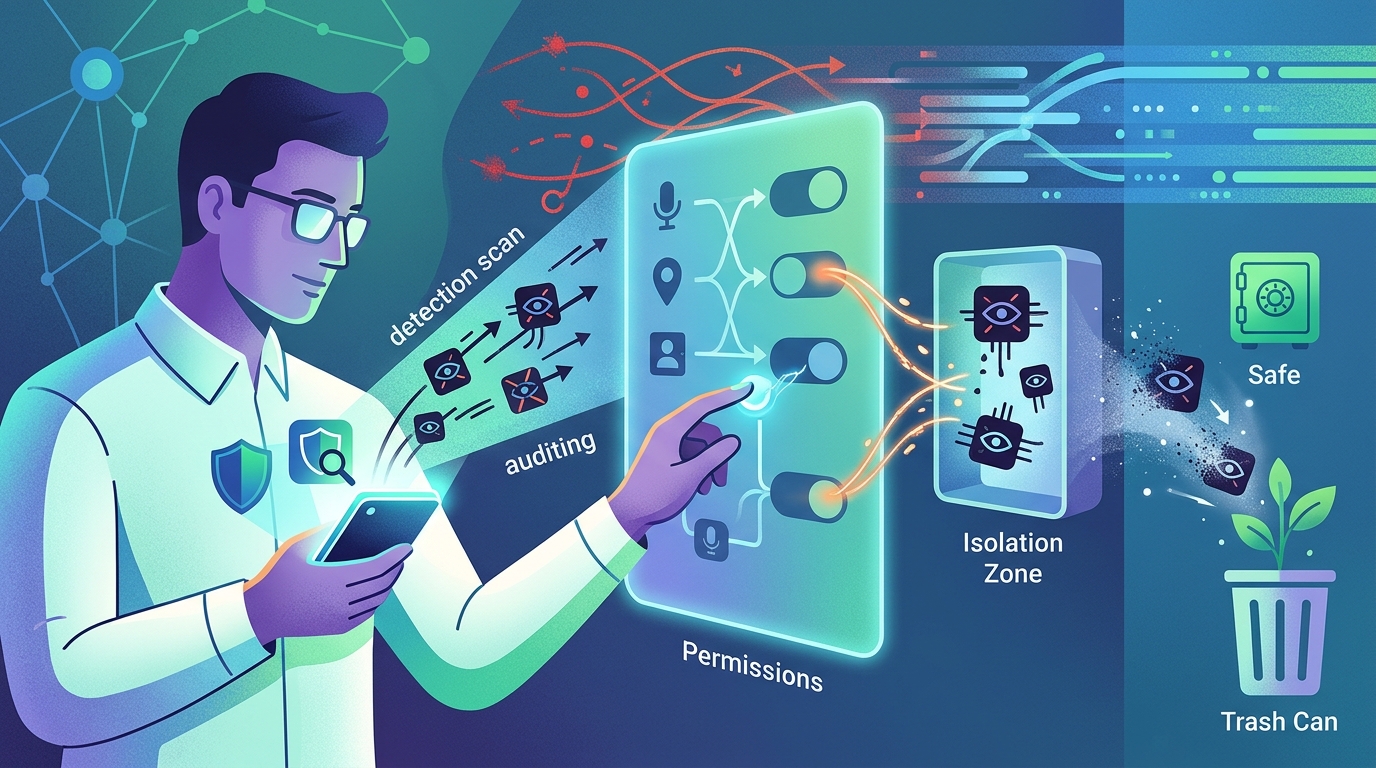
Identifying and Confirming Dodgy Android Apps
Determining whether an Android device harbors malicious or spying apps requires vigilance, as there is no single indicator of a compromise. According to Andy Walker from Android Authority, common symptoms include accidentally tapping advertisements, downloading APK files from untrusted third-party sources, encountering unfamiliar apps on the device, experiencing abnormal battery drain, overheating, performance slowdowns, or sudden spikes in mobile data usage. Although benign causes—such as podcast downloads over cellular data or background Android Auto usage—might explain some of these behaviors, persistent irregularities warrant verification.
To verify potential threats, users should inspect app permissions directly by navigating to Settings > Apps > [App name] > Permissions > three-dot menu > All permissions, ensuring requested privileges match legitimate application functions. Calculator apps, for example, have no functional justification for reading contact lists. High-risk accessibility privileges deserve particular scrutiny because they allow an application to interact on behalf of the user and observe displayed screen content. These can be inspected via Settings > Accessibility > Installed apps. Users can also run manual Play Protect scans, or monitor outgoing device traffic using third-party packet sniffing software like PCAPdroid alongside IP verification databases such as AbuseIPDB.
Actionable Procedures for Network Isolation and Uninstallation
When a problematic application is identified, Android Authority details a sequential workflow tested on a Samsung Galaxy S24 FE running One UI 9.0:
- Sever All Network Connections: Immediately disable Wi-Fi, mobile network data, Bluetooth, and NFC, or toggle on Airplane mode to halt ongoing transmissions to remote servers.
- Strip Assigned Permissions: Open Settings > Apps > [App name] > App permissions, tap each category, and select "Don't allow". Next, revoke accessibility access under Settings > Accessibility > Installed apps > [App name] and toggle it off.
- Attempt Standard Uninstallation: Navigate to Settings > Apps > [App name] > Uninstall and confirm the prompt. If the removal is blocked or unsuccessful, tap "Force stop" first before attempting uninstallation again.
- Uninstall via Safe Mode: If the app resists standard removal, boot the smartphone into Safe Mode—which suppresses all third-party software—and repeat the standard uninstallation procedure.
- Perform a Factory Reset as a Last Resort: Should the application persist, execute a complete wipe via Settings > General Management > Reset > Factory reset. Restoring past device backups is discouraged unless the exact infection timeline is known, to avoid reintroducing the rogue app.
- Secure Account Credentials: Once the device is sanitized, change passwords for associated digital accounts—particularly Google accounts—from a separate, clean secondary device.
Long-Term Defensive Measures and Device Hygiene
Preventing malicious installations is substantially more effective than reactive disinfection. Regular system and security patch updates from device manufacturers remain essential for patching exposed software vulnerabilities. Although modern Android releases automatically revoke unused app permissions over time, manual permission auditing via the Privacy Dashboard or application menus remains strongly recommended to keep privileges minimal.
Additional proactive precautions highlighted by the source include deploying DNS filtering tools such as NextDNS via Android's Private DNS setting to block ads and trackers, and utilizing firewall utilities like ShizuWall—which relies on the privileged Shizuku app—to isolate non-networked apps from accessing the internet. Open-source audit tools such as Droynis can also assist in spotting configuration weaknesses. Finally, user vetting remains necessary: checking Play Store user reviews, examining source repository activity on GitHub for open-source software, or inspecting APK files on a secondary device with scanners like VirusTotal prior to deployment.
System Protection Boundaries and Procedural Limitations
While Android incorporates multi-layered defenses—including installation-level permission prompts, continuous Play Protect scanning, privacy indicators for camera and microphone usage, and the consolidated Privacy Dashboard—these internal safeguards are not infallible. Play Protect may fail to flag stealthy or previously uncategorized threats, and malicious apps have historically succeeded in bypassing Google Play Store screening mechanisms.
Furthermore, the configuration menus and Safe Mode access mechanisms described were specifically derived from a Samsung Galaxy S24 FE operating One UI 9.0; interface labels and navigation pathways may differ across other Android device brands and OS skins. Utilizing specialized advanced tools like ShizuWall also introduces complexity, as granting elevated permissions via Shizuku demands caution. These troubleshooting and defensive steps provide structured risk reduction but do not replace cautious software sourcing.
Source: androidauthority.com (https://www.androidauthority.com/catch-uninstall-android-app-spying-on-phone-3735513/)