
How to Customize Windows 11 with Winaero Tweaker: Context Menu and Ads
Technology news
MakeUseOf highlights Winaero Tweaker, a free utility for Windows 11 that restores the classic context menu, disables system ads, and applies system-level tweaks via simple checkboxes without manual registry edits.
Fixing Windows 11 Annoyances Using Winaero Tweaker
While Windows 11 offers a modern interface, power users often encounter friction points, such as the redesigned context menu that hides critical items behind "Show more options," integrated ads across system menus, and Start menu searches that force Bing results through Microsoft Edge regardless of the default browser. Although standalone tools like Windhawk, Flow Launcher, or ExplorerPatcher address specific issues, writer Pankil Shah from MakeUseOf notes that downloading separate apps can be tedious. Winaero Tweaker serves as a single, free utility designed to bring back legacy features, apply system-level tweaks, and eliminate these common interface annoyances through a straightforward interface.
Step-by-Step Configuration: Restoring Menus and Disabling Features
Winaero Tweaker eliminates the need to edit the Windows Registry or run obscure PowerShell commands. The software displays tweak categories on the left and checkboxes with individual descriptions on the right. Key procedures detailed by MakeUseOf include:
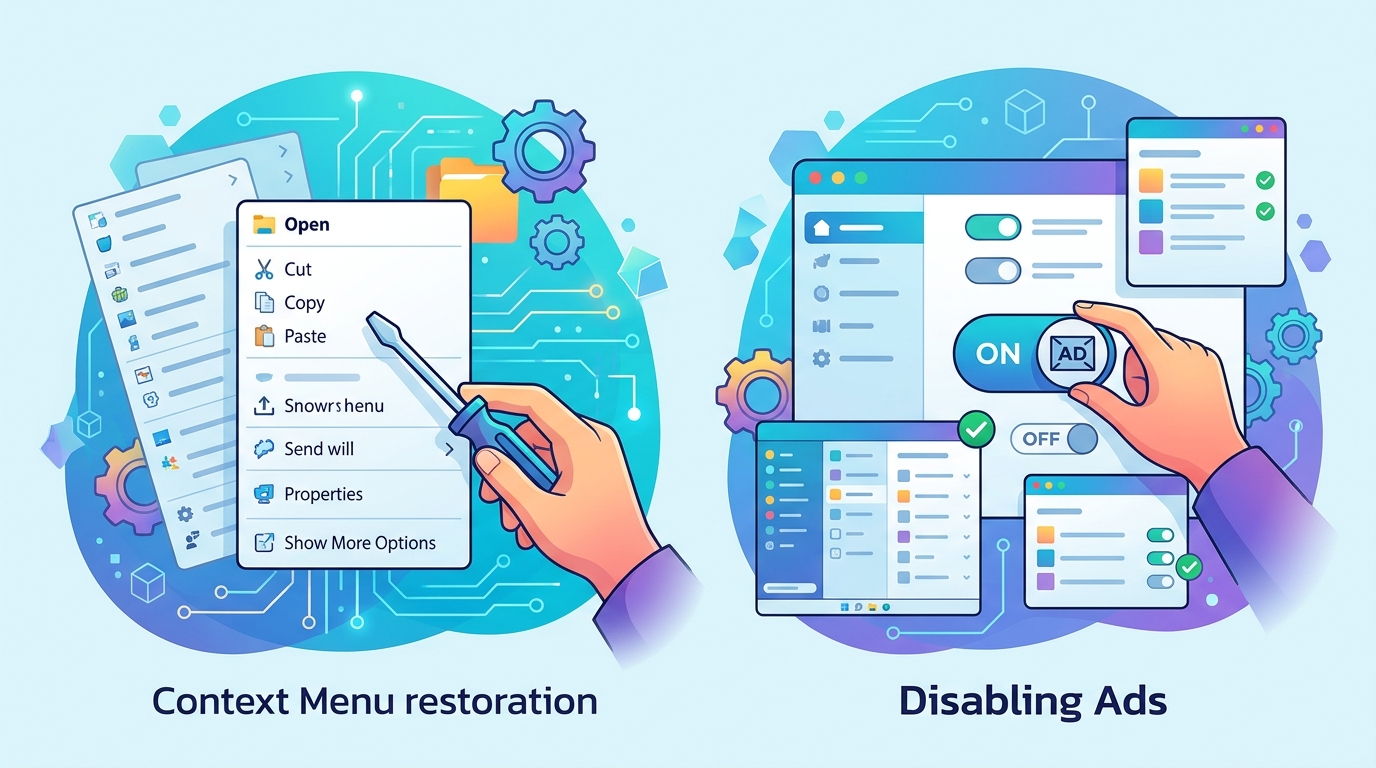
- Restore Full Context Menu: Launch Winaero Tweaker, scroll to Classic Full Context Menu, check the corresponding box, and click Restart Explorer to display all legacy right-click options immediately.
- Customize Context Menu Shortcuts: Within the Context Menu section, users can add administrative shortcuts such as "Create Restore Point" and "Kill Non-Responsive Apps," as well as quick links to built-in tools including Task Manager, Command Prompt, and Snipping Tool.
- Disable System Advertisements: Navigate to Behavior > Ads and Unwanted Apps to check the boxes that turn off promotional items appearing on the Lock screen, Start menu, and notification pop-ups.
- Manage Updates and Privacy: Under the Behavior category, users can select Disable Windows Update or Disable Driver Update, turn off Start menu web searches, disable Telemetry diagnostics, and stop the post-update "Let's finish setting up your device" prompt.
Practical Utility and Configuration Management
Beyond disabling modern interface quirks, Winaero Tweaker allows users to reinstate classic Windows utilities, including Windows Photo Viewer, the legacy Notepad app, Windows 7 desktop games, desktop widgets, and the classic Ribbon interface in File Explorer. It also includes options to restrict background apps simultaneously, adjust window border thickness, and accelerate animation speeds. To facilitate administration across multiple computers, the app allows users to bookmark preferred tweaks, export all customized settings into a file, and import them directly onto another PC.
Limitations, System Stability, and Cautions
While Winaero Tweaker provides a built-in feature to reset all applied tweaks in a single action if conflicts occur, system-level modifications carry operational trade-offs. Completely disabling Windows Update or Driver Update prevents the machine from receiving official security patches and device fixes. Users should evaluate which tweaks are strictly necessary, as altering core File Explorer and system behaviors can influence overall stability across future Windows cumulative updates.
Source: makeuseof.com (https://www.makeuseof.com/aerotweaker-makes-fixing-windows-11-easy/)