
Why Desktop Refresh in Windows Does Not Speed Up Your PC
Technology news
According to MakeUseOf, the long-standing habit of refreshing the Windows desktop only redraws visual shell components. It does not free up RAM, CPU, or storage resources.
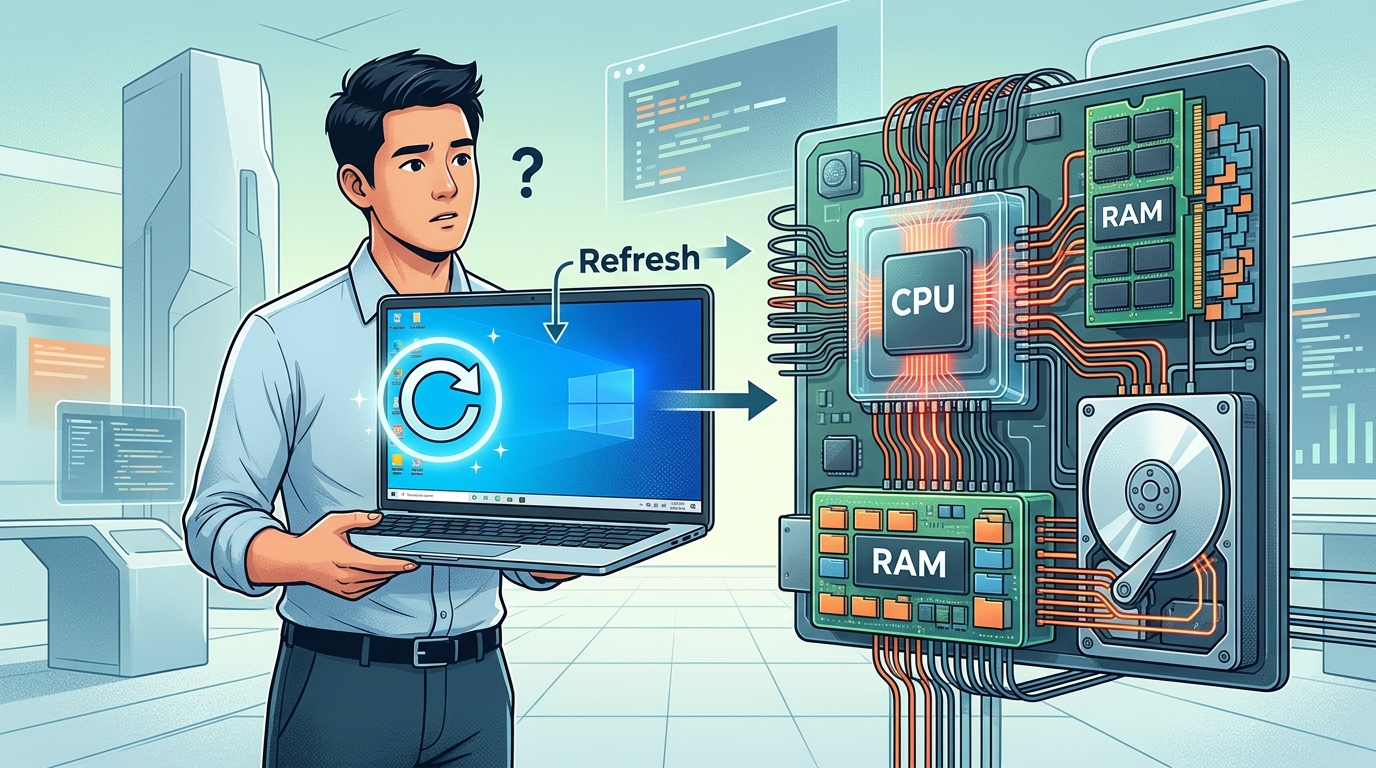
The Core Function of the Windows Desktop Refresh Command
A persistent habit among Windows users since earlier operating system generations is repeatedly right-clicking the desktop to hit "Refresh" in hopes of speeding up the machine. However, tech publication MakeUseOf clarifies that the refresh command does nothing more than redraw active content on the desktop, inside File Explorer, and within other shell components. It has zero impact on overall system performance and does not free up system RAM, CPU cycles, or storage space. The widespread perception that it boosts performance is entirely a placebo effect.
Historical Roots and Why the Habit Formed in Windows XP
This behavior traces its origins back to Windows 95, but became ingrained during the Windows XP era when personal computers reached mainstream adoption. Older Windows releases relied on applications to notify the shell of changes, but desktop rendering and file handling were frequently inconsistent. For example, newly uninstalled software icons remained visible, or newly downloaded files failed to appear until the screen was manually refreshed.
Furthermore, computers during the Windows XP era typically operated with limited memory—around 256MB to 512MB of RAM. Refreshing caused a visible screen flicker and a 1-to-2-second pause before redrawing icons, creating a false impression of heavy background processing. In contrast, modern environments like Windows 10 and Windows 11 feature reliable change monitoring and automatic background refreshing in File Explorer, eliminating the need for manual refreshes in normal day-to-day operations.
Practical Situations Where Refreshing Remains Useful
While refreshing does not improve performance, it continues to serve specific visual and listing update purposes supported by the operating system:
- Network Shares and External Storage: For external drives and cloud-synced storage locations such as Google Drive or OneDrive, Windows often caches directory listings rather than fetching them continuously. If network timeouts or connection slowdowns delay updates, a manual refresh helps display current contents.
- Registry Editor Operations: Within the Windows Registry Editor, pressing F5 or refreshing is necessary to prompt the interface to reread new registry keys written by background processes and services.
- Web Browsers: Refreshing a browser tab remains an established method to force retrieval of the latest data when a web page stalls.
Troubleshooting Sluggish Systems and Actual Limitations
Because the refresh command cannot resolve performance bottlenecks, users experiencing severe system slowdowns must utilize appropriate administrative and hardware interventions instead of repetitive desktop clicking:
- Restarting a Lagging File Explorer: When File Explorer itself becomes unresponsive, MakeUseOf recommends opening Task Manager, navigating to Processes, finding Windows Explorer, right-clicking it, and selecting Restart.
- Resolving Hardware and Resource Exhaustion: If the entire operating system feels slow, the issue usually stems from resource constraints rather than visual shell lag. Proper remediation involves managing startup applications, terminating non-essential background processes, freeing up storage capacity, or upgrading from a traditional hard disk drive (HDD) boot disk to a modern solid-state drive (SSD).
Source: makeuseof.com (https://www.makeuseof.com/this-windows-xp-era-habit-has-stuck-around-for-decades-but-it-never-made-pcs-faster/)