
How to Tether Android to Windows via USB for Maximum Internet Speed
Technology news
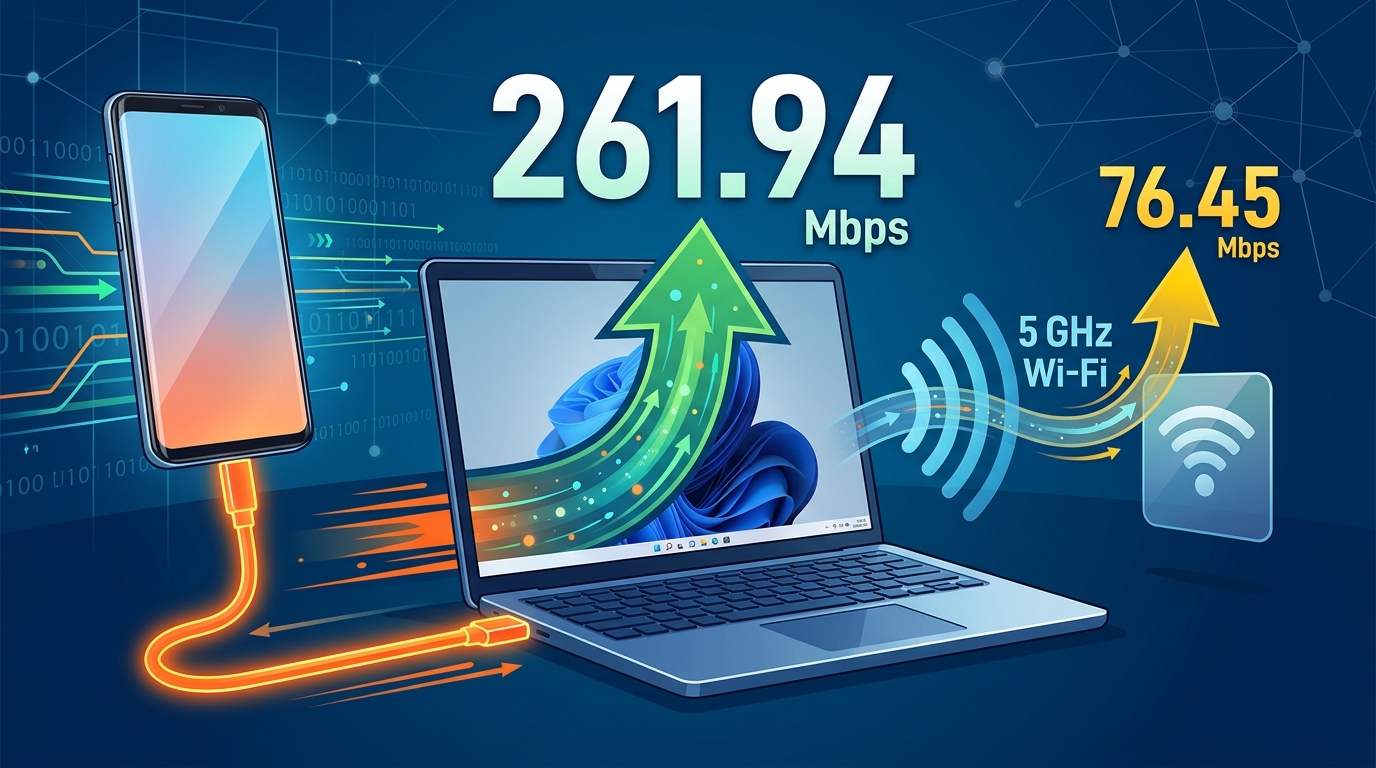
MakeUseOf tested mobile tethering on a Galaxy S24 Ultra and Windows 11 laptop, showing that USB tethering hit an average 261.94 Mbps download speed, substantially outperforming 5 GHz Wi-Fi hotspot's 76.45 Mbps.
Direct Speed Tests Show USB Tethering Outperforms Wi-Fi
Using mobile tethering to keep a computer online during internet outages is a common necessity, but the connection medium makes a dramatic difference in performance. An evaluation conducted by technology publication MakeUseOf tested three tethering methods between a Samsung Galaxy S24 Ultra and an HP laptop running Windows 11, measuring connection metrics with Speedtest by Ookla against the same test server.
Across three test runs per method, the phone's standalone cellular baseline averaged 244.33 Mbps download, 25.80 Mbps upload, and a ping of 23.67 ms. Connecting the laptop via a 5 GHz Wi-Fi hotspot reduced throughput to an average of 76.45 Mbps download, 24.43 Mbps upload, and a 39 ms ping. In contrast, Bluetooth tethering yielded only 1.01 Mbps download, 0.98 Mbps upload, and a severe latency penalty of 190 ms.
USB tethering proved to be the fastest method by a wide margin, delivering an average download speed of 261.94 Mbps, an upload speed of 20.35 Mbps, and latency of 25 ms. This wired configuration yielded more than triple the download speed of the 5 GHz Wi-Fi hotspot while keeping latency virtually on par with the phone's direct cellular connection.
Configuration Steps for Android and Windows 11 USB Tethering
Establishing an optimal wired tethering link requires specific prerequisites and sequential setup steps:
- Connect the Android smartphone to the Windows PC using a USB cable that explicitly supports data transfer.
- On the phone, navigate to Settings > Connections > Mobile Hotspot and Tethering (on Google Pixel devices, go to Settings > Network & internet > Hotspot & tethering).
- Toggle the USB tethering option to enabled.
- Windows 11 will automatically identify the smartphone as a network adapter and establish an active internet connection. If the toggle is grayed out, verify that the cable supports data transmission or switch to an alternate USB port.
- On the Windows 11 PC, go to Settings > Network & internet > Ethernet, select the tethered network adapter, and toggle Metered connection to on to restrict background operating system downloads.
Practical Utility and Underlying Performance Advantages
Utilizing a physical USB data connection eliminates local radio frequency interference and wireless congestion between the phone and laptop, allowing users to leverage their full cellular data capability. This makes the method particularly effective for bandwidth-heavy remote work tasks, large data transfers, and low-latency needs that Wi-Fi struggles to fulfill under crowded conditions.
Furthermore, the physical connection allows the host PC to supply power over the USB bus. This hardware behavior slows phone battery drain or keeps the handset charged while tethering, avoiding the heavy battery drain and thermal buildup associated with broadcast-intensive Wi-Fi hotspots.
Operational Limits and Test Scope Caveats
While USB tethering demonstrated superior throughput in MakeUseOf's benchmark, several material operational boundaries apply:
- Environment-specific metrics: The reported numbers reflect a specific hardware pairing and cellular coverage area. Real-world speeds vary depending on local carrier bandwidth, nearby radio congestion, and the laptop's specific internal Wi-Fi adapter capabilities.
- Single-device restriction: USB tethering exclusively connects a single host machine, unlike a Wi-Fi hotspot which can broadcast connectivity to multiple computers and accessories concurrently.
- Laptop battery impact: When operating untethered from wall outlets, the laptop battery bears the electrical cost of powering or maintaining the connected phone.
- Mobile data consumption: Because the tethered PC functions as a standard high-speed wired network, enabling Windows' Metered connection setting is essential to prevent unintended consumption of cellular data limits by background tasks.
Source: makeuseof.com (https://www.makeuseof.com/android-windows-tethering-usb-wifi-bluetooth-comparison/)