If your shop or office has Wi-Fi, a point-of-sale system, and security cameras, you may be familiar with opening several apps just to check that everything is working. When the internet drops or a camera disappears, finding the cause can mean working through LAN cables, switches, and the recorder one by one.
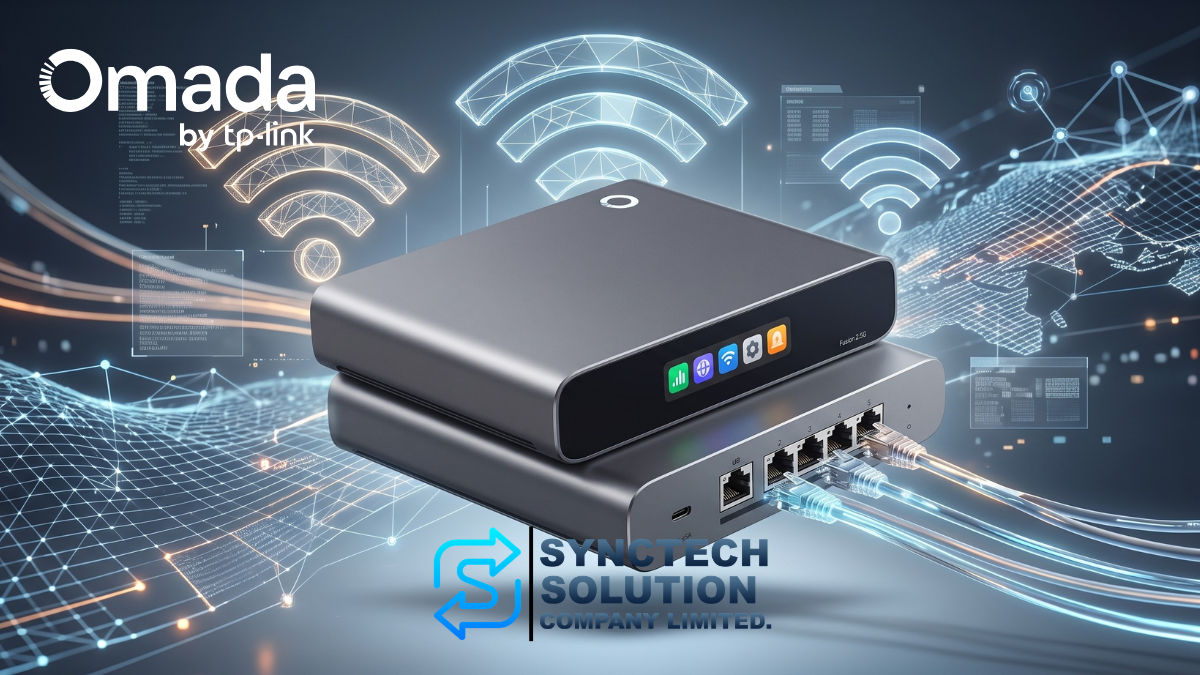
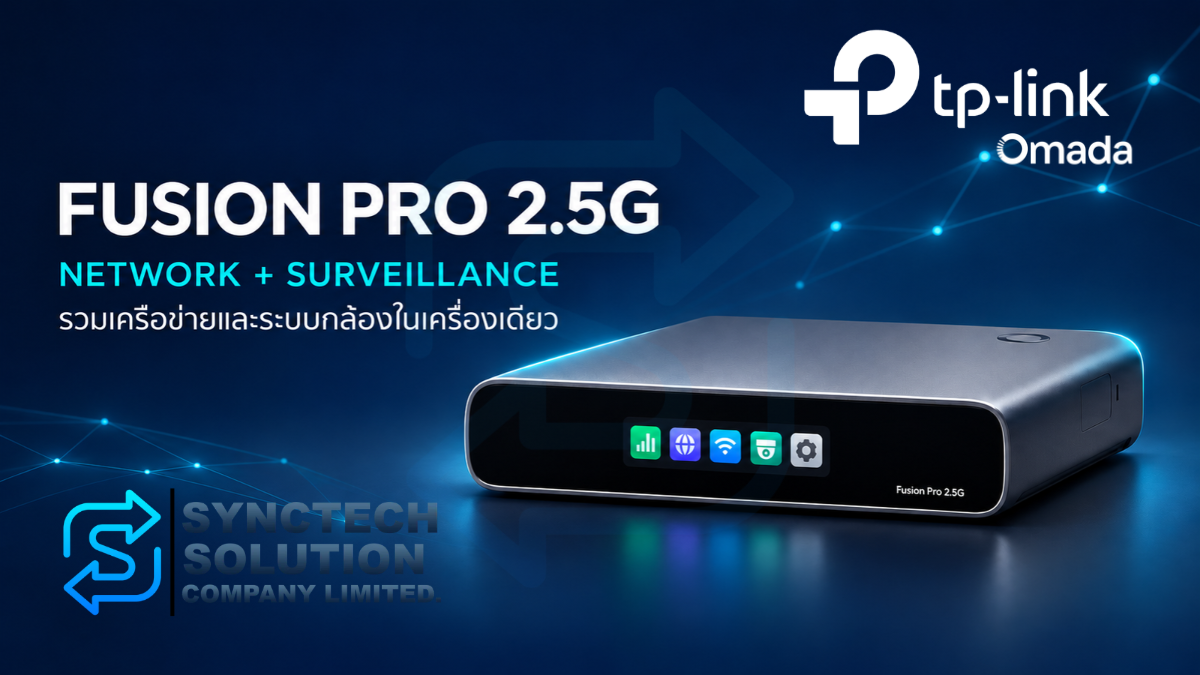
Omada Fusion Pro 2.5G brings a gateway, an Omada Controller, and Omada Guard camera management together in one device. It also has five 2.5GbE ports and an NVMe SSD tray for video recording. You can manage the network and cameras from the same platform, then choose between recording to an SSD inside the device or using a supported NVR to suit your camera count and storage needs.
Following SyncTech's introduction to Omada Fusion 2.5G, let's take a closer look at the Pro model. We'll walk through the hardware, connections, networking features, camera system, and recording storage, with examples of how it could fit into a shop, clinic, or small office.
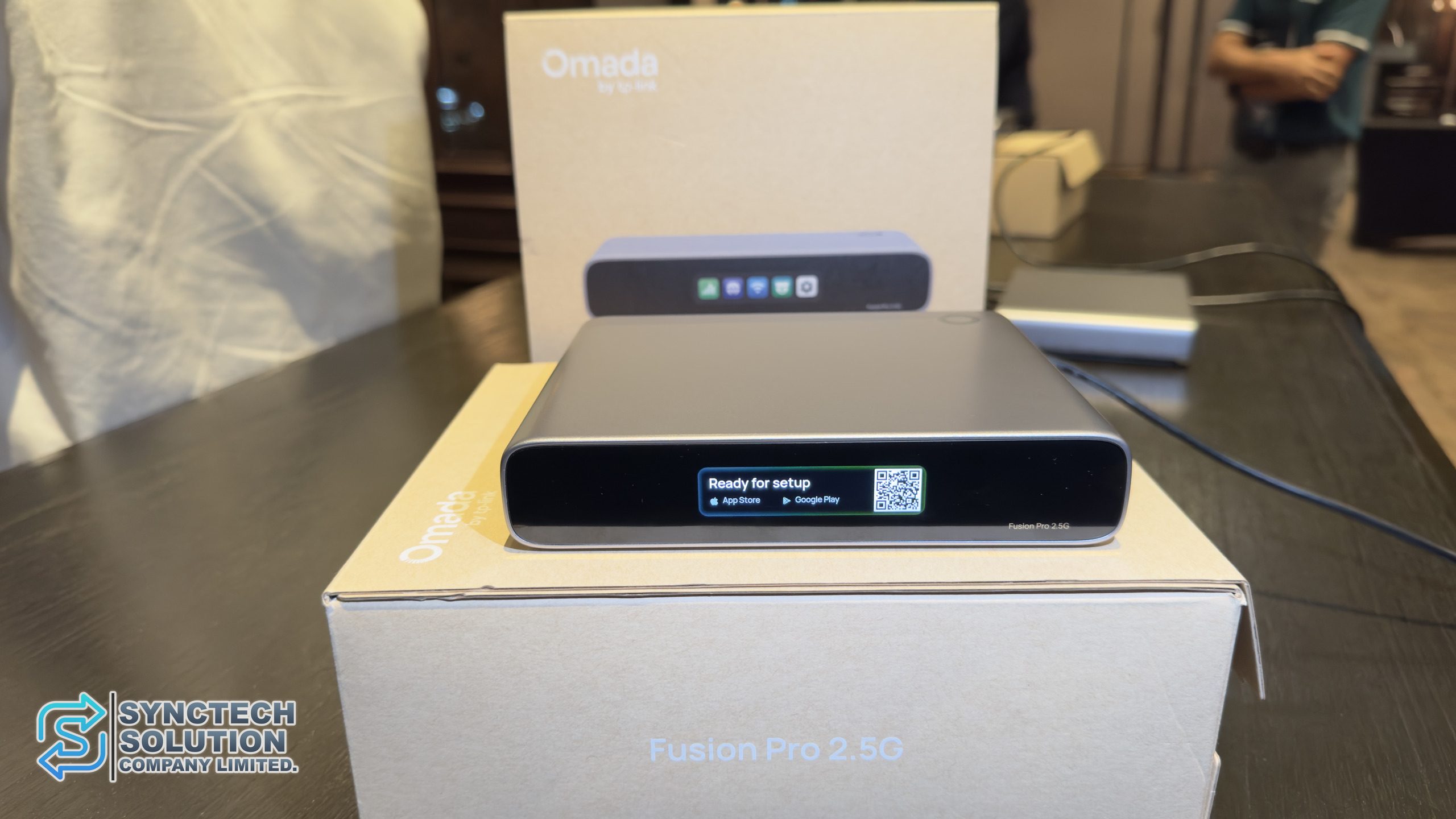
Photos from the launch event
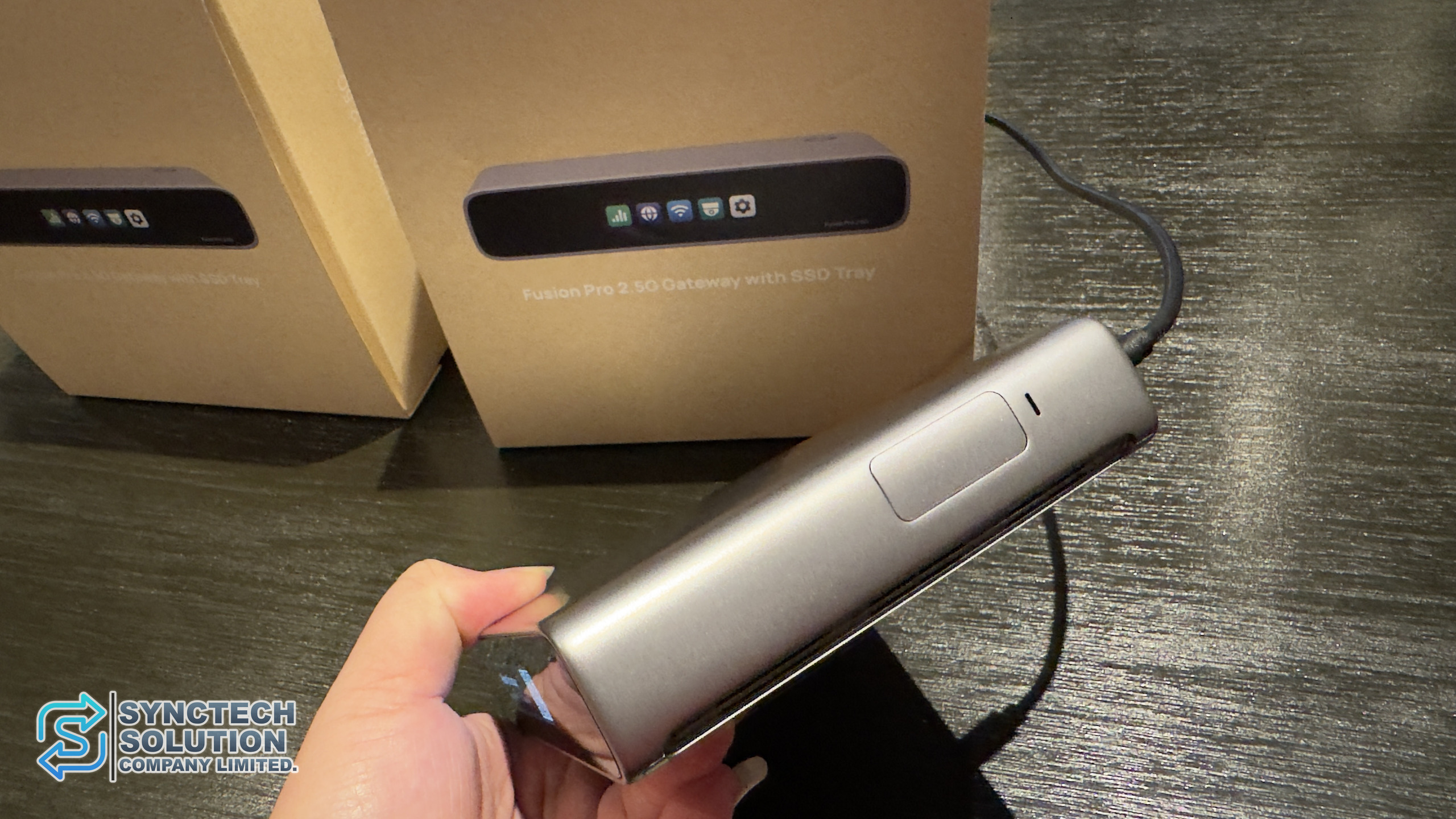
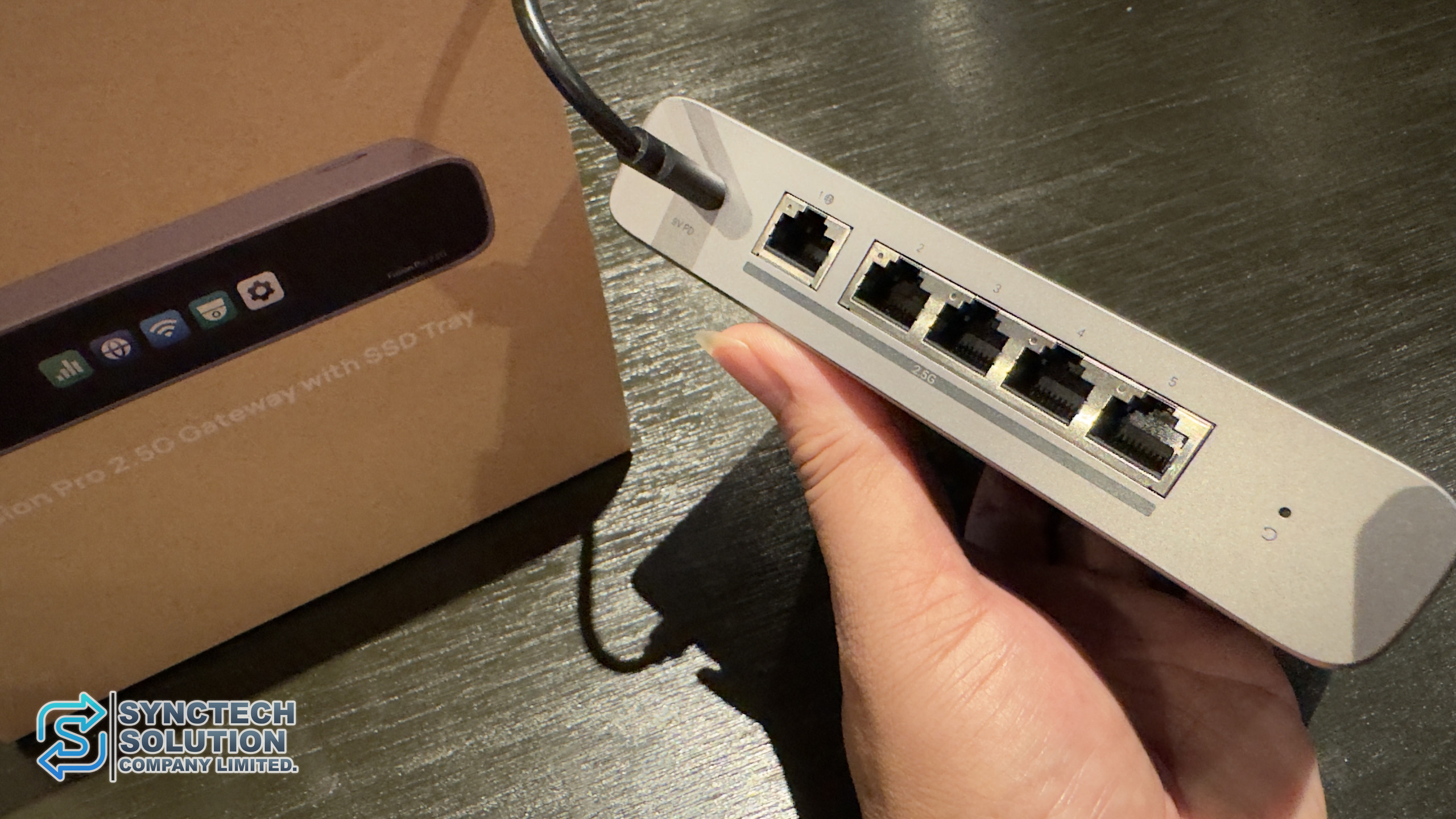
We took a closer look at Fusion Pro 2.5G at the launch event. These photos show the front display, side SSD access cover and rear connections so you can see where each part sits on the actual device.
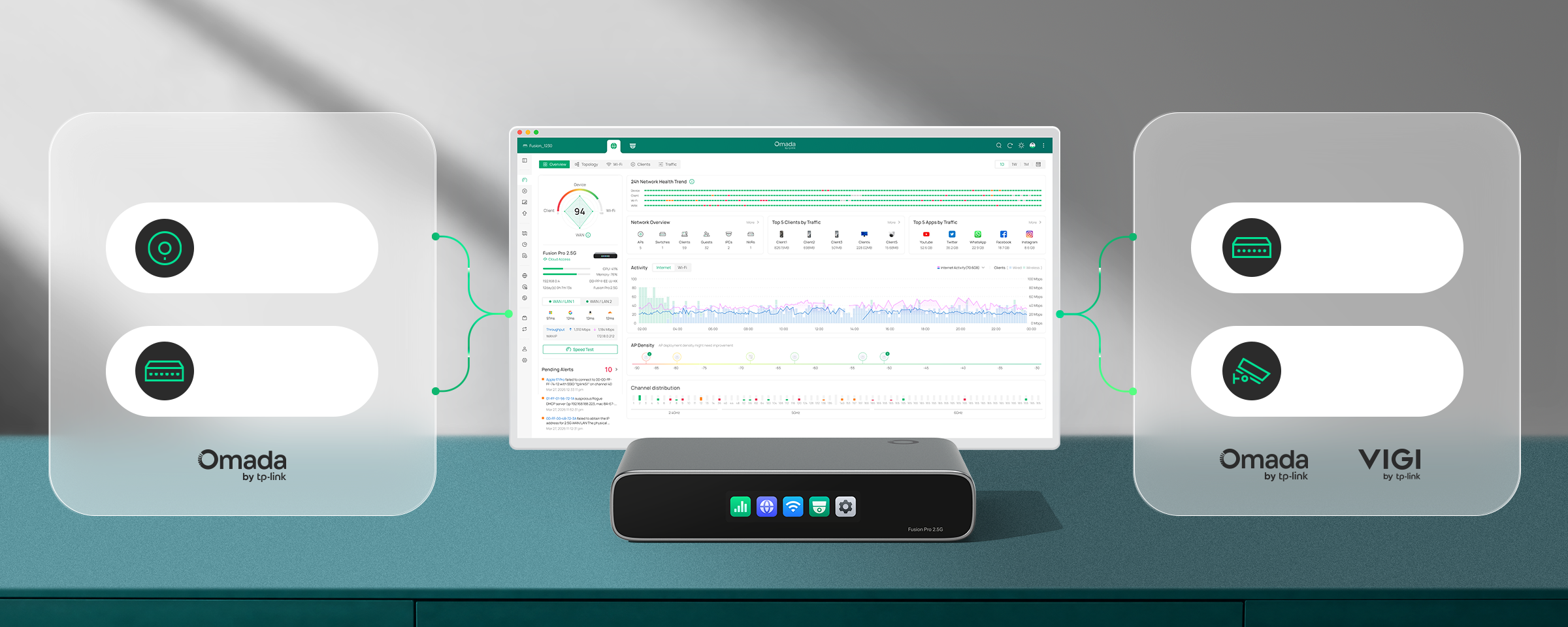
Three jobs in one device: what does each part do?
Start with the gateway, which moves data between your local network, the internet, and VPN connections. The Omada Controller lets you configure switches and access points and see their status in one place. Omada Guard takes care of cameras and video. All three sit inside Fusion Pro 2.5G, so you can manage the systems in your shop or office from the same platform.
Imagine a camera stops displaying video. You can begin with its status, then follow the connection through the switch port and related events. The information and commands available depend on the device models and software, but the idea is to give you a more connected view of the same location.
Combining these roles means fewer boxes to place and maintain. It is also worth planning backup power and how to replace the device, since several jobs depend on the same Fusion unit. Keep a configuration backup outside the device too. Multi-WAN provides a backup internet connection; a problem with the gateway itself still needs a separate equipment recovery plan.
A look around the device: a small enclosure with a side-mounted SSD tray
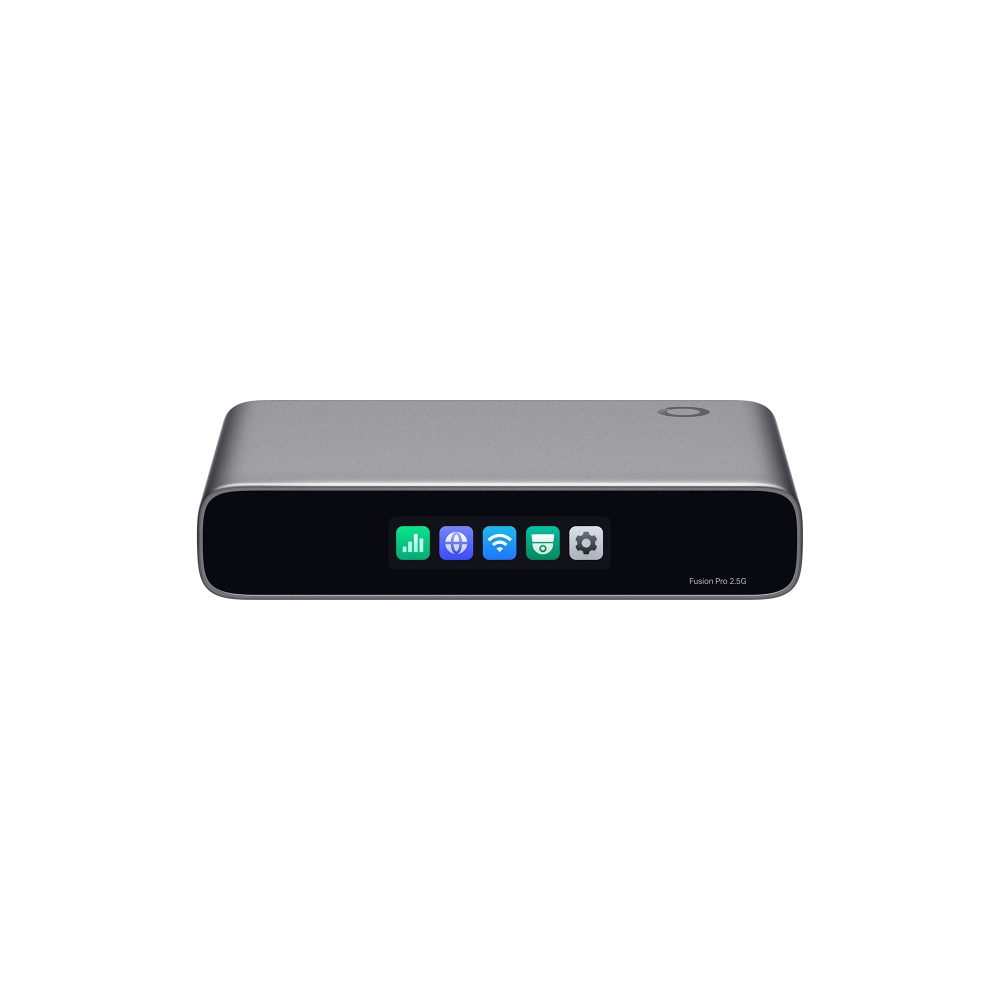
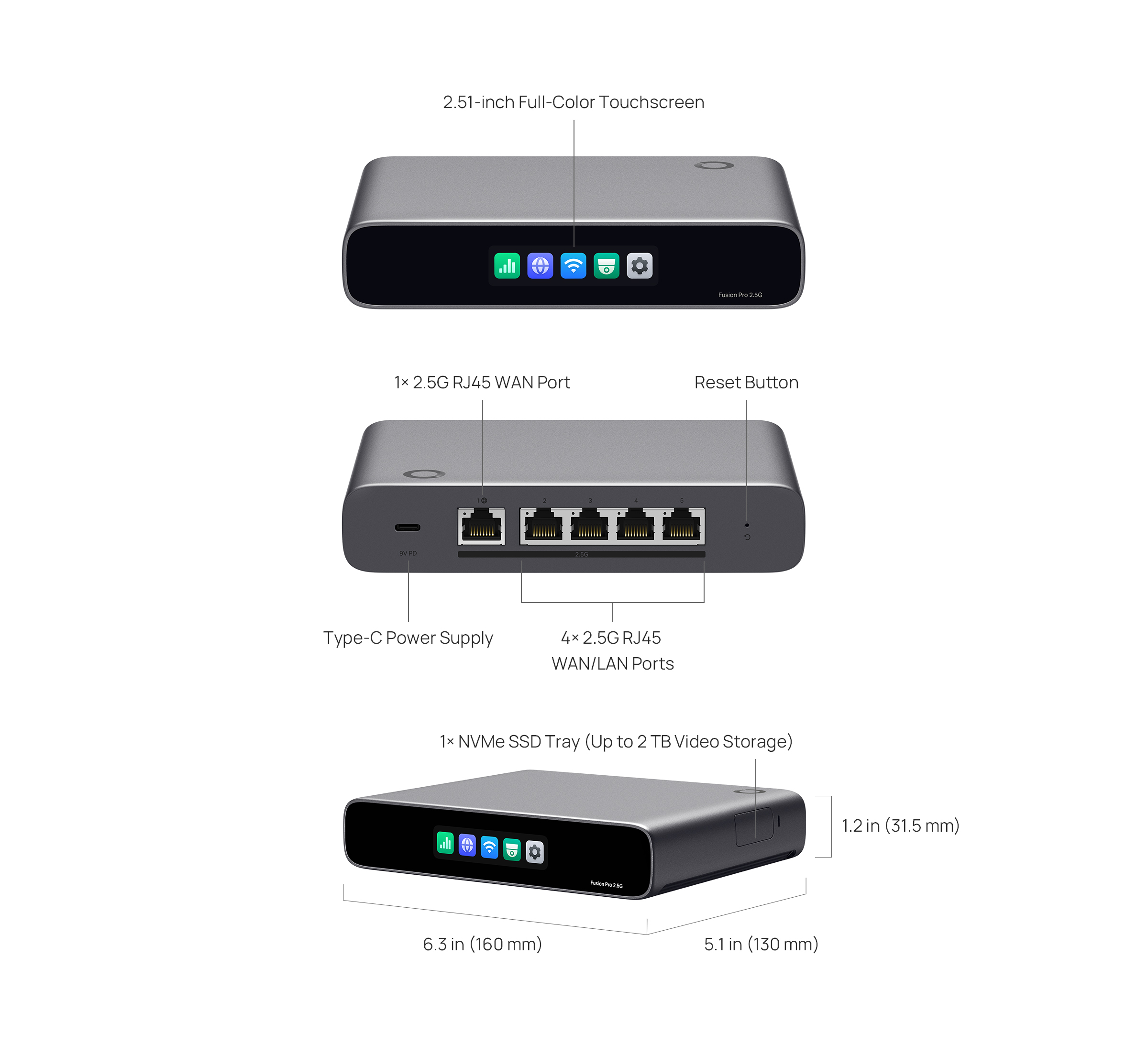
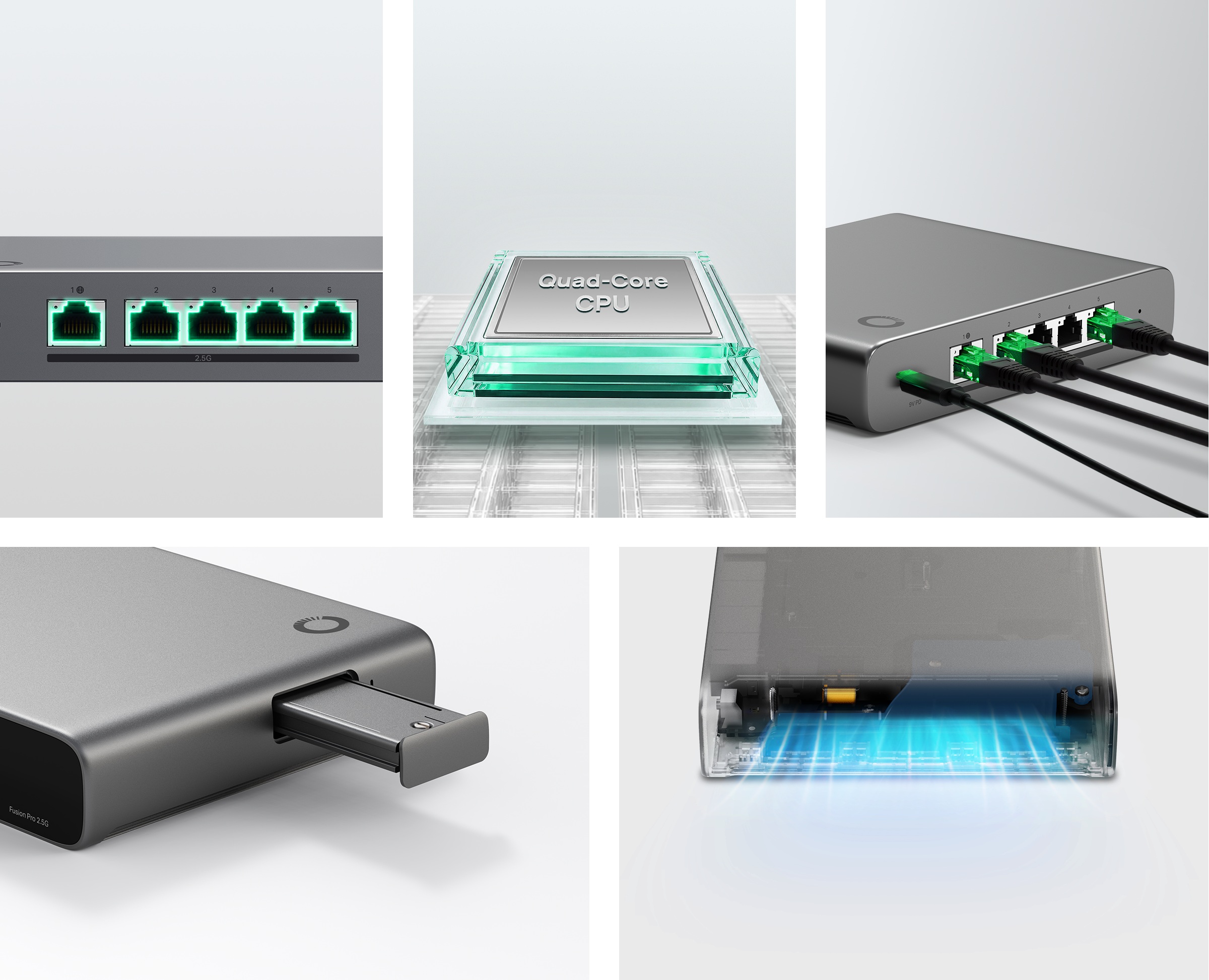
Fusion Pro 2.5G measures 160 × 130 × 31.5 mm and weighs about 620 g before an SSD is installed. Its polycarbonate enclosure has a black front panel with a touchscreen, while the network ports and power connector sit at the rear. The NVMe SSD tray is on the side, ready for adding video storage. Its size makes it a convenient fit for a desk or equipment shelf in a shop or office with limited space.
All ports are RJ45: one dedicated WAN port and four LAN/WAN ports whose roles you can choose. There is no SFP/SFP+ port for plugging in fiber directly. If the building uses fiber between floors, a suitable switch or media converter handles that part of the connection.
There is a fan, so leave room for airflow
The Pro model has one fan with a Fanless Mode. The manufacturer lists a maximum noise level of 24.5 dBA at 1 m. If it will sit near a desk or clinic counter, think about sound and placement from the start. Keep the vents clear and leave enough room behind and beside the device to unplug cables or pull out the SSD tray.
The operating temperature range is -10 to 40°C. In a cabinet shared with a UPS and PoE switch, include the heat from those devices too. Wall and rack mounting are also options, with the magnetic-mount plate and rack-mount kit sold separately.
What is in the box, and what do you need to add?
The “In the Box” image on the manufacturer's product page shows the Fusion Pro 2.5G device, power adapter, USB-C power cable, Ethernet cable, and L-key. Included accessories may vary by country or region, so take another look at the contents of the package you order when putting your equipment list together.
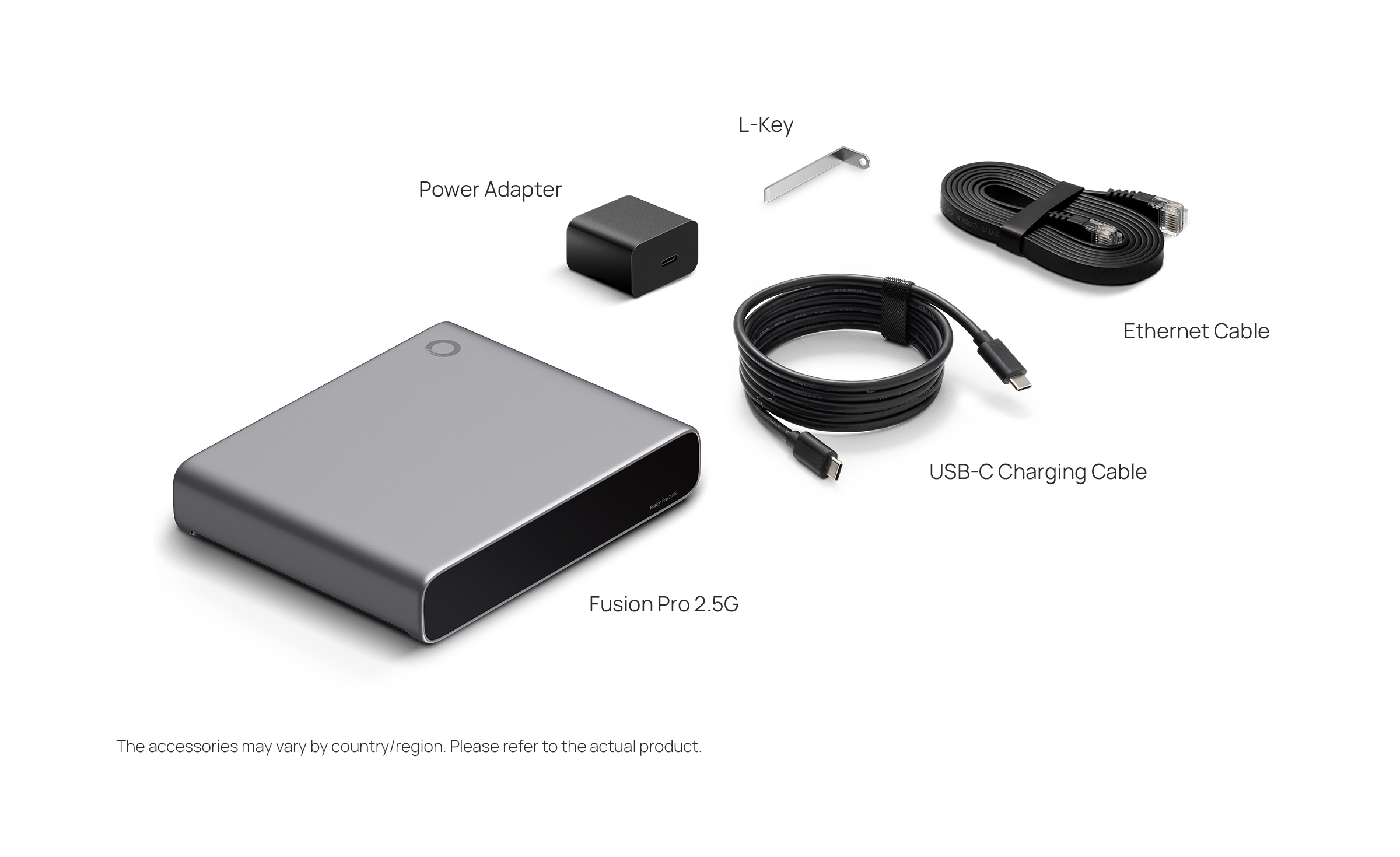
You will need to add an NVMe SSD for video recording, a switch if you need more ports, and a PoE switch or injector to power cameras and access points. Choose a UPS for the equipment you want to keep running during a power interruption. Fusion itself uses USB-C 9V DC / 3A and includes an adapter. Use a supply with the right specifications for the device: identical USB-C connectors do not mean identical power output.
The key specifications in one table
| Item | Fusion Pro 2.5G |
|---|---|
| System roles | Gateway + Omada Controller + Omada Guard surveillance management |
| CPU | Quad-core ARM Cortex-A73 at 1.8GHz |
| Memory | 4GB DDR4 |
| Internal system storage | 64 Mbit NOR Flash + 32GB eMMC |
| Network ports | 1 × 2.5G RJ45 WAN and 4 × 2.5G RJ45 LAN/WAN |
| Simultaneous WAN ports | Up to 4 ports |
| Omada network devices | 30 recommended, excluding cameras and NVRs |
| Clients | 300 recommended, depending on deployment conditions |
| SSD for video | 1 NVMe SSD tray, up to 2TB; SSD purchased separately |
| Cameras when recording to SSD | 16 HD / 14 2K / 12 4K / 6 12MP recommended, according to resolution and manufacturer conditions |
| Cameras with a supported NVR | Up to 24 cameras; management of up to 1 Omada/VIGI NVR |
| Concurrent sessions / new sessions | 150,000 sessions / 10,000 sessions per second |
| Display | 2.51-inch color LCM touchscreen |
| Power | USB-C 9V DC / 3A; maximum consumption of 14.35W including the adapter, according to the datasheet |
| Cooling | 1 fan with Fanless Mode |
| Dimensions and weight | 160 × 130 × 31.5 mm; 620 g without an SSD |
| Operating environment | -10 to 40°C; 10-90% non-condensing humidity |
| Protection and certifications | 4kV surge protection; ESD ±8kV air / ±6kV contact; CE and FCC |
The 32GB eMMC is system storage, while the SSD is for video, so keep them separate when choosing recording capacity. The device, camera, and client counts in the table are a starting point for sizing the system. Also consider the applications running at the same time and the features you want to enable.
What can you see on the 2.51-inch touchscreen?
The front display lets you view network status and health scores, run speed tests, and see alerts and real-time traffic. You can take a quick look while passing the device, or ask someone at the branch to read its status during a call with IT.
Suppose a branch calls to say the internet is down. IT can ask someone beside the device to read the status and warning messages, then follow up with checks of the WAN, switch, or user's computer. Detailed work with logs, routing, ACLs, VLANs, and video playback still takes place in the management system as usual.
A shop without its own IT staff could keep a short guide beside the device: which screen to photograph for a particular problem, and whom to send it to. Staff can then help provide useful information without changing network settings themselves.
What is the difference between 30 devices and 300 clients?
The specifications recommend 30 Omada network devices and 300 clients. These numbers count different things. Network devices are the equipment managed by the Network Application. Clients are the devices using the network, such as laptops, phones, and POS terminals. One person with a phone and a laptop may already account for more than one client.
The 30-network-device figure excludes cameras and NVRs, as explained in Omada's product selection guide. When putting your shopping list together, separating it into network equipment, user devices, and surveillance equipment makes it easier to follow. Cameras and NVRs have their own capacity figures.
Capacity also depends on the work being done. An office mainly using online documents differs from one transferring large files, holding video meetings, and opening several camera streams at once. The figure of 300 is a sizing guide, rather than full speed for 300 employees at the same time. Allow for devices you may add later and look at the busiest period when applications run together.
Five 2.5GbE ports: how can you use them for WAN and LAN?
At the rear are 1 × 2.5G RJ45 WAN and 4 × 2.5G RJ45 LAN/WAN ports, with up to four WAN ports in use at once. With two internet providers, for example, you can use two ports for WAN connections and leave the others for your internal network, or adjust the allocation to the connections at each location.
The 2.5G ports suit a Multi-Gigabit switch or equipment that supports speeds above Gigabit, provided both ends and the cabling support the link. Files moving between a NAS and a computer on the same switch may stay within that switch rather than passing through the gateway every time. Following the data path helps you decide which upgrade will make a difference.
Example port allocation for an office with two internet connections
| Port | Example role | Planning considerations |
|---|---|---|
| WAN | Primary internet connection from provider A | IP assignment method and PPPoE credentials, if applicable |
| LAN/WAN 1 | Backup internet connection from provider B | Connection monitoring and failover conditions |
| LAN/WAN 2 | Uplink to a managed PoE switch | VLANs carried over the link and uplink speed |
| LAN/WAN 3 | Additional internal network connection | Port role and access policy |
| LAN/WAN 4 | Reserved for planned expansion | Document its purpose and configure it before use |
This five-port Fusion Pro 2.5G model has no PoE-out and no built-in Wi-Fi access point. For PoE cameras or APs, add a PoE switch or power equipment that matches their models and power needs. For fiber, connect through equipment with a fiber port, as every port on this Fusion model is RJ45.
How does Multi-WAN help when you have several internet connections?
Fusion Pro 2.5G supports Multi-WAN Load Balancing and Automatic Failover. You can spread usage across several connections or keep a backup ready for a problem with the main line. A shop could, for example, separate its sales terminals from general traffic and set up a backup connection for them.
Once configured, try switching connections at a convenient time for the shop and see what happens to POS, VPN, and DNS, including when the main connection returns. A cable can remain connected while the provider has a problem further upstream. Trying the applications the shop actually uses gives a clearer picture than link status alone.
One detail to understand before choosing the setup: Load Balancing does not make a single file download run at the combined speed of every line. If switching WAN changes the public IP address, some connections may need to start again. Include services tied to a particular IP address and inter-branch VPNs in your checks.
Start over Bluetooth, then add devices together
You can start setting up Fusion Pro 2.5G over Bluetooth with the Omada App or connect by Ethernet. The system then helps find Omada devices and bring several into management together through adoption. This is convenient for a shop or office with switches and APs in several places.
Bluetooth helps with initial setup, while separate APs provide Wi-Fi to users. Before starting the wizard, have your internet details, IP/VLAN plan, and system owner account ready. If you are reusing equipment, check which controller it currently belongs to so you can plan how to move it across.
- Note the model, hardware version, and identifiers for the equipment you install.
- Name switches and APs by location, such as SW-PoE-Floor2 or AP-MeetingRoom, so they are easy to find when something needs attention.
- Prepare uplink ports and the management VLAN before adding devices in a batch.
- Keep configuration information and the site owner account accessible to the people responsible, with the appropriate permissions.
The built-in controller brings branch networks into one view
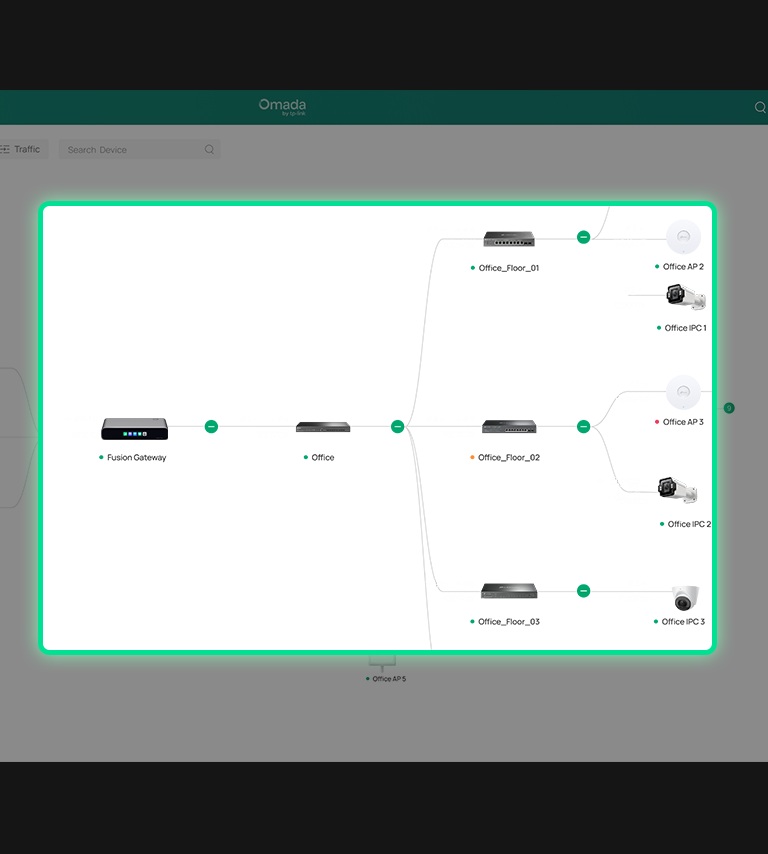
The Network Application has dashboards for the network, Wi-Fi, clients, and traffic, along with network topology, health monitoring, and reports. Logs are divided into alerts, events, and audit logs. If an AP disconnects or someone reports a connection problem, IT has information to follow up on where it happened and when.
You can manage the system through the cloud, locally, or with the Omada App. A central IT team can look after several branches, while someone at a branch might only need permission to view status. Separate accounts also make it easier to manage access and follow the history of setting changes.
TP-Link states that cloud management is license-free, with no additional license fee for management features supported by the device. The SSD, internet service, and any external file storage are separate costs based on what you choose. Routine care includes keeping configuration backups and scheduling OS and application updates around business hours.
Use VLANs to separate customer Wi-Fi, sales terminals, and cameras
Fusion Pro 2.5G supports 802.1Q VLANs and ACLs. You can divide equipment into smaller networks by purpose, then choose the services each group can reach. For example, customers can use the internet while POS terminals and cameras sit on separate networks. The settings need to match across the gateway, switches, and access points involved.
| Example VLAN | Device group | Access policy approach |
|---|---|---|
| Employees | Laptops and office computers | Access business systems according to job responsibilities |
| POS | Point-of-sale terminals and related equipment | Allow only the services required by the sales system |
| Guest | Customer phones and devices | Provide internet access while restricting access to internal networks |
| CCTV | Cameras and recording equipment | Allow authorized administrators to access the surveillance system |
| Management | Network device management interfaces | Restrict access to system administrators |
In this example, ACLs are the other important part: they decide which networks can talk to which services. Different Wi-Fi names alone do not complete the separation. When trying the setup, open the internet from Guest and also try the management interface or POS terminals. That helps establish that the access you need works and the access you want separated stays blocked.
Where do routing, DHCP, QoS, and mDNS fit in?
Static Route and Policy Routing choose paths for data. The DHCP server hands out IP addresses, with Address Reservation to keep an address for an important device and DHCP Options to send extra settings to clients. Together, these help keep IP addresses organized within each VLAN.
If a particular business application needs to use one WAN connection, Policy Routing can help, along with a plan for what happens when that line goes down. QoS sets priorities—for example, giving voice or video meetings priority over general traffic. Your internet connection and the overall network still need enough capacity for the work being done.
Bonjour/mDNS is involved in discovering services such as printers and presentation devices. Across several VLANs, enable only the services you need using the options available in that software version, and keep internal equipment that guests do not need to discover separate.
Firewall, IDS/IPS, and tools for choosing what people can access
The security features include a stateful firewall, attack defense, and signature-based IDS/IPS. IDS detects patterns that may indicate a threat, while IPS adds prevention based on the policies you set. Once enabled, Events lets you see what the system has found and whether any everyday applications have been affected.
DPI and application-based ACLs help set rules by application. Content Filtering includes URL categories, allow lists, block lists, ad blocking, and Safe Search. A shop or office could choose the website categories it allows and make exceptions for business sites used regularly. Classification capabilities depend on the traffic and software in use.
The DNS features listed in the specifications include DNSSEC, DoH, DoT, and DNS Redirection. Within the LAN, ARP Inspection and IP-MAC Binding add device control options. Choose features that fit each network's needs and try them with sample devices before using them throughout the shop. This makes adjustments easier than enabling everything at once.
Speed figures from the manufacturer's specifications
This model has a quad-core ARM Cortex-A73 CPU at 1.8GHz and 4GB DDR4 RAM. Routing, traffic inspection, and VPN tasks run at different speeds. The table brings together the manufacturer's figures so you can compare them with the work you need the device to handle.
| Function | Listed speed or capacity |
|---|---|
| Static IP NAT (Upload / Download) | 2,370 / 2,374 Mbps |
| DHCP NAT (Upload / Download) | 2,374 / 2,373 Mbps |
| PPPoE NAT (Upload / Download) | 2,335 / 2,350 Mbps |
| IPS (Upload / Download) | 2,357 / 2,364 Mbps |
| DPI (Upload / Download) | 2,370 / 2,374 Mbps |
| Omada LightLink VPN | 1,017 Mbps |
| WireGuard VPN | 1,044 Mbps |
| IPsec VPN with ESP-SHA256-AES256 | 1,285 Mbps |
| OpenVPN | 393 Mbps |
| Concurrent sessions | 150,000 sessions |
| New sessions per second | 10,000 sessions per second |
Actual speed depends on the workload and settings, particularly traffic type, VPN encryption, and the features running together. Sessions count connections rather than people: one device can open several applications and create many sessions.
Connect back to the office with a VPN when you are away
Fusion Pro 2.5G has several VPN options. Site-to-site connections support WireGuard and IPsec for linking networks in different locations, while VPN server and client options vary by protocol. Choose one that fits the computers or phones you use and the system you need to connect to.
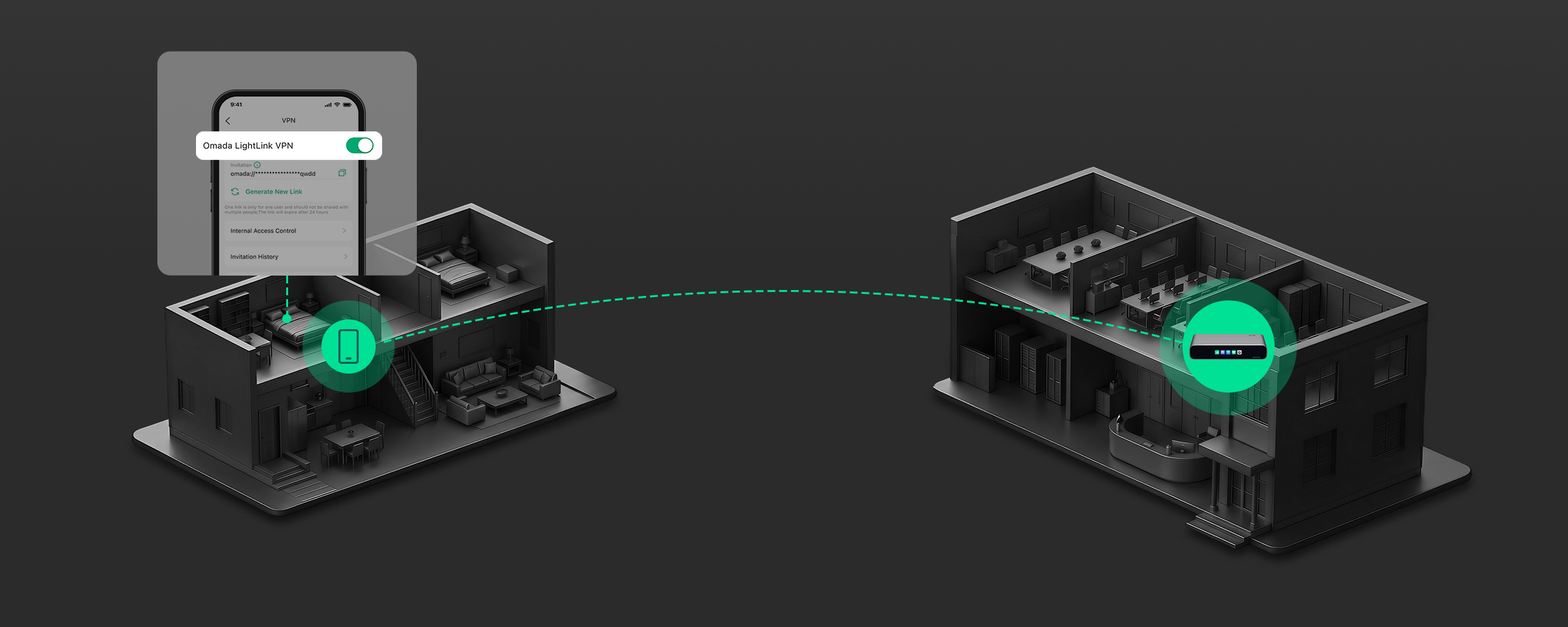
Omada LightLink VPN uses invitations by link or email. Smart Split Tunneling lets you send only selected traffic through the VPN—for example, a connection to an office business system—while other traffic follows the configured route. Give each person access for their work and remove it when they no longer need it.
The specifications list up to 253 LightLink clients and 20 IPsec VPN tunnels. Connection counts and speed describe different things. If several people will connect at once, also look at the data they transfer and whether their busiest periods overlap.
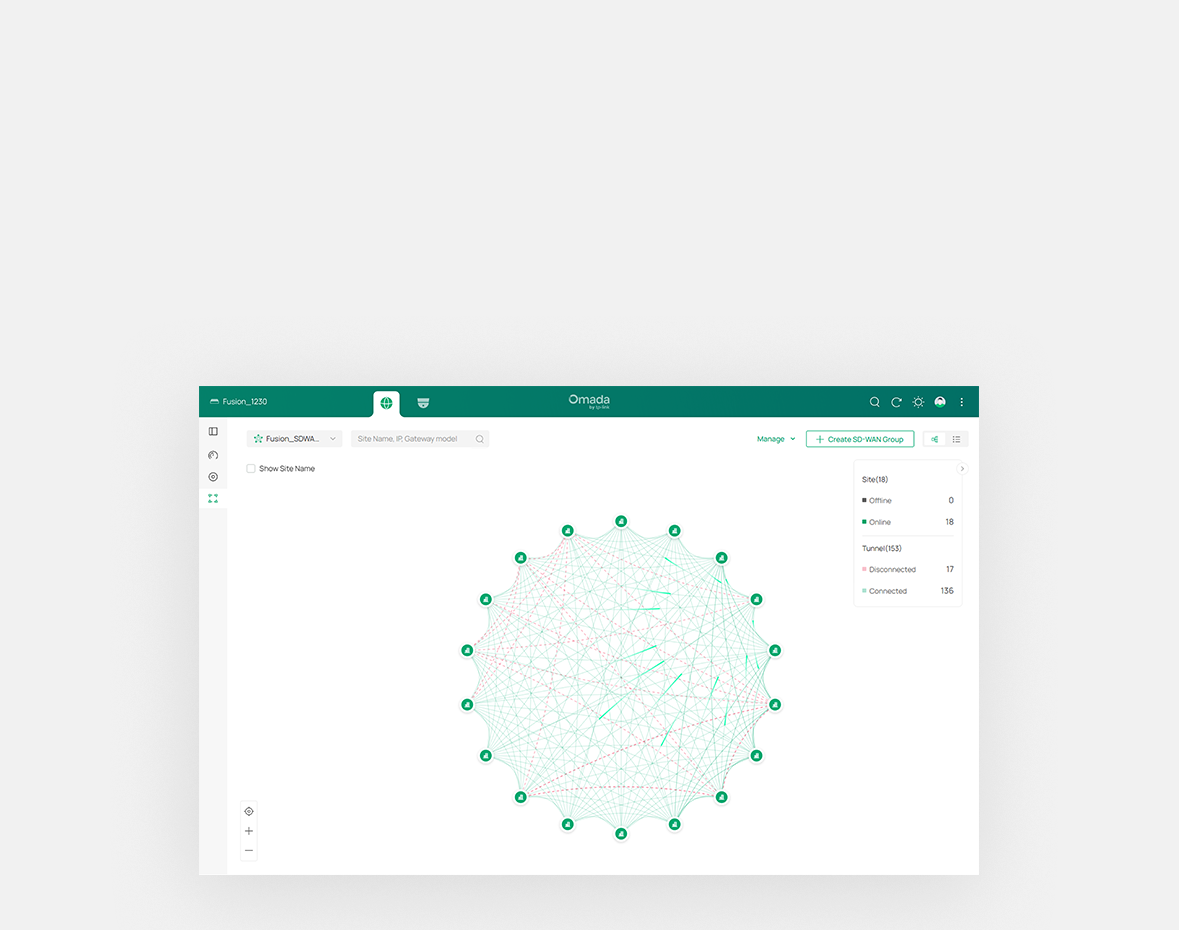
Connect branches with Full Mesh SD-WAN
Full Mesh SD-WAN supports up to 20 sites and is configured through the Omada Cloud Portal only. It is an option to consider when several branches need to reach one another's business systems. Have the system owner account and IT team's permissions ready to manage each location.
Imagine a company with headquarters and four branches. Start with different IP ranges at each location, then choose which systems need to communicate. Employees could access a central business system while Guest and camera networks keep only the access they need through the ACLs you set. Linking branches together can still preserve the boundaries of each network.
Which tools can IT use to track down a problem?
The network tools listed in the specifications include Ping Test, Packet Capture, Terminal, Cable Test, Interference Detection, and Remote Access. You might begin with a ping to see whether a destination can be reached, then look at traffic or cable status to match the symptoms. Availability of some tools also depends on the connected switches, APs, or other devices.
Staff on site can start with network health, speed tests, alerts, and traffic on the 2.51-inch screen. IT can then open routing, ACLs, logs, or packet captures in the management system. Including the branch name, device name, and time of the problem in a report makes it easier to find the right information in the dashboard.
Omada Guard: Manage Your Network and Cameras in One Place
Fusion Pro 2.5G adds Omada Guard for camera management alongside the Network Application used to manage the gateway, switches, and access points. Both run on Omada OS. If you look after a shop's internet connection, Wi-Fi, and cameras, this gives you a more organized starting point for managing the whole setup.
Think of a shop or clinic without an on-site IT team. When a camera stops showing video, someone needs to work through the camera, LAN cable, switch port, and recording system. Having network and video tools in the same system makes it easier to check each part and decide where to start fixing the problem.
| System Component | What It Does | What to Plan Together |
|---|---|---|
| Network Application | Manage the Omada network and connection status | VLANs, uplink ports, access permissions, and network paths |
| Guard Application | Manage cameras, video, events, and recording storage | Camera count, recording method, and who can view footage |
| SSD or supported NVR | Store video using your chosen recording setup | Capacity, retention days, and compatible device models |
The recommended capacity of 30 network devices is separate from cameras and NVRs. Count the networking and camera sides of a project separately, then match the camera count to Fusion Pro's recording options. Leaving room for more devices also makes future expansion easier to plan.
What Do Live View, Playback, and Case Center Do?
Watch What Is Happening Now or Go Back to an Event
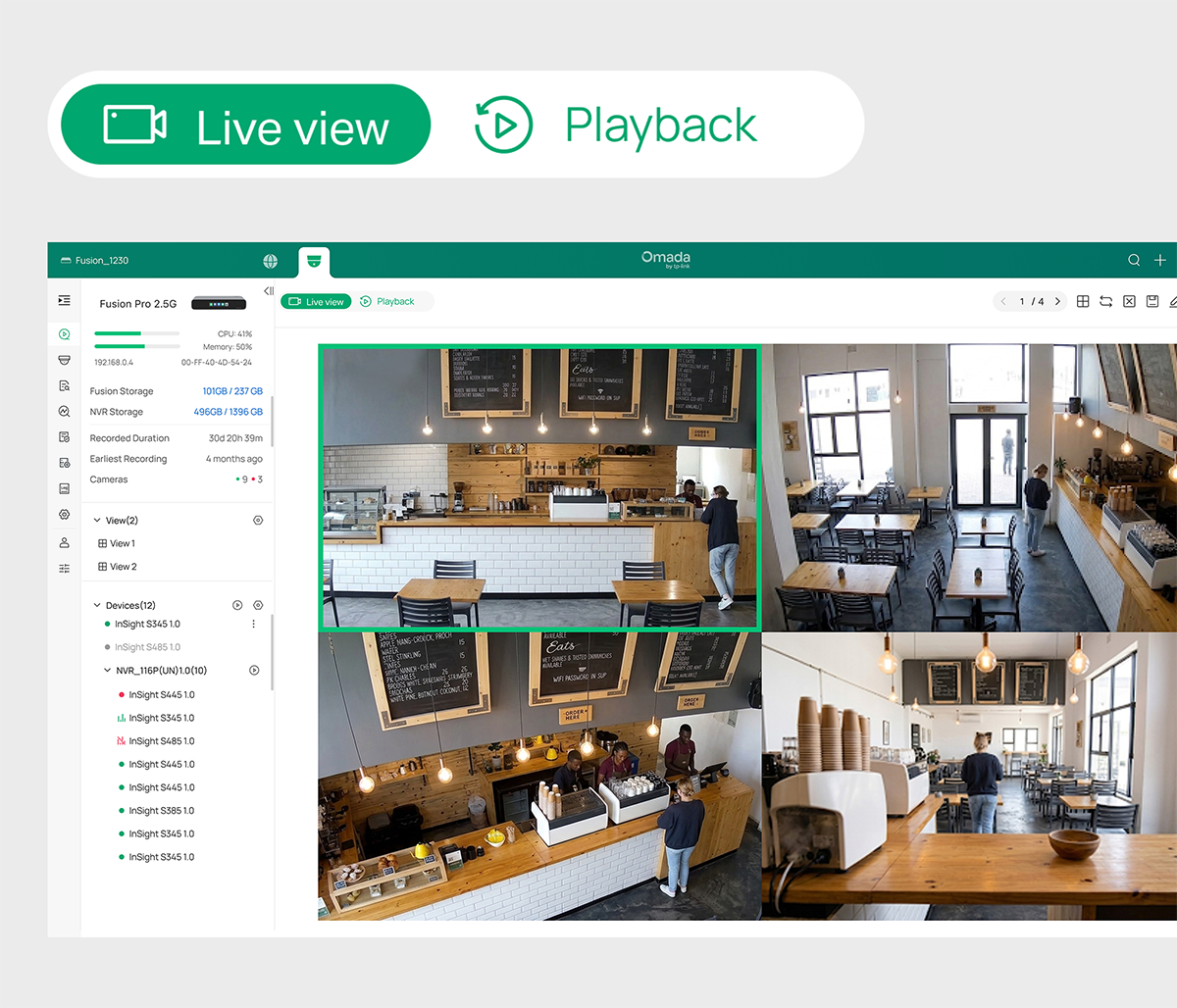
Live View shows current activity, while Playback opens recorded footage. Take a restaurant's goods receiving area as an example. A manager could watch the live feed when a delivery arrives, then select the camera and time to review it if the received goods do not match the list. An office could use the same approach to review what happened around an entrance.
Clear camera names make a small but useful difference. Names such as Front Entrance, Goods Receiving Counter, or Warehouse Loading Door help people find the right view. Keep the system's time and time zone consistent too, so footage is easy to compare with delivery records, sales transactions, or the time an employee reported an incident.
Keep Related Clips Together in a Case
Events provides the event list and notification settings. Case Center includes options to add cases, view the case list, and manage video clips related to the same issue. That keeps the information together instead of leaving timestamps scattered across chat messages. The available events depend on the camera's capabilities and system settings.
For example, someone reports that goods are missing from the receiving area. Start with the date, time, and camera, use Playback to review the moments before and after the incident, and collect the relevant clips in a case. This gives the next person handling the issue more context than a message telling them which camera and time to open.
It also helps to decide early who can view footage, manage cases, and export clips. Use Account & Role to match access to each person's job, then let the staff who will use the system try viewing, playback, and clip management before handover.
Recording to the Built-in NVMe SSD Tray: How Many Cameras?
Fusion Pro 2.5G has one NVMe SSD tray for up to 2TB of video storage, with the SSD purchased separately. This suits installations that want a compact setup with fewer separate appliances. The 32GB eMMC in the hardware specifications is system storage, separate from the SSD used for video, so remember to include an SSD when putting the equipment list together.
The recommended camera count for SSD recording depends on resolution. Use the table as a starting point for sizing the system. Each row is an alternative recording scenario at that resolution; the counts are not added together.
| Resolution | Recommended Camera Count for SSD Recording | What to Consider Alongside It |
|---|---|---|
| HD | 16 cameras | A starting reference for a system recording at HD resolution |
| 2K | 14 cameras | Camera count, workload, and recording space together |
| 4K | 12 cameras | Enough capacity for the bitrate and required retention days |
| 12MP | 6 cameras | System size suited to high-resolution cameras |
If you mix resolutions, such as 4K cameras at an entrance and 2K cameras in general areas, assess the camera list and recording settings as a whole. The documentation does not give a conversion formula between the different camera counts. Looking at bitrate and actual storage use together will give you a more useful basis for choosing the system size.
When choosing an SSD, look at its capacity, supported model, and physical module size. The specification calls for NVMe storage up to 2TB, so match the SSD model to the appliance before ordering.
Using a Separate NVR: Another Option for Up to 24 Cameras
If camera count or retention needs outgrow the SSD option, Fusion Pro 2.5G can work with a supported Omada/VIGI NVR. It manages up to one NVR for a system of up to 24 cameras. This puts recording on the NVR and lets you choose recording capacity around the needs of the installation.
The 24-camera figure applies when using a supported NVR. SSD recording uses the resolution-based recommendations in the previous table. These are different recording approaches, so the capacity is not 16 cameras on the SSD plus another 24 on the NVR.
| Recording Option | Specified System Size | What to Match to Your Needs |
|---|---|---|
| SSD inside Fusion Pro | One NVMe SSD tray, up to 2TB; recommended camera count depends on resolution | SSD model, usable capacity, and required retention days |
| External NVR | Up to one supported NVR for a system of up to 24 cameras | NVR model and firmware, recording channels, disk capacity, and Guard integration |
A small shop with relatively few cameras and a preference for fewer appliances could start with the internal SSD option. A site with several zones or longer retention needs should compare an NVR from the start. Camera count and retention days are separate questions: even below the camera limit, storage can run out before the required retention period.
If you already have an NVR, start with its model, software version, and the Guard features you want to use. That helps establish how much of the existing setup can be kept and what may need to be added or replaced.
Think About Maintenance and Replacements Too
While planning the system, agree on who will monitor free space, handle an SSD problem, and preserve any footage needed during an update. If several roles share one appliance, have a short set of checks for when it starts again. With a separate NVR, understand how each part behaves while another is down for maintenance. These details make it easier for the person taking over day-to-day management.
How Many Days Will 2TB Hold? Try the Numbers for Your System
The answer depends on camera count, bitrate, frame rate, codec, audio, and the recording schedule. Cameras with the same resolution can use different amounts of space each day when their settings differ. An easy starting point is to decide how many days you want to keep, then calculate the storage needed for the settings you plan to use.
| Factor | How It Affects Video Storage |
|---|---|
| Camera count and bitrate | The starting point for the amount of data recorded each day |
| Continuous or event-based recording | Affects actual recording hours; event activity varies between sites |
| Codec and scene detail | Affect compression, particularly with variable bitrate |
| Pre-recording and delay-recording | Add footage before and after events according to the settings |
| Usable space and file deletion | Include capacity after formatting, loop recording, and the policy for deleting old footage |
Compare Options with the CCTV Storage Calculator
Try your own setup in SyncTech's CCTV Storage Calculator. You can calculate the space needed for a retention target or the number of days available from existing storage. If cameras use different settings, separate them into groups and enter their bitrates manually.
- Choose whether to calculate storage for a number of days or retention days from usable capacity.
- Enter the camera count and recording settings for each group. If you know the bitrate, enable advanced mode and choose manual bitrate entry.
- Set recording hours, a capacity margin, and reserved space. Use actual usable capacity when calculating retention days.
- Compare the result with the SSD or NVR you are considering, then review actual storage use after installation.
Try this example: Eight cameras, each recording video at 4Mbps with no audio, run for 24 hours a day. The target is seven days with a 20% capacity margin. The result is approximately 345.6GB per day, 2.419TB of raw data, and 2.903TB including the margin, with system space and any additional reserve both set to zero. That exceeds Fusion Pro 2.5G's maximum 2TB SSD capacity. The next step is to adjust retention days, recording mode, or bitrate, or consider an NVR that fits the job.
Use the calculation to help choose capacity, then follow actual usage once the cameras start recording. One important distinction: the calculator's HDD suggestions help plan a recording system; they are not an SSD compatibility list for Fusion Pro. The appliance still takes a compatible NVMe SSD with a maximum capacity of 2TB.
Try Your Own Storage and Retention Calculation →
Guard includes Disk Management, Loop Recording, Pre-recording, Delay-recording, and Auto Delete Old File to organize recording around the job. After installation, look at space consumption on both ordinary and busy days, then bring the estimate closer to the way that location actually operates.
What Can Smart Search Help You Find?
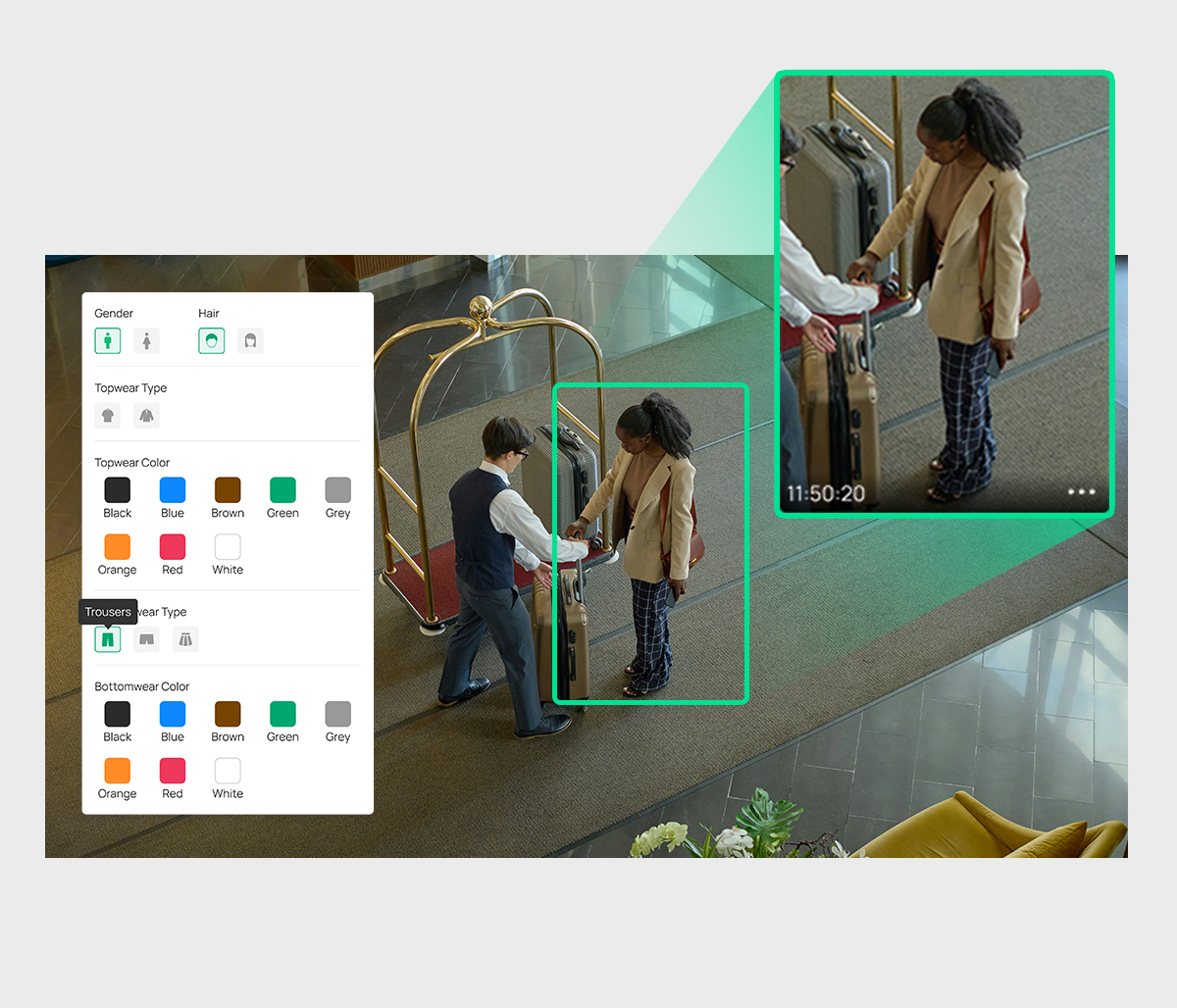
Smart Search includes Human Event and Vehicle Event for finding events involving people and vehicles. The datasheet currently lists support on VIGI InSight cameras. If this is a key reason for choosing the camera system, start with models that support this function with Guard.
Think of looking for a vehicle that entered through the main gate. An administrator can use event information to narrow down the footage, then open Playback to see what happened before and after it. Camera images, settings, and event information all play a part in making that search useful.
How Much of an Existing Third-Party Camera Setup Can You Keep?
Fusion Pro lists support for third-party cameras. When deciding whether to keep existing cameras, work through the functions separately: adding the camera, live view, recording, playback, event reception, and Smart Search. Each connection and function depends on the camera model and how it works with the rest of the system.
For example, an existing camera may provide clear enough images, while the new plan calls for centralized AI event searching. In that case, focus on compatibility for that search function. The Smart Search discussed here covers the specified people and vehicle events; it does not extend to identifying an individual or every type of AI analysis.
Already have cameras? SyncTech can help check whether your existing models work with Fusion Pro and the features you want to use. Contact SyncTech on LINE
ANR and Recovery Tools for Connection Problems
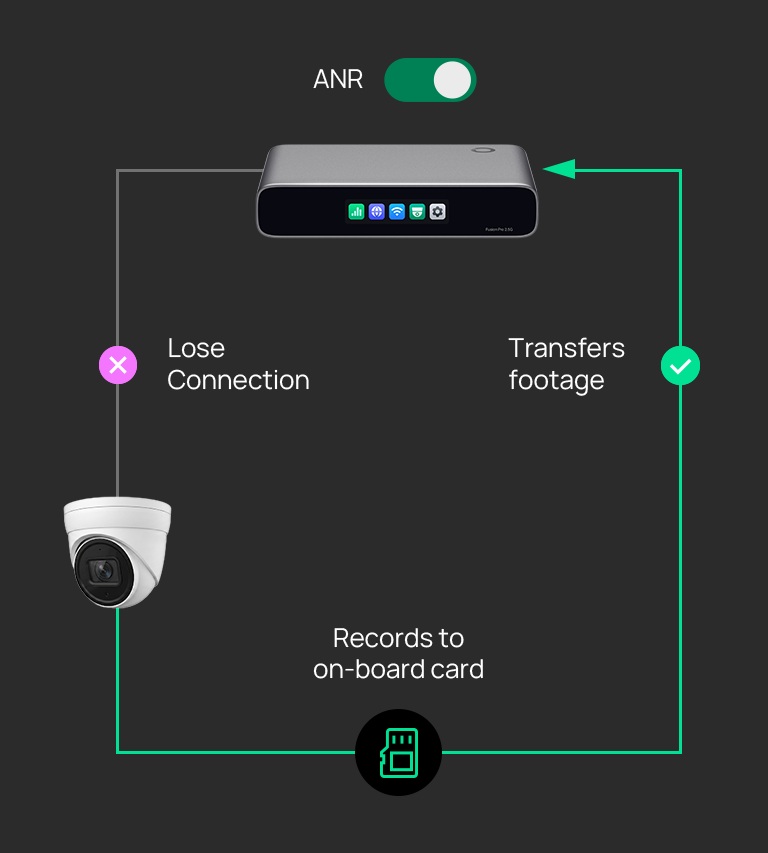
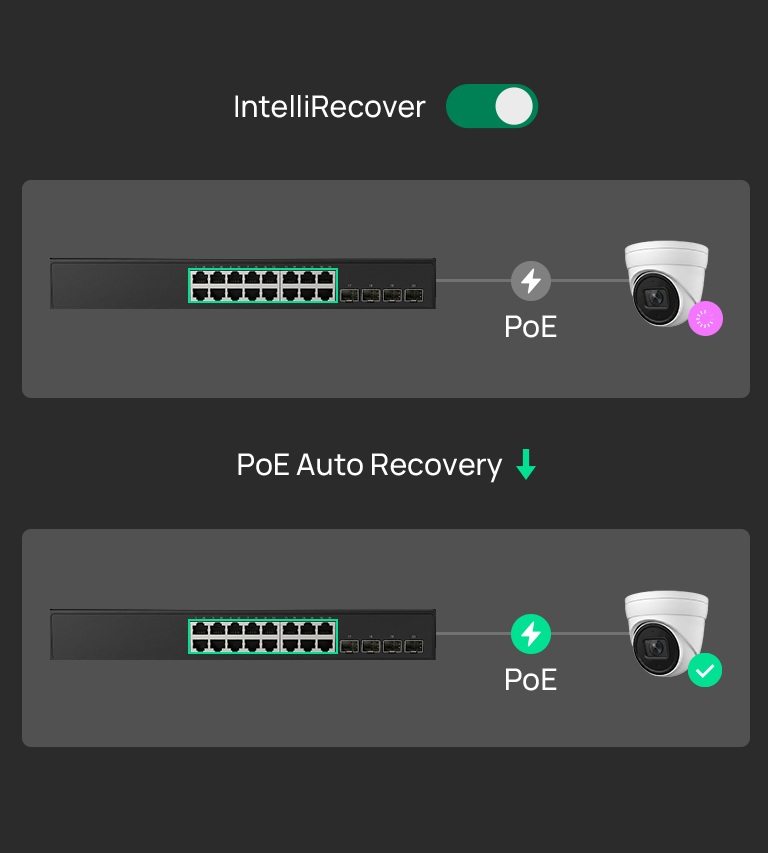
Fusion Pro 2.5G includes ANR under storage management, along with Remote Camera Reboot, Enhanced PoE Auto Recovery, and cable testing tools. These functions work with compatible cameras and PoE switches, so it makes sense to choose the equipment as a complete set during planning.
For ANR, look at how the camera records locally, which media it uses, such as microSD on supported models, and how footage returns to the system when connectivity is restored. These details depend on the camera model and software used together. Working through them early helps you plan fallback recording space and day-to-day management.
Consider two different situations: a camera still has power but temporarily cannot reach the recording system, or the PoE switch loses power and the camera turns off. These need different responses. Plan ANR together with a UPS, cabling, and camera recording settings, then try the scenarios that matter at the site before routine use begins.
Remote reboot and PoE recovery provide ways to respond when a device develops a problem. If it needs frequent restarts, investigate the underlying cause as well. Remember that this five-port Fusion Pro 2.5G has no built-in PoE output, so power delivery and PoE-side functions belong to the switch or other connected equipment.
Keeping Clips on a NAS or Cloud Drive
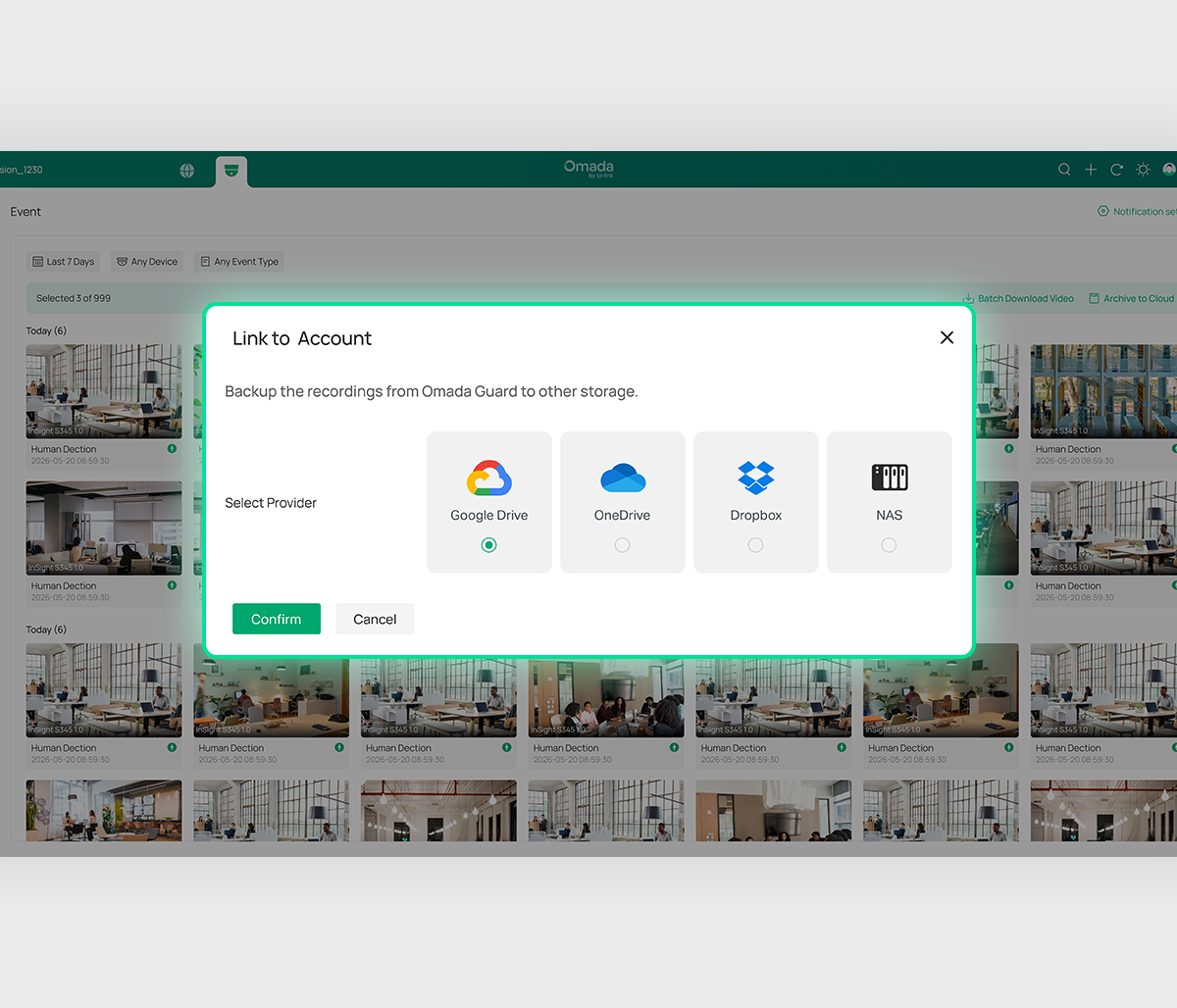
The video features include Cloud Drive, NAS Archive, and Archiving Management as further storage options. Start with the clips you want to retain, the destination you want to use, and how long you need them. Then choose the supported configuration for the equipment and software in your system.
License-Free Cloud Management covers managing the system through the cloud without license fees within the product's scope. Video storage is a separate part of the plan. A NAS needs enough capacity of its own, while a cloud drive needs a suitable storage allowance and service plan.
Separate Everyday Recording from Clips You Want to Keep Longer
A straightforward approach is to keep everyday footage on the planned recording cycle and assign someone to preserve incident clips that need further attention. Decide where those clips will be kept, who looks after them, and how long they are needed. Make sure the storage behavior of Case Center and Archive is clear before staff start using them.
If the NAS is on the same site, allow for the transfers on the local network. Cloud uploads need enough internet upload capacity and a schedule that fits around other business traffic. Leave sufficient space at the destination and try opening a clip from it, so the footage is easy to retrieve when needed.
With the cameras, SSD or NVR, and clip destination matched to the job, Fusion Pro 2.5G can serve as the site's central point for managing networking and cameras. The useful questions are what you want the system to do, how many days of footage you need, and how the person managing it will use it every day.
Already know Fusion 2.5G? Here is what Pro adds
If you are familiar with Fusion 2.5G, start with a simple question: would you like to manage your cameras in the same place as your network? Both models have a built-in gateway and controller. Pro adds Omada Guard and an SSD tray for recording, bringing internet connections, Omada devices and compatible cameras together in one management platform.
| What matters to you | Fusion 2.5G | Fusion Pro 2.5G |
|---|---|---|
| Primary role | Gateway and network management | Gateway, network management and surveillance management |
| Omada Network Application | Supported | Supported |
| Omada Guard Application | Not supported | Supports Live View, Playback and video management |
| Onboard video storage | No SSD tray for this purpose | One NVMe SSD tray, up to 2 TB; SSD purchased separately |
| Recommended managed network devices | 30 devices | 30 devices, with separate camera and NVR limits |
| Recommended clients | 300 clients | 300 clients |
| Ports on the models without “PoE” in their names | 5 × 2.5G RJ45 | 5 × 2.5G RJ45, without PoE output |
| A good starting point for | Managing the network | Managing a network and compatible cameras together |
When choosing a model, look for the PoE designation too. The five-port Fusion Pro 2.5G in this article uses a switch or injector to power cameras and APs. Fusion Pro 2.5G PoE is a separate model. If you want the gateway itself to provide power, include the PoE model in your comparison from the start.
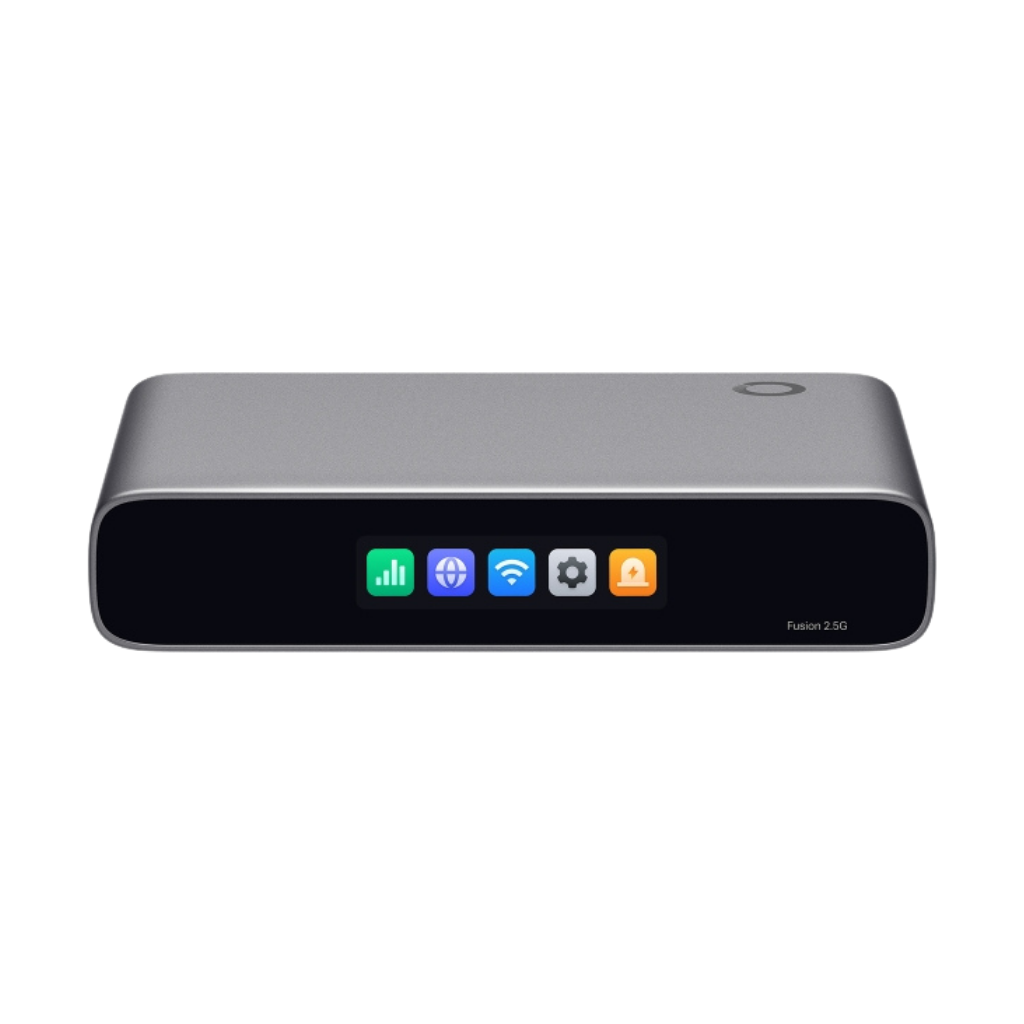
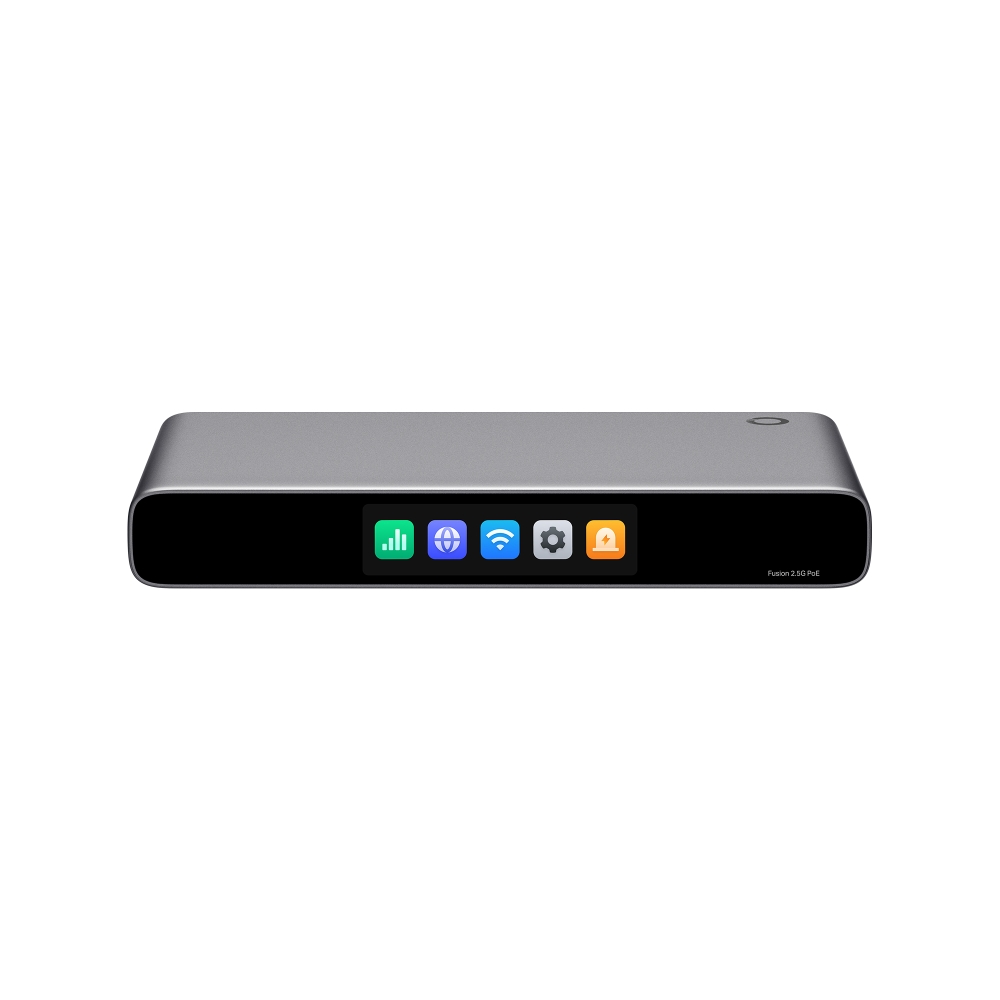
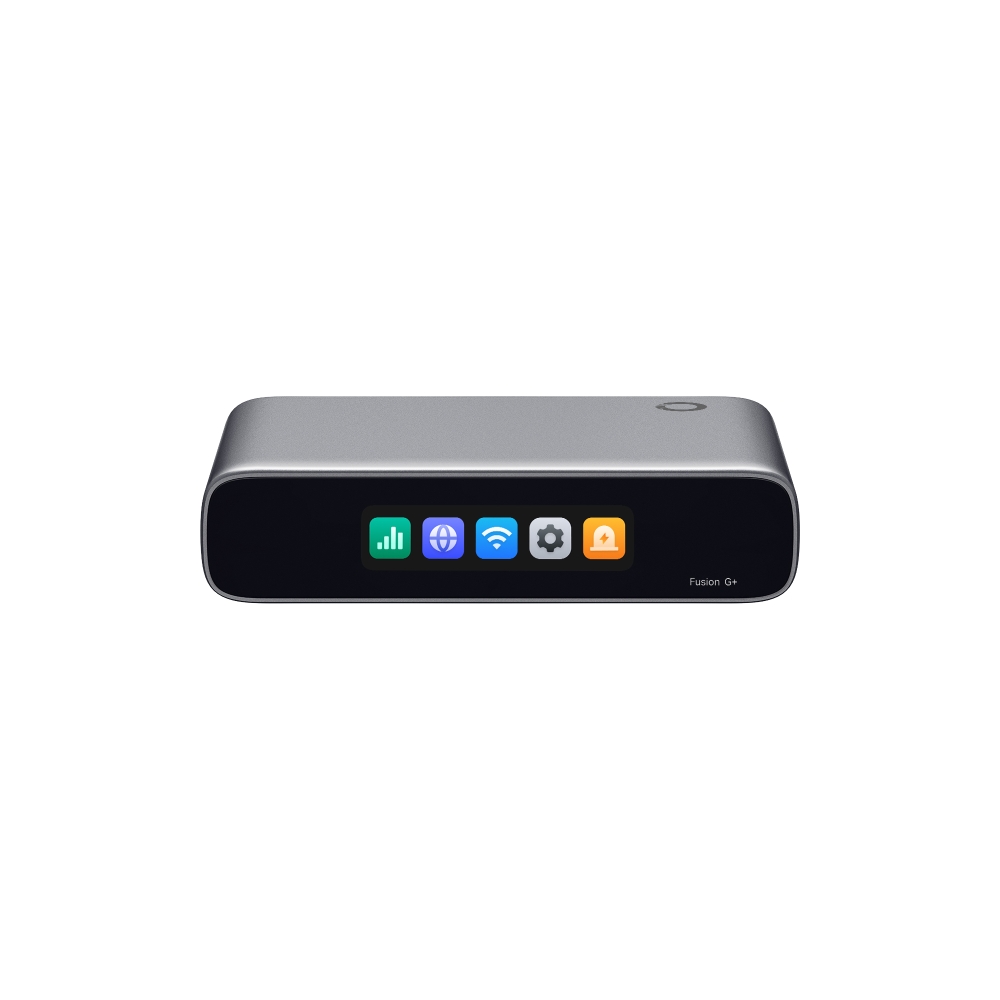
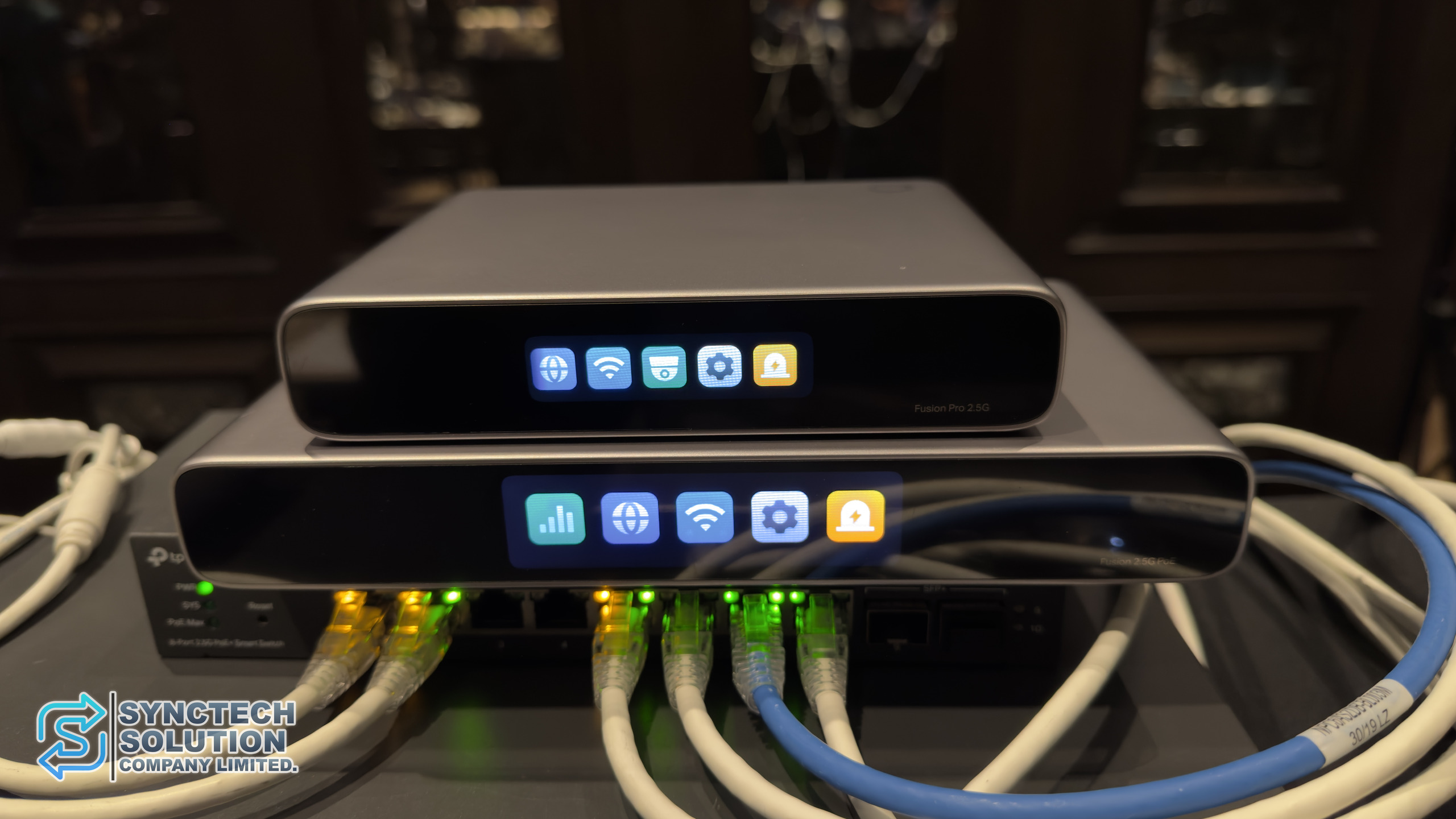
Fusion Pro 2.5G alongside Fusion 2.5G PoE
Fusion 2.5G PoE was also on display at the event. This photo shows the two devices together, making their enclosure sizes and display positions easier to compare. Check the model labels when comparing their features.
How convenient is one appliance, and when does a separate NVR make sense?
Combining these functions means fewer boxes and power cables, with one management interface for everyday tasks. That can make equipment easier to arrange in a small shop or an office without a server room. Businesses with several branches can also give each location a consistent setup.
It is worth thinking ahead to a replacement or outage: the gateway, controller and recording inside the appliance can all be affected together. If you want recording on a separate device, plan to add cameras or need longer retention, pairing Fusion Pro with a supported NVR is a useful option.
| Your setup | What it offers | What to plan |
|---|---|---|
| Fusion Pro with an SSD | A compact central appliance combining management and video recording | Camera count, recording capacity and a gateway replacement plan |
| Fusion Pro with a supported NVR | Recording is handled by the NVR, with expansion within the supported limits | NVR model, recording channels, disks and interoperability |
| Separate gateway, controller and recording system | Each component can be selected to match its workload and expansion plan | Multiple appliances, power supplies and the relationships between systems |
If your existing system works well, think about what you would most like to change. Perhaps you want one interface for your devices, fewer boxes on the shelf or a new set of cameras. Those answers help you choose between Fusion Pro with an SSD, Fusion Pro with an NVR, or keeping some of your existing equipment. Need help choosing? Talk to us on LINE.
Where could Fusion Pro fit in your business?
Every business uses its network a little differently. One shop depends on its POS, another office spends the day in video meetings, and another needs to review camera footage regularly. Use these examples to see which setup feels closest to yours.
Retail stores or restaurants with POS and guest Wi-Fi
Connect primary and backup internet services to Fusion Pro, then use a managed PoE switch to power APs and cameras. Give POS, staff, guests and cameras their own VLANs, with access rules for the resources each group needs. The owner or IT team can then see network and camera status centrally. Choose SSD or NVR recording around the number of cameras and the days of footage you want to keep.
Clinics separating business systems from visitor access
Separate business systems, staff devices, visitor Wi-Fi and cameras. Decide who manages the network, who can view video and who can export clips. A shared management interface makes it easier to follow a problem, while permissions and storage practices can be set up around the way the clinic works.
Offices using video meetings and VPN access
Use QoS to prioritize important tasks such as video meetings, and VPN access for people working away from the office. When choosing a VPN, look at both its protocol and the office internet connection’s upload speed. Both affect how smoothly people can open files and work remotely.
Multi-branch businesses with centralized IT
Name sites, switches, APs and cameras so it is clear which branch or room they belong to, then use a consistent approach to VLANs and administrator access. Full Mesh SD-WAN supports up to 20 sites. Start with non-overlapping IP ranges and enough internet bandwidth for the work each branch needs to send to the others.
Is Fusion Pro 2.5G a good fit for you?
If you are putting together a network for a shop, clinic or office and want to manage Omada devices and cameras in one place, there is plenty to like about this model. Starting a new system also makes it easier to choose cameras, switches and recording capacity that work together from day one.
If you need fiber or 10G directly on the gateway, have a large device count or want to keep footage from many cameras for a long time, compare other models or add a separate NVR. If you want to power cameras from the gateway itself, look at the PoE version and choose enough ports and power for your equipment.
What should you have ready before getting started?
Write down the essentials
- Count switches, APs, cameras and client devices separately, and leave room for future additions.
- Have internet connection details ready, including the ONT mode and PPPoE username and password if used.
- Plan IP addresses, VLANs and DHCP, and note which resources each network group needs to reach.
- Choose cameras, an NVR and an SSD that work together, then note bitrates, recording schedules and the days of footage you want to keep.
- Look at the switch or injector PoE budget to make sure there is enough power for your APs and cameras.
- Choose the site owner and separate permissions for network management, camera viewing and clip export.
Try the functions you will use before opening up the whole system
- Use location-based names such as AP-MeetingRoom or Camera-Entrance, and check the list before adoption.
- Use firmware and application versions that support the devices and functions you want to use together.
- Connect a device in each VLAN and try getting an IP address, accessing the internet and opening the systems it needs.
- Try the backup internet connection and VPN during a quiet period that will not interrupt the shop or office.
- Open live video, play back a recording, check the timestamp and export a clip so the everyday steps are familiar.
Keep the information that makes future upkeep easier
- Keep a configuration backup and a network diagram outside the gateway so they are ready when you replace it.
- Plan UPS coverage and ventilation for the ONT, switches, cameras and NVR as a complete setup.
- Choose who receives alerts, and check recording space and saved clips from time to time.
- Note the restart steps after a power cut and the information needed to replace the gateway or SSD.
- Keep model names, installation locations and support contacts together to help whoever looks after the system next.
Frequently asked questions about Fusion Pro 2.5G
1. What does Pro add to Fusion 2.5G?
It adds Omada Guard for cameras and video, plus a built-in NVMe SSD tray. If you want to see your network and cameras in one place, that is what Pro brings to the range.
2. Can I plug in a camera or AP and power it directly?
This five-port model has no PoE output. A PoE switch or injector can provide power. If you want the gateway to do that too, look at Fusion Pro 2.5G PoE.
3. Can it provide Wi-Fi on its own?
Use separate APs to provide Wi-Fi coverage. Bluetooth on Fusion Pro helps with the initial setup.
4. Do I need to buy an SSD separately?
You will need to buy a compatible SSD separately, install it and set up camera recording first.
5. Which SSD can I use?
There is one NVMe SSD tray supporting up to 2 TB. Before buying, match both the module size and SSD model to the requirements for this appliance.
6. Can I record 24 cameras on the internal SSD?
Up to 24 cameras applies when using a supported Omada/VIGI NVR. The internal SSD has its own recommended camera counts by resolution, so use the figures for the recording method you choose.
7. How many cameras can I use with SSD recording?
The manufacturer recommends 16 HD, 14 2K, 12 4K or 6 12MP cameras. If you mix resolutions, look at camera numbers and recording settings across the whole setup.
8. How many days of footage will fit on a 2 TB SSD?
That depends on camera count, bitrate and recording hours. Try your figures in the SyncTech CCTV Storage Calculator, then compare the result with this model’s 2 TB SSD maximum. All-day recording and event-only recording use different amounts of space.
9. Does free cloud management include video storage?
License-Free refers to managing the system through the cloud. Video storage on an external service is separate. If you add a cloud drive, look at that service’s storage capacity and plan too.
10. Can I manage it locally in the shop?
Yes. You can manage it locally or through the cloud. Some functions, including SD-WAN configuration, use the Omada Cloud Portal.
11. Are cameras and NVRs part of the 30-device count?
The 30-device figure is for Omada network devices. Cameras and NVRs are separate groups with their own supported counts.
12. Does 300 clients mean 300 people?
Count connected devices: one person may have both a phone and a computer. The manufacturer recommends 300 clients, while the speed each device gets depends on the work and internet connection they share.
13. Can I connect fiber directly?
All five ports are 2.5G RJ45. You can connect a fiber run through a suitable switch or media converter.
14. Will two internet connections double my download speed?
Load balancing spreads multiple connections across your internet services. A single file download will typically use one path, so the speeds of every WAN are not automatically added together for that file.
15. What happens to a meeting or VPN when the main internet connection drops?
Some applications continue, while others may reconnect when the public IP changes. Try switching connections with your usual meeting app or VPN to see how your setup behaves.
16. How many branches can Full Mesh SD-WAN connect?
Up to 20 sites, configured through the Omada Cloud Portal. Use non-overlapping IP ranges and enough bandwidth for the work passing between branches.
17. I already have an OC200. Do I need to change it?
If your OC200 already works well for you, think about what you want Pro to add, such as camera management or SSD recording. If you decide to move, look up the migration steps for your existing device models, software versions and configuration.
18. Can I use cameras from other brands?
Third-party cameras are supported, with functions such as live view, recording and events varying by model. The datasheet lists VIGI InSight cameras for Smart Search. If that feature matters to you, start with cameras that support it directly.
19. How many NVRs can I connect?
Up to one NVR. Choose a compatible Omada/VIGI model with enough recording channels for your cameras. To reach 24 cameras, the NVR needs to support that count too.
20. Does it have a fan?
It has one fan and a Fanless Mode. Leave the vents clear when placing it on a desk or inside a cabinet.
Choose around your everyday work
The appeal of Fusion Pro 2.5G is bringing several everyday jobs together: gateway, controller and camera management. You can start with an SSD in the appliance or pair it with an NVR, choosing around your camera count and the days of footage you want to keep.
Start by noting your devices, installation points and important tasks, then choose a gateway, switch, APs and cameras that work together. Not sure which combination to start with? Talk to the SyncTech Solution team. We can help you find equipment that suits your space and the way you use it.
Explore the product and plan your setup
See the Omada Fusion Pro 2.5G Gateway, or talk to SyncTech about putting together a gateway, switch, access points and cameras for your shop or office.
More information and image credits
- Product information and images from Omada / TP-Link
- Fusion Pro 2.5G Datasheet
- Omada Fusion selection guide
- SyncTech CCTV storage calculator
Need expert advice or would like to request a quotation? Contact us today:
E-mail: sale@sync.co.th
LINE Official: @sync.co.th

The Company reserves the right to correct any typographical or printing errors and shall not be held liable for any inaccuracies resulting from such errors.
*** This article is the intellectual property of SyncTech Solution Company Limited. Reproduction, modification, or redistribution of this content, in whole or in part, is strictly prohibited without prior written permission from the Company. ***