One question that the SyncTech Solution team often hears when designing the Omada system is, “If there is already a Gateway, why do we still need a separate Controller?” This question is not because users do not understand the role of the Controller, but it increasingly reflects the pain points of modern network systems. Every added device means more power cables, more LAN cables, more firmware, more configuration, and another point that the IT team has to manage throughout the system's lifespan.
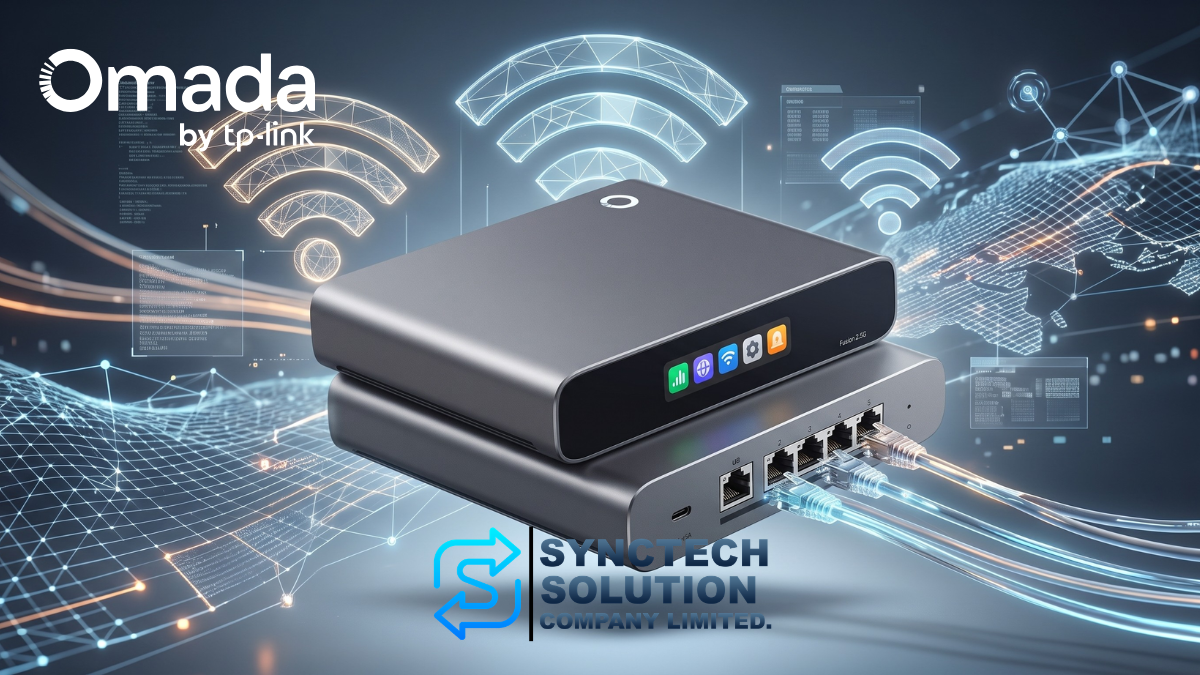
TP-Link Omada Fusion 2.5G Gateway is designed to change this picture by combining a Gateway for Routing, NAT, Firewall, Multi-WAN, and VPN with an Omada Controller for managing Switches, Access Points, and Clients, while also enabling system management through Omada Cloud from just a single device.
But the phrase 'all-in-one' only has value if the device still provides sufficient performance, is manageable without complexity, and does not create new limitations that outweigh the problems it is trying to solve. Therefore, this article does not just look at the appearance and specification numbers, but analyzes which types of work the Fusion concept is suitable for, how it can actually reduce the burden on system installers, and what observations should be known before using it in production systems.
The SyncTech Solution team, as a TP-Link Solution X Partner at the Gold level, along with engineers certified with Omada Master Certification, were invited to participate in the launch and experience the use of products in the Omada Fusion group. This article therefore conveys information from the product itself, technical data, and the perspectives of those who need to design, install, and maintain systems for customers to use effectively in the long term.
Scope of the article: The sections related to performance refer to the product's capability under standard testing conditions, not the benchmark results from actual customer systems. The speed achieved in each project may vary depending on the firmware, traffic patterns, number of sessions, packet size, functions enabled simultaneously, and network architecture.
What is Omada Fusion and why are this group of products interesting?
Gateways and Controllers have different roles, but both parts are located at the center of the network system. Gateways manage the traffic routes between LAN, VLAN, WAN, and VPN, while Controllers are responsible for integrating the management of Gateways, Switches, and Access Points into a single Dashboard.
In the traditional Omada system, installers may choose to use a Gateway together with an OC200, OC300, Software Controller, or Cloud-Based Controller, depending on the size and type of the project. This approach is flexible and suitable for systems that require a clear separation of device roles. However, for small offices, shops, clinics, or multi-branch businesses, having a separate Controller may add unnecessary complexity.
Fusion 2.5G therefore sits in the middle between a router for general business use and a full Controller-based Omada system. Users still gain centralized management capabilities but with one less piece of hardware, along with added tools designed to reduce installation and support time, such as Bluetooth onboarding, automatic device discovery, batch adoption, and a touch screen on the device.
| Topic | Separate Gateway + Controller | Omada Fusion 2.5G |
|---|---|---|
| Gateway | Separate device | Built into the device |
| Omada Controller | Use Hardware, Software, or additional Cloud Controller | Built-in Controller ready to use |
| Cloud Management | Depends on the type of Controller | Managed through Cloud, Local, and Omada App |
| Installation start | Primarily via Ethernet or Web Interface | Supports Bluetooth and Ethernet |
| Devices that require power | At least Gateway and Controller | One device for two roles |
| Suitable for | Systems that require a separate Controller or are large-scale | Small to medium businesses and medium-sized multi-branch systems |
Perspective from the SyncTech Solution engineering team
The most important selling point of Fusion is not having a screen or a 2.5GbE port, but rather reducing the number of things that need to be managed at each site. When multiplied across ten or twenty branches, the time saved from installation, updates, and support is worth more than the cost of the controller saved.
Unboxing Omada Fusion 2.5G Gateway
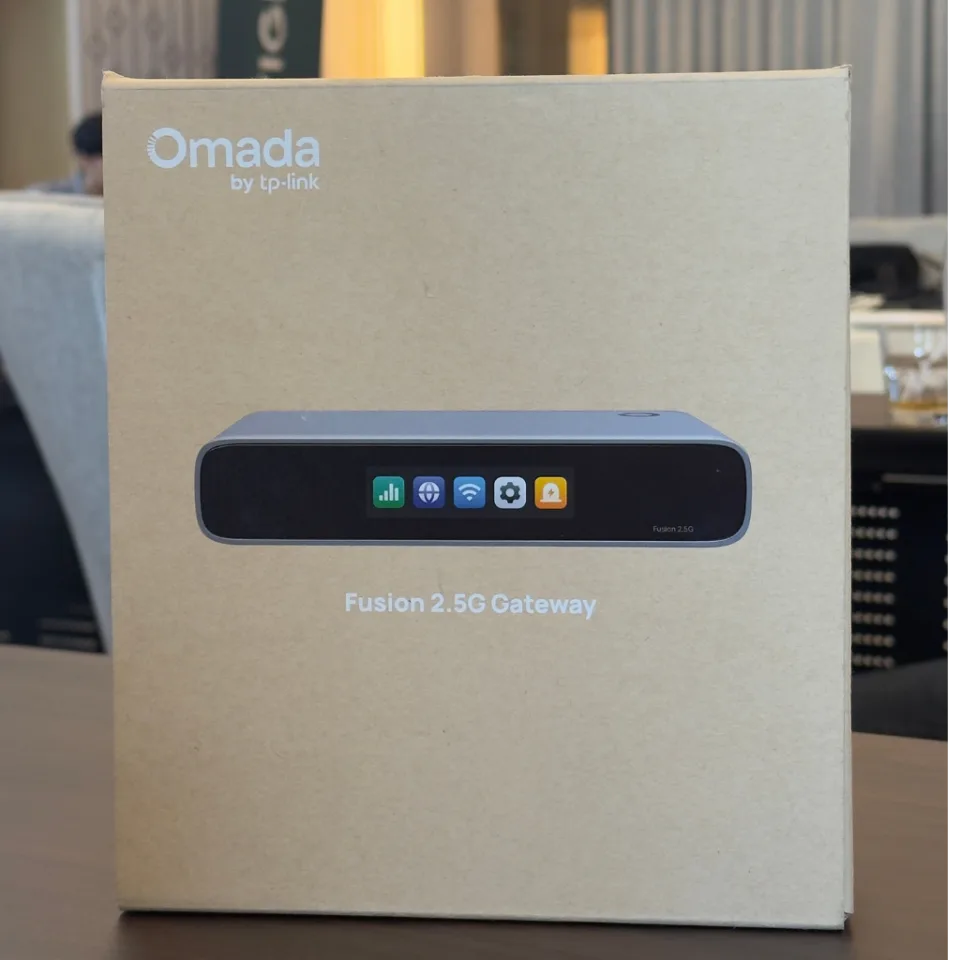
The packaging of Fusion 2.5G comes in a simple style. The device is neatly arranged inside shockproof material, while the accessories are clearly separated from the main unit. There are not too many parts, so installers do not need to spend a long time counting them.
Equipment found inside the box
- Omada Fusion 2.5G Gateway, 1 unit
- Power Adapter with USB Type-C power cable
- 1 Ethernet cable
- Installation guide and accompanying information as per the distribution set
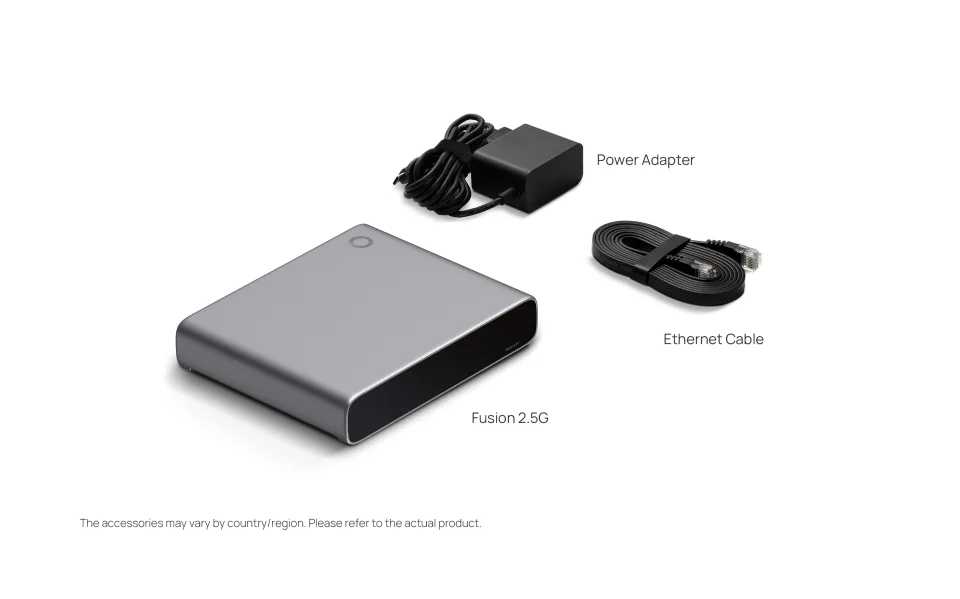
The provided equipment is complete for getting started with a desktop setup. You can connect WAN, connect LAN, and power on to start onboarding immediately. The wall-mount magnetic equipment and the Rack-Mount Kit are optional accessories that need to be acquired separately. If you plan to install in a rack, you should specify the complete installation set from the BOM preparation stage.
This is a detail that seems minor but actually affects real work, because ordering the main equipment without ordering the Mounting Kit might cause the on-site team to temporarily place the machine or have to return to the site again to complete the work properly.
First Impression: Gateway That Looks Like a Smart Network Appliance
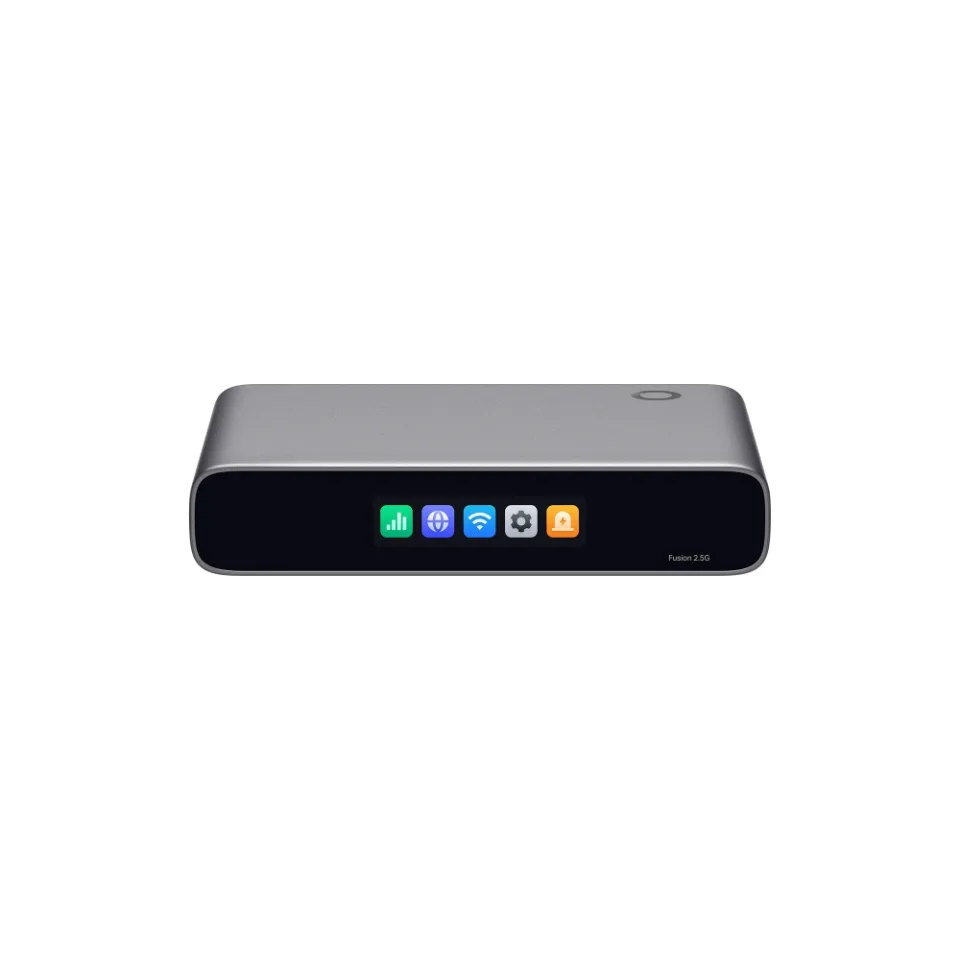
When taking the device out of the box, the first impression is that the Fusion 2.5G is smaller than it appears in promotional materials. With dimensions of approximately 160 × 130 × 31.5 millimeters and a weight of around 510 grams, it doesn't take up much space on a desk or in a network cabinet.
The design uses a dark gray tone, contrasted with a black front panel and a central touchscreen. Its shape is unlike the industrial-focused Gateway Rackmounts, but it resembles modern Smart Hubs or Network Appliances. It can be placed in offices, meeting rooms, store counters, or Front Offices without making the space look like a server room.
The body is made of polycarbonate, not a metal chassis, but the assembly is solid, the weight is not so light that it feels like a consumer device, and there are no parts that move abnormally. The cooling is fanless, so there is no fan noise, making it suitable for areas where users sit close to the device.
What the team liked even before turning it on
The design of Fusion doesn’t try to look “Enterprise” with a large body, but chooses to be designed to fit the real locations of the target groups, such as restaurants, clinics, offices, and multiple-branch stores, many of which do not have a dedicated server room.
2.51-inch Touch Screen: Gimmick or Practical Tool?
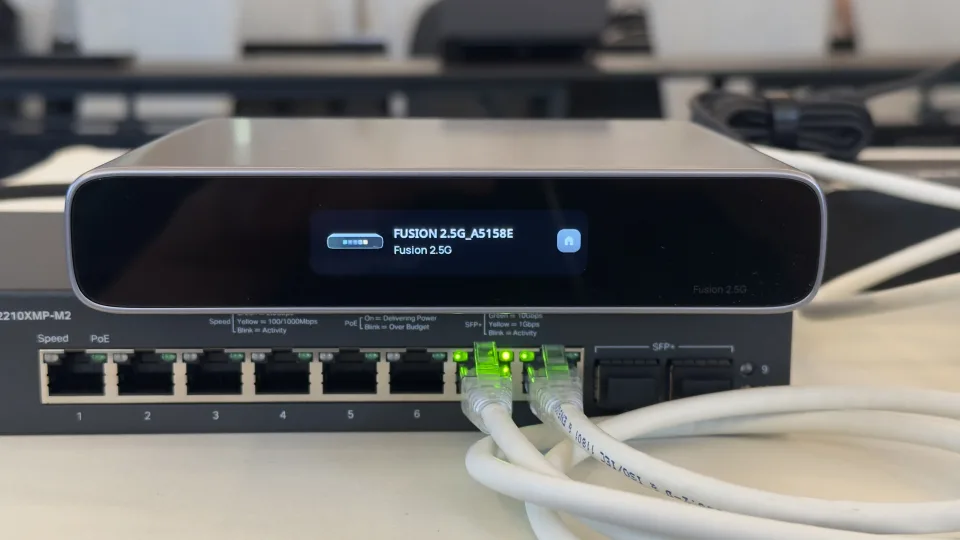
The 2.51-inch color touchscreen is the most eye-catching part of the product. Placing the screen on the Gateway may make many people question whether it is necessary, because the actual system settings still need to be done through the Controller or Web Interface anyway.
The answer is that the screen is not intended to replace the Dashboard but serves as a "status window" for on-site tasks. Administrators can check Network Health, internet status, WAN, Real-Time Traffic, Alerts, and use preliminary data to help diagnose the cause of problems without having to open a Notebook every time.
Imagine a situation where a customer calls to report that "the internet is slow," but the person on site is not from the IT department. If the device can display WAN status and alerts directly, the support team can have the coordinator check the basic information over the phone more easily than teaching them to log in to the controller.
The screen does not make the system faster, but it helps the support process run faster, which is very valuable at sites that are far away or have high travel costs.
What the screen is good at helping with
- Check whether the WAN is still online
- View traffic and system status quickly
- Observe alerts before entering the dashboard
- Use as reference information for phone support
- Reduce opening a notebook for basic inspection tasks
Things the screen did not replace
- In-depth log inspection
- Creating VLANs and ACLs
- Packet flow inspection
- Analysis of complex routing or VPNs
- Modifying large configurations
5 Ports of 2.5GbE and the Flexibility of Multi-WAN
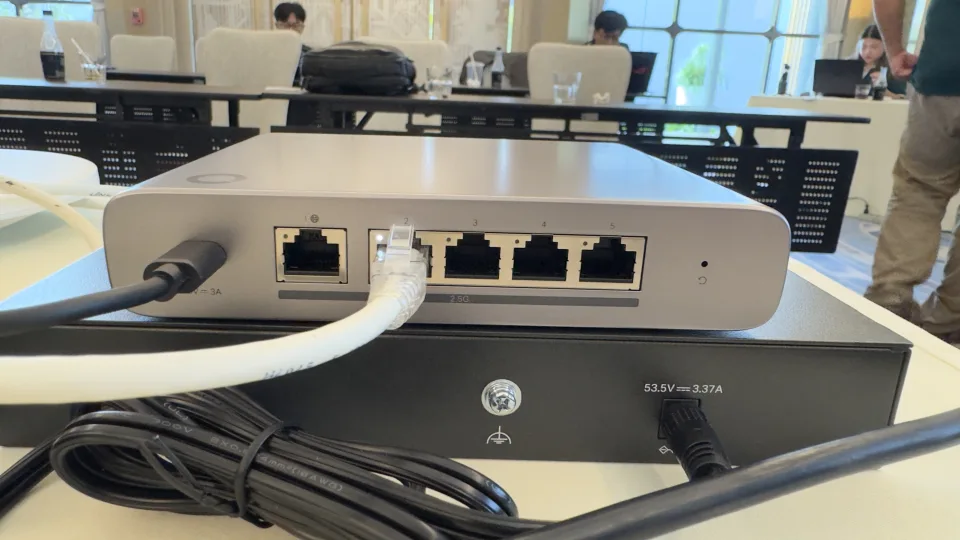
The rear has five 2.5Gbps RJ45 ports, consisting of one fixed WAN port and four LAN/WAN ports with adjustable roles, allowing up to four simultaneous WAN connections.
- 1 × 2.5G RJ45 WAN
- 4 × 2.5G RJ45 LAN/WAN
- USB Type-C for power supply
- Reset button
Providing every port as 2.5GbE means more than just supporting faster than 1Gbps internet, because it helps reduce bottlenecks when connecting to a Multi-Gigabit Switch, Wi-Fi 7 Access Point, or NAS that supports 2.5GbE.
However, Fusion 2.5G does not have SFP or SFP+ ports. If the project requires a direct Fiber Uplink, it must be connected through an ONT, Media Converter, or an appropriate Switch. This point should be carefully considered in multi-story building projects or factories using a Fiber Backbone.
Example of Portfolio Organization in the Office
| Port | Example Function |
|---|---|
| WAN 1 | Main Fiber Internet |
| LAN/WAN 1 | Backup Fiber Internet |
| LAN/WAN 2 | 5G Router for Emergency Failover |
| LAN/WAN 3 | Private WAN or Intranet |
| LAN/WAN 4 | Uplink to Managed Switch |
Precautions
Multi-WAN does not mean combining the speeds of all connections to make a single session faster according to the sum. Load balancing usually occurs at the Session or Policy level, and when a WAN changes its Public IP, some applications may need to reconnect.
Key Technical Specifications
| Item | Details |
|---|---|
| Device Type | Gateway with Built-in Omada Controller |
| CPU | Quad-Core ARM Cortex-A53 2.0GHz |
| Memory | 2GB DDR4 |
| Network Ports | 5 × 2.5GbE RJ45 |
| Simultaneous WAN | Up to 4 WANs |
| Screen | 2.51-inch color LCM touchscreen |
| Recommended Omada Devices | Up to 30 devices total |
| Referred Clients | Up to 300 Clients connected simultaneously |
| Concurrent Sessions | 150,000 Sessions |
| New Sessions per Second | 7,800 Sessions per second |
| Start Installation | Bluetooth or Ethernet |
| Cooling system | Fanless |
| Material | Polycarbonate |
| Power Supply | USB Type-C, 5V DC / 3A |
| Maximum power consumption | 8.18W including Power Adapter |
| Surge Protection | 4kV |
| ESD Protection | ±8kV Air and ±4kV Contact |
| Size | 160 × 130 × 31.5 millimeters |
| Weight | 510 grams |
| Operating Temperature | -10°C to 40°C |
| Certification Standards | CE, FCC, and RoHS |
What does Capacity 30 devices mean?
The number 30 devices refers to all Omada devices managed by the Controller, not 30 Access Points plus additional Switches. For example, 1 Gateway, 4 Switches, and 20 Access Points would equal a total of 25 devices used.
A good design should not use full capacity from day one. There should be room for adding at least Access Points, Switches, or backup devices in the future. If the site is likely to grow beyond this limit, separating the Controller might be a more suitable approach.
Getting Started with Installation: How Does Bluetooth Onboarding Help?
An interesting step after powering on the device is to start the setup via the Omada App using Bluetooth. Installers do not need to search for the default IP, change the notebook's IP, or plug in a LAN cable to access the first-time setup page.
Bluetooth is not used as the main management channel of the system, but as a shortcut during onboarding, helping to discover devices and guide installers through the steps of setting up the Site, Administrator, WAN, and connecting to Omada Cloud.
For people who install equipment only a few times a year, the time saved may not seem much, but for System Integrators who need to prepare ten or twenty sites, reducing repetitive steps clearly affects the overall project time.
Information to Prepare Before Starting Setup
- Site name and device naming standards
- Static IP, Dynamic IP, or PPPoE information
- PPPoE Username and Password
- LAN, VLAN, and DHCP plan
- TP-Link ID that will own the Site
- List of administrators and their permission levels
- List of Switches and Access Points to be Adopted
Best Practice
The simplicity of the Wizard does not replace designing the Network before installation. Do not start the Setup until there is a clear IP Plan, VLAN Plan, and WAN information, because changing the structure after users are already in place often takes much more time than planning from the beginning.
Built-in Omada Controller: The Heart of the Word Fusion
Once the setup is complete, the on-device controller will begin managing the Gateway, Switch, Access Point, and Clients within the same site. Administrators can view the Dashboard, Topology, Device List, Client List, Logs, Alerts, Internet Activity, and update Firmware from a central location.
The advantage of combining Controllers is that there is no need to prepare an additional OC200 or Software Controller, no need for another Power Adapter, and no need to constantly check whether the separate Controller is still online.
On the other hand, combining the two roles into a single device causes the Gateway and Controller to share a failure domain. If the device goes down, both internet connectivity and site management will be affected simultaneously. Therefore, a backup configuration and a device replacement plan should be in place according to the business's priority level.
Key Management Functions
- Cloud Access and Local Management
- Omada App
- Multi-Site Management
- Restore and Backup
- Automatic Device Discovery
- Network Topology
- Dashboard
- Device List and Client List
- Logs, Alerts and Events
- Batch Firmware Upgrade
- Health Monitoring
- Internet Activity
- Captive Portal
- RADIUS and LDAP Authentication
- 802.1X Authentication
- OUI-Based VLAN
- SNMP v1, v2c and v3
Automatic Discovery and Bulk Adoption help reduce on-site time
After connecting the Omada Switch and Access Point to the Network, the Controller can automatically detect devices and display the list of devices ready to be Adopted. Afterwards, the installer can select multiple devices and import them into the system at the same time.
The benefits are most apparent in projects with multiple Access Points, because there is no need to log in and configure each device individually. However, you should check the model, MAC Address, Serial Number, and installation location before adopting to prevent bringing devices from the wrong site into the system.
How to name devices to make support easier?
- SW-Core-Rack01
- SW-PoE-Floor02
- AP-Lobby
- AP-MeetingRoom-A
- AP-Warehouse-Zone01
A good device name helps the Support team know the location immediately when an Alert occurs, while names like AP-01 or Switch-03 might be fine on the installation day but create confusion when the team changes members or the system expands.
Cloud Management and Multi-Branch Care
Fusion 2.5G supports management through Cloud, Local Web, and Omada App. Administrators can monitor the status of Sites, Gateways, Switches, Access Points, and Clients remotely without opening Management Ports from the Internet directly to the Gateway.
For businesses with multiple branches, this helps reduce travel and allows the IT team to see problems more quickly, such as which branch is offline, which access point is down, or which site has unusually high traffic.
Jobs Suitable for Working via Cloud
- Check the status of the Site and devices
- View Alerts, Logs, and Events
- Check Client and Internet Activity
- Check Topology
- Update Firmware according to the plan
- Adjust Configurations with low risk
Jobs to be cautious of when working remotely
- Change WAN Configuration
- Change Management VLAN
- Modify Default Route or Policy Routing
- Create ACL that may block the Controller
- Change the IP Address of the LAN
- Shut down the Uplink port
Adjustments that may cause the site to go down should have a technician or coordinator on site, along with a clear backup and rollback plan.
Multi-WAN in the Real World: It's Not Just Plugging in Multiple Internet Lines
Fusion 2.5G supports Load Balancing and Automatic Failover, allowing up to 4 WAN connections to be set. However, the real benefit depends on the Policy design, not the number of cables connected.
Case of a 100-Person Office
Assume the office has a primary Fiber Internet line, an additional Fiber line from another provider as a backup, and a 5G Router for emergencies. A suitable design might have regular work traffic use WAN 1, Guest Wi-Fi partially distributed to WAN 2, and reserve WAN 3 for failover when the Fiber has issues.
When the primary WAN fails, Fusion can reroute to the backup WAN, reducing the downtime for users who cannot access the internet. However, sessions that are currently connected through the original Public IP, such as VPN, Remote Desktop, Banking, or certain types of VoIP, may be disconnected and need to reconnect.
Case with Private WAN
Some organizations have a second WAN as an Intranet or Private Network that only allows access to specific systems. Traffic to such destinations must use the correct Static Route or Policy Routing, and the return route at the destination must also be checked, because having only the outgoing route does not guarantee that the response will return via the correct path.
Perspective from the engineering team
Most Multi-WAN issues don’t arise from the gateway not knowing where to send traffic, but from NAT, session persistence, health check, and return route not being fully designed. Therefore, failover testing must test the actual application, not just check whether a ping can reach the internet.
VLAN: A function that affects security more than speed
Fusion supports VLAN Segmentation and multiple Network DHCP, suitable for separating systems according to user and device types, such as Staff, Guest, POS, CCTV, IoT, Server, and Management
Example for a Restaurant
| VLAN | System | Access Guidelines |
|---|---|---|
| 10 | POS | Access to Payment Gateway and required Servers |
| 20 | Staff | Use the Internet and internal work systems |
| 30 | Guest Wi-Fi | Internet access only, no LAN access |
| 40 | CCTV | Connect to NVR and designated management points |
| 50 | IoT | Restricted to necessary services only |
| 99 | Management | For Gateway, Switch, and Access Point |
If everything is on the same VLAN, guests connected to the Wi-Fi might be able to see devices inside the store, and IoT devices with vulnerabilities could become a starting point for attacks on the POS system. Therefore, VLAN segmentation is not just about organization, but also a basic security measure for business networks.
Routing, NAT, and Network Services
Fusion supports Static Routing, Policy Routing, DHCP Server, DHCP Reservation, Multi-Net DHCP, Virtual Server, DMZ, One-to-One NAT, Disable NAT, UPnP, ALG, Dynamic DNS, IPv6, Bonjour/mDNS, and IGMP Proxy
These functions cover a fairly wide range of general business uses, but only the necessary ones should be enabled. For example, UPnP allows devices to open ports automatically, which is convenient, but in an organizational system, it may not be suitable if you need to clearly control every inbound rule.
When is Policy Routing used?
- Force Guest Wi-Fi to go out through WAN 2
- Allow the backup system to use a dedicated circuit
- Route traffic to the head office via Private WAN
- Assign servers to use a specific Public IP
- Separate traffic for each department according to organizational policy
QoS: Making critical systems no less important than Guest Wi-Fi
QoS and Bandwidth Control are useful when bottlenecks occur. Consider a restaurant at lunchtime with many customers connected to the Guest Wi-Fi, while the POS is sending orders and staff devices are using the Cloud system. Without traffic prioritization, downloads or streaming might compete for bandwidth with the systems that generate revenue for the business.
Fusion supports Auto QoS and policy customization to ensure that important applications receive priority first, such as POS, VoIP, Video Conference, ERP, or Remote Desktop.
Best Practice
QoS works well when the Bandwidth is set close to the actual circuit speed. If set much higher than the actual speed, the Gateway may not detect bottlenecks and may not be able to manage the Queue as expected.
Performance by Job Type
| Item | Approximate Performance |
|---|---|
| Static IP NAT | Upload 2,362Mbps / Download 2,361Mbps |
| DHCP NAT | Upload 2,363Mbps / Download 2,359Mbps |
| PPPoE NAT | Upload 2,355Mbps / Download 2,357Mbps |
| IPS | Upload 2,183Mbps / Download 2,152Mbps |
| DPI | Upload 2,206Mbps / Download 2,219Mbps |
| IPsec VPN | Approximately 972–1,087Mbps depending on encryption and authentication sets |
| WireGuard VPN | 605Mbps |
| Omada LightLink VPN | 527Mbps |
| L2TP VPN | 892Mbps |
| SSL VPN | 250Mbps |
| OpenVPN | 223Mbps |
| PPTP | 193Mbps |
These numbers help indicate the level of the product, but they should not be used to guarantee results in every system. When IDS/IPS, DPI, Content Filtering, VPN, and Logging are enabled simultaneously, the processing load will differ from testing each function separately.
Security: It's not just about turning on IDS/IPS and considering it done
Fusion has multiple security tools, including Stateful Firewall, IDS/IPS, DPI, Application-Based ACL, Content Filtering, Ad Blocking, Safe Search, DNS Security, Attack Defense, ARP Inspection, MAC Filtering, and IP-MAC Binding
What do IDS and IPS help with?
IDS detects traffic that matches threat patterns and alerts, while IPS can prevent or block according to policy. This capability helps increase visibility and reduce risk from traffic with dangerous patterns, but it does not replace endpoint protection, patch management, backup, or user training.
Enabling IPS should start by checking Alerts and adjusting Policies before strictly blocking in the Production system because some types of Signatures may affect specific organizational Applications.
DPI and Application Visibility
DPI helps to see which type of applications are using the bandwidth, not just the IP and Port. This information can be used together with QoS and Application-Based ACL to control Streaming, Peer-to-Peer, Social Media, or Cloud services according to organizational policies.
Content Filtering and Safe Search
The system can control websites by category, using Allow List, Block List, Ad Blocking, and Safe Search. It is suitable for offices, schools, clinics, and Guest Networks, but policies should be balanced. Overly broad blocking may interfere with actual work and increase the Helpdesk workload.
Secure DNS
Supports DNSSEC, DNS over HTTPS, DNS over TLS, and DNS Redirection, helping to enhance DNS control within the system. However, policies should be clearly defined on whether clients are allowed to use external DNS or are required to go through the organization's designated DNS, because some browsers and applications may use their own Secure DNS.
ARP Inspection and IP-MAC Binding
These functions help reduce the risk of certain types of forgery within a LAN, but they need to be planned appropriately for DHCP and devices that frequently change location. If the Binding is set incorrectly, the Client may not be able to use the Network.
Security Best Practice
Start by segmenting VLANs, use Default Deny between networks that don’t need to communicate, update Firmware, back up Configurations, and regularly check Alerts. Security functions are only useful if someone monitors and adjusts Policies to fit the actual system.
VPN supports both Remote User and Site-to-Site
Fusion supports WireGuard, IPsec, OpenVPN, SSL VPN, L2TP, and PPTP in the roles of Server, Client, or Site-to-Site depending on the Protocol, thus supporting both existing systems and various new installations.
| Protocol | Suitable for | Remarks |
|---|---|---|
| WireGuard | Remote Access and Site-to-Site that require easy setup and good performance | Should clearly define Key Management and Routing |
| IPsec | Connect headquarters, branches, and devices of different brands | Proposal, Route, NAT, and Phase must match |
| OpenVPN | Remote User and systems that require broad Client support | Throughput is lower than WireGuard and IPsec |
| SSL VPN | Remote Access for organizational users | Check supported Client and Firmware |
| L2TP | Supports legacy systems and some types of Clients | Should choose a newer Protocol when starting a new project |
| PPTP | Compatibility with old systems | Not recommended for important data |
Number of Supported Tunnels
- IPsec VPN up to 20 Tunnels
- SSL VPN up to 80 Tunnels
- OpenVPN up to 110 Tunnels
- Omada LightLink supports up to 253 Clients
The number of Tunnels is only one aspect of capacity; it is also necessary to consider total throughput, the number of sessions, and the amount of traffic each tunnel uses simultaneously.
Omada LightLink VPN: Reducing Remote Access Steps
LightLink VPN is designed for administrators to invite users via Link or Email, reducing the complexity of distributing Profiles and setting up a traditional VPN, along with Smart Split Tunneling that sends only necessary traffic into the Tunnel.
For example, employees working from home may need to send traffic to NAS, ERP, and Remote Desktop through a VPN, but general websites and video streaming can go directly to the internet from home. This method reduces the bandwidth burden at the headquarters and provides users with a smoother experience than a full tunnel in many cases.
However, the use of Remote Access must be accompanied by secure authentication, revocation of access rights when employees leave, and a review of which Subnet each user group can access.
Full Mesh SD-WAN for Multi-Branch Businesses
Fusion supports Full Mesh SD-WAN, connecting up to 20 sites and allowing the creation of Direct Inter-Site Links without routing all traffic through the headquarters. Configuration is done through the Omada Cloud Portal.
Example of a company with a headquarters and 4 branches
The Hub-and-Spoke system forces branch A to contact branch B through the headquarters, even if both branches are in the same province. Full Mesh allows sites to communicate directly, reducing latency and the workload on the headquarters' WAN.
Previously, when using Full Mesh, it is advisable to set the Subnet for each Site to avoid duplication, establish Firewall Policy between branches, and check whether the business really requires all branches to see each other. Some organizations should allow communication only between branches and the Data Center rather than opening communication in a Full Mesh manner for everything.
Precautions
SD-WAN helps reduce the complexity of creating tunnels but does not solve the problems of duplicate IP addresses, overlapping routes, internal DNS, or unclear access permissions. These issues still need to be planned before deployment.
Diagnostics Tools for Support Work
The built-in controller has tools such as Ping, Packet Capture, Terminal, Cable Test, Interference Detection, Remote Access, IntelliRecover, and Port Mirroring, which help the support team analyze problems more centrally.
Example of Usage
- Ping and Traceroute: Check route and reachability
- Packet Capture: Check DHCP, DNS, TCP handshake, and abnormal sessions
- Cable Test: Help detect cable problems on supported devices
- Interference Detection: Check wireless environment together with supported Access Points
- Port Mirroring: Send traffic to external analysis tools
- Syslog and SNMP: Connect to the organization's monitoring system
These tools reduce the number of trips needed, but the Support team still needs to understand the Protocol and Topology to interpret results correctly. Having a Packet Capture does not mean you can immediately find the cause if you don't know what to look for.
Deployment Examples by Business Type
1. Small to Medium-sized Offices
- Main WAN + Backup WAN
- VLAN separating Staff, Guest, Server, CCTV, and Management
- WireGuard or IPsec for Remote Users and Branches
- IDS/IPS and DPI for Visibility
- QoS for Video Conference and ERP
Suitable for offices with Omada devices not exceeding the Capacity and wanting to reduce separate Hardware Controllers.
2. Restaurants or Chain Stores
- Separate POS from Guest Wi-Fi and CCTV
- Use Captive Portal for customers
- Set POS to use the main WAN and failover to the backup WAN
- Manage all sites from the Cloud
- Use SD-WAN or VPN to access the central system
3. Clinic
- Separate the systems for staff, service users, medical equipment, and CCTV
- Limit Guests to internet access only
- Use Secure DNS and Content Filtering
- Specify Remote Access only for authorized users
- Keep Backup Configuration off-site
4. Small Schools
- Separate VLANs for teachers, students, guests, and IoT devices
- Use content filtering and Safe Search
- Set QoS for the online learning system
- Use RADIUS or 802.1X when the infrastructure supports it
5. Small Hotel
- Separate Guest, Staff, PMS, CCTV, and IoT
- Captive Portal for guests
- Multi-WAN reduces impact when ISP has issues
- Cloud Management for the central IT team
Comparison of Fusion with using Gateway + OC200
| Topic | Fusion 2.5G | Gateway + OC200 |
|---|---|---|
| Number of devices | Fewer | Separate Gateway and Controller |
| Installation | Easier and faster for appropriately sized sites | Flexible placement of a separate Controller |
| Failure Domain | Gateway and Controller in one device | Controller separate from Gateway |
| System expansion | Suitable for a fixed capacity | Controller can be chosen according to system size |
| Space and cabling | Uses less | More |
| Suitable for | New projects and small to medium businesses | Existing systems, large systems, or projects requiring separated roles |
Already have OC200, should I change it?
There is no need to switch just because Fusion is a new product. If the existing Gateway and OC200 still support the capacity and requirements well, continuing to use them may be more cost-effective. Fusion is most suitable when starting a new project, needing a 2.5GbE port, or wanting to reduce the number of devices at each branch.
Obvious Advantages
- Combines Gateway and Controller in a single device
- All 5 ports are 2.5GbE
- Supports up to 4 simultaneous WAN connections
- Cloud Management without needing per-device licenses for the internal Controller
- Bluetooth onboarding and batch adoption help reduce installation time
- Touchscreen allows on-site status monitoring
- Routing, Security, VPN, and SD-WAN functions are fairly complete
- Fanless operation, quiet performance
- Can be installed on Desktop, Wall Mount, or Rack Mount with accessories
- Suitable for managing multiple small branch offices centrally
Observations to Know
- No SFP or SFP+ ports
- No PoE; a PoE switch is required for the access point
- Controller recommended for up to 30 Omada devices in total
- Gateway and controller use the same hardware; if the device stops working, both roles are affected
- Wall-mount and rack-mount kits are sold separately
- Actual performance may decrease when multiple functions are enabled simultaneously
- Full Mesh SD-WAN must be configured through the Cloud Portal
- Not a device for data centers or systems requiring 10GbE and high-level high availability
- Cost-effectiveness should be considered together with the actual selling price and existing devices in the organization
Who should consider Omada Fusion 2.5G?
- Organizations that are starting to build a new Omada system
- Offices, restaurants, shops, clinics, or small to medium hotels
- Businesses with multiple branches that want to manage from the Cloud
- Projects that require Multi-WAN and 2.5GbE ports
- Organizations that are upgrading to Wi-Fi 7
- System Integrators and MSPs who want to reduce the number of devices per site
- Those who want a built-in Controller without installing an additional Server
Who might be better suited to another approach?
- Systems with Omada Devices clearly exceeding capacity
- Data Centers or headquarters that require 10GbE/25GbE
- Projects that require SFP+ Uplink directly from the Gateway
- Organizations that mandate the Controller to be separated in a failure domain from the Gateway
- Systems that require specialized Firewall Features, Compliance, or Threat Intelligence
- Organizations with existing Gateways and Controllers that are still functioning well
Deployment Checklist Before Installation
Before entering the work site
- Check Hardware and Firmware versions
- Prepare WAN, PPPoE, Static IP, and DNS information
- Create IP Plan and VLAN Plan
- Define Site name and Naming Convention
- Prepare TP-Link ID and admin account
- Check total number of Omada Devices
- Prepare Rack-Mount Kit or Wall Mount if needed
- Plan Multi-WAN, NAT, VPN, and Return Route
- Set Cutover and Rollback schedule
During Installation
- Check WAN and DNS
- Adopt devices and name them according to their location
- Check VLAN Trunk and Management VLAN
- Test DHCP on all networks
- Test ACLs between VLANs
- Test Guest Isolation
- Test Failover and application reconnection
- Test VPN both outbound and inbound routes
- Check alerts and logs
After Installation
- Backup Configuration
- Record Firmware Version
- Create Network Diagram
- Deliver accounts and permissions to the customer as agreed
- Record ISP, Public IP, VLAN, and all devices
- Set up alerts
- Plan Firmware updates and system health checks
- Periodically review Remote Access and VPN accounts
Frequently Asked Questions about Omada Fusion 2.5G
Can Omada Fusion 2.5G replace OC200?
Can be used on Sites where the number of devices and Clients are within the Capacity of the Built-in Controller and there is no need to separate the Controller from the Gateway
Do I need to purchase an additional license for each device?
Built-in Controller supports Cloud Management without the need to purchase an additional Device License for basic capabilities within the supported scope.
How many Omada Devices are supported?
Maximum recommendation of 30 devices including Gateway, Switch, and Access Point
How many clients are supported?
Recommended maximum of 300 clients connected simultaneously. Actual experience depends on traffic and enabled features.
Is there PoE?
No. If you need to power the Access Point, you must use a PoE Switch or PoE Injector.
Is there an SFP port?
No, all network ports are RJ45 2.5GbE
Can it be used with Wi-Fi 7?
Yes, and the 2.5GbE port is suitable for Wi-Fi 7 Access Points that require uplink speeds greater than 1Gbps, but a PoE switch with sufficient power is still needed.
How many internet lines are supported?
Supports up to 4 WAN ports simultaneously
Does Multi-WAN combine the speed of all connections into a single session?
In general, it is not Load Balancing. Distributing sessions or traffic according to policy does not automatically allow a single session to achieve the combined speed of all WANs.
After failover, the existing session will not be lost, right?
Sessions are not guaranteed; certain types may be disconnected if the route or Public IP changes and will need to reconnect.
Does it support Site-to-Site VPN?
Supports WireGuard and IPsec for Site-to-Site
Which VPN protocol is suitable for the new system?
WireGuard and IPsec are interesting options, depending on the endpoint devices and requirements, while PPTP should not be used with important data.
What is Omada LightLink VPN?
It is a Remote Access approach that reduces the steps of inviting users via Link or Email, along with Smart Split Tunneling to send only the necessary Traffic through the VPN.
How many sites does Full Mesh SD-WAN support?
Supports up to 20 sites and can be configured through the Omada Cloud Portal
Can it be used locally without connecting to the Cloud?
Supports Local Management, but some functions, such as multi-site management and certain SD-WAN features, require a Cloud Platform.
Can the touchscreen control all system settings?
No, the screen focuses on status monitoring and basic troubleshooting. Advanced settings are still done through the Controller, Web, or App.
Should we switch from ER707-M2 to Fusion?
Consider the built-in controller requirements, ports, capacity, and total cost. It is not necessary to change if the existing system still meets the needs and has a functioning controller.
Can Fusion be used together with OC200?
The Controller architecture should be clearly defined for each Site. A single device should not be adopted and managed by two Controllers simultaneously.
Is it suitable for factories?
Suitable for offices, factories, or small-scale systems that use RJ45 and are within capacity limits. However, if a fiber backbone, industrial ports, redundancy, or large-scale system is needed, other equipment groups may also need to be chosen.
Where should backups be stored?
It should be stored outside the Gateway, such as on NAS, Cloud Storage, or a document management system, along with specifying the date and Firmware Version.
Is it necessary to update the firmware every time immediately?
There is no need to rush in the Production system in every case. You should read the Release Note, check Compatibility, back up Configuration, and test at an appropriate time.
Conclusion: The highlight of Fusion is not what becomes faster, but what disappears from the system
After considering the Omada Fusion 2.5G from hardware design, built-in controller, cloud management, multi-WAN, security, VPN to SD-WAN, the most interesting thing is not any particular feature, but the number of things the product helps eliminate from the installation process.
One separate controller is missing. The power cable and Power Adapter are reduced. The initial installation steps are shorter. Device discovery and adoption can be done from the central unit. The touch screen and Cloud Management help reduce on-site inspection work in many situations.
In terms of performance, all five 2.5GbE ports handle NAT at approximately 2.3Gbps and IPS/DPI at over 2Gbps, making the product ready for offices and businesses moving from Gigabit to Multi-Gigabit or Wi-Fi 7 without starting from a gateway that is a bottleneck.
However, Fusion does not replace a separate Gateway and Controller in every system. With a capacity of 30 Omada Devices, the lack of SFP+, the absence of PoE, and the failure domain that combines the Gateway and Controller into a single device are factors that need to be considered according to actual requirements.
For new projects in offices, restaurants, shops, clinics, small hotels, or multi-branch businesses that need a complete Omada system and do not want to add a separate Controller, the Omada Fusion 2.5G Gateway is a very reasonable and attractive option, especially when considering the total cost including hardware, installation time, and system maintenance over the project's lifespan.
Parting Perspective from the SyncTech Solution Engineering Team
A good network device is not measured solely by the number of features, but by how it helps make the system easy to design, easy to maintain, and quick to troubleshoot when issues arise. Fusion 2.5G clearly takes the right path in this regard. The important thing is to choose it in an appropriately sized system and to professionally design VLANs, routing, security, and backup from day one.
Article by the SyncTech Solution team
TP-Link Solution X Partner at Gold level with a team of engineers certified with Omada Master Certification provides design, installation, configuration, and maintenance services for Omada networks for offices, shops, multi-branch businesses, and organizations in Thailand.
If interested, you can place an order for the product at https://shopping.sync.co.th/products/omada-fusion-2-5g-poe-gateway-2
Need expert advice or would like to request a quotation? Contact us today:
E-mail: [email protected]
LINE Official: @sync.co.th

The Company reserves the right to correct any typographical or printing errors and shall not be held liable for any inaccuracies resulting from such errors.
*** This article is the intellectual property of SyncTech Solution Company Limited. Reproduction, modification, or redistribution of this content, in whole or in part, is strictly prohibited without prior written permission from the Company. ***