10 Misconceptions About NAS Before Deciding to Buy
When hearing the word NAS, many people might think of expensive IT equipment, difficult to use, and suitable only for large companies. Some also consider NAS to be just a hard drive connected via LAN cable or think that once they have NAS, their data will never be lost.
From the questions that the SyncTech Solution team frequently receives, we have found that there are still many misconceptions about NAS among the general public. Some people are hesitant to buy it even though NAS might be suitable for their needs, while others have purchased it but set it up incorrectly, resulting in not getting full benefits or unknowingly risking their data.
This article will explain 10 misconceptions about NAS in simple language to help you understand what NAS is, what it can do, and how to prepare before deciding to purchase it.
1. NAS is a regular hard drive that you plug into a LAN cable
“NAS is a hard drive that you plug a LAN cable into, right?”
This is a question that the SyncTech team gets asked the most. The answer is not exactly. Although a NAS has hard drives inside and connects to the network via a LAN cable, the device can do much more than a regular hard drive.
NAS stands for Network Attached Storage. It is a device for storing and providing data over a network. Inside, it has a processor, memory, an operating system, and its own software programs, making it comparable to a small computer or server designed specifically to manage data.
Let's try a simple comparison:
- External Hard Disk is like a personal filing cabinet; it must be connected to a computer first before it can be used.
- NAS is like a shared document room; everyone who is authorized can open files from a computer, mobile phone, or tablet at the same time.
How does NAS work?
- Install a supported hard disk into the NAS device
- Connect the NAS to a router or switch within the home or office
- Install the operating system and create storage space
- Create user accounts and specify who can open, edit, or delete which files
- Connect computers, mobile phones, or other devices to use it
For example, when taking photos with a mobile phone, the system can automatically back up the photos to the NAS. Then, family members who have been authorized can view the photos from a computer or smart TV. Or in a company, multiple employees can use the same set of documents without having to send files back and forth via email.
How safe is NAS from RAID operations?
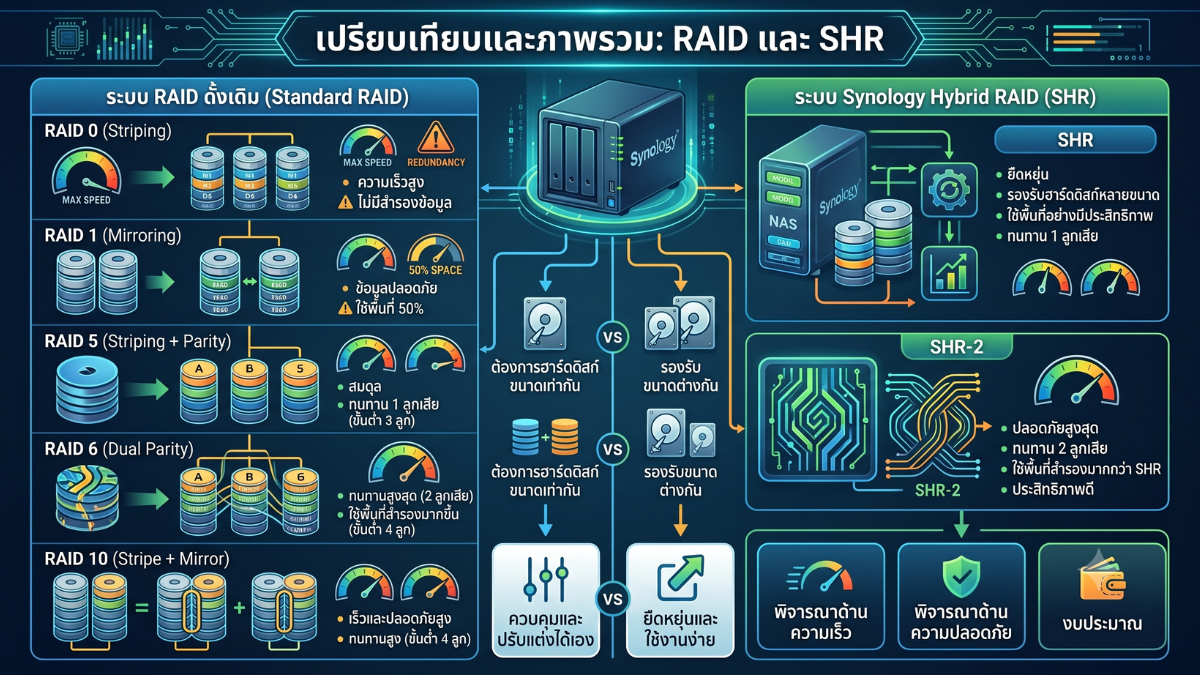
A NAS that can hold two or more hard drives can organize the hard drives into a RAID system, or in Synology it is common to use SHR or Synology Hybrid RAID to help the system cope with hard drive failures.
For example, a 2-bay NAS with two 4TB hard drives configured as SHR will have approximately 4TB of usable space. The data will be stored in a way that allows the system to tolerate the failure of one hard drive. When a disk fails, the user can replace it with a new one, and the system will rebuild the data back to its normal state.
- SHR or RAID 1 Generally can tolerate 1 hard disk failure
- SHR-2 or RAID 6 Generally can tolerate 2 hard disks failing at the same time, but it requires a NAS and a supported number of disks
However, RAID or SHR only helps protect against damage from certain cases of hard disk failure. It does not make the data 100% safe and cannot replace data backup.
2. Already have NAS, no need to backup anymore
"If NAS has RAID or SHR, the data will never be lost, right?"
This is another question that the SyncTech Solution team receives very often, and it is one of the topics that many people misunderstand the most.
The short answer is "No"
Many people buy NAS with 2 or 4 hard drives, then set it up as RAID or SHR, and then think their data is safe and there is no need to back it up.
In fact, RAID and SHR are not backup systems, but technologies designed to increase Data Availability or the availability of data, so that the system can still provide service even if some hard drives fail.
Simply put, RAID helps the NAS remain operational and the data accessible when the hard drives fail within the number supported by the system. It does not have the function of creating a separate copy of the data like a Backup system.
How can RAID and SHR help?
For example, a 2-bay Synology NAS with two 4TB hard drives installed and configured as SHR (Synology Hybrid RAID)
Even though a total of 8TB of hard drives is installed, the usable space will be about 4TB because the space of another hard drive is used for protection in case a hard drive fails.
If one day a hard disk fails
- The NAS is still operational.
- Users can still open files as usual.
- It is possible to replace it with a new hard drive.
- The system will automatically rebuild or restore the data.
In this case, RAID or SHR helps businesses avoid immediate downtime and reduces the chance of data loss from the failure of a single hard disk.
This is the role of Data Availability, or ensuring that data remains accessible at all times.
How are SHR and SHR-2 different?
Synology has its own RAID system called SHR (Synology Hybrid RAID), which is very popular because it allows more flexible future expansion than traditional RAID systems.
- SHR Supports the failure of 1 hard drive
- SHR-2 Supports the simultaneous failure of 2 hard drives (requires NAS and a supported number of hard drives)
However, whether it is SHR or SHR-2, it is still considered a system for increasing data availability, not a Backup as before.
Are RAID and High Availability the same?
Many people often think that RAID is High Availability, but in reality, they are different things.
| Technology | Main Function | Example |
|---|---|---|
| RAID / SHR | Data Availability | Hard disk fails, but data can still be accessed |
| High Availability (HA) | Service Availability | Main NAS or Server fails, another takes over immediately |
| Backup | Data Protection | Used to recover data when it is lost, deleted, or corrupted |
It can be seen that each technology has a different function and cannot be used interchangeably.
Then what can't RAID help with?
Although RAID helps prevent cases of hard drive failure, there are still many other situations where RAID cannot help recover data, such as
- Accidentally deleted files yourself
- Saved files overwriting the original
- Infected by a virus or ransomware encrypting the data
- User account was stolen and someone deleted files
- NAS was stolen
- Fire, flood, or natural disaster
- Power surge causing NAS to be completely damaged
- Hard drive failure exceeding the number supported by RAID
- User formatted the wrong volume
In these events, RAID cannot recover the data because the original data has already been deleted or corrupted.
Then, is a Snapshot considered a Backup?
Another thing that many people misunderstand is Snapshot
Snapshot is a function that helps save the state of data at each point in time, allowing you to revert to a previous version.
for example
- Accidentally deleted a file
- File was edited incorrectly
- Got hit by ransomware
Can quickly revert back to the snapshot from before the incident
But the snapshot is still inside the original NAS.
If the entire NAS fails, is stolen, or catches fire, the snapshots may be lost along with all the data.
Therefore, Snapshot is a tool for quick data recovery, but it should not be used as a replacement for Backup alone.
So what should be done?
The best way is to use multiple technologies together because each one serves a different function.
| Technology | Function |
|---|---|
| RAID / SHR | Allows data to remain usable when a hard disk fails |
| Snapshot | Revert to data from a previous point in time |
| Backup | Store another copy of data for recovery in case of a serious incident |
| High Availability | Ensures the service continues to operate when the main system has problems |
It can be seen that all four do not compete with each other, but help each other in their respective roles.
Having RAID alone does not mean that data is 100% safe.
How does the SyncTech team recommend?
When the team designs a Synology NAS system for customers, we do not recommend using RAID alone, but consider overall data protection systems, such as
- Choose the SHR or SHR-2 format according to the number of hard drives
- Enable Snapshot if the model supports it
- Set up Backup to an External HDD, another NAS, or the Cloud
- Install a UPS to protect against power outages and surges
- Set up alerts when a hard drive starts to have problems
- Periodically test data recovery
Because in the end, the best data protection is not relying solely on technology, but planning for each system to work together appropriately.
The SyncTech team usually explains briefly to customers that
RAID helps the system keep running when a hard drive fails
Snapshot helps roll back to the data before the problem occurred
Backup helps recover data when it is lost
High Availability keeps the service online when the main server stops workingAll four serve different purposes, and a good system should have more than one.
3. NAS is for company use only
In the past, NAS was more commonly found in companies than in ordinary homes. However, nowadays NAS is easier to use and there are models specifically designed for homes, families, shops, and small businesses.
Example of use inside the house:
- Back up photos and videos from everyone’s mobile phones in the family
- Store important documents such as house papers, insurance, and financial information
- View photos or videos on phones, computers, and smart TVs
- Back up data from Windows and Mac
- Record footage from security cameras
- Share photo albums with family members without sending duplicate files
As for shops and companies, NAS can be used as a central file storage, backup system, CCTV recorder, or a space for collaboration.
Therefore, NAS is not only suitable for IT professionals or large organizations, but it is suitable for everyone who has important data, needs private space, and wants to control data storage by themselves.
4. NAS is difficult to set up, you must be an IT person
Synology's current system is designed to be much easier to use. The initial setup provides step-by-step guidance, similar to setting up a new phone or computer.
But the phrase “can turn on and use” and “can be set correctly and safely” are still different matters, because users have to make several decisions, such as:
- Which should be used: SHR, SHR-2, or which type of RAID
- How should folders be divided and permissions assigned
- Should access from the internet be enabled or not
- Where and how often should backups be made
- Which Snapshots, MFA, and notifications should be enabled
- How should shutdown be configured when the UPS is nearly out of power
For customers who purchase products from SyncTech Solution, we offer support and installation services to choose from according to your needs, ranging from installing hard drives, creating Storage Pools, setting up SHR, creating user accounts, connecting computers and mobile devices, to setting up backup and security systems.
Having experts help set up from the beginning reduces trial and error, lowers the risk of choosing inappropriate settings, and allows customers to start using it with more confidence.
5. NAS must be on 24 hours a day
The NAS does not require being on 24 hours a day. Users can turn it off when not in use or set it to turn on and off according to the desired schedule.
However, if you want to use the following features, keeping the device on all the time is more convenient:
- Automatically back up data from mobile phones and computers
- Open files from outside the home or office
- Share files with multiple users
- Record footage from security cameras
- Provide websites, databases, or internal systems
- Run scheduled tasks during the night
NAS and hard drives for NAS are designed to support continuous operation, but they should be installed in areas with good ventilation, monitored for dust and temperature, and use a UPS to help reduce the risk from power outages or surges.
6. NAS consumes a lot of power
“If I leave the NAS on all month, will the electricity bill be a thousand baht?”
NAS for homes or small offices uses much less power than a typical desktop computer. Try calculating based on the power consumption figures when accessing data from Synology and assume an average electricity cost of 4.50 baht per unit.
| Model | Power Usage During Operation | Energy per Month if On 24 Hours | Estimated Monthly Electricity Cost | Estimated Yearly Electricity Cost |
|---|---|---|---|---|
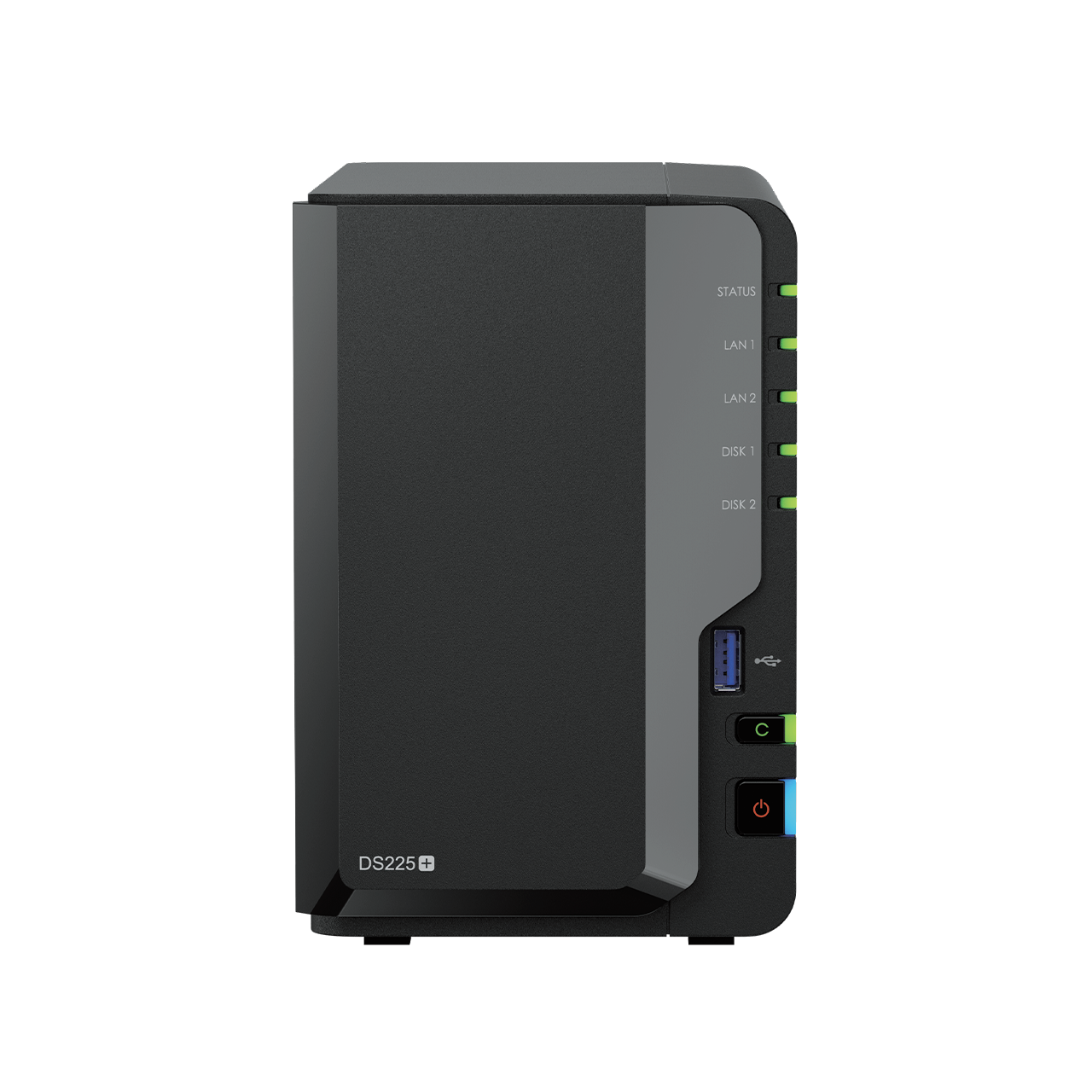
| Synology DS225+ | 16.98 Watts | Approximately 12.23 kWh | Approximately 55 Baht | Approximately 660 Baht |
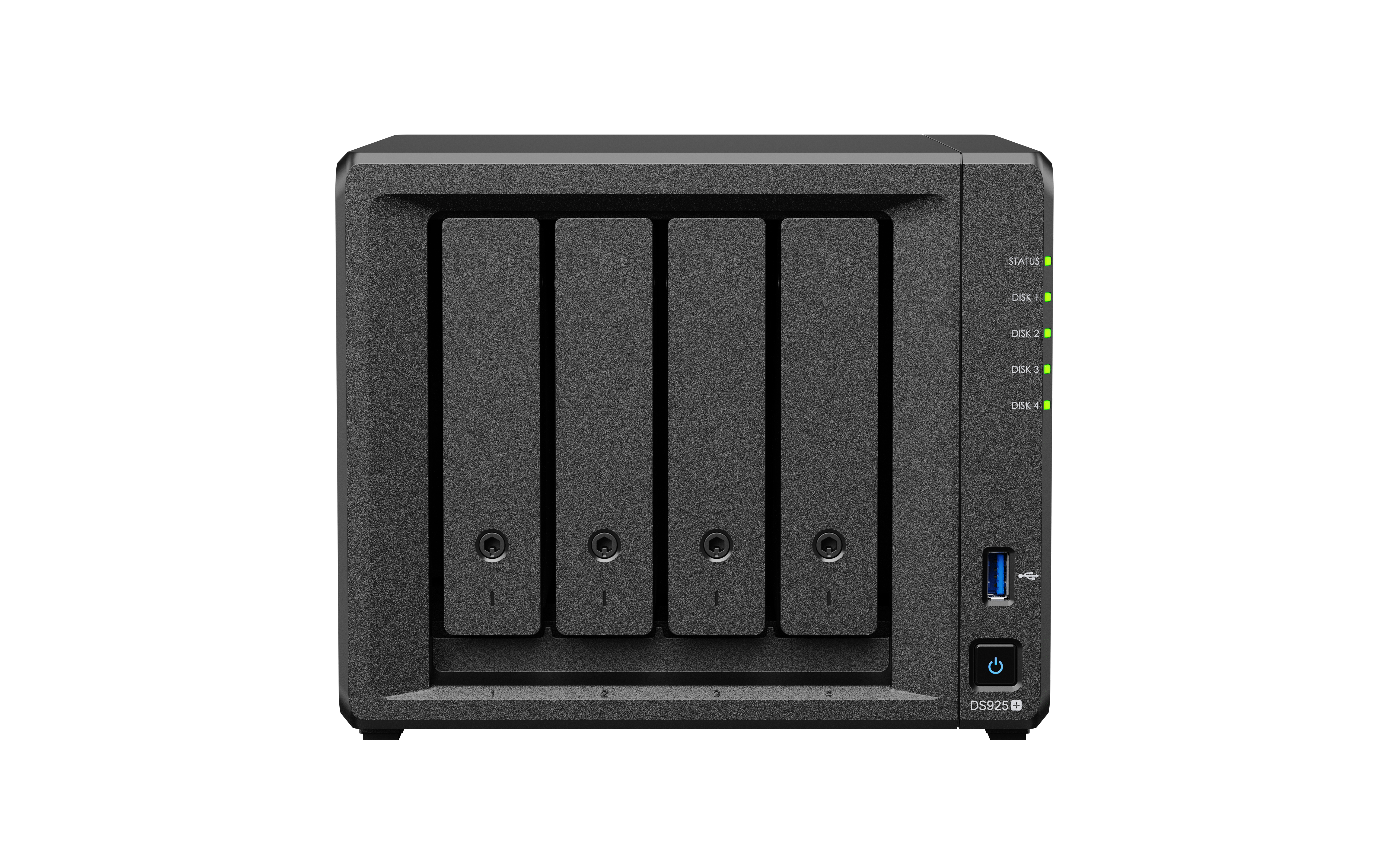
| Synology DS925+ | 37.91 Watts | Approximately 27.30 kWh | Approximately 123 Baht | Approximately 1,474 Baht |
The calculation formula is Power in kilowatts × Number of hours × Number of days × Electricity rate per unit
This figure is calculated based on the device running continuously for the entire month with power consumption while accessing data. If the machine enters hard disk sleep mode, the actual power consumption may be lower. However, if there are other hard disk models, additional accessories, or continuous heavy workloads, the power consumption may increase.
Compared to having several TB of personal storage along with photo backup, file sharing, and other services, the electricity cost of most NAS devices is at a manageable level.
7. If the Internet goes down, you won't be able to use the NAS
The NAS connects through the home or office network, so even if the internet goes down, users on the same network can still open files, view photos, back up data, or watch videos from the NAS as usual.
The internet is necessary when you need to:
- Access NAS from outside the location
- Send links for external people to download files
- Back up data to the Cloud or remote NAS
- Download programs and update the system
- Receive notifications through online services
This point is an advantage of NAS because files within the office can still be used even if there is an internet problem, unlike a system that stores files solely on the Cloud, which may not be accessible without the internet and does not have files prepared for offline use.
8. NAS can only be used for storing files
NAS functions well for storing files, but its capabilities do not stop there. Especially the NAS Plus models, which support programs and containers, allowing them to be applied in various ways.
| Usage | Example |
|---|---|
| Store and share files | Create a central folder, separate permissions according to department or household members |
| Back up photos from your mobile | Use Synology Photos to back up and organize your family's photos |
| Backup computers and servers | Backup Windows, Mac, Microsoft 365, or virtual machines according to supported editions and packages |
| CCTV | Use Surveillance Station to record and view past footage |
| Laboratory or Lab | Test systems internally before putting them into actual use, such as Web Apps or Automation systems |
| Container or Docker | Run n8n, Home Assistant, Uptime Kuma, Gitea, or programs that support Containers |
| Website | Run an internal website, a test website, or a small WordPress site |
| Database | Use MariaDB, PostgreSQL, or a database for small internal systems |
| Home media system | Store movies, music, and videos to be played from multiple devices |
Real-life usage example
Online Store: Use NAS to store product images and documents, and run a test system for the website or internal database. For websites that are accessible to the general public, careful consideration should be given to security, internet, and data backup.
Small Business: Uses NAS as a file server to back up computer data and run internal systems such as n8n, notification systems, or dashboards used only within the organization.
Technology enthusiasts: Use NAS as a Home Lab to learn Docker, Web Server, SQL, and Automation systems without having to keep a large computer running all the time
The practical capabilities depend on the NAS model, processor, RAM, number of users, and workload, so one should not expect every NAS model to fully replace a high-performance server.
9. When buying a NAS, you need to buy the largest capacity
Choosing the largest hard disk does not always mean it is the most cost-effective. It is important to consider the existing data, growth rate, the number of years you need to store, and the RAID or SHR configuration to be used.
Before choosing the capacity, you should answer these questions:
- Currently, how much total data is there in TB?
- How much does the data increase per month or per year?
- How long do you want to keep historical files?
- Are they document files, images, videos, or footage from CCTV cameras?
- How many hard drives do you want the system to tolerate failing?
- Is there a plan to add more users or other services in the future?
- How much space should be allocated for Snapshots and Backups?
For example, two 4TB hard drives in SHR will not provide 8TB of usable space, but will have about 4TB remaining before subtracting system space, because part of the space is used to protect against disk failure.
If you choose a 2-Bay device and fill both bays with hard drives from the start, expanding storage in the future may require replacing the drives one by one. In some cases, selecting a 4-Bay NAS from the beginning may be more flexible and cost-effective, even if not all drive bays are filled yet.
Customers who are unsure can consult the SyncTech Solution team to help assess the model, number of bays, capacity, and data protection format to suit their budget and actual usage.
10. NAS is not worth it because there is already Google Drive, iCloud, and OneDrive
Cloud has many advantages, including being easy to use, accessible from anywhere, and not having to maintain the equipment yourself. NAS has advantages in terms of private storage, data control, speed within the local network, and no monthly fees based on storage capacity.
Therefore, the appropriate question is not “what is the best,” but should ask which format is more suitable for our use
Example of Synology NAS Costs
| Item | Approximate Price Before VAT |
|---|---|
| Synology DS225+ | 13,075 Baht |
| Synology HAT3300-4T, 2 units | 8,724 × 2 = 17,448 Baht |
| Total | 30,523 Baht |
When set to SHR, there will be approximately 4TB of usable space before system space is deducted, supporting the case of one hard drive failure, but a separate backup is still needed if the data is important.
Comparison with cloud services of similar capacity
| Service | Storage | Cost | Time until total cost reaches approximately 30,523 Baht | Notes |
|---|---|---|---|---|
| Google AI Pro | 5TB | About 750 Baht/month | About 41 months or 3.4 years | Includes AI services and other benefits, not just storage cost |
| iCloud+ | 6TB | 1,190 Baht/month | About 26 months or 2.2 years | Suitable for Apple ecosystem and can be shared with family |
| Microsoft 365 Family | Up to 6TB total | 3,699 Baht/year | About 8.3 years | Storage is divided as 1TB per person, up to 6 people, not a single 6TB block, and includes Microsoft 365 programs |
This figure is only a comparison of initial costs. It does not mean that NAS is cheaper than the Cloud in all situations, because NAS still has electricity costs, hard drive replacement costs, backup costs, and system maintenance costs, whereas the Cloud includes infrastructure, equipment maintenance, and internet access.
On the other hand, NAS not only provides storage space but can also back up computers, store CCTV footage, run containers to provide high-speed file services within the home or office, and set detailed user permissions.
Many homes and organizations therefore choose to use NAS together with Cloud, such as storing primary data and large files on NAS and then backing up only important data to another Cloud. This method provides both speed, privacy, and security from having data off-site.
So, is NAS suitable for you?
NAS may be suitable for you if you have these needs:
- Photos and videos on the phone are starting to get full and continue to increase
- There are multiple computers that need to share files
- Need to back up data for multiple members in the household
- Need several TBs of personal storage space
- There are important work files that should not be stored on a single device
- Need to record footage from security cameras
- Need to run internal systems, trial websites, containers, or small databases
- Need to control who can access which data
But if there is not much data, it is used by only one person, requires maximum convenience, and you don't want to take care of the equipment at all, the cloud might be a more suitable option, or you could use both NAS and cloud together depending on the importance of the data.
Summary
NAS is not just a hard drive connected via a LAN cable, but a network storage device with an operating system and capabilities similar to a small server. It allows multiple devices to share data, back up photos and computers, record from security cameras, and run various services.
RAID, SHR, and SHR-2 help reduce the impact when a hard disk fails, but they cannot protect data from all events and are not a Backup. Safe usage should therefore involve planning for RAID, Snapshot, Backup, UPS, and user permission settings together.
Choosing the right NAS should not be based solely on price or maximum capacity, but should consider the number of users, file types, growth rate, retention period, and future expansion plans.
If you are still unsure about which model to choose, how many hard drives to use, or what system settings to configure, the SyncTech Solution team is ready to provide consultation, design, and install Synology NAS systems suitable for use at home, in stores, and in organizations.
Should I choose a 2-Bay or 4-Bay NAS?
This question does not have a single answer for everyone, because it depends on both the amount of data today and the usage plans in the future.
| Topic | NAS 2 Bay | NAS 4 Bay |
|---|---|---|
| Suitable for | General users, families, or small offices with limited data | Those with rapidly growing data, multiple users, or planning for future expansion |
| Getting Started | Easy to start, can use 2 hard drives for SHR immediately | Can start with 2 drives first, then add 3rd and 4th drives later according to supported configurations |
| Flexibility | When both slots are filled, adding more space usually requires replacing drives with larger ones | Has room for expansion and more options for RAID or SHR |
| Budget | Lower initial cost | Higher initial cost, but in some cases more cost-effective in the long run |
For example, if today there is 1TB of data and it increases slightly each year, a 2-bay NAS with two 4TB hard drives might be sufficient. However, if working with video, storing CCTV footage, or expecting data to grow quickly, starting with a 4-bay NAS may help reduce the problem of having to replace the device in a few years.
The SyncTech team therefore usually does not recommend based solely on budget, but asks about the amount of data, number of users, types of files, and plans for the next 3–5 years to help choose a device that is neither too small nor unnecessarily large.
NAS Costs That Should Be Fully Considered
When calculating cost-effectiveness, one should not only look at the price of the device and the hard drive, because NAS is a system that requires continuous operation and care of important data. The expenses that should be considered are as follows:
- NAS device price
- Hard disk price
- UPS cost
- Cost of External Hard Disk or Cloud for Backup
- Electricity cost
- Cost of replacing hard disks when worn out or damaged
- Installation and setup fee if you want an expert to manage it
- Long-term system maintenance cost for organizations
Despite these costs, NAS offers capabilities beyond just file storage, such as backing up multiple computers, sharing files on a network, recording from security cameras, and running internal services. Therefore, it is advisable to compare based on all the benefits received, not just the price per TB.
Example of Using NAS in Conjunction with Cloud
For general users and small businesses, a balanced approach is usually not about choosing either NAS or Cloud, but about assigning roles appropriately.
| Data Type | Primary Location | Backup Location |
|---|---|---|
| All family photos and videos | NAS | Backup only important photos to Cloud or External HDD |
| Daily work documents | NAS or Cloud depending on work style | Keep another separate backup from the original |
| Large files used in the office | NAS for LAN speed | Another NAS location or Cloud |
| Data that needs to be accessed from anywhere at all times | Cloud | Backup to NAS according to schedule |
This method provides the advantages of both types: Cloud offers convenience for external access, while NAS provides private space, network speed, and backup capabilities or additional services.
Frequently Asked Questions About NAS
Does the NAS need to be connected to the Internet all the time?
Not necessary. If used within a house or office, NAS operates through the internal network system. Even if the internet goes down, you can still open files, but you need the internet when accessing from outside, backing up to the cloud, or updating the system.
Can NAS be left on all year?
Sure, NAS and hard drives for NAS are designed for continuous operation, but they should be installed in a well-ventilated area, use a UPS, and check system alerts periodically.
If one hard drive fails, will the data be lost?
It depends on the configuration. If using SHR, RAID 1, or a format that can tolerate one disk failure, the system will still operate, but you need to replace the hard drive quickly and should have a separate backup because other disks may fail during the rebuild process.
Can a regular hard disk be used with a NAS?
Some models may work, but you should check the manufacturer's Compatibility List and choose a hard drive designed for NAS, as it is more suitable for continuous operation and environments with multiple disks.
Can NAS be used with iPhone and Android?
Sure, you can install an app to back up photos, open files, and share data from your phone. However, the capabilities may vary depending on the brand and model of the NAS.
Can NAS be used with Windows and Mac?
Yes, it can be connected as a Network Drive and use backup programs that support Windows and macOS.
Is NAS safer than storing files on a computer?
NAS can help enhance security through RAID, Snapshot, Backup, user permissions, and MFA, but it must be configured correctly, the system must be updated, and services should not be exposed to the internet unnecessarily.
After buying a NAS, is it necessary to buy a UPS?
It is not mandatory, but highly recommended, especially in areas with frequent power outages or voltage drops. A UPS helps give the NAS time to shut down safely, reducing the risk to the file system and data.
Can NAS completely replace Google Drive or iCloud?
Can replace some functions, such as storing files, backing up photos, sharing data, and accessing from outside. But Cloud has convenience and infrastructure that the provider maintains. In many cases, using both together is the most suitable.
Which NAS model should be bought?
You need to consider the number of users, data volume, growth rate, the programs you want to use, the number of cameras, and future expansion plans. You should not choose based solely on the number of bays or the price of the device.
Synology NAS Services from SyncTech Solution
Buying a NAS for value doesn't end with just choosing the device, but also requires planning the hard drives, data protection system, backup, and user permissions to match the type of work.
SyncTech Solution provides services related to Synology NAS, from pre-purchase consultation to installation and system maintenance, such as:
- Analyze data volume and recommend suitable models
- Plan the number of bays and capacity for future expansion
- Distribute NAS and compatible hard drives
- Install DSM, Storage Pool, Volume, SHR, and RAID
- Set up users, folders, and access permissions
- Configure backups from computers, mobile devices, servers, and cloud
- Set up Snapshots and offsite backup plans
- Set up CCTV through Surveillance Station
- Install containers and internal systems according to agreed scope
- Transfer data from the old NAS or previous storage devices
- Check and troubleshoot NAS system issues
If you're still unsure whether to use a 2-Bay or 4-Bay NAS, how many TB of hard drives you need, or what type of backup to use, you can bring your usage details to consult with the SyncTech team. We will help design it to fit your budget and reduce the risk of having to repurchase sooner than necessary.
Conclusion Before Deciding to Buy a NAS
NAS is not a device that everyone needs, but it becomes very useful when data starts to grow in volume, is spread across multiple machines, has multiple users, or requires a backup system that can be managed from a single point.
There are 4 things that should be remembered:
- NAS is not just a hard drive connected to a LAN, but a storage device with its own operating system and services
- RAID and SHR are not backups, but help the system handle hard drive failures according to the supported configuration
- NAS is not only suitable for organizations, homes and small businesses can also use it for storing photos, backing up data, and sharing files
- Value must be considered for the whole system, not just by comparing storage prices with the Cloud
If set up correctly, NAS can serve as the data hub for a home or organization for many years. However, if a device that is too small is chosen, there is no backup, or it is used without setting up security, it can also become a risk to the data.
Notes on Information and Prices
Energy usage information is based on product data from Synology, with the DS225+ specifying power consumption of 16.98 watts during data access, and the DS925+ specifying 37.91 watts. Electricity cost is calculated using an assumed rate of 4.50 baht per unit.
The cloud prices used for comparison as of July 2026 are: Google AI Pro 5TB at approximately 750 baht per month, iCloud+ 6TB at 1,190 baht per month, and Microsoft 365 Family at 3,699 baht per year with a maximum total storage of 6TB, divided as 1TB per user. Prices, packages, and benefits may change, and it is recommended to check with the providers before making a decision.
The prices of NAS products and hard drives in the example are prices before VAT according to the information used to create the article and may change depending on the time, stock, promotions, and warranty conditions.
Need expert advice or would like to request a quotation? Contact us today:
E-mail: [email protected]
LINE Official: @sync.co.th

The Company reserves the right to correct any typographical or printing errors and shall not be held liable for any inaccuracies resulting from such errors.
*** This article is the intellectual property of SyncTech Solution Company Limited. Reproduction, modification, or redistribution of this content, in whole or in part, is strictly prohibited without prior written permission from the Company. ***