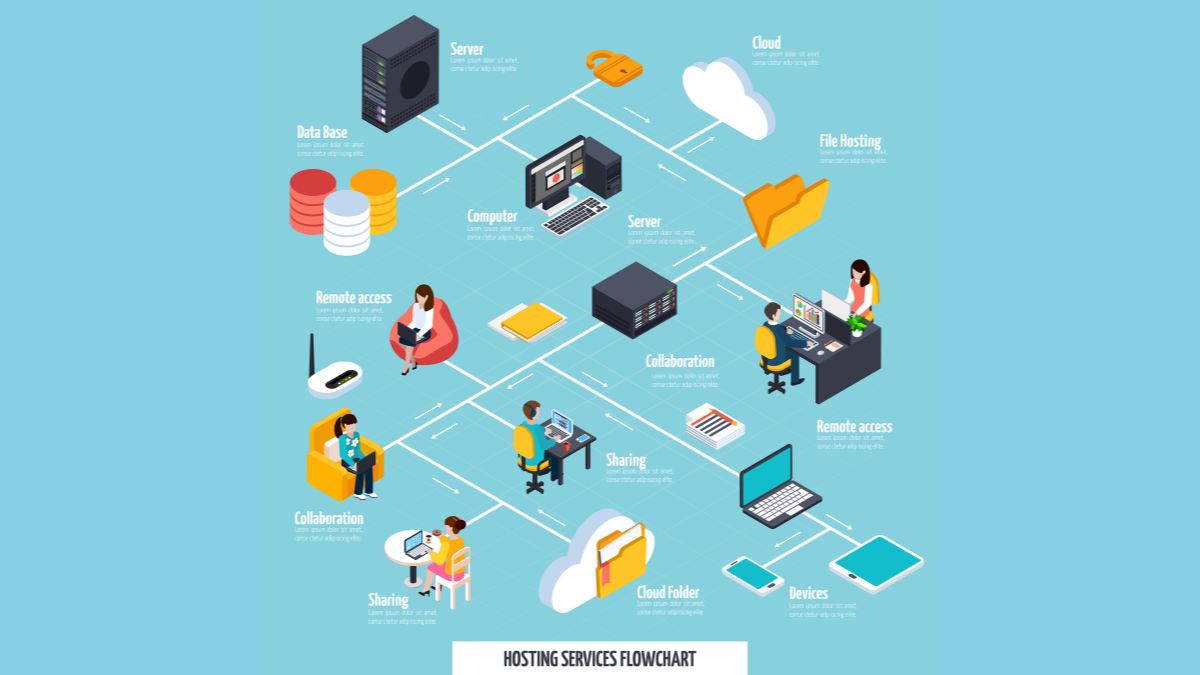
Basic network configuration is an important step in connecting computers, mobile phones, CCTV cameras, NAS, printers, or various devices to the network system, so that the internet can be used, files can be shared, internal systems can be operated, or devices can be managed correctly.
Currently, network configuration is not just about setting an IP Address, but also involves Wi-Fi security, using IPv6, VLAN segmentation, setting up a Guest Network, choosing DNS, updating Router firmware, as well as planning IP Addresses to avoid conflicts in the system.
This article will explain the basics of network setup in an easy-to-understand way, along with updated guidelines suitable for current use, both at home, in home offices, and in small organizations.
Basic Components of a Network
Before setting up the network, you should be familiar with the devices and basic terms related to the network system as follows.
- Router
A device that functions to connect a home or organizational network to the Internet, including assigning IP Addresses to devices in the system through DHCP - Switch
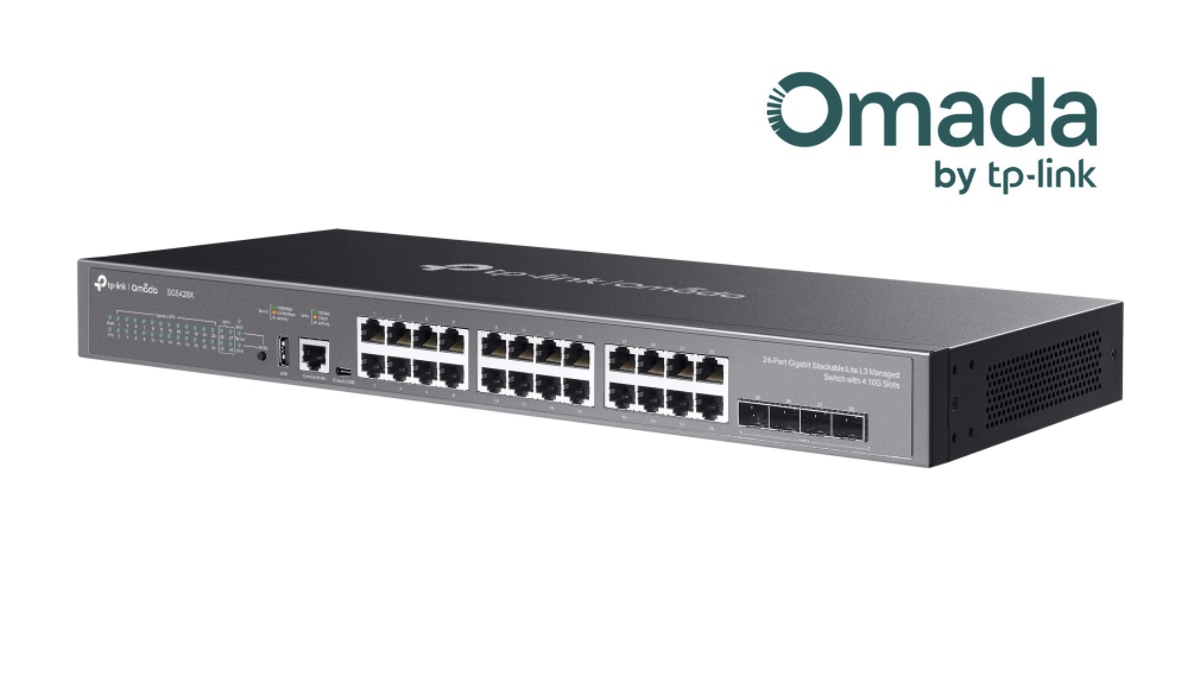
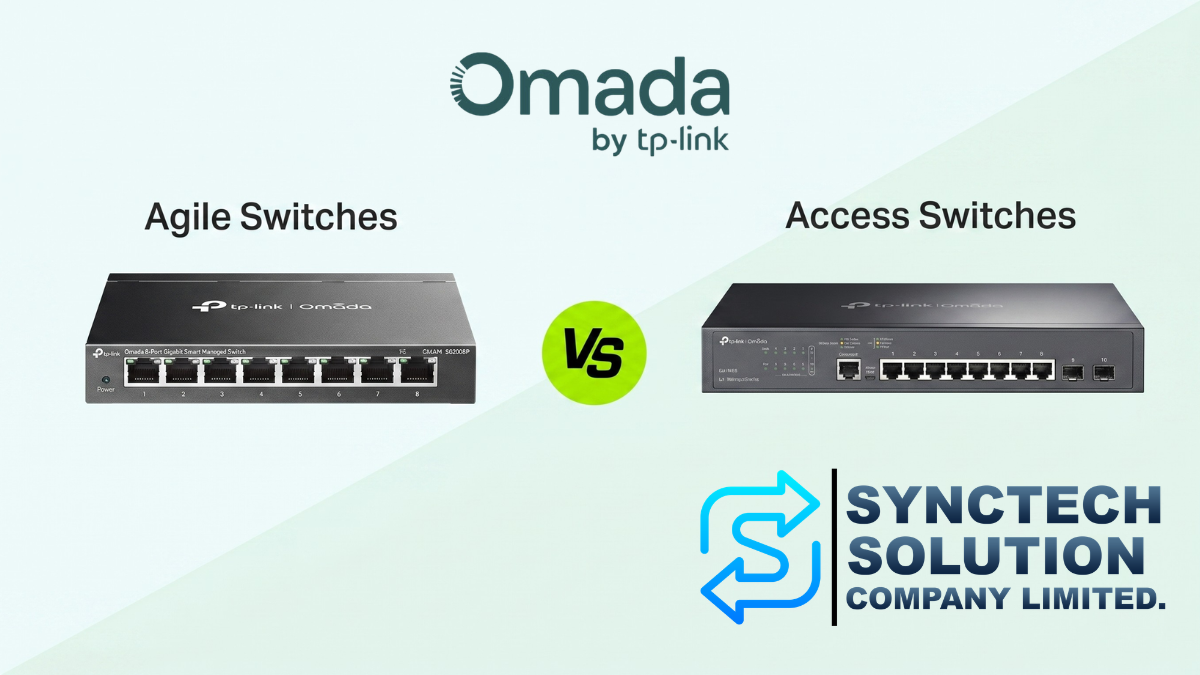
A device used to connect multiple devices within the same network, such as computers, NAS, CCTV cameras, Access Points, and printers. - Access Point
A device that distributes Wi-Fi signals to client devices such as mobile phones, notebooks, tablets, or IoT devices to connect to the network wirelessly. - IP Address
The identification number of a device in a network, such as 192.168.1.100, so that devices can communicate with each other. - Subnet Mask
Used to define the scope of the network, for example, 255.255.255.0 means devices in the 192.168.1.x range can be in the same network - Default Gateway
The connection point to other networks or the Internet, generally usually the IP Address of a Router, such as 192.168.1.1 - DNS Server
A system that functions to convert website names, such as www.google.com, into IP addresses so that devices can access the websites. - DHCP Server
A system that automatically assigns IP addresses to devices, helping users not to have to set up an IP on each device manually - VLAN
Dividing a virtual network into multiple groups, such as separating the employee network, CCTV network, guest Wi-Fi network, and IoT device network, to increase security and control access.
How are Dynamic IP, Static IP, and DHCP Reservation different?
1. Dynamic IP or DHCP
Dynamic IP is when a device receives an IP Address automatically from a Router or DHCP Server. It is suitable for general devices such as mobile phones, notebooks, tablets, or client machines that do not require a fixed IP.
Advantages
- Easy to set up
- Reduces the chance of entering the wrong IP
- Suitable for general users
- Easy to manage in small systems
2. Static IP
Static IP is assigning an IP Address manually to devices such as NAS, Server, Printer, NVR, Access Point, or security cameras so that the devices have a fixed IP and can be accessed easily.
Example of Setting a Static IP
- IP Address: 192.168.1.100
- Subnet Mask: 255.255.255.0
- Default Gateway: 192.168.1.1
- DNS Server: 1.1.1.1 or 8.8.8.8
Precautions: You should not set a Static IP that duplicates another device, and it should be set outside of the DHCP Pool range to reduce IP conflicts.
3. DHCP Reservation
DHCP Reservation is the process of having a Router or DHCP Server reserve an IP Address for the same device every time, based on the device's MAC Address. It is suitable for devices that require a fixed IP but do not want to configure it on the device itself.
Suitable for
- NAS
- Printer
- NVR
- Access Point
- CCTV Camera
- Controller or Network Device
For small homes or offices, it is recommended to use DHCP Reservation instead of setting a Static IP directly on the device, because it is easier to manage and reduces the chance of IP conflicts.
Basic Network Setup Steps
1. Connect the device to the network
If using via LAN cable, plug the LAN cable into the LAN-supported port of the Router, Switch, or Access Point, then check whether the port status light is on.
If using Wi-Fi, turn on Wi-Fi on the device, select the desired network name, and enter the correct password.
2. Check IP Address
After connecting to the network, you should check whether the device has received the correct IP address.
Windows 11
- Go to Settings
- Select Network & internet
- Choose Wi-Fi or Ethernet depending on the connection you are using
- Check the details for IP Address, Gateway, and DNS
- If you want to change the IP, go to the IP assignment section and select Edit
New macOS
- Go to System Settings
- Select Network
- Select the Wi-Fi or Ethernet in use
- Click Details or Advanced depending on the macOS version
- Check or edit the TCP/IP, DNS, and Proxy settings as needed
3. Configure IP Address
In general, common devices should use DHCP for convenience. Important devices such as NAS, Printer, NVR, Server, or Access Point should use Static IP or DHCP Reservation to make them easy to locate and manage.
Example of IP Address Range Allocation
- Gateway / Router: 192.168.1.1
- DHCP Pool: 192.168.1.100 - 192.168.1.200
- Static IP for important devices: 192.168.1.2 - 192.168.1.99
- Guest Network: separate subnet, e.g., 192.168.20.x
- CCTV Network: separate subnet, e.g., 192.168.30.x
Dividing IP ranges in this way helps reduce IP conflicts and makes the system easier to manage.
4. Check the connection
After setting the IP, you should test the connection using basic commands.
Test whether it can access the Internet or not
ping 8.8.8.8
Test whether DNS is working
ping google.com
If you can ping 8.8.8.8 but cannot ping google.com, it means the internet may be working, but there is a DNS problem.
If you cannot ping the Gateway, for example, cannot ping 192.168.1.1, there may be problems with the LAN cable, Wi-Fi, IP Address, or Network device.
Additional Update: What is IPv6 and Should You Enable It?
IPv6 is a new IP standard designed to support the rapidly increasing number of devices on the Internet. Currently, many Internet service providers have begun supporting IPv6.
For general users, if the router and the internet service provider support IPv6, it can be enabled. However, the firewall and device security should be checked appropriately, because IPv6 may allow some types of devices to receive IP addresses that connect more directly to the internet.
Recommendation: If unsure, you should use the default values from the Router or consult the system administrator before disabling or enabling IPv6 on your own, especially in an organization.
Additional Updates: Wi-Fi 6, Wi-Fi 6E, and Wi-Fi 7
Currently, Wi-Fi standards have developed beyond the old Wi-Fi 5, with Wi-Fi 6, Wi-Fi 6E, and Wi-Fi 7 that help increase speed, reduce latency, and support more devices.
- Wi-Fi 6: Suitable for homes or offices with a large number of connected devices
- Wi-Fi 6E: Adds 6 GHz band usage in countries or areas that support it, helping to reduce signal congestion
- Wi-Fi 7: Supports new technologies such as 320 MHz channel width, Multi-Link Operation, and low latency, suitable for tasks requiring high performance
However, to fully utilize Wi-Fi 6E or Wi-Fi 7, it is necessary to use compatible endpoint devices such as notebooks, mobile phones, or access points that support the same standard.
Additional Update: Should You Use WPA2 or WPA3?
For current Wi-Fi networks, WEP and older versions of WPA should be avoided because they are no longer secure. You should use WPA2-Personal at a minimum, and if your devices support it, you should consider using WPA3-Personal for enhanced security.
Wi-Fi Security Setup Instructions
- Choose WPA3-Personal if all devices support it
- Choose WPA2/WPA3-Personal Mixed Mode if there are still some old devices
- Avoid WEP, WPA, and TKIP
- Set a long and hard-to-guess Wi-Fi password
- Separate Guest Wi-Fi from the main network
How important are Guest Network and VLAN?
If there are multiple groups of users, such as employees, guests, customers, CCTV, or IoT devices, the networks should be separated to enhance security.
Example of network segmentation
- Main LAN: For the company's computers and main devices
- Guest Wi-Fi: For customers or guests; can use the internet but should not see internal devices
- CCTV VLAN: For CCTV cameras and NVR
- IoT VLAN: For Smart TVs, IoT devices, Smart Plugs, or devices that do not need access to internal data
- Server VLAN: For NAS, servers, or critical systems
Dividing VLANs helps reduce the risk if certain groups of devices are attacked and also helps manage traffic more systematically.
How should DNS be configured?
DNS affects website access and the stability of the internet system. If the provider's DNS has an issue, it may prevent website access even though the internet is still usable.
Popular DNS Examples
- Cloudflare DNS: 1.1.1.1 and 1.0.0.1
- Google DNS: 8.8.8.8 and 8.8.4.4
- Quad9 DNS: 9.9.9.9
For organizations, they should consider using DNS with additional Filtering or Security systems to help block dangerous websites or domains related to malware.
Additional Tips for Setting Up a Secure Network
- Change the router administrator password
You should not use the factory default password, as it is at risk of being accessed without authorization - Set up Wi-Fi securely
Use WPA2 or WPA3 and set a strong password. Avoid simple passwords such as 12345678 or phone numbers. - Update the Firmware of Router, Switch, and Access Point
New firmware versions often fix vulnerabilities, increase stability, and improve system performance - Turn off WPS when not in use
WPS can be a security risk; if not necessary, it should be turned off - Separate Guest Network
Allow guests to use the internet through a separate network. They should not be allowed to access NAS, Server, Printer, or devices within the company. - Use Static IP or DHCP Reservation for important devices
such as NAS, Printer, NVR, Controller, Access Point, and Server to make management easier - Back up Network Device Config
If the device has a problem or is reset, you can quickly restore the settings. - Name devices in an easy-to-understand way
For example, AP-Office-01, SW-Floor2, NAS-Main, or CCTV-NVR to make system maintenance easier - Regularly check connected devices
If any unfamiliar devices are found on the network, they should be checked immediately - Plan IP Addresses before the system grows larger
If there are several departments, multiple VLANs, or multiple branches, IP addresses should be planned systematically from the beginning
Example Network Structure for Small Homes and Offices
| Device Group | Example IP/Subnet | Usage |
|---|---|---|
| Main LAN | 192.168.1.0/24 | Main computers, NAS, Printer |
| Guest Wi-Fi | 192.168.20.0/24 | Visitors or clients |
| CCTV | 192.168.30.0/24 | Closed-circuit cameras and NVR |
| IoT | 192.168.40.0/24 | Smart TV, IoT, Smart Devices |
| Server / NAS | 192.168.50.0/24 | Server, NAS, Backup System |
Summary
Basic network configuration is not difficult if you understand the main components, such as Router, Switch, IP Address, Subnet Mask, Gateway, DNS, and DHCP. Choosing between DHCP, Static IP, or DHCP Reservation should be considered based on the type of device and the importance of the system.
For current usage, more emphasis should be placed on security, such as using WPA2 or WPA3, updating firmware, separating the guest network, using VLANs for different device groups, and planning IP addresses systematically to reduce IP conflicts and increase long-term security.
For a typical home, DHCP might be sufficient. However, for a home office or organization, you should start planning for Static IP, DHCP Reservation, VLAN, Guest Wi-Fi, and configuration backup systems from the beginning to ensure the network is stable, secure, and capable of supporting future growth.
Need expert advice or would like to request a quotation? Contact us today:
E-mail: [email protected]
LINE Official: @sync.co.th

The Company reserves the right to correct any typographical or printing errors and shall not be held liable for any inaccuracies resulting from such errors.
*** This article is the intellectual property of SyncTech Solution Company Limited. Reproduction, modification, or redistribution of this content, in whole or in part, is strictly prohibited without prior written permission from the Company. ***