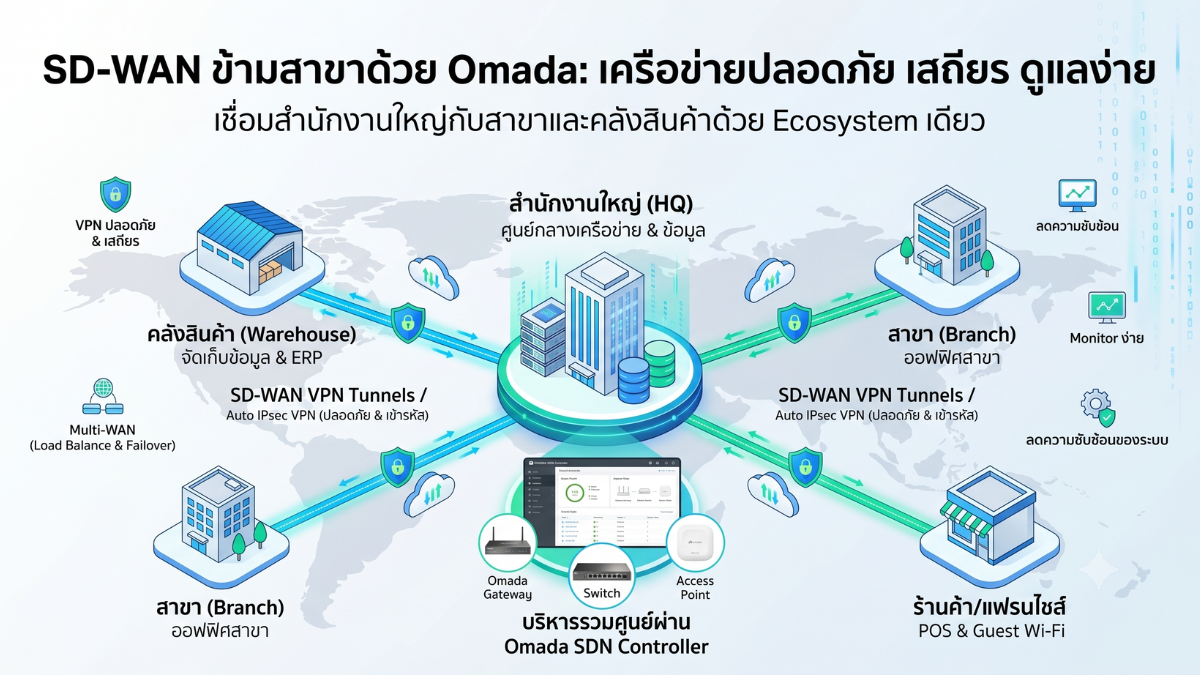
As businesses expand across multiple branches, warehouses, stores, factories, and remote work locations, connecting every site securely and reliably becomes increasingly important. This is especially true when critical systems such as ERP, POS, file servers, NAS devices, CCTV platforms, databases, or internal applications are hosted at headquarters or in a central data center.
Traditionally, many organizations relied on manually configured Site-to-Site VPNs. Administrators had to configure IPsec parameters, encryption settings, pre-shared keys, routes, subnets, public IP addresses, and firewall rules for each connection. This approach is manageable when only two sites are involved, but as the number of branches increases, the number of tunnels, routes, and policies grows quickly, making the environment harder to maintain and troubleshoot.
SD-WAN, or Software-Defined Wide Area Network, helps reduce that complexity by using a centralized controller to define connectivity, routing behavior, network policies, and WAN usage across multiple sites. Administrators can view WAN status, gateway health, tunnels, policies, and branch connectivity from a single management platform.
For SMEs, multi-branch offices, restaurants, hotels, warehouses, factories, retail chains, and franchise businesses, TP-Link Omada is an attractive option because it combines controllers, gateways, switches, and wireless access points in one ecosystem. This makes centralized network management easier than operating several unrelated platforms from different vendors.
What Is Omada SD-WAN?
Omada SD-WAN is a centralized multi-site networking solution in which the controller helps manage topology, tunnels, network segments, and traffic policies. Its core design follows a Hub-and-Spoke model, where one gateway acts as the Hub and branch gateways act as Spokes.
It is important to understand that SD-WAN is not the same as VPN alone. A VPN creates an encrypted communication path between sites, while SD-WAN adds centralized policy control, multi-WAN management, route selection, topology management, and visibility across the entire environment.
Omada also provides Auto IPsec, which simplifies the creation of Site-to-Site VPN tunnels between sites managed by the same controller. However, Auto IPsec and SD-WAN should not be treated as identical features. Omada SD-WAN introduces additional concepts and requirements, such as Hub and Spoke roles, public IP handling, network segments, centralized traffic policies, and multi-site routing behavior.
Omada SD-WAN vs Auto IPsec vs Manual IPsec
| Area | Manual IPsec | Auto IPsec | Omada SD-WAN |
|---|---|---|---|
| Configuration | Each tunnel and parameter is configured manually. | The controller automatically creates VPN connections between Omada sites. | The controller manages Hub, Spoke, tunnels, network segments, and traffic policies centrally. |
| Best suited for | Third-party interoperability or environments that require detailed customization. | Smaller Omada deployments that need simplified Site-to-Site VPN. | Multi-branch organizations that need centralized WAN and routing control. |
| Scalability | Complexity increases rapidly as more sites are added. | Easier to scale than manual IPsec. | Designed to reduce multi-site operational complexity. |
| Traffic steering | Depends on manually configured static routes and policy routing. | Primarily focused on automated VPN creation. | Supports centralized policy and path control within the SD-WAN design. |
| Main limitation | Time-consuming to maintain at scale. | Requires supported gateways and controller versions. | Requires SD-WAN-compatible hardware, firmware, controller versions, and network design. |
Who Is Omada SD-WAN Suitable For?
- Companies with a headquarters and multiple branch offices
- Warehouses or factories that must connect to ERP or central databases
- Retail chains, restaurants, and franchise businesses
- Hotels, campuses, and multi-building environments
- Organizations that want to reduce manual VPN management
- Businesses using multiple internet links for Load Balancing or Failover
- IT teams that want to monitor gateways, switches, and access points centrally
- Organizations that need centralized access policies between sites
Omada SD-WAN may be less suitable for environments that require advanced dynamic routing, highly complex segmentation, carrier-grade MPLS integration, very granular application-aware path steering, or advanced enterprise security inspection. In those cases, the organization should compare requirements carefully and run a Proof of Concept before choosing the final platform.
Hub-and-Spoke Architecture
Omada SD-WAN primarily uses a Hub-and-Spoke topology. The Hub acts as the central site, while each branch gateway connects as a Spoke.
Hub: The Central Site
The Hub is usually located at headquarters, a data center, or another central location where critical resources such as servers, NAS systems, ERP, NVR, Active Directory, databases, or accounting systems are hosted.
The Hub should have a stable internet connection and enough performance to handle traffic from multiple branches. At least one device in the SD-WAN environment must have a public IP address, and the device acting as the Hub must be able to use a public IP in accordance with the supported firmware and controller requirements. If headquarters is behind CGNAT and cannot obtain a real public IP address, it may not be suitable as the Hub.
Spoke: Branch or Remote Site
A Spoke is a gateway located at a branch office, warehouse, store, or factory. Each Spoke connects to the Hub first. The controller then applies network and traffic policies based on the SD-WAN design.
A branch may be able to use a dynamic public IP address, depending on the gateway, firmware, controller version, and NAT behavior of the ISP. If a branch is behind CGNAT, connectivity may still work in some cases, but the deployment should be tested carefully because its behavior may differ from a site with a real public IP address.
Spoke-to-Spoke Communication
If branch-to-branch communication is required, the Spokes must first establish proper connectivity with the Hub. The SD-WAN system can then create or manage communication paths between Spokes according to the configured topology and policy.
Key Requirements Before Deploying Omada SD-WAN
- Every participating gateway must be a model and hardware version that supports SD-WAN.
- Gateway firmware must support SD-WAN and be compatible with the controller version.
- The controller must support the required SD-WAN features.
- At least one site must have a public IP address, and the Hub must meet the public IP requirements of the system.
- A WAN interface used for SD-WAN must not have DMZ enabled.
- LAN subnets and network segments must not overlap between sites.
- Each Spoke must connect successfully to the Hub before branch-to-branch communication is validated.
- Controller and gateway configuration should be backed up before firmware upgrades.
- A Proof of Concept with a small number of sites is recommended before full rollout.
Example Deployment Structure
| Component | Headquarters or Hub | Branch or Spoke |
|---|---|---|
| Gateway | ER8411, ER707-M2, or another supported model sized for required throughput | ER605, ER7206, ER707-M2, or another supported SD-WAN-capable gateway |
| Controller | Supported Hardware Controller, Software Controller, or Cloud-Based Controller | Gateway adopted into the same controller but assigned to a separate site |
| Internet | Business-grade internet with a public IP and preferably a backup WAN | Broadband, business internet, 4G/5G, or Multi-WAN depending on requirements |
| LAN subnet | For example, 10.10.0.0/16 divided into VLANs | For example, 10.20.0.0/16 or 10.30.0.0/16 with no overlap |
| Role | Hub, central services, and traffic control point | Spoke and branch access location |
Important: The gateway models above are examples only. Hardware versions and firmware availability can vary by region. Always verify the Compatibility List, Firmware Release Notes, and supported feature set before purchasing or upgrading.
Choosing the Right Omada Gateway
Gateway sizing should not be based only on port speed or NAT throughput. When VPN, ACL, DPI, IPS, or other security features are enabled, actual performance may be lower than the raw internet speed or advertised forwarding rate.
Consider the following:
- Number of concurrent users
- Number of sites and tunnels
- VPN throughput rather than NAT throughput alone
- Expected inter-site traffic
- Number of CCTV cameras and total bitrate
- Cross-site backup traffic
- Number and type of WAN ports
- Security services enabled at the same time
- Expected growth over the next two to three years
If headquarters will aggregate traffic from many branches, capacity should be sized above current demand. Real-world testing under the intended configuration is strongly recommended because datasheet values are usually measured under controlled test conditions.
Where Should the Controller Be Installed?
The controller does not have to be physically located at headquarters. An organization can use a Hardware Controller, Software Controller, or Cloud-Based Controller, provided that all sites can communicate reliably with it for adoption, provisioning, monitoring, and configuration changes.
Hardware Controller
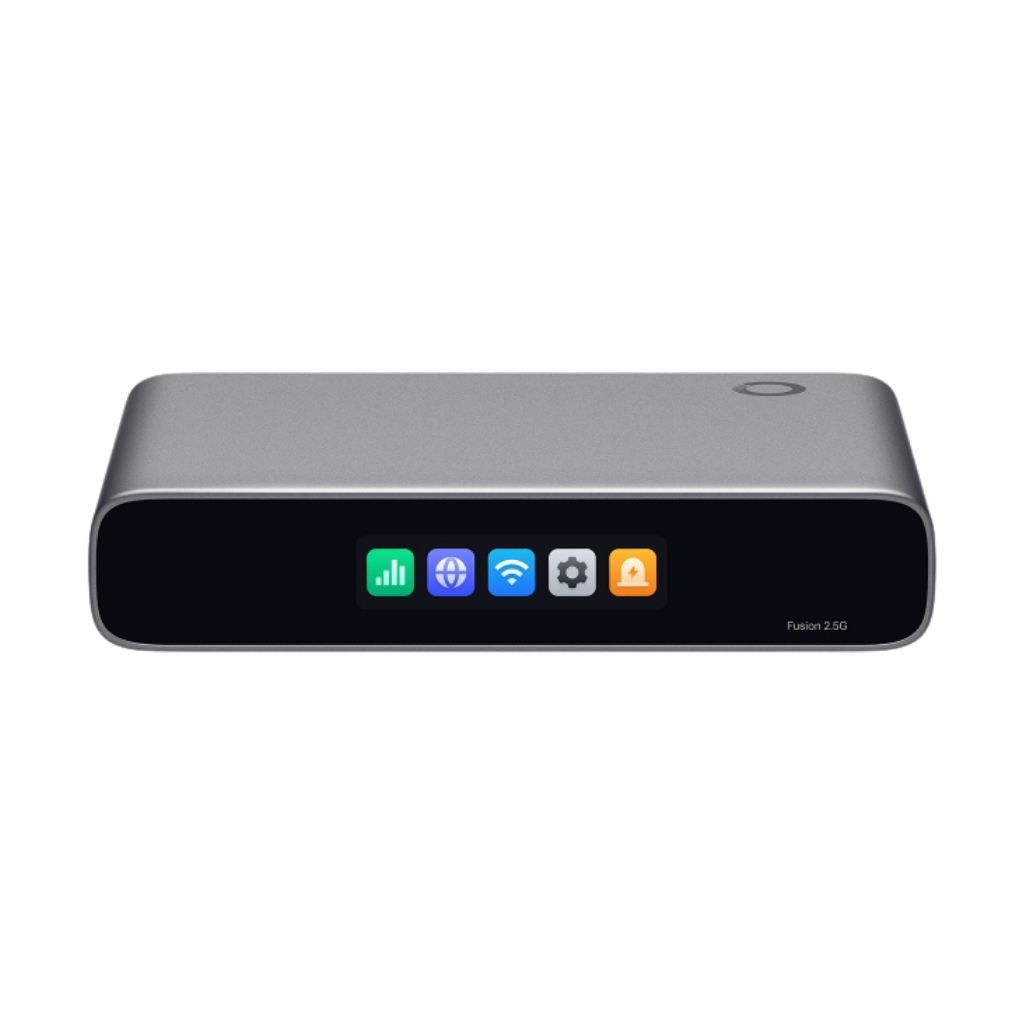
A Hardware Controller is suitable for organizations that prefer a dedicated appliance and do not want to maintain an additional server. The selected model should be sized according to the number of devices and sites.
Software Controller
A Software Controller is suitable when the organization already has a server, virtual machine, or container environment. It offers flexibility, but the IT team must maintain the operating system, database, backups, security, and controller updates.
Cloud-Based Controller
A Cloud-Based Controller is useful for centrally managing multiple sites without deploying an on-premises controller. However, organizations should review licensing, supported features, device compatibility, and internal data governance requirements before implementation.
Regardless of the deployment model, administrators should enable MFA, separate user accounts by role, and maintain regular configuration backups.
Cloud Access Is Not the Same as a Cloud-Based Controller
Cloud Access links an on-premises or Hardware Controller to an Omada Cloud account so that administrators can access it remotely. A Cloud-Based Controller, by contrast, runs directly in the cloud platform.
Enabling Cloud Access does not convert a local controller into a Cloud-Based Controller, and it does not automatically solve every adoption scenario. Administrators still need to verify device discovery, Inform URL, DNS, firewall rules, and network reachability between the device and the controller.
Preparing Layer 3 Adoption
When devices are located in a different subnet or remote site from the controller, they must be adopted over Layer 3. The device needs to know the controller address and must be able to reach the required management ports.
Possible methods include:
- Configuring the Inform URL or Controller Hostname/IP on the device
- Using Omada Discovery Utility at the remote site
- Using a supported DHCP Option
- Using a Cloud-Based Controller and Zero-Touch Provisioning where supported
- Temporarily connecting the site through a VPN for adoption
If a Local Controller is behind a router or firewall, port forwarding may be required for the necessary ports. However, administrators should not expose an outdated list of ports without checking the controller version. Required ports can vary by controller release, device type, and deployment method. Always use the official port reference for the version actually installed.
Using an FQDN such as omada.company.com is preferable to hard-coding a public IP address. This makes future changes to the controller location or public IP easier to manage.
Fixed Public IP, Dynamic IP, DDNS, and CGNAT
Fixed Public IP
A fixed public IP is ideal for the Hub or any business-critical site because the destination address remains stable. For production environments, business-grade internet with a public IP and clear SLA is recommended.
Dynamic Public IP
Some designs can use dynamic public IP together with DDNS. However, compatibility with the selected gateway, firmware, VPN type, and SD-WAN design must be verified. When the public IP changes, tunnels may need to re-establish, causing temporary interruption.
CGNAT
CGNAT allows an ISP to share one public IP among multiple customers. In this case, the gateway does not receive a real public IP and cannot normally accept direct inbound connections from the internet. If the intended Hub is behind CGNAT, request a public IP from the ISP or move the Hub role to another site.
The public IP shown by an online IP-checking website does not confirm that the gateway itself owns that address. Compare the WAN IP displayed on the gateway with the public IP seen from the internet. If they are different, the connection is likely behind NAT or CGNAT.
IP Address and VLAN Design
One of the most common problems in multi-site VPN and SD-WAN deployments is overlapping subnets. If every branch uses 192.168.1.0/24, the gateway cannot reliably determine whether a destination is local or located at another site.
A structured IP plan should be created before deployment.
| Site | Main network | Example VLANs | Purpose |
|---|---|---|---|
| HQ | 10.10.0.0/16 | 10 Office, 20 Server, 30 CCTV, 99 Management | Central services |
| Warehouse 1 | 10.20.0.0/16 | 10 Office, 30 CCTV, 40 Scanner, 50 Guest | Primary warehouse |
| Branch 2 | 10.30.0.0/16 | 10 Office, 30 CCTV, 50 Guest | Branch office |
| Branch 3 | 10.40.0.0/16 | 10 Office, 40 POS, 50 Guest | Retail or satellite branch |
VLAN IDs may be reused across different sites if the IP networks do not overlap. Using the same VLAN standard across sites can make operations easier, such as VLAN 10 for Office and VLAN 50 for Guest at every branch.
Choose Which Networks Should Traverse SD-WAN
Not every VLAN should be included in the SD-WAN tunnel. Only networks that are required for business operations should be selected.
- Branch Office VLAN accessing ERP at headquarters
- POS VLAN accessing an application or database server
- CCTV VLAN accessing a specified NVR or NAS
- Management VLAN accessible only by IT administrators
- Guest VLAN using local internet only and blocked from private networks
- IoT VLAN accessing only the required application servers
Reducing unnecessary networks inside the tunnel lowers risk, minimizes unwanted traffic, and makes troubleshooting easier.
How to Configure Omada SD-WAN in a Hub-and-Spoke Design
Menu names may vary by controller version, but the deployment process should generally follow these steps.
Step 1: Verify Compatibility
- Check the model and hardware version of every gateway.
- Confirm that the firmware supports SD-WAN.
- Confirm that the controller version supports the selected firmware.
- Back up the configuration before upgrading.
- Upgrade one site at a time and verify stability before continuing.
Step 2: Create Sites in the Controller
- Create a site for headquarters.
- Create a separate site for each branch.
- Use meaningful names such as HQ-BKK, WH-01, or Branch-CNX.
- Set the correct time zone, location, and administrator permissions.
Step 3: Adopt the Gateways
- Verify that the gateway has internet access.
- Ensure that the gateway can reach the controller using the chosen adoption method.
- Adopt the gateway into the correct site.
- Wait until the status is Connected.
- Verify WAN, LAN, VLAN, and DHCP settings after adoption.
Step 4: Configure the Hub
- Select a gateway with a stable public IP as the Hub.
- Select the WAN interface that will participate in SD-WAN.
- Verify that DMZ is not enabled on that WAN.
- Configure the public IP pool or public IP details required by the controller.
- Select the headquarters network segments that should be reachable through SD-WAN.
Step 5: Add Spokes
- Select each branch site and gateway as a Spoke.
- Select the WAN interface used for connectivity.
- Select the branch network segments that should participate.
- Confirm that no subnet overlaps with the Hub or other Spokes.
- Wait until the Spoke connects successfully to the Hub.
Step 6: Create Traffic Policies
- Define the source site, source network, and destination site.
- Select the required application or service if supported.
- Define the preferred path and backup path.
- Choose whether internet-bound traffic exits locally or through headquarters.
- Save the configuration and wait for provisioning to complete.
Step 7: Validate the Deployment
- Check Hub and Spoke status.
- Check tunnel and route status.
- Test gateway-to-gateway connectivity first.
- Test from a branch client to a real server.
- Test DNS, application ports, and file transfers.
- Review logs for dropped traffic or incorrect routing.
Multi-WAN: Load Balancing and Failover
Having two WAN links does not automatically make the network resilient. Health checks, failover logic, and recovery behavior must be configured and tested.
Load Balancing
Load Balancing distributes sessions across multiple WAN links based on configured weights. It does not necessarily combine both WAN speeds for one single connection. A single file download may still use only one WAN, while multiple users and sessions are distributed across both links.
Failover or Link Backup
Failover uses a primary WAN under normal conditions and switches to the backup WAN when Online Detection determines that the primary path is unavailable. More than one detection target should be used when possible to reduce false failovers.
What Happens During WAN Failover?
- The public IP may change.
- Existing sessions may disconnect.
- VPN tunnels may need to re-establish.
- Applications that depend on source IP may require a new login.
- VoIP, video conferencing, and remote desktop sessions may be interrupted.
- Both failover and failback should be tested.
Policy Routing and Internet Breakout
Policy Routing controls which traffic uses which WAN or path. Examples include:
- ERP and POS through WAN1
- Guest Wi-Fi through WAN2
- Video conferencing through the lower-latency WAN
- Backups through a secondary WAN at night
- Traffic to headquarters servers through SD-WAN
Local Internet Breakout allows branch users to access internet services directly through the local ISP. It is suitable for Microsoft 365, Google Workspace, YouTube, and general cloud services because it reduces unnecessary traffic through headquarters.
Central Internet Breakout sends branch internet traffic through the SD-WAN tunnel and exits through headquarters. This is useful when web filtering, logging, or security inspection must be centralized, but it increases bandwidth usage and latency at the Hub.
Many organizations use a hybrid design: private systems use SD-WAN, while general internet traffic exits locally. Only selected services are forced through headquarters.
Firewall and ACL Design Between Sites
A successful tunnel does not mean every network should be allowed to communicate. Use the Least Privilege principle and permit only the traffic required for business operations.
| Source | Destination | Recommended policy |
|---|---|---|
| Branch Office VLAN | ERP Server at HQ | Allow only the required server IP and application ports |
| Guest Wi-Fi | All private networks | Deny |
| CCTV VLAN | NVR or NAS | Allow only the required destination and ports |
| IoT or Scanner VLAN | Application Server | Allow only the necessary service |
| IT Admin VLAN | Gateways, switches, and APs | Allow management access only for IT administrators |
| Branch-to-Branch | Other branches | Deny by default and allow only where needed |
Rule order and ACL direction are critical. Testing should confirm both that required services work and that unauthorized traffic is blocked.
DNS Is as Important as Routing
In many deployments, users can ping an IP address across the tunnel but cannot open an ERP system or file server by hostname. This is often a DNS issue rather than a VPN issue.
- Provide a DNS server that branch clients can reach.
- Allow TCP and UDP port 53 only to the approved DNS server.
- Verify internal DNS zones and host records.
- Use Conditional Forwarders when multiple domains are involved.
- Ensure branch DHCP scopes provide the correct DNS settings.
- Plan Split DNS carefully if the same domain name is used internally and externally.
MTU, MSS, and the “Ping Works but Applications Fail” Problem
VPN encapsulation adds additional headers, reducing the effective payload size. If MTU is too large, users may be able to send small ping packets but still experience websites that do not load, stalled file transfers, or unstable remote desktop sessions.
- Test ping with a defined packet size and the Do Not Fragment option.
- Check PPPoE connections, which often use a lower MTU than standard Ethernet.
- Verify MSS Clamping if the gateway supports it.
- Check whether intermediate firewalls block ICMP Fragmentation Needed messages.
- Test real file transfers rather than relying only on ping.
CCTV and Backup Traffic Across Sites
CCTV and backup traffic can consume significant bandwidth. If every camera stream or backup job is sent continuously to headquarters, business-critical systems such as ERP, POS, or video conferencing may slow down.
Before deployment, calculate:
- Number of cameras
- Bitrate per camera
- Number of simultaneous streams
- Branch upload speed
- Backup schedule
- Recovery Point Objective and Recovery Time Objective
Use QoS or bandwidth control where appropriate. Schedule backups outside business hours. If video is recorded locally and viewed centrally only when needed, it may not be necessary to send all recording traffic to headquarters continuously.
Monitoring Recommendations
- Hub, Spoke, and tunnel status
- WAN status and public IP address
- Latency, jitter, and packet loss between sites
- WAN upload and download usage
- Gateway CPU and memory usage
- Number of sessions and VPN tunnels
- WAN Down, Tunnel Down, and Device Disconnected events
- Configuration change logs
- Gateway firmware and controller version
- Configuration backup status
If the organization already uses a monitoring platform, consider SNMP, Syslog, or supported alert integration based on the gateway and controller capabilities.
Example Use Case: Connecting Headquarters to a Warehouse
| Requirement | Recommended design |
|---|---|
| Warehouse employees need ERP access at HQ | Include the Office VLAN in SD-WAN and allow only the ERP server IP and ports |
| Scanners send data to an application server | Use a dedicated Scanner VLAN and allow access only to the required server |
| CCTV is recorded locally and viewed from HQ | Allow access only to the NVR or required cameras instead of sending all streams continuously |
| Branch internet must remain available | Use business internet as WAN1 and broadband or 5G as WAN2 with Failover |
| Guest Wi-Fi must not access internal systems | Use a Guest VLAN, local internet breakout, and deny access to private networks |
| IT manages all devices centrally | Adopt gateways, switches, and APs into one controller while separating them by site |
Common Deployment Mistakes
- Overlapping subnets: Traffic is routed to the wrong site.
- Treating Auto IPsec as the same as full SD-WAN: The wrong feature or design is selected.
- No public IP at the Hub: The deployment does not meet the system requirement.
- DMZ enabled on an SD-WAN WAN: The configuration conflicts with deployment requirements.
- Unsupported hardware or firmware: SD-WAN menus may not appear or may work only partially.
- Gateway adopted into the wrong site: Incorrect LAN, VLAN, or policy configuration may be provisioned.
- Sizing only by NAT throughput: VPN performance is insufficient.
- Allow Any-to-Any policies: Security risk increases across all branches.
- Testing only with ping: DNS, MTU, and application issues remain undetected.
- Failover not tested: The backup WAN exists but does not work during an outage.
- Only one Online Detection target: False failovers may occur.
- Uncontrolled CCTV or backup traffic: Critical business applications are affected.
- Controller ports exposed too broadly: The attack surface increases.
- No configuration backup: Recovery becomes difficult after controller failure or a bad update.
Troubleshooting Guide
The Branch Gateway Does Not Appear in the Controller
- Verify that the gateway has internet access and can resolve DNS.
- Check the Inform URL or Controller Hostname/IP.
- Check firewall rules and required ports for the installed controller version.
- Confirm that the device is not already adopted by another controller.
- Check device time and NTP settings.
The Tunnel Is Up but Sites Cannot Communicate
- Check for overlapping subnets.
- Verify routes and selected network segments.
- Review ACL and firewall rules on both sides.
- Check the local firewall on the destination server or client.
- Test gateway-to-gateway communication before testing clients.
IP Access Works but Hostnames Do Not
- Check the DNS server assigned by DHCP.
- Use nslookup against the internal DNS server.
- Verify TCP and UDP port 53.
- Check the DNS zone and record.
Performance Is Slow or Unstable
- Check latency, jitter, and packet loss.
- Check upload speed at both sites.
- Check gateway CPU and session usage.
- Check MTU and MSS.
- Temporarily stop backup or CCTV traffic to compare results.
- Review QoS, bandwidth control, and rate limits.
The Backup WAN Does Not Work
- Check physical link and WAN IP.
- Check gateway and DNS settings on the backup WAN.
- Review Online Detection configuration.
- Physically disconnect the primary WAN during testing.
- Verify that VPN or SD-WAN can re-establish through the backup WAN.
Pre-Deployment Checklist
- All gateways are listed as supported devices.
- Firmware and controller versions are compatible.
- Configuration is backed up before upgrades.
- The Hub has a public IP and DMZ is disabled on the SD-WAN WAN.
- Every site uses non-overlapping subnets.
- Each gateway is adopted into the correct site.
- LAN, VLAN, and DHCP settings are correct.
- Only required network segments are included in SD-WAN.
- Hub and Spoke status shows Connected.
- Routing works in both directions.
- DNS and real applications have been tested.
- Firewall and ACL policies follow Least Privilege.
- Guest Wi-Fi cannot access private networks.
- Load Balancing, Failover, and Failback have been tested.
- The backup WAN has been tested with VPN or SD-WAN.
- VPN throughput has been tested under load.
- Alerts are configured for WAN Down, Tunnel Down, and Device Offline events.
- The controller configuration is backed up.
- IP Plan, VLAN Plan, Firewall Matrix, and Network Diagram are documented.
- A rollback plan exists for failed cutover.
Security Best Practices
- Enable MFA for Omada Cloud and supported administrator accounts.
- Use individual administrator accounts instead of a shared admin account.
- Assign roles and restrict access to the sites each person manages.
- Do not expose controller management ports to the internet unnecessarily.
- Restrict remote management by source IP where possible.
- Use HTTPS and a trusted certificate.
- Separate the Management VLAN from user networks.
- Block Guest, IoT, and CCTV VLANs from the Management Network.
- Review release notes and back up the system before firmware updates.
- Review login logs and configuration changes.
- Review firewall rules periodically and remove unused entries.
- Store controller backups outside the controller itself.
What Are the Limitations of Omada SD-WAN?
Omada SD-WAN can simplify multi-branch networking, but its limitations should be understood before deployment.
- Not every gateway model or hardware version supports SD-WAN.
- Compatible firmware and controller versions are required.
- The Hub must have a public IP according to the system requirements.
- Network segments must not overlap between sites.
- DMZ must not be enabled on a WAN used for SD-WAN.
- Feature availability may vary by controller version.
- It should not replace an enterprise SD-WAN solution without comparing requirements such as dynamic routing, application visibility, SLA-based path steering, and advanced security inspection.
- Existing sessions may still disconnect during WAN failover.
- The controller simplifies management but cannot improve ISP bandwidth, latency, or service quality by itself.
Conclusion
Connecting headquarters and branch offices with TP-Link Omada SD-WAN can significantly reduce the complexity of managing a multi-site network. The controller centralizes Hub, Spoke, network segment, policy, and monitoring configuration, making it suitable for businesses that need to connect ERP, POS, file servers, NAS systems, CCTV, or internal applications across several locations.
However, a successful SD-WAN deployment requires more than creating a tunnel. The project should begin with correct gateway sizing based on VPN throughput, a non-overlapping IP and VLAN plan, a public IP strategy for the Hub, firmware compatibility checks, Least Privilege firewall rules, and real-world failover testing.
For organizations with moderate network complexity that want to manage gateways, switches, and access points within one ecosystem, Omada can be a cost-effective solution. A Proof of Concept should still be completed before placing business-critical systems into production. With proper planning, Omada SD-WAN can provide a secure, stable, and manageable network for multi-branch businesses.
References to Verify Before Deployment
- TP-Link documentation for configuring SD-WAN through the relevant Omada Controller version
- Omada Cloud SDN Platform Compatibility List
- Gateway Firmware Release Notes for each hardware version
- Omada Controller User Guide and port requirements for the installed version
- Gateway datasheets for VPN throughput and tunnel capacity
Need expert advice or would like to request a quotation? Contact us today:
E-mail: [email protected]
LINE Official: @sync.co.th

The Company reserves the right to correct any typographical or printing errors and shall not be held liable for any inaccuracies resulting from such errors.
*** This article is the intellectual property of SyncTech Solution Company Limited. Reproduction, modification, or redistribution of this content, in whole or in part, is strictly prohibited without prior written permission from the Company. ***