Is SSD Cache necessary for Synology NAS? How does it work, and what kind of tasks is it suitable for?
The use of NAS or Network Attached Storage has become increasingly popular both in homes and organizations because it helps to consolidate data in one place, share files with multiple users, back up data from computers and mobile phones, and also supports other tasks such as Virtual Machines, Databases, Containers, and CCTV systems.
However, when a large number of users are active at the same time, or when many small files are opened consecutively, the performance of spinning hard drives can become a bottleneck, especially for tasks that require reading and writing data scattered across multiple locations, or Random I/O.
SSD Cache is therefore used to help NAS respond faster to frequently accessed data, without the need to replace every hard disk with an SSD.
However, installing an SSD cache does not make the NAS faster for every task, and it does not mean that the more SSD capacity you add, the better it is. This article will explain how SSD cache works, what types of tasks it is suitable for, whether to choose read-only or read-write, and what to consider before deciding to buy.
What is an SSD Cache?
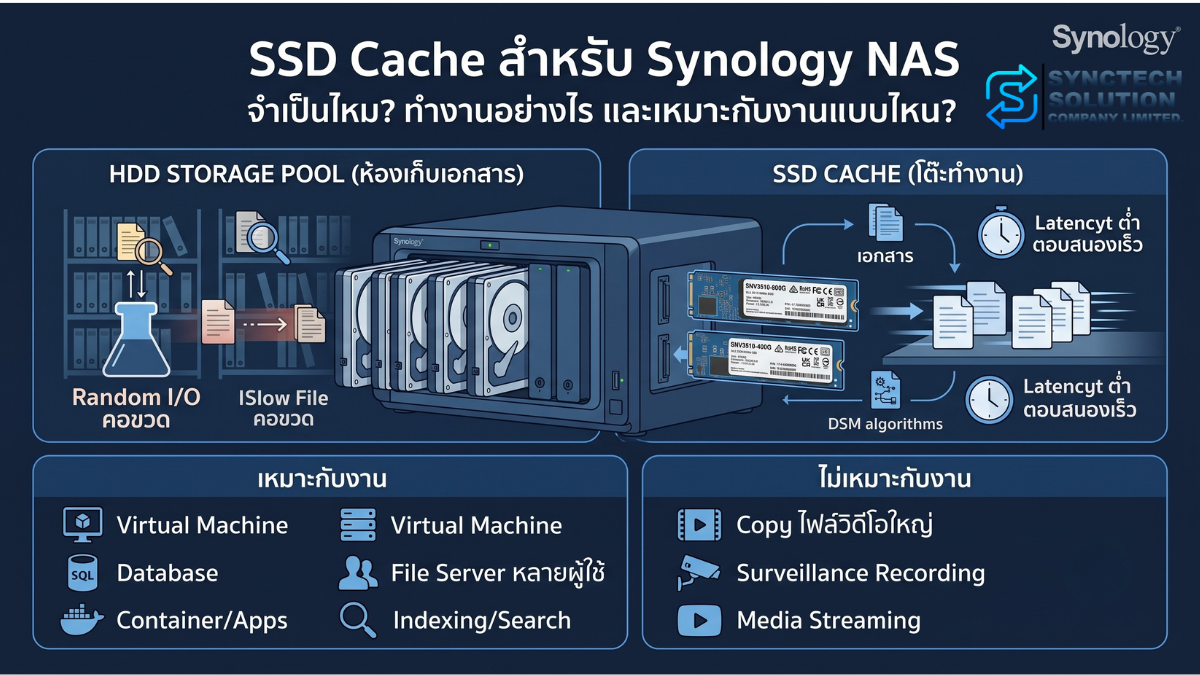
SSD Cache is the use of an SSD as a temporary storage area for frequently accessed data between the main Storage Pool and the user.
The main Storage Pool still keeps the actual data on the HDD as usual, while the SSD Cache helps store some data that the system estimates is likely to be accessed again, allowing the next access to read the data from the SSD, which responds faster than the HDD.
Let's try a simple comparison:
- HDD in NAS is like a large filing room, able to store a lot but it takes time to walk over to get something.
- SSD Cache is like a desk where frequently used documents are placed within reach.
Not all documents have been moved out of the storage room, but frequently used documents are placed on the table for quicker access.
How does an SSD Cache work?
When a user opens a file or the system retrieves data from the NAS for the first time, the data may still need to be read from the HDD as usual. Then, DSM will learn the usage patterns and store frequently accessed data in the SSD Cache according to the system's algorithm.
When the same data is requested again, the system can read the data from the SSD cache instead of having the HDD search for all the data again, reducing response time.
- The user or application requests data from the NAS
- The system checks whether the data is in the SSD Cache
- If it is in the Cache, the system reads from the SSD
- If it is not in the Cache, the system reads from the HDD
- DSM analyzes usage patterns and automatically adjusts data in the Cache
The results are most noticeable when the same set of data is accessed repeatedly or when a large number of small pieces of data are read and written across multiple locations.
SSD Cache does not make the NAS faster in every aspect
This is the most important thing to know before buying.
Many people think that once an SSD Cache is installed, copying large files, backing up, or watching movies from a NAS will immediately be faster. But in reality, SSD Cache is more suitable for certain types of tasks than others.
Synology stated that SSD Cache is suitable for tasks that frequently read or write small-size data using Random I/O, whereas tasks with Sequential Access or continuous reading and writing of large files may not benefit much.
| Job Characteristics | Chance of Seeing Results from SSD Cache | Reason |
|---|---|---|
| Virtual Machine | Very high | Has a lot of random small block read/write |
| Database and SQL | Very High | Has Queries and Transactions that access data in multiple locations |
| Container and internal Application | High | There are Logs, Metadata, and small files that are frequently accessed |
| File Server with a large number of simultaneous users | Medium to high | Helps reduce response time when opening many files and folders |
| Indexing and file search tasks | High | System calls for metadata and a large amount of small data |
| Microsoft Office and shared documents | Medium | More noticeable when there are multiple users and the file is reopened |
| Active Backup for Business | Depends on the type of work | May help Metadata, Index, and Database more than continuously writing large Backup files |
| Copying large video files at once | Low | It is sequential reading and writing and may be limited by the network or HDD array |
| Media Streaming or Watching Movies | Low | The typical video bitrate is not high enough to make the HDD a bottleneck |
| Surveillance Recording | Low | Most cameras record video continuously |
| Continuous backup of large files | Low | HDD already handles sequential write quite well |
Therefore, before installing an SSD Cache, you should first ask whether the problem is actually caused by Random I/O. Because if the bottleneck is in the 1GbE Network, Switch, Wi-Fi, CPU, RAM, or the number of HDDs, installing an SSD Cache may not solve the problem at the root.
What is the difference between Read-only Cache and Read-write Cache?
Synology divides SSD Cache into 2 main types: Read-only Cache and Read-write Cache
Read-only SSD Cache
Read-only Cache functions to accelerate data reading. The system will copy frequently read data from the HDD to the SSD, but the actual data still remains on the main Storage Pool.
- Helps improve performance for random reads
- Suitable for data that is read frequently but rarely modified
- Can start with just 1 SSD in supported models
- If the SSD cache fails, the original data is still on the main Storage Pool
- Does not directly speed up data writes
Read-only Cache is suitable for File Servers, Static Web Servers, file search tasks, and data that users frequently open and read repeatedly.
Read-write SSD Cache
Read-write Cache helps with both reading and writing, where some data is first written to the SSD Cache, and then the system manages sending the data to the HDD according to the Cache process.
- Helps improve Random Read and Random Write performance
- Suitable for Virtual Machines, Databases, Containers, and tasks that create or modify a large number of small files
- Generally requires at least 2 SSDs to create a data-protected Cache
- Using 2 SSDs in RAID 1 will provide Cache space equal to the smallest SSD
- High-endurance SSDs that are compatible with that NAS model should be used
Read-write Cache is more complex and important for data that has not yet been sent back to the HDD compared to Read-only Cache, so it is recommended to choose an appropriate SSD, use a UPS, and take system alerts seriously.
Should I use 1 SSD or 2 SSDs?
The number of SSDs required depends on the type of cache and the model of the NAS.
| Type | Number of SSDs | Suitable for | Notes |
|---|---|---|---|
| Single SSD Read-only Cache | 1 | Accelerating frequently used data reads | Easy to start and cost-effective, but does not speed up writes |
| Multiple SSD Read-only Cache | 2 or more depending on supported models | Requires more Cache space and read performance | The selected RAID type affects size and durability |
| Read-write Cache | Generally at least 2 | VMs, Databases, and Random Writes | Usually uses RAID 1 to protect the Cache if one SSD fails |
You should not choose the number of SSDs based on the feeling that "two drives must always be faster than one," but rather consider whether you need to accelerate only reading or if accelerating writing is truly necessary.
What do RAID 0 and RAID 1 mean in SSD Cache?
When using multiple SSDs, the RAID configuration of the cache will affect the usable space, performance, and durability.
- RAID 0: Combines the space of SSDs together to increase size and performance but has no ability to tolerate SSD failure. Suitable only for scenarios where the system allows and accepts the risk.
- RAID 1: Writes duplicate Cache data on 2 SSDs, can tolerate the failure of one SSD, but the usable space will be equal to one SSD.
For Read-write Cache, protecting data in the Cache is important, so using two SSDs in RAID 1 is preferred over focusing on maximum capacity.
How Much Capacity Should an SSD Cache Have?
There is no single number that fits all systems because the effective cache size depends on the amount of data being reused, the I/O pattern, the number of users, and the applications running.
SSD Cache does not need to be the same size as the main Storage Pool. For example, a NAS with 40TB of HDD does not necessarily mean it requires several TB of SSD Cache, because the data that is frequently accessed may only be a few hundred GB.
Use SSD Cache Advisor before making a decision
DSM has a tool called SSD Cache Advisor for analyzing volume usage patterns and recommending the appropriate size for Read-write Cache.
Synology stated that the initial analysis takes at least 7 days, and the system can continuously analyze for up to 30 days before automatically stopping.
- Open Storage Manager
- Select the Storage or Volume you want to analyze
- Open SSD Cache Advisor
- Let the NAS operate normally for at least 7 days
- Check the Cache size recommended by the system
It should be enabled during periods of actual workload. It should not be analyzed during long holidays or periods when the system has very few users, as the results may not reflect normal usage.
Example of approximate size
| SSD Cache Size | Example Use Cases |
|---|---|
| 400–500GB | Small offices, File Server, Metadata, a few Containers, or Backup Repository that requires some assistance with Random I/O |
| 800GB–1TB | More concurrent users, Database, multiple VMs, or Working Sets that are larger in size |
| More than 1TB | Systems with high Random I/O and a large amount of frequently accessed data, where recommendations from Cache Advisor and actual I/O measurements should be referenced |
This table is only a general guideline and should not be used as a substitute for actual workload analysis.
SSD Cache also uses NAS RAM
SSD Cache does not only use space on the SSD, but it also requires the NAS memory to store data for managing the cache.
Synology states that every 1GB of SSD Cache requires approximately 400KB of system memory. For example, a 1TB Cache may require about 400MB of RAM for Cache management.
If the NAS has little RAM and still needs to run Virtual Machines, Containers, Databases, or multiple Packages, creating an overly large Cache may reduce the remaining RAM available for Applications.
Therefore, increasing RAM may be something to do first or together with an SSD Cache, especially for systems with a large number of users.
SSD Cache and Increasing RAM: Which Should Be Done First?
In many cases, adding RAM to a NAS may be more cost-effective than installing an SSD Cache because DSM can use the available RAM as a File System Cache, and RAM is faster than SSD.
You should consider adding RAM first when:
- High memory usage regularly
- Using containers or virtual machines
- Multiple packages running simultaneously
- System experiences swapping
- Need to increase large SSD cache
However, if there is enough RAM and the main problem is random I/O from the HDD, adding an SSD cache will help address the bottleneck more directly.
What is the difference between SSD Cache and SSD Storage Pool?
Many people are confused between using an SSD as a cache and directly creating a storage pool with an SSD. Both methods serve different purposes.
| Topic | SSD Cache | SSD Storage Pool |
|---|---|---|
| Actual Data Location | Main data still resides on HDD | Actual data is stored on SSD |
| Function | Speeds up frequently accessed data | Provides SSD performance to all data in the Pool |
| Cost | Lower, because only a portion of the total capacity uses SSD | Higher, especially when several TB of space is needed |
| Speed Consistency | Depends on Cache Hit and workload pattern | More consistent, because all data is on SSD |
| Suitable For | Needs to accelerate Random I/O on HDD Pool | VMs, Databases, or Applications that require consistently low latency |
If you want VMs or databases to have consistently high speed and have sufficient budget, an SSD Storage Pool may be more suitable than an SSD Cache because you do not have to wait for data to be loaded into the cache first.
But it is necessary to check whether that NAS model supports using M.2 NVMe SSDs to create a Storage Pool or only supports SSD Cache, as the capabilities vary by model and DSM.
If the Storage Pool is already SSD, is it still necessary to use an SSD Cache?
In general, if the primary Storage Pool is already an SSD, adding an SSD Cache often does not provide much benefit because the primary storage already has low latency and handles random I/O well.
The budget could be used to add more RAM, increase the number of SSDs to boost IOPS, upgrade the network to 10GbE, or optimize the application.
Does SSD Cache Help Reduce Load and Extend the Life of HDDs?
SSD Cache may help reduce some HDD access when data is in the Cache, but it should not be concluded that it will clearly extend the lifespan of the HDD in all cases.
The HDD still has to work for data that is not in the Cache, writing data to the Storage Pool, RAID rebuilding, backup, data scrubbing, and other system tasks
The main reason for installing an SSD Cache should be performance and response time, not the expectation that it will directly extend the life of an HDD.
How to Choose an SSD for Cache
1. Check Compatibility First
The SSD must have an interface and form factor that matches the NAS, such as M.2 2280 NVMe or 2.5-inch SATA, and you should check the list of supported devices for that NAS model from Synology.
Some NAS models may support certain SSDs for cache but do not support creating a storage pool, or there may be different firmware and warranty conditions.
2. Check Endurance or TBW
SSD Cache, especially Read-write Cache, involves a large amount of data writing, so you should choose an SSD with TBW or DWPD suitable for the workload.
Consumer SSDs designed for general computers may have high speeds, but that does not mean they can withstand continuous writing in a NAS as well as SSDs designed for Cache or Enterprise Workloads.
3. Choose an SSD with similar capacity and model
If performing a Read-write Cache with 2 SSDs, you should use the same model and capacity to reduce differences in performance and lifespan.
4. Consider Power-loss Protection
For systems with critical writing tasks, SSDs with Power-loss Protection help reduce the risk of sudden power outages, but it is still advisable to use a UPS as well.
5. Check Temperature and Cooling
NVMe SSDs may have high temperatures when under continuous heavy load. You should check the temperature via DSM and install the NAS in a well-ventilated area.
The Benefits of Using Synology SSD
Choosing Synology SSDs has the advantage of working directly with NAS and DSM.
- Compatibility: Tested for compatibility with specified Synology NAS models
- Firmware Integration: DSM can conveniently check the status and manage the firmware of supported drives
- Health Monitoring: Displays health information, lifespan, and alerts through DSM
- Workload Design: Models designed for cache support continuous writing and have endurance suitable for NAS
- Support: Reduces uncertainty when troubleshooting issues between NAS, DSM, and SSD
However, you should always check the Compatibility List and the conditions of each NAS model before purchasing, because not every SSD model is supported by every NAS device.
Disadvantages and Precautions of SSD Cache
- Does not make all types of work faster
- Increases costs and uses the NAS's M.2 slot or Drive Bay
- SSD lifespan depends on write volume and must be replaced when degraded
- Read-write Cache requires careful planning regarding durability and power
- Large cache sizes use more RAM
- May not help if the bottleneck is in the Network, CPU, or RAM
- Data should be backed up before creating, deleting, or reformatting the Cache
- Not a Backup and does not protect data from deletion, Ransomware, or disasters
What should be checked before buying an SSD Cache?
- Does the NAS model in use have an M.2 slot or support SATA SSD Cache?
- What type of Cache is supported by DSM and the Storage Pool?
- Is the workload Random I/O or Sequential I/O?
- Is the real bottleneck at the HDD or at the Network, CPU, and RAM?
- Do you need Read-only or Read-write Cache?
- Is the SSD on the Compatibility List?
- Are the TBW and Endurance sufficient?
- Is the NAS RAM sufficient for the size of the Cache?
- Is there a UPS and Backup ready for use?
- Have you run the SSD Cache Advisor yet?
Example of Usage Selection
General Office 10–20 people
If you primarily use Office documents and Shared Folders, you may add RAM first, then run the SSD Cache Advisor to see if there is a Working Set suitable for caching. If many files are opened simultaneously, a Read-only Cache may be sufficient.
NAS for Virtual Machine
VM workloads have high Random Read and Random Write, so there is a higher chance of seeing benefits from Read-write Cache. However, SSDs with high Endurance should be used, there should be sufficient RAM, and the Network should support speeds according to the Workload.
Backup Repository
Large backup files that are written sequentially may not become much faster with an SSD Cache, but the cache may help with metadata, index, deduplication database, and random I/O data searches. Therefore, the cache size does not need to be equal to the total size of the backup.
Closed-circuit camera
Recording videos from cameras is mostly Sequential Write, so it is not a task where SSD Cache provides high benefits. The budget may be better spent on adding HDDs, increasing storage duration, or doing backups.
Watch movies and store media files
General video streaming does not require very high speeds and reads data continuously. Multiple HDDs can handle it well, so it is often unnecessary to install an SSD cache just for watching movies.
Frequently Asked Questions About SSD Cache
Will adding an SSD cache make copying large files faster?
Not always. Copying large files is a sequential task and may be limited by network speed or HDD array rather than SSD cache.
Can an SSD Cache increase speed beyond 1Gbps?
If the network is still 1GbE, the actual file transfer speed usually stays around the limit of Gigabit Ethernet, even if the storage is faster. If higher speeds are desired, 2.5GbE or 10GbE may need to be used as well.
Can a Consumer SSD Be Used for Cache?
You need to check Compatibility and Endurance first. Some consumer SSD models may work, but for heavy write Read-write Cache, you should use an SSD designed for NAS or Enterprise Workload.
Is an SSD Cache a Backup?
No, cache is responsible for improving performance. Important data still needs to have a backup separate to another device or location.
If the SSD Cache fails, will the data be lost?
Read-only Cache stores a copy of the data whose original is in the Storage Pool, so it carries a lower risk to the primary data. Meanwhile, Read-write Cache has data waiting to be written back to the Storage Pool, so it requires a format with protection and must follow DSM procedures when the SSD encounters problems.
Should I buy a 500GB or 1TB SSD?
You should use the SSD Cache Advisor and look at the actual Working Set. You should not choose based on the size of the entire Storage Pool. If the frequently accessed data is not much, a 500GB SSD may be sufficient, but VM or Database systems may require more.
SSD Cache or NVMe Storage Pool: Which One Should You Choose?
If you want to help the HDD Pool with a limited budget, an SSD Cache is more suitable. But if you want consistent SSD performance for all data, an SSD Storage Pool might be more appropriate. You need to check whether that NAS model supports it.
SSD Cache System Setup Service from SyncTech Solution
Choosing an SSD Cache should not be based solely on the capacity or speed of the SSD because the performance achieved depends on the workload, RAM, network, storage pool, and the applications used together.
The SyncTech Solution team can assist with evaluation and system setup starting from:
- Check the supported Synology NAS models and SSDs
- Analyze system workloads and bottlenecks
- Recommend Read-only or Read-write Cache
- Assess the appropriate SSD Cache size
- Recommend RAM, Network, and Storage Configuration
- Install and configure SSD Cache on DSM
- Check Health Status and system alerts
- Plan UPS, Snapshot, and Backup together
- Test performance before and after installation
If you are unsure whether the NAS you are using needs an SSD Cache, you can bring the NAS model details, number of HDDs, RAM, network, and the nature of the work to consult the team. This will help determine whether the bottleneck is in the storage or elsewhere before investing.
Summary
SSD Cache is a method to enhance the performance of Synology NAS using HDDs, especially for tasks with high Random I/O, such as Virtual Machine, Database, Container, Indexing, and File Server with a large number of simultaneous users.
But an SSD cache does not make every task faster. Backing up large files, recording from CCTV cameras, and streaming video are sequential tasks, which may not benefit much.
Before purchasing, you should check the actual workload, run the SSD Cache Advisor, review RAM and network, and also choose an SSD with appropriate compatibility and endurance. If you only want to accelerate reading, a read-only cache may be sufficient, but if there is high random write, a read-write cache will be more suitable and requires more security planning.
Ultimately, an SSD Cache is a performance-enhancing tool, not a backup, and cannot replace a proper RAID system, Snapshot, Backup, and UPS.
Note
The capabilities regarding SSD Cache, the number of SSDs, RAID types, the creation of M.2 Storage Pools, and the list of supported SSDs vary depending on the Synology NAS model and DSM version. You should check the information from the Synology Compatibility List and the product page of the model you are using before making a purchase.
Information about Cache types, SSD Cache Advisor, and RAM usage is based on Synology DSM documentation and the SSD Cache White Paper reviewed in July 2026. Details may change with new DSM versions.
Need expert advice or would like to request a quotation? Contact us today:
E-mail: [email protected]
LINE Official: @sync.co.th

The Company reserves the right to correct any typographical or printing errors and shall not be held liable for any inaccuracies resulting from such errors.
*** This article is the intellectual property of SyncTech Solution Company Limited. Reproduction, modification, or redistribution of this content, in whole or in part, is strictly prohibited without prior written permission from the Company. ***