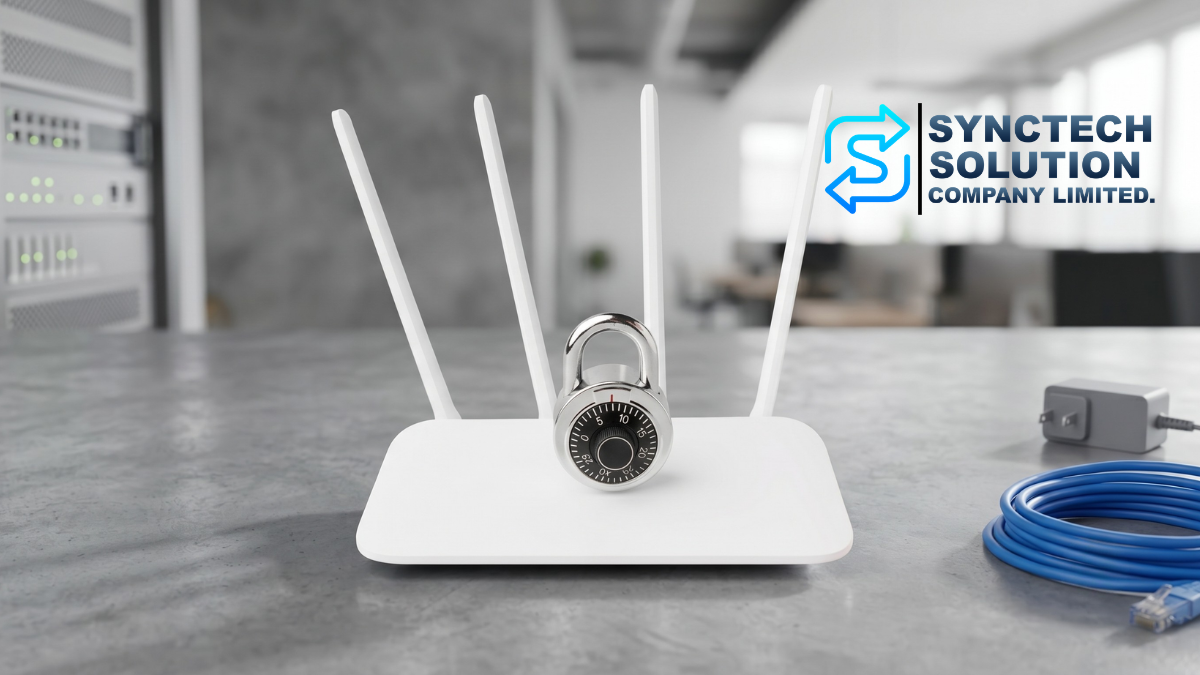
Wi-Fi Router is an important device that connects homes, home offices, or offices to the Internet and also serves as a hub for many devices such as computers, mobile phones, CCTV cameras, NAS, printers, Smart TVs, and IoT devices.
If the Wi-Fi Router is not properly configured, it may become a channel for malicious individuals to access the network, steal information, use the internet without permission, or attack devices within the system.
This article will introduce how to set up a Wi-Fi router securely, along with updating current guidelines, such as using WPA3/WPA2, turning off WPS, separating the Guest Network, isolating IoT devices, disabling Remote Management, and updating the Firmware to help reduce network security risks.
1. Change the Router Administrator Password Immediately
Many router models have default usernames and passwords from the factory, such as admin/admin or admin/password, which are easy to guess and may be used to launch attacks.
Things to do
- Change the router admin password immediately after installation
- Use a long, hard-to-guess password that is different from your Wi-Fi password
- Avoid simple passwords such as 12345678, password, admin, or phone numbers
- Keep passwords in a safe place or use a password manager
Examples of passwords that should be used
- At least 12-16 characters long
- Mix of lowercase letters, uppercase letters, numbers, and symbols
- Do not use personal information such as name, birthday, or company name
2. Name your Wi-Fi appropriately
Wi-Fi name or SSID should be easy to remember, but should not reveal personal information or organization information directly, such as the homeowner's name, phone number, router model, or information that makes it easy to guess the network owner.
Instructions
- Avoid using your real name, phone number, or house number as the Wi-Fi name
- Do not use names that directly indicate the Router brand or model
- If it is an organization, you should clearly set different names for the main network and the Guest Wi-Fi
3. Use WPA3 or WPA2 instead of old WEP/WPA
Wi-Fi encryption is one of the most important points of security. If old standards are used, such as WEP or older versions of WPA, the network can be easily hacked.
Recommended options
- WPA3-Personal: Highly recommended if the router and all devices support it
- WPA2-Personal (AES): Still suitable for general use if there are older devices that do not support WPA3
- WPA2/WPA3 Mixed Mode: Can be used when there are both new and old devices, but you should check that no devices cause the system to lower security too much
Things to avoid
- WEP
- Old WPA
- TKIP
- Open Wi-Fi without a password
4. Set a strong Wi-Fi password
Even if using WPA2 or WPA3, if the Wi-Fi password is weak, there is still a risk of being guessed or attacked by brute force.
A good Wi-Fi password should have the following characteristics
- At least 12-16 characters long
- Do not use common words or personal information
- Do not use a password that is repeated on other systems
- Should be changed when an employee leaves or when the password has been shared with outsiders
For organizations, it is recommended to consider using WPA2/WPA3-Enterprise along with an authentication system, such as RADIUS, so that each user has their own account instead of sharing a single Wi-Fi password across the entire company.
5. One should not rely on hiding the SSID as the main security measure
Hiding a Wi-Fi name or Hide SSID causes the network name not to appear in the common Wi-Fi list, but it does not make the network secure from those who have network scanning tools.
Therefore, hiding the SSID should not be considered a primary security measure. What should be given more importance is using WPA3 or WPA2, setting a strong password, disabling WPS, and updating the firmware regularly.
If you want to hide the SSID for tidiness, you can do so, but it should not be used as a substitute for proper security settings.
6. Turn off WPS if not in use
WPS (Wi-Fi Protected Setup) is a feature that makes it easier to connect to Wi-Fi, such as pressing a button on the router or using a PIN. However, in terms of security, WPS can be a risky point, especially the PIN mode.
Instructions
- Turn off WPS if it is not necessary to use
- Avoid using the WPS PIN
- Use Wi-Fi connection with a strong password instead
7. Regularly update your router's firmware
Firmware is software that runs inside a Router. Manufacturers often release updates to fix vulnerabilities, increase stability, and improve system performance.
Things to do
- Regularly check for Firmware Updates
- Enable Auto Update if the Router supports it and is reliable
- Back up the Config before updating, if it is an organizational system
- If the Router is very old and no longer has updates from the manufacturer, consider replacing it with a new device
8. Disable Remote Management from the Internet
Remote Management allows administrators to access the Router page from outside, but if left enabled unnecessarily, it may increase the risk of being attacked from the Internet.
Instructions
- Turn off Remote Management if not in use
- If it is necessary to use, restrict to trusted IP Addresses only
- Use a VPN to connect for Router management instead of opening the Management page directly to the internet
- Change the default port and use a strong password
9. Open the Firewall and disable unnecessary services
Most routers have built-in firewalls to help filter unwanted traffic from outside. You should enable the firewall and check that no unnecessary services are turned on.
Things to check
- Turn on the Router's Firewall
- Turn off UPnP if not needed
- Turn off unused Port Forwarding
- Check that DMZ is not open to important devices unnecessarily
- Turn off Telnet and use HTTPS or SSH, which are more secure, if device management is needed
10. Use a Guest Network for Guests
Guest Network helps separate external users from the main network, allowing guests to use the internet without being able to access internal devices such as NAS, printers, servers, or employees' computers.
Instructions for Setting Up a Guest Network
- Set a separate password from the main Wi-Fi
- Enable Client Isolation if the router supports it
- Limit bandwidth if necessary
- Set usage time or change the password periodically
- Do not allow the Guest Network to access internal devices
11. Separate IoT devices from the main network
IoT devices such as Smart TVs, Wi-Fi cameras, Smart Plugs, smart bulbs, or certain types of Smart Home devices may not receive security updates as frequently as main devices.
If possible, IoT devices should be separated into a separate network, such as a dedicated IoT Wi-Fi or VLAN, to prevent these devices from directly accessing computers, NAS, or critical systems.
12. Use VLANs for homes or organizations with multiple groups of devices
For offices, home offices, or homes with a large number of devices, dividing VLANs will help separate groups of devices and reduce risk when some devices are attacked.
Example of network segmentation
- Main LAN: For computers and main devices
- Guest VLAN: For guests or customers
- IoT VLAN: For Smart Home and IoT devices
- CCTV VLAN: For CCTV cameras and NVR
- Management VLAN: For Router, Switch, Access Point, and Controller
Using VLAN requires supported devices, such as Routers, Managed Switches, and Access Points that can be configured for VLAN.
13. Regularly check connected devices
You should periodically check the list of devices connected to the Router or Controller to see if there are any unknown devices.
Things to check
- Device Name
- MAC Address
- IP Address
- Connection Duration
- Abnormal Usage Amount
If an unknown device is found, the Wi-Fi password should be changed and the security settings should be checked immediately.
14. Use a more secure DNS
DNS helps convert website names into IP addresses. Using a DNS with Security or Filtering features can help reduce the risk of accessing dangerous websites or phishing websites.
Popular DNS Examples
- Cloudflare DNS: 1.1.1.1 and 1.0.0.1
- Google DNS: 8.8.8.8 and 8.8.4.4
- Quad9 DNS: 9.9.9.9
For organizations, consideration should be given to DNS Security or Web Filtering that can block dangerous websites, phishing websites, or inappropriate categories.
15. Use a VPN when it is necessary to access the system from outside
If you want to access NAS, servers, CCTV, or internal systems from outside, you should not open ports directly to the Internet unless necessary. You should use a VPN to connect to the internal network more securely.
Instructions
- Use VPN for Remote Access
- Enable MFA if the VPN system supports it
- Restrict VPN user permissions according to roles
- Periodically check VPN connection logs
- Avoid old protocols such as PPTP
16. Backup Router and Network Device Configurations
After setting up the Router, Switch, or Access Point, you should back up the configuration to use for recovery in case the device fails, is reset, or has problems after a Firmware update.
Should reserve values when
- Reset the system settings
- Before updating the firmware
- After changing VLAN, Firewall, or Wi-Fi settings
- Before replacing with new equipment
17. Things Not to Do When Setting Up a Wi-Fi Router
- Do not use the factory default password
- Do not use old WEP or WPA versions
- Do not leave WPS enabled unnecessarily
- Do not enable Remote Management directly on the Internet
- Do not enable Port Forwarding without understanding the consequences
- Do not use the same Wi-Fi password for guests and employees
- Do not leave an old Router without a Firmware Update
- Do not believe that just hiding the SSID makes it secure
Wi-Fi Router Security Setup Checklist
| Topic | Recommendation |
|---|---|
| Router Administrator Password | Change from the default and use a strong password |
| Wi-Fi Password | Use a long, hard-to-guess password that is not the same as other systems |
| Wi-Fi Encryption | Use WPA3 or WPA2-AES |
| WPS | Turn off if not in use |
| Firmware | Update regularly |
| Remote Management | Turn off or restrict to trusted IPs only |
| Guest Network | Enabled for guests and separated from the main network |
| IoT Network | Separate IoT devices from the main network |
| Firewall | Enable and periodically check Rules |
| Client List | Regularly check connected devices |
Summary
Setting up a Wi-Fi router securely is important and should not be overlooked, because the router is the main gateway of the network. If it is configured improperly, it may allow malicious individuals to access the internet, personal information, or devices within the network.
The recommended approach is to change the router admin password, set a strong Wi-Fi password, use WPA3 or WPA2, disable WPS, update the firmware, disable remote management, enable the firewall, separate the guest network, and separate IoT devices from the main network.
For regular homes, these basic settings can greatly enhance security. For offices or organizations, it is advisable to consider using VLAN, Firewall Rules, VPN, DNS Security, and additional network management systems to ensure the system is secure, stable, and capable of supporting long-term use.
Need expert advice or would like to request a quotation? Contact us today:
E-mail: [email protected]
LINE Official: @sync.co.th

The Company reserves the right to correct any typographical or printing errors and shall not be held liable for any inaccuracies resulting from such errors.
*** This article is the intellectual property of SyncTech Solution Company Limited. Reproduction, modification, or redistribution of this content, in whole or in part, is strictly prohibited without prior written permission from the Company. ***