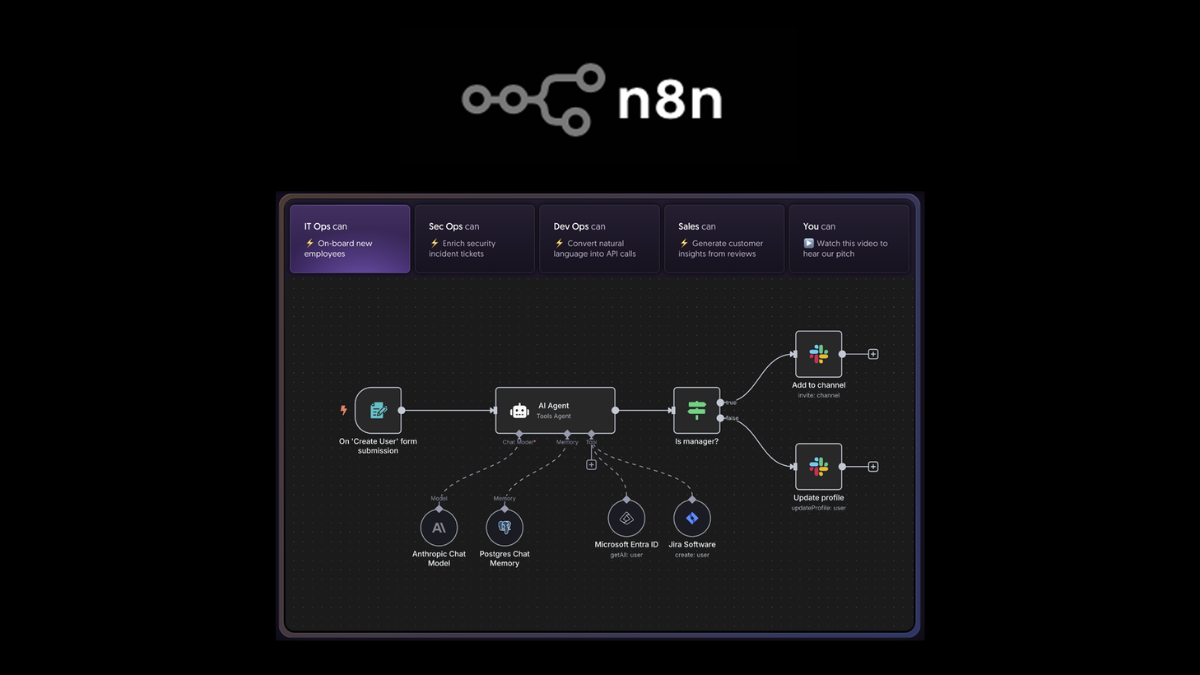
n8n is a tool for Workflow Automation or automation systems that helps connect applications, database systems, APIs, and various online services together, so that repetitive or time-consuming processes can be performed automatically.
The highlight of n8n is that users can create workflows by dragging and connecting nodes without needing to write all the code, but they can still customize deeply with JavaScript, API, Webhook, and databases. It is suitable for beginners, IT teams, developers, marketing, sales, operations, and organizations that want to reduce manual work.
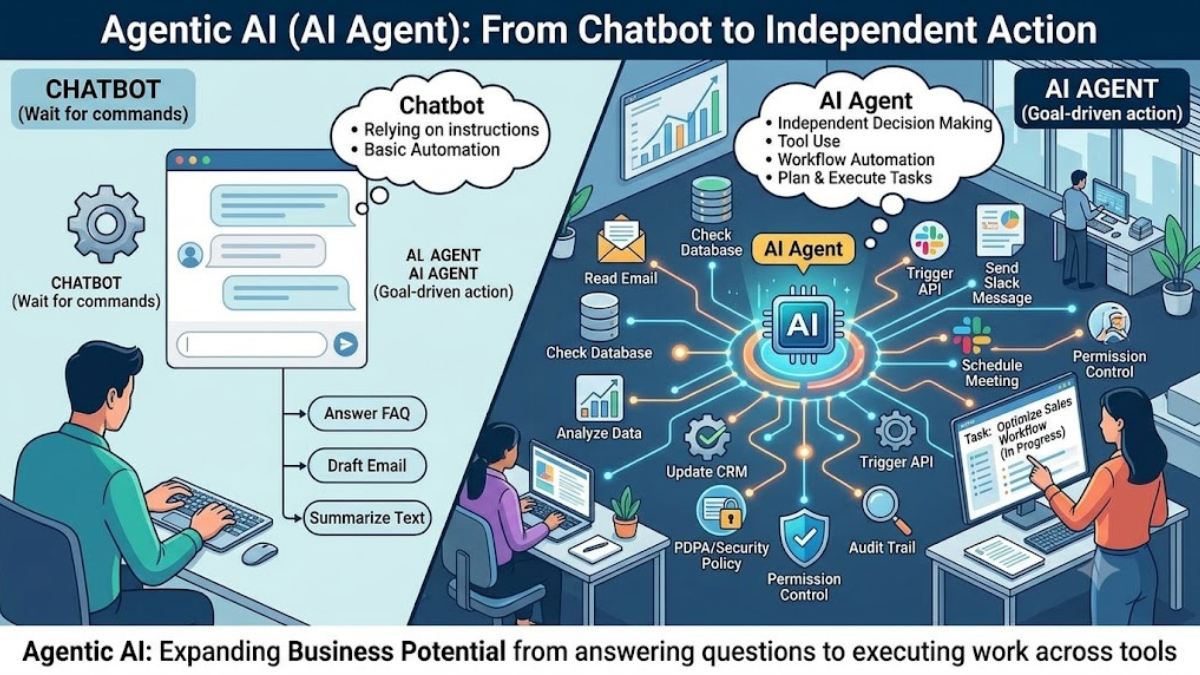
Currently, n8n is still developing more in the direction of AI Workflow Automation, such as connecting with AI Models, Chatbots, AI Agents, OpenAI, Vector Databases, or automated text processing systems, making it possible to further apply to various business tasks.
What is n8n?
n8n, pronounced “en-eight-en,” is a Workflow Automation platform that allows users to create automated processes by connecting various systems through Nodes such as Trigger, Webhook, HTTP Request, Database, Email, Google Sheets, Microsoft 365, OneDrive, Telegram, Slack, LINE, CRM, ERP, and AI Services.
n8n has both the n8n Cloud version, which is a ready-to-use Cloud service, and the Self-hosted version, which can be installed on a Server, VPS, NAS, or internal organization system. It is suitable for users who want to control their data and environment by themselves.
Note: n8n currently uses the Sustainable Use License and Enterprise License according to the fair-code model, not the typical Open Source model. Therefore, if used for business purposes or for providing services, you should check the License terms to ensure they are appropriate before use.
How does n8n work?
The working principle of n8n is to create a Workflow which consists of multiple Nodes connected in sequence, from the starting point of the task to the final result.
Common types of nodes include
- Trigger Node: The starting point of the Workflow, such as Schedule Trigger, Webhook Trigger, Email Trigger, or Manual Trigger
- Action Node: Used to perform certain actions, such as sending emails, recording data to Google Sheets, uploading files, or sending notifications via Telegram
- HTTP Request Node: Used to call external APIs, suitable for connecting systems that do not have pre-built nodes
- Code Node: Used to write JavaScript to manipulate data, calculate, or format data
- IF / Switch Node: Used to set operating conditions, such as if sales exceed the target, send a notification, or if the data is incorrect, send it for verification.
- Merge Node: Used to combine data from multiple sources together
- AI Node: Used to connect to an AI Model or create a Workflow that uses AI to process data
Simple workflow example:
[Schedule Trigger every day at 08:00]
→ [Pull data from Google Sheets]
→ [Calculate Sales]
→ [Create a report with AI]
→ [Send Email or Telegram to the team]
Benefits of n8n
- Reduce repetitive tasks: such as sending daily reports, backups, moving files, notifications, creating documents, or updating databases
- Connect multiple systems: such as Google Workspace, Microsoft 365, CRM, ERP, Database, Cloud Storage, and external APIs
- Low-code usage: Create workflows by dragging and connecting nodes and make additional adjustments when necessary
- Deeply customizable: Use JavaScript, API, Webhook, or Custom Logic to support complex tasks
- Supports Self-hosted: Install on your own server to have more control over data and the system
- Work with AI: Use AI to help summarize information, reply to messages, create reports, analyze data, or create chatbots
- Scalable usage: Suitable for both small tasks, team projects, and enterprise-level automation systems
How are n8n Cloud and Self-hosted different?
| Topic | n8n Cloud | Self-hosted |
|---|---|---|
| Installation | Ready to use, no server maintenance needed | Must install by yourself, such as Docker, VPS, Server, or NAS |
| System Maintenance | n8n maintains the Infrastructure for you | Users must maintain Update, Backup, Security, and Database by themselves |
| Flexibility | Suitable for users who want to start quickly | More customizable, suitable for specialized tasks |
| Information and Privacy | Data is on the provider's Cloud system | Can control the environment and data by yourself |
| Suitable for | Businesses that want to use quickly and do not want to maintain a server | IT teams, Developers, organizations with internal systems, or those who want to control their own data |
Basic n8n Installation
For practical use, n8n recommends using Docker or Docker Compose because it makes installation easier, separates environments well, and manages the system more conveniently than manual installation.
Basic Example of Installation with Docker
docker volume create n8n_data
docker run -it --rm \
--name n8n \
-p 5678:5678 \
-v n8n_data:/home/node/.n8n \
n8nio/n8n
After installation is complete, you can access it through a web browser at:
http://localhost:5678
If installed on a server or NAS within the organization, it can be accessed through the machine's IP, for example:
http://192.168.1.50:5678
Recommendation: For a production system, you should configure the Domain, HTTPS/SSL, Reverse Proxy, a separate Database such as PostgreSQL, Backup, and Security completely before allowing external access.
Installing n8n on Synology NAS with Container Manager
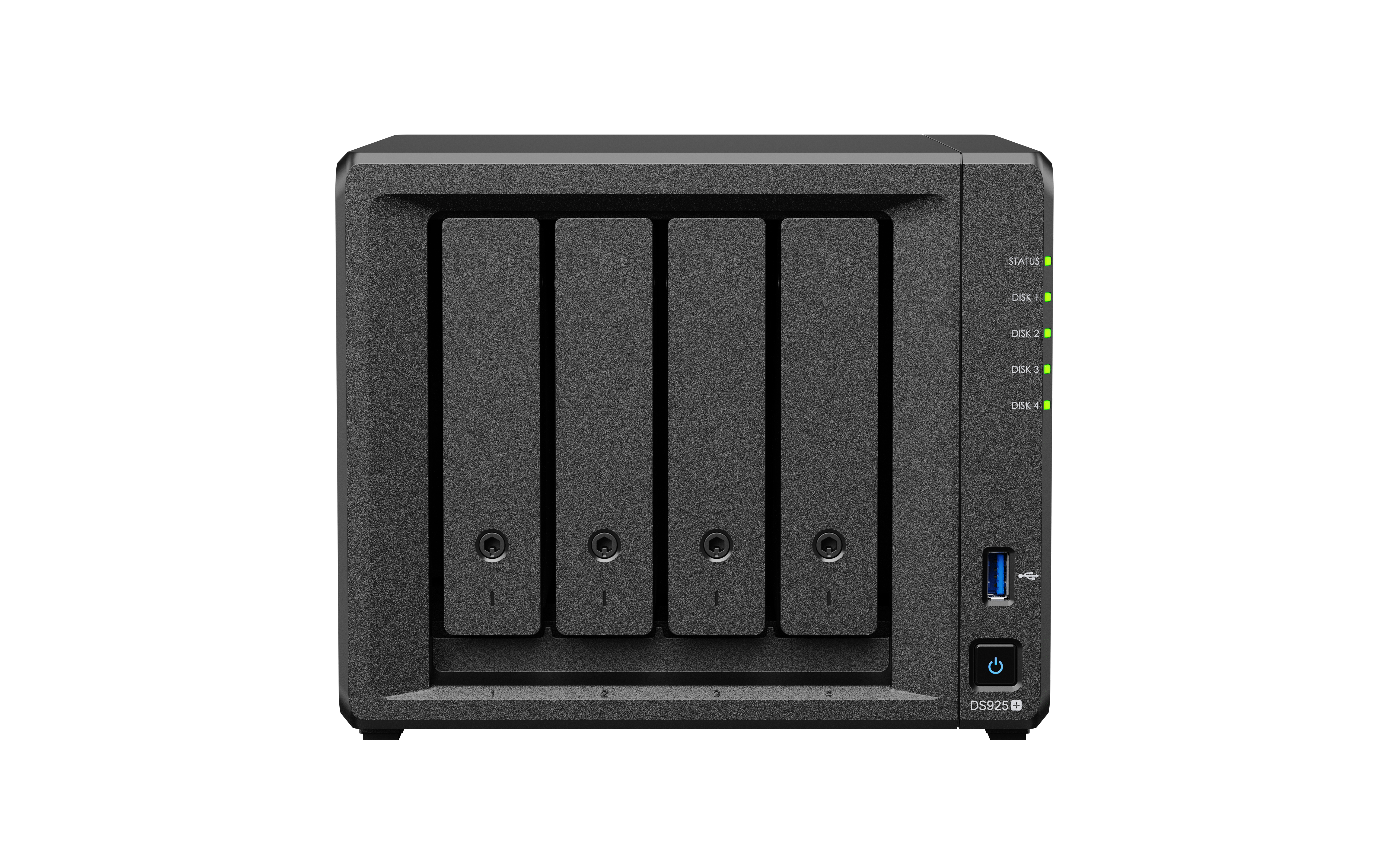
For users who use Synology NAS, n8n can be installed in a self-hosted manner via Container Manager, which is Synology's tool for running containers on DSM. It is suitable for those who want n8n to operate on an NAS within the organization, such as for performing backup systems, sending notifications, connecting to APIs, generating automatic reports, or integrating with internal company services.
Installing n8n on Synology is suitable for users who want to control their own data, do not want to rely entirely on the Cloud, and already have a NAS that runs continuously. However, you should check in advance whether your Synology model supports Container Manager, and you should have enough RAM to run the containers and workflows that are actually needed.
Things to Prepare Before Installation
- Synology NAS that supports Container Manager
- DSM version that supports Container Manager
- Install the Container Manager package from Package Center
- Storage space for n8n data, such as /volume1/docker/n8n
- Administrator privileges on the NAS
- Domain or DDNS if you want to use Webhook from outside
- SSL/HTTPS if you want to use it over the internet
Step 1: Create a folder to store n8n data
Before creating a Container, you should create a folder to store permanent data for n8n so that Workflows, Credentials, and various settings are not lost when a Container is deleted or recreated.
Recommended folder example:
/volume1/docker/n8n
If using File Station, you can create a folder at:
File Station > docker > n8n
This folder will be used to map the volume to the data location of n8n inside the container:
/home/node/.n8n
Step 2: Download the n8n Image
Open the Container Manager and go to the Registry or Image menu, then search for the Image:
n8nio/n8n
Select the Tag you want to download. Generally, you can use the Tag:
latest
For the actual system, it is recommended to check the version before updating and always back up data before changing versions.
Step 3: Create a New Container
After downloading the Image, create a new Container from the n8nio/n8n Image and configure the basic settings as follows
| Topic | Recommended Value |
|---|---|
| Container Name | n8n |
| Image | n8nio/n8n |
| Local Port | 5678 |
| Container Port | 5678 |
| Restart Policy | Always or Unless stopped |
| Volume | /volume1/docker/n8n → /home/node/.n8n |
Once the Container is created, you can access n8n from a browser using the NAS IP, for example:
http://192.168.1.50:5678
Step 4: Set Important Environment Variables
Using n8n on Synology should set Environment Variables appropriately, especially if using Webhook, Domain, HTTPS, or Reverse Proxy
| Environment Variable | Example Value | Description |
|---|---|---|
| N8N_HOST | n8n.example.com | The domain name used to access n8n |
| N8N_PROTOCOL | https | Set the Protocol if using via HTTPS |
| WEBHOOK_URL | https://n8n.example.com/ | Main URL for the Webhook that external services will callback to |
| GENERIC_TIMEZONE | Asia/Bangkok | Set Timezone for Workflow |
| TZ | Asia/Bangkok | Set the Container Timezone |
| N8N_ENCRYPTION_KEY | Set as a permanent random value | Used to encrypt Credentials. Should be kept secure and must not be changed unnecessarily |
If used only within the home or office, it is not necessary to set up a Domain. However, if you want to use Webhooks from outside, such as LINE, Telegram, Payment Gateway, Google, or other Cloud services, you should correctly configure the Domain, Reverse Proxy, and HTTPS.
Example Environment Variables for Use via Domain
N8N_HOST=n8n.example.com
N8N_PROTOCOL=https
WEBHOOK_URL=https://n8n.example.com/
GENERIC_TIMEZONE=Asia/Bangkok
TZ=Asia/Bangkok
N8N_ENCRYPTION_KEY=replace-with-your-secure-random-key
Step 5: Configure Reverse Proxy and HTTPS
If you want to access n8n from outside the organization, it is recommended to use a Domain and HTTPS, and you can use a Reverse Proxy on Synology DSM.
Example approach:
- Create a subdomain, such as n8n.example.com
- Set the DNS to point to the organization's Public IP or DDNS
- Enable a reverse proxy from HTTPS 443 to the internal n8n, such as http://127.0.0.1:5678 or the NAS IP
- Install an SSL certificate, such as Let’s Encrypt, via the Synology Control Panel
- Set the WEBHOOK_URL to match the actual domain in use
Example of Reverse Proxy configuration:
Source:
Protocol: HTTPS
Hostname: n8n.example.com
Port: 443
Destination:
Protocol: HTTP
Hostname: localhost or NAS IP
Port: 5678
Step 6: Test Logging In
After the Container is running, open your Browser and access n8n through the configured URL, for example
http://192.168.1.50:5678
Or if the Domain and HTTPS have been set:
https://n8n.example.com
Then create an administrator account and start creating the first workflow immediately.
Docker Compose Example for Synology
If you want to install via the Container Manager Project or use Docker Compose, you can use the following basic example
services:
n8n:
image: n8nio/n8n:latest
container_name: n8n
restart: unless-stopped
ports:
- "5678:5678"
environment:
- N8N_HOST=n8n.example.com
- N8N_PROTOCOL=https
- WEBHOOK_URL=https://n8n.example.com/
- GENERIC_TIMEZONE=Asia/Bangkok
- TZ=Asia/Bangkok
- N8N_ENCRYPTION_KEY=replace-with-your-secure-random-key
volumes:
- /volume1/docker/n8n:/home/node/.n8n
For systems that are in actual use or have a large number of workflows, it is advisable to consider using PostgreSQL instead of SQLite and to design an appropriate backup.
Precautions When Installing n8n on Synology
- Volume should be configured correctly to prevent Workflow and Credentials data from being lost when updating the Container
- The N8N_ENCRYPTION_KEY should be set from the start and kept secure
- Port 5678 should not be exposed to the internet directly without a Reverse Proxy, HTTPS, and access control
- 2FA should be enabled in n8n if there are multiple users or if accessed externally
- Firewall on the NAS and Router should be configured to restrict access
- The /volume1/docker/n8n folder should be backed up regularly
- Workflow and Credentials should be backed up before updating n8n
- RAM and CPU of the NAS should be checked because AI workflows or large data processing may require high resources
- Production and Test tasks should be separated if n8n is used for important organizational tasks
Jobs suitable for n8n on Synology
- Backup databases and website files from NAS or Server
- Upload Backup files to OneDrive, Google Drive, or other Cloud services
- Notify system status via Telegram, LINE, or Email
- Connect to Google Sheets, Microsoft 365, or internal database systems
- Create sales reports or automated system reports
- Create Webhooks to receive data from websites or external services
- Connect AI to summarize data, respond to messages, or generate reports
Creating the First Workflow
- Access the n8n page through a web browser
- Click to create a new Workflow
- Select a Trigger such as Schedule Trigger, Webhook, or Manual Trigger
- Add a Node to retrieve data such as Google Sheets, HTTP Request, or Database
- Add a Node to process data such as IF, Switch, Merge, or Code
- Add a Node to send results such as Email, Telegram, LINE, Slack, or Google Drive
- Test using Execute Workflow
- Save and activate the Workflow when ready for actual use
Real-world use cases of n8n
1. Automatic Database and Web File Backup
n8n can be used to create workflows for automatic backups, such as backing up databases and website files, then uploading them to cloud storage.
- Set a Schedule Trigger to run every night
- Call a Script or API for Database Backup
- Compress files into ZIP
- Upload to OneDrive, Google Drive, or S3-compatible Storage
- Delete old files according to Retention Policy
- Notify via Telegram or Email when successful or failed
2. Create automatic sales reports
- Pull data from Database or Google Sheets
- Calculate sales, profit, and best-selling products
- Have AI help summarize insights in Thai
- Create HTML or PDF reports
- Send emails to the management team weekly or monthly
3. Notification system via LINE or Telegram
- Receive Webhook from external systems
- Check conditions such as sales, server status, stock, or gold prices
- Format messages to be easy to read
- Send notifications to LINE, Telegram, or Email
4. Connect the online store system
- Fetch order data from the API
- Save to Google Sheets or Database
- Notify the sales team when there is a new order
- Automatically create documents or update status
- Use AI to help generate responses to customers
5. Use AI to assist with paperwork and respond to customers
- Receive messages from Webhook or LINE
- Send messages for AI to analyze or summarize
- Reply to customers with formatted messages
- Save history to the database
- Notify staff if the question is complex
n8n and AI Workflow Automation
One increasingly popular approach is to use n8n together with AI to create intelligent workflows, such as AI agents, chatbots, report summarization systems, document analysis systems, or systems that pull data from multiple sources and have AI help process it.
Examples of AI work that can be done
- Summarize emails or messages from customers
- Create automatic sales reports
- Analyze data from Google Sheets or databases
- Generate responses for chatbots
- Categorize tickets or issues
- Extract data from documents or texts
- Create content for social media
Security Precautions for n8n
n8n is a system that connects with multiple services and often has important credentials such as API Key, Token, Database Password, or OAuth Credential, so security settings should be configured appropriately, especially if it is a self-hosted system.
- Enable HTTPS/SSL before using it externally
- Do not open the n8n port directly to the internet unless necessary
- Use a Reverse Proxy and Firewall to control access
- Enable 2FA for users
- Regularly back up n8n and the Workflow database
- Keep the Encryption Key secure, as it is used to encrypt Credentials
- Limit API Key permissions to what is necessary if using a version that supports Scope
- Regularly update n8n to the latest version
- Separate Production and Test Workflows
- Regularly check Execution Logs and Error Workflows
Advantages of n8n
- Highly flexible and highly customizable
- Supports both Low-code and Code
- Easily connects systems via API
- Supports Webhook for receiving data from external sources
- Works well with AI
- Available in both Cloud and Self-hosted
- Suitable for internal organizational tasks that require specialized Automation
- Helps reduce manual work and minimizes errors from repetitive tasks
Limitations You Should Know
- Self-hosting requires someone to manage the Server, Backup, SSL, and Updates
- Very complex workflows require understanding of API and Data Structure
- If using Code Nodes, be careful about Security and Error Handling
- If exposing a Webhook externally, you should set up Authentication and verify data before processing
- High-load tasks may require proper design of Queue, Worker, or Database
- You should check License conditions before using it for business or providing services
Who is n8n suitable for?
| User Group | Usage Example |
|---|---|
| IT / System Admin | Backup, Monitoring, Alerts, API Integration, User Provisioning |
| Sales / Marketing | Pull Leads, Send Alerts, Update CRM, Generate Reports, Send Email Campaigns |
| Accounting / Operations | Pull Document Data, Update Spreadsheets, Task Due Alerts, Generate Reports |
| Online Store | Pull Orders, Update Status, Connect Marketplace, Notify Sales Team |
| AI-based Business | Chatbot, AI Reports, Text Analysis, Summarize Data, Automatic Q&A |
Summary
n8n is a Workflow Automation tool that helps businesses connect different systems and perform repetitive tasks automatically, whether it is backup tasks, sales reports, notifications, API integrations, file transfers, customer responses, or working with AI.
The highlight of n8n is its high flexibility. It can be used both in the Cloud and Self-hosted. It supports both low-code users and users who want to write additional code. It is suitable for organizations that want to create an automation system that can be customized according to real work processes.
For organizations that already have a Synology NAS, installing n8n through Container Manager is another interesting option, as it allows the NAS to be used as an automation engine within the organization, for tasks such as backup, notifications, API integration, automated reporting, and AI workflows, while still keeping the data within their own system.
However, if using a self-hosted setup, attention should be given to security, backup, SSL, credential management, and regular system updates to ensure that the workflow operates safely and stably in the long term.
Need expert advice or would like to request a quotation? Contact us today:
E-mail: [email protected]
LINE Official: @sync.co.th

The Company reserves the right to correct any typographical or printing errors and shall not be held liable for any inaccuracies resulting from such errors.
*** This article is the intellectual property of SyncTech Solution Company Limited. Reproduction, modification, or redistribution of this content, in whole or in part, is strictly prohibited without prior written permission from the Company. ***