Currently, cyber threats such as Ransomware have become a major problem for both general users and organizations, especially storage systems like Synology NAS, because NAS often serves as the central hub for important files such as company documents, photos, accounting files, databases, work files, and backup data from multiple computers.
Ransomware is malware that encrypts files, preventing users from opening them. Then, the attacker demands a ransom in exchange for unlocking the data. In some cases, it not only encrypts files but also steals data to further threaten the organization.
Ransomware protection on Synology NAS should not rely on any single method alone, but a multi-layered approach should be used, such as system updates, restricting user permissions, enabling MFA, using a firewall, taking snapshots, maintaining multiple backup versions, and having backups separate from the main system.
How Does Ransomware Attack NAS?
Ransomware can access data on a NAS in several ways, such as
- The user's computer is infected with malware, and the malware encrypts files on the Map Drive or connected Shared Folder on the NAS
- The user account on the NAS has its password guessed or stolen
- The NAS port is opened to the Internet without proper protection
- DSM or Packages are not updated, causing security vulnerabilities
- Users have more write/delete permissions than necessary
- Backups or Snapshots can be easily deleted because there is no Immutable protection
1. Regularly update DSM and Packages
Updating DSM (DiskStation Manager) and various Packages to the latest versions is an important basic step because updates often include security vulnerability patches, stability improvements, and enhanced threat protection capabilities.
Things to do
- Regularly check for DSM updates
- Update installed packages in the Package Center
- Enable notifications for new updates
- Back up data before updating to a major DSM version
- Disable packages that are unnecessary or have not been updated for a long time
2. Enable Security Advisor
Security Advisor is a tool in DSM that helps scan the security settings of the NAS and alerts on areas that should be improved, such as weak passwords, administrator accounts, enabled risky services, or unsafe configurations.
You should enable Security Advisor and check the reports periodically, especially after installing a new NAS, changing policies, or enabling new services on the system.
3. Enable MFA / 2FA and use Synology Secure SignIn
A password alone is no longer sufficient, especially for administrator accounts or accounts that can access sensitive information. You should enable Multi-Factor Authentication (MFA) or 2-Factor Authentication (2FA) to add an extra layer of security.
Synology supports authentication via Synology Secure SignIn or Authenticator apps that support the TOTP standard, helping to reduce the risk if passwords are stolen or leaked.
MFA should be enabled for
- Administrator account
- Account that accesses sensitive information
- Account used from outside the organization
- Synology Account linked to external services
4. Enable Auto Block and Account Protection
Auto Block helps block IP addresses that attempt to log in incorrectly multiple times, while Account Protection helps protect user accounts from repeated password guessing.
These features help reduce the risk of Brute Force Attacks or attempts to guess passwords from outside, especially for NAS devices that have Remote Access enabled.
Instructions
- Turn on Auto Block in Control Panel > Security > Protection
- Set the number of failed login attempts before blocking the IP
- Enable Account Protection for users
- Check the Block List and Allow List periodically
5. Limit NAS Access from Outside
You should not expose your NAS to the Internet directly unless necessary, especially DSM, SMB, FTP, SSH ports, or services that carry risks. Opening ports without proper protection may make the NAS a target for attackers.
Recommended Approach
- Turn off unnecessary Port Forwarding on the Router
- Avoid exposing SMB to the internet
- Use a VPN when accessing NAS from outside
- Use QuickConnect only for necessary services and set up accounts securely
- Enable HTTPS and use a valid Certificate
- Disable SSH, Telnet, FTP, or unused services
6. Enable Firewall and Restrict IP/Port
The firewall on DSM helps determine which IPs or networks can access which services on the NAS. Good firewall settings help reduce the system's vulnerable areas.
Example settings to consider
- Allow access to DSM only from internal company IPs or VPN
- Restrict open ports to only the services that are actually used
- Block countries or IPs that are not related to usage
- Separate VLANs for NAS and Server if used within the organization
- Do not grant access from all IPs unless necessary
7. Set user permissions appropriately
Many ransomware encrypt files according to the permissions of the infected user. If the user has write and delete permissions on multiple folders, the damage will spread more widely.
Principles to be used
- Grant only the permissions necessary for the role
- Do not use the Admin account for daily tasks
- Separate each user's account; do not share accounts
- Restrict Write Permission to only the necessary folders
- Set Read-only permissions for data that should not be modified
- Periodically review permissions, especially when employees join or leave
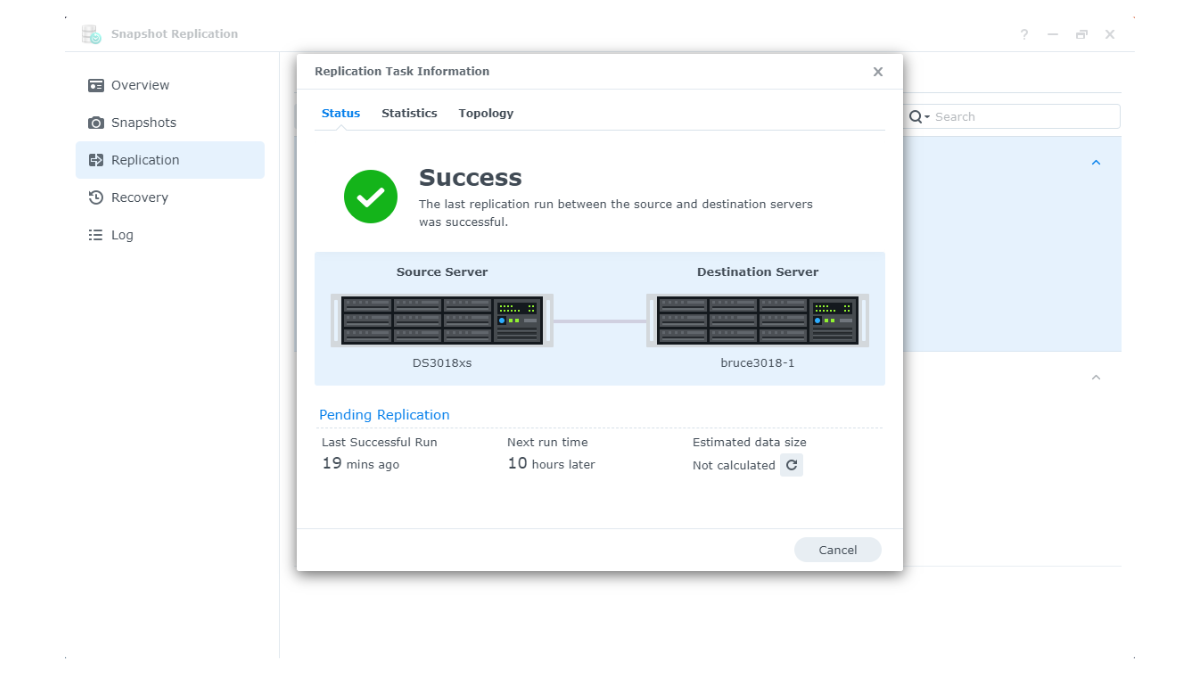
8. Use Snapshot Replication
Snapshot Replication is an important feature of Synology for file systems that support Btrfs. It helps create a copy of the data's state at a specific point in time, allowing files or folders to be quickly restored to their previous state before an issue occurred.
Snapshots are very useful when dealing with ransomware because if files are encrypted, administrators can recover the files from a snapshot taken before the time of the attack.
Instructions for Setting Up Snapshot
- Set a schedule to automatically create snapshots
- Determine retention to suit the nature of the work
- Allow users to restore files themselves only in appropriate cases
- Test restore periodically
- Use snapshots together with separate backups
9. Enable Immutable Snapshots
Immutable Snapshot is a Snapshot that cannot be modified or deleted within a specified period of time. It helps prevent cases where an attacker gains high privileges or tries to delete Snapshots to make data unrecoverable.
Synology uses the WORM concept, or Write Once, Read Many, to keep Snapshots under an enforced retention period, which helps increase the chances of data recovery after a Ransomware attack.
Suitable for
- Shared Folder for storing important data
- Account information, contract documents, and customer data
- Work files that need protection from accidental edits or deletion
- Organizations that want to increase confidence in disaster recovery
10. Use Hyper Backup and Plan a 3-2-1 Backup
Although snapshots can help recover data quickly, snapshots still reside on the same NAS, so they should not be considered sufficient backup. If the NAS is damaged, stolen, caught in a fire, flooded, or if the Storage Pool has issues, snapshots may not be helpful.
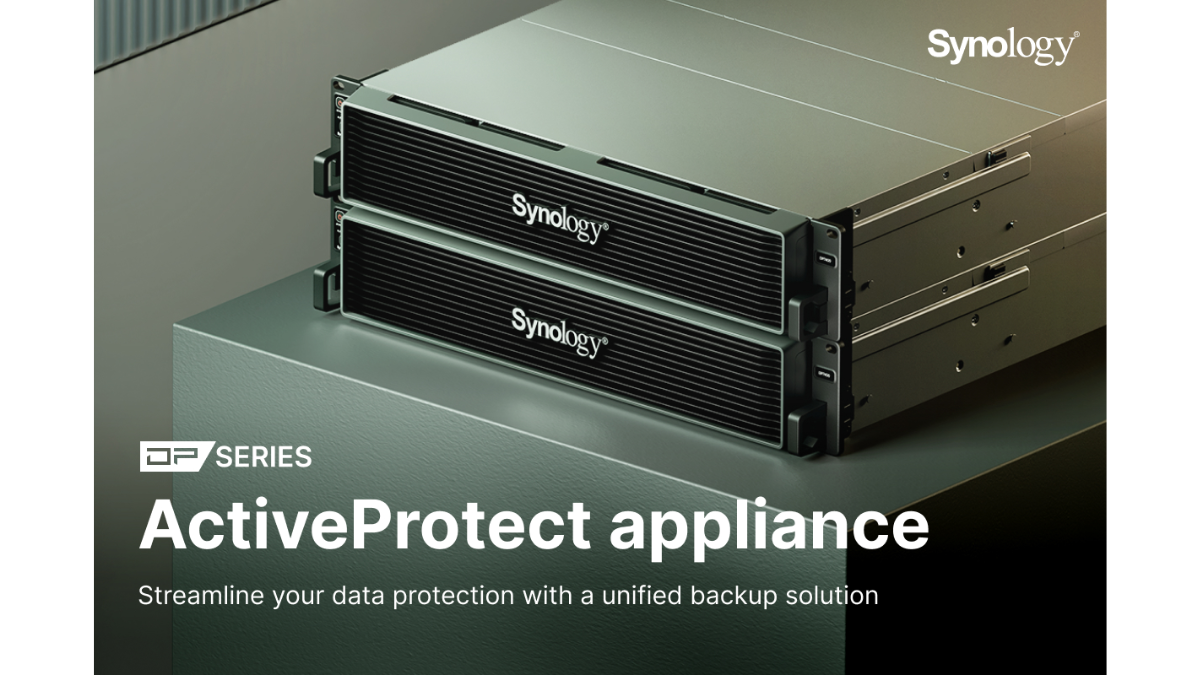
You should use Hyper Backup to back up data to other destinations, such as an External Drive, another NAS, an rsync Server, or Cloud Storage, while enabling Versioning to revert to the time before the incident.
3-2-1 Backup Principle
- 3: There are at least 3 sets of data
- 2: Stored on at least 2 types of media
- 1: There is 1 set of data off-site or separated from the main system
For organizations that require high security, they should consider Immutable Backup, Off-site Backup, or Air-gapped Backup additionally.
11. Use Antivirus or Malware Scanner on NAS
Synology has Antivirus or Malware Scanner tools that can be installed through the Package Center to help scan files stored on the NAS. However, these tools should be used as part of a multi-layered protection and should not be relied upon alone.
Instructions
- Set a schedule to scan files periodically
- Regularly update the virus database
- Check reports when suspicious files are found
- Use together with Endpoint Protection on users' computers
12. Enable Active Insight and Alerts
Active Insight helps monitor the status of Synology NAS and notifies of abnormal events such as system issues, security risks, or events that should be reviewed.
In addition, notifications should be set up via Email, Push Notification, or the channels used by the organization so that administrators are immediately aware when there are abnormal events.
Should set notifications for
- Abnormal login
- Storage space nearly full
- HDD/SSD has a problem
- Storage pool degraded or deteriorated
- Backup failed
- Snapshot or replication is malfunctioning
13. Isolate the network and protect it from client machines
In many cases, ransomware does not start directly from the NAS, but starts from the user's infected computer and then encrypts files located in the Shared Folder on the NAS.
Risk Reduction Guidelines
- Install Endpoint Protection on user computers
- Separate VLANs for NAS, Server, Client, Guest, and IoT
- Restrict NAS access permissions according to department or role
- Do not map unnecessary drives
- Use a Firewall or Security Gateway such as FortiGate to help control traffic and prevent threats in the network
Checklist for Preventing Ransomware on Synology NAS
| Topic | What to do |
|---|---|
| DSM / Package | Update to the latest version |
| Security Advisor | Enable and regularly check reports |
| MFA / 2FA | Enable for important accounts and administrators |
| Auto Block | Turn on to block IPs that repeatedly login incorrectly |
| Firewall | Restrict IP and Port that can access NAS |
| Remote Access | Avoid opening ports directly, use VPN or QuickConnect as appropriate |
| Permission | Grant users only the necessary rights |
| Snapshot | Set the Schedule and Retention appropriately |
| Immutable Snapshot | Enable for important folders that need protection from deletion or modification |
| Hyper Backup | Backup data to another destination with Versioning enabled |
| 3-2-1 Backup | There are multiple sets of data, multiple media, and an offsite copy |
| Notification | Enable notifications when an abnormal event occurs or a backup fails |
Summary
Ransomware protection on Synology NAS requires a multi-layered approach, including updating DSM, enabling Security Advisor, enabling MFA, using Auto Block, restricting external access, configuring the Firewall, setting appropriate user permissions, and properly using Snapshots.
However, Snapshots are not Backups, and RAID is also not a Backup. Therefore, Hyper Backup should be used in conjunction with the 3-2-1 Backup rule to have a separate copy of the data from the main NAS and increase the chances of recovery in case of unforeseen events.
To enhance protection, consider using Immutable Snapshots, Off-site Backup, VPN, Endpoint Protection, and Security Gateway together to ensure that the NAS system and important data are as secure as possible from Ransomware.
Need expert advice or would like to request a quotation? Contact us today:
E-mail: [email protected]
LINE Official: @sync.co.th

The Company reserves the right to correct any typographical or printing errors and shall not be held liable for any inaccuracies resulting from such errors.
*** This article is the intellectual property of SyncTech Solution Company Limited. Reproduction, modification, or redistribution of this content, in whole or in part, is strictly prohibited without prior written permission from the Company. ***