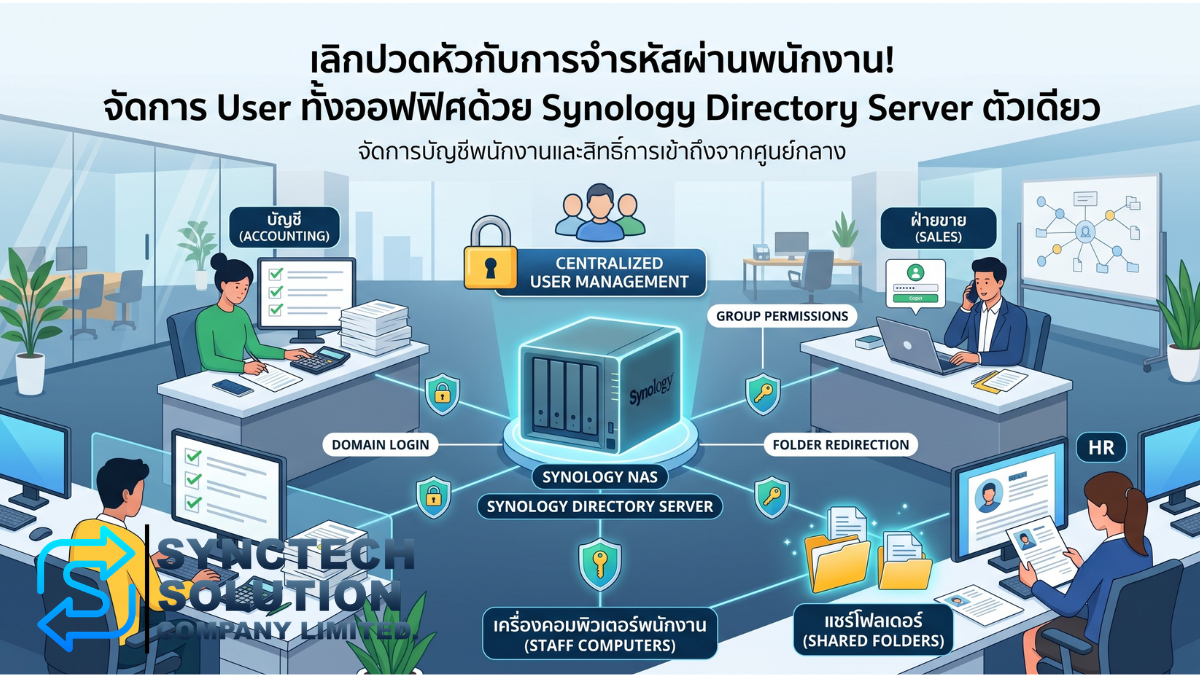
Stop worrying about remembering employee passwords! Manage all office users with just one Synology Directory Server
In an era where data is the heart of business, many companies with 10-20 employees or more often start encountering the same classic problems, such as employees forgetting passwords, sharing user accounts, fearing data leaks after someone resigns, scattered work files, or not knowing who deleted or edited important files.
These problems may seem small at the beginning, but as the company starts to have multiple departments, customer data, accounting documents, important work files, and multiple computers, managing users in the traditional way will become a security risk and increasingly waste the IT team's time.
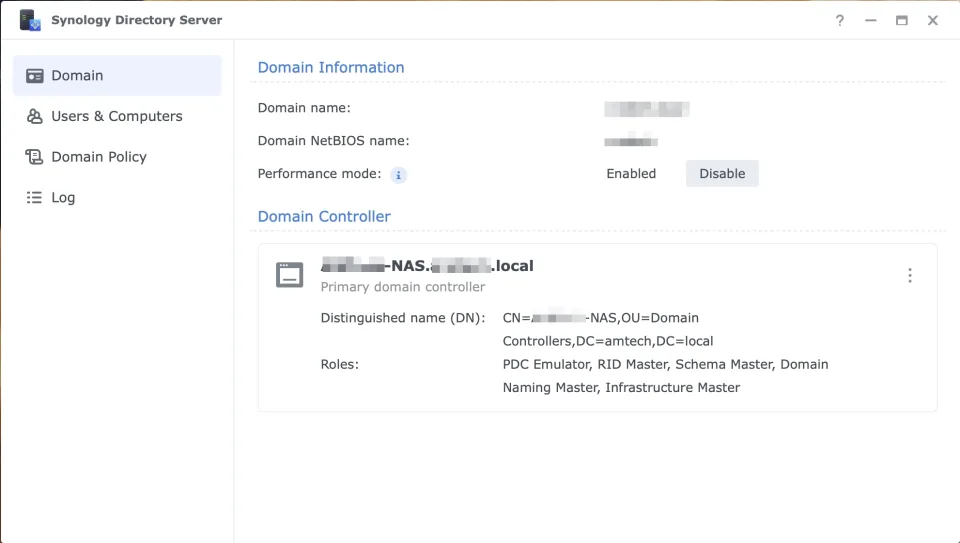
If you are looking for a centralized User management system that works similarly to the Active Directory concept but do not want to invest in a large amount of Windows Server and CALs, Synology Directory Server is another interesting option for small to medium-sized businesses because it can turn a Synology NAS into a Domain Controller to manage Users, Groups, computers, and basic Policies in the organization.
What is Synology Directory Server?
Synology Directory Server is a package on Synology DSM that allows a NAS to function as an Active Directory Domain Controller by using a directory service powered by Samba. It is suitable for organizations that need to manage user accounts and computers centrally.
Supported features include creating Users, Groups, Organizational Units, joining Windows machines to the Domain, Kerberos authentication, and using Group Policy to control certain client machines.
Simply put, instead of each employee having separate passwords for multiple systems or using the same user account for the entire office, the company can create individual employee accounts on the Synology Directory Server and use these accounts to control access to computers and files within the organization.
IT Chaos Problems That Most Offices Have to Face
Many organizations start from a Workgroup or simple folder sharing, such as creating a Shared Folder and letting all employees use the same password, or writing the password in a central document. The consequence is that the system starts to become uncontrollable.
- Employee resignation: Must quickly change passwords on every device and folder because it’s unknown what the former employee can still access.
- Shared user accounts: Cannot retrospectively check who deleted, edited, or moved files.
- Scattered data: Some files are on employees’ computers, some on external HDDs, and some on someone’s desktop.
- Computer crashes and lost work: Because important files are not stored centrally.
- Prone to viruses or ransomware: Because employees install programs themselves, plug in USB drives themselves, or have excessive access rights.
- IT team wastes time: Must fix each machine one by one, change passwords point by point, and manually check permissions every time employees join or leave.
How does Synology Directory Server help solve these problems?
When using Synology Directory Server, organizations can manage user accounts and access permissions centrally, reduce issues with shared passwords, and help make data control more systematic.
- Centralized User Management: Create, edit, disable, or change user passwords from a central point
- Domain Login: Employees can use their Domain Login accounts to sign into Windows machines that are joined to the domain
- Group-based Permission: Assign permissions based on departments such as Accounting, Sales, Warehouse, or Management
- Group Policy: Use policies to control certain operations of client machines, such as Folder Redirection, Drive Mapping, or certain restrictions
- Audit and Traceability: Reduce issues with shared user accounts and make it easier to track activities retrospectively
- Reduce risk when employees leave: Disabling the user account at one point immediately reduces access to internal systems
How is Synology Directory Server different from Windows Server AD?
Normally, if an organization wants a full-featured Active Directory system, they usually think of Windows Server Active Directory. However, what follows are the costs for Windows Server License, Client Access License or CALs, Server Hardware, Backup, and system administration.
Synology Directory Server is a suitable option for small to medium-sized organizations that need basic AD features using a NAS as the central hub. However, it should be understood that Synology Directory Server does not fully replace Windows Server AD in all cases, especially for large organizations or systems that require advanced Microsoft AD features.
| Topic | Windows Server Active Directory | Synology Directory Server |
|---|---|---|
| Usage Type | Full AD system for organizations of all sizes | AD Domain Service on Synology NAS is suitable for SMBs and organizations that want to start centralized user management |
| License Cost | Includes Windows Server and CALs according to Microsoft conditions | Using the Package on Synology NAS does not have Windows Server CALs for Directory Server |
| User / Group Management | Fully Supported | Supports User, Group, OU, and basic account management |
| Group Policy | Fully supported through Group Policy Management | Supports the use of Group Policy managed via RSAT on Windows |
| Suitability | Organizations that need full Microsoft AD and large systems | Small to medium offices, organizations that want to reduce costs and need to manage Users/Permissions systematically |
| Limitations | Depends on Edition and License | Supports Single Domain, does not support DFSR, and has some limitations compared to Windows Server AD |
Things to Know Before Using Synology Directory Server
Synology Directory Server is very suitable for organizations that require a centralized user management system, but one should understand the limitations before designing the actual system.
- Supports setting up a primary domain in Single Domain mode
- Domain Functional Level equivalent to Windows Server 2008 R2
- Supports setting up Primary Domain Controller and Secondary Domain Controller according to Synology's conditions
- Does not support Distributed File System Replication or DFSR
- Does not support Active Directory module for Windows PowerShell due to system limitations
- Advanced Group Policy settings should be done via RSAT on a Windows machine that has joined the domain
- Careful planning of Directory Server and NAS backup is recommended, as the user system becomes the organization's central hub
Therefore, Synology Directory Server is suitable for managing Users, Groups, Permissions, Domain Login, and basic to intermediate GPO. However, if the organization requires very advanced Microsoft AD, it is recommended to consult with an expert before making a decision.
Real-life usage examples in the office
From the experience of setting up systems for clients, Synology Directory Server can help transform a scattered office system into one that is more organized and secure, especially for organizations with multiple departments and a need to control file access.
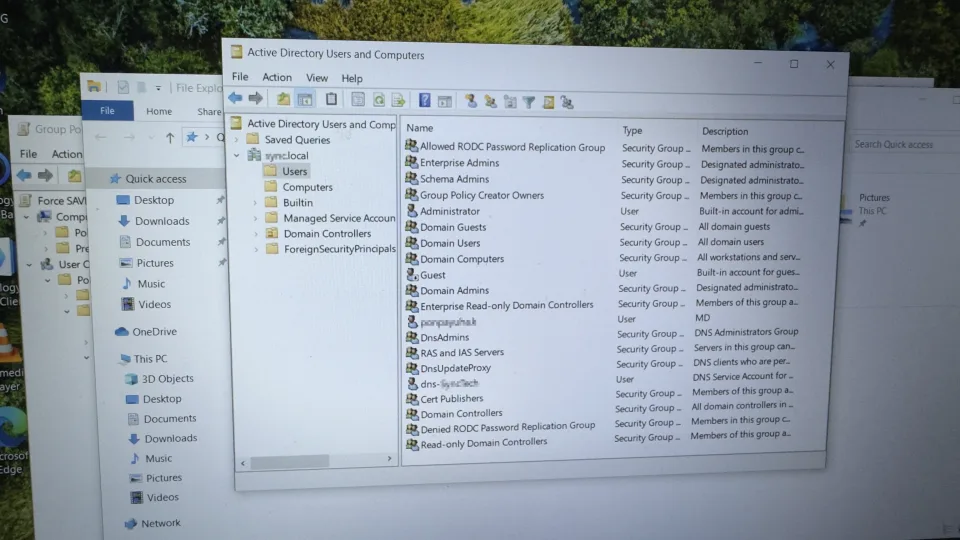
1. Enforce saving work to NAS using Folder Redirection
You can configure important folders, such as the Desktop or Documents of employees, to be automatically redirected to be stored on the Synology NAS. This helps reduce the problem of lost work due to computer failure and ensures that important data is centralized.
2. Set Permissions by Department
You can create Groups according to departments, such as Accounting, Sales, HR, Warehouse, or Management, and then set access permissions for Shared Folders based on roles, for example, the accounting department can only see the accounting folder, the sales department can only see the sales folder, and management can see the consolidated reports.
3. Control client machine usage with GPO
Through Group Policy, you can control certain settings of a Windows machine, such as mapping network drives, setting password policies, restricting access to certain parts of the system, or configuring logon scripts according to organizational policies.
4. Reduce the risk of employee turnover
When an employee resigns, the IT team can disable or remove the user account from the Directory Server centrally, reducing the risk of the old account still being able to access files or internal systems.
5. Works with Synology Drive and Backup System
Once files are stored on the NAS, they can be further managed with Synology Drive, Snapshot Replication, or Hyper Backup to increase data security, such as recovering files after accidental deletion or backing up data to another destination.
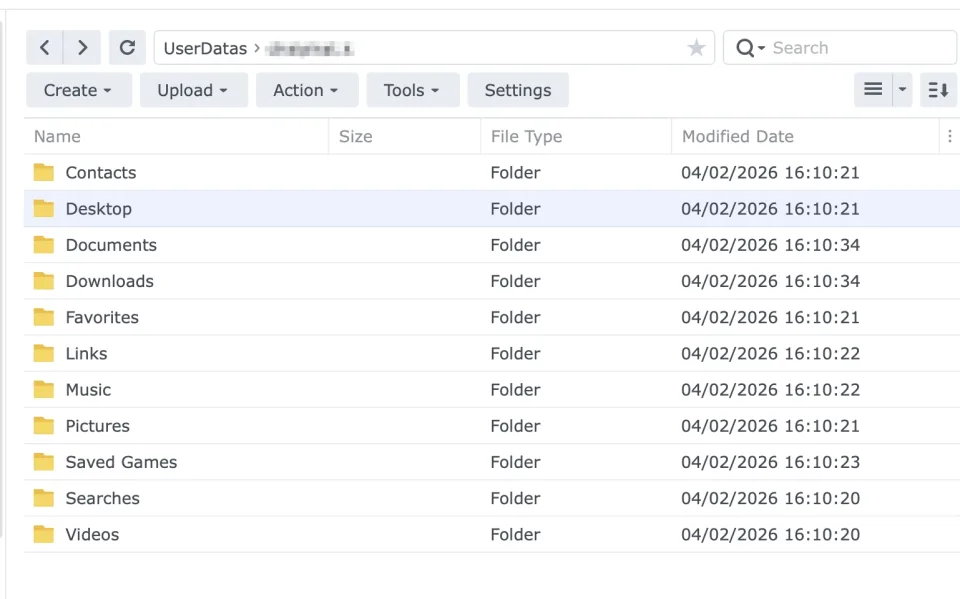
Comparison Table Before and After Installing Synology Directory Server
| Comparison Topic | Before Installing a Domain-based System | After Installing Synology Directory Server |
|---|---|---|
| User Management | Have to reset passwords one by one, or share a User | Can manage Users and Groups centrally |
| Employee resignation | Need to change passwords in multiple places | Disable account from the central system, immediately reduce risk |
| File access rights | Difficult to control, and often grants overly broad permissions | Set permissions according to department or user group |
| Risk of work loss | Files are on the employee's computer; if the computer breaks, work may be lost | Use Folder Redirection or Shared Folder to store work on NAS |
| Retroactive check | Difficult if many people use the same User | Separate individual accounts, easier to check and control |
| Initial cost | May be low at first, but risky and difficult to manage as it grows | Invest in NAS and set up the system once, reducing long-term complexity |
| Backup Expansion | Scattered data, incomplete backups | Centralized files on NAS and can easily expand Snapshot / Backup |
What type of organization should use Synology Directory Server?
- Companies with about 10 or more employees and finding it difficult to manage User/Password
- Offices that still use Workgroup or Shared Folder with a common password
- Organizations that want to separate file permissions by department
- Businesses that want to reduce the cost of Windows Server and CALs
- Offices that already have Synology NAS and want to expand it into a File Server + Directory Server
- Businesses that want a central system for User, File Permission, Backup, and Snapshot
Recommended Synology NAS Models for Running a Directory Server
When choosing a NAS to run Synology Directory Server, you should consider the number of users, the number of client devices, the amount of files being shared, and other packages that will run on the NAS, such as Synology Drive, Snapshot Replication, Hyper Backup, or Antivirus.
| Organization Size | Recommended Version | Additional Recommendations |
|---|---|---|
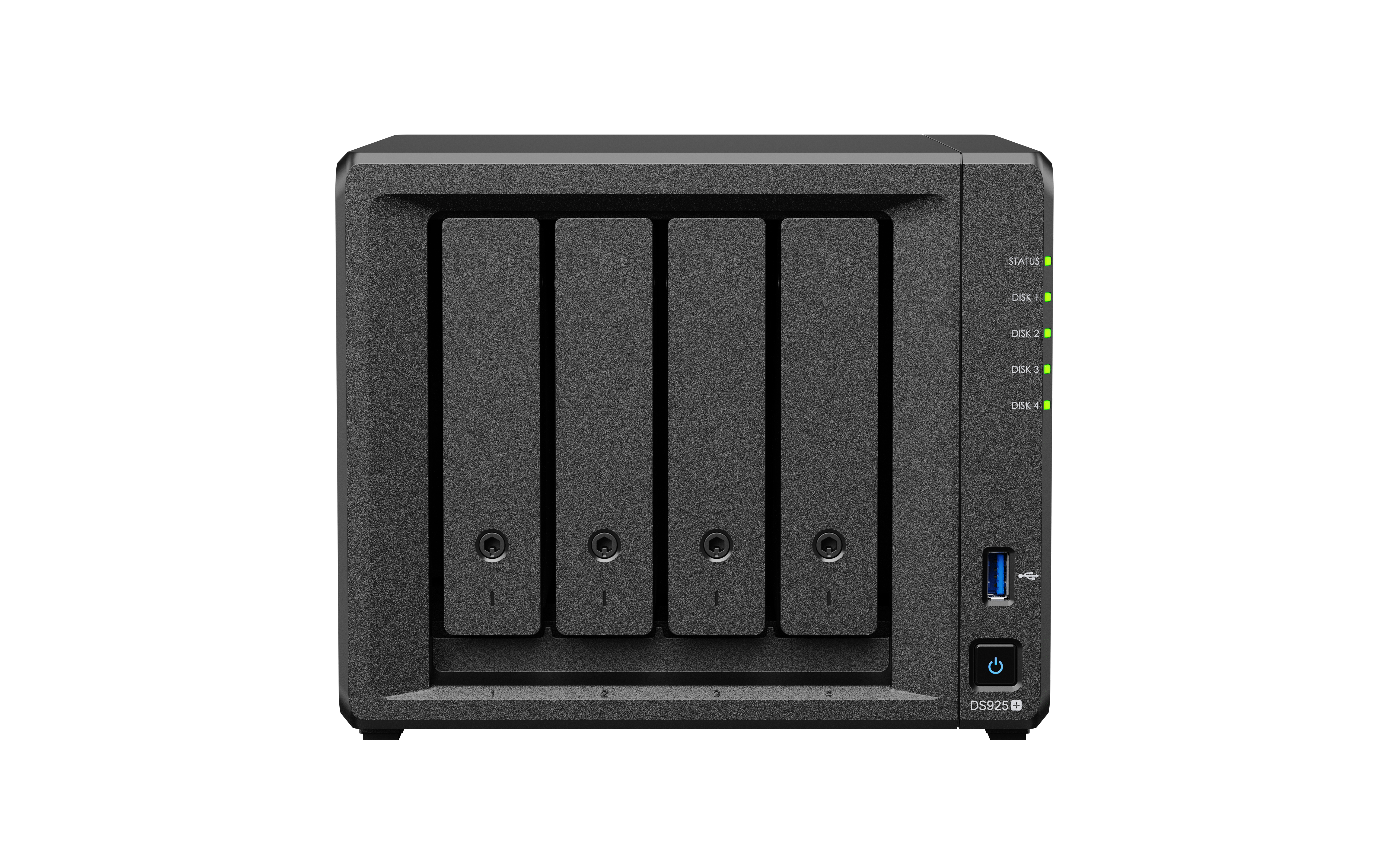
| Office of about 10-30 people | DS725+ or DS925+ | Suitable for small to medium-sized offices. RAM should be increased if using multiple packages simultaneously. |
| Office of about 30-80 people | DS1525+ or DS1825+ | Suitable for organizations that need more space, have multiple departments, and require the use of Drive / Snapshot / Backup together |
| Organizations that want to install in a Rack | RackStation Series | Suitable for offices with Server cabinets, UPS, Network Racks, and who want organized installation |
| Organizations that require high continuity | Models that support Redundancy or set up a system together with Backup NAS | Should design Backup, Snapshot, and Directory Server recovery plan together |
Note: The appropriate NAS model should be evaluated based on the actual number of users, the number of devices joined to the domain, the number of files, the usage volume of Synology Drive, Snapshots, Backup, and the organization's budget. It should not be chosen solely based on the number of employees.
Checklist before Implementing Synology Directory Server
- Set an appropriate internal Domain name
- Design the structure of Users, Groups, and OUs to match the organization
- Separate Groups by department, such as Accounting, Sales, HR, Management
- Set Password Policy and Account Lockout Policy
- Prepare Windows machines for RSAT installation to manage Group Policy
- Design Shared Folders and Permissions according to job responsibilities
- Plan Folder Redirection or Drive Mapping if you want to centralize work files on a NAS
- Plan Snapshot Replication to recover files from the past
- Plan Hyper Backup or Backup to NAS/Cloud/External Drive as an additional set
- Prepare a plan in case the NAS has issues, such as Backup, Spare Disk, UPS, and Directory Server recovery
Precautions for Use
- Admin accounts should not be used for daily tasks
- Individual user accounts should be separated; users should not be shared across the department
- Permissions should be set with the principle of Least Privilege, allowing access only as necessary
- Directory Server and data on NAS should be backed up regularly
- UPS should be used to reduce the risk of power outages
- There should be a recovery plan in case the NAS or Storage Pool has a problem
- Synology Directory Server should not be used to replace Windows AD in a large or very complex system without first evaluating the limitations
- GPO and Permissions should be tested with a small user group before being implemented organization-wide
Summary
Synology Directory Server is an interesting option for small to medium-sized businesses that want to manage users, passwords, computers, and file access permissions centrally, without having to start with a full Windows Server AD immediately.
The highlight is that it helps reduce the confusion from sharing a User account, lowers the risk when an employee leaves, manages Permissions by department more effectively, and can be integrated with file systems on NAS, Synology Drive, Snapshot Replication, and Hyper Backup to make the organization's data more secure.
However, setting up a Directory Server is not just about installing the package and that's it; you need to design the User, Group, Permission, GPO, Backup, and Security Policy to suit the business. If configured correctly, Synology NAS can become an IT hub that helps the office become organized, secure, and much easier to manage.
Need expert advice or would like to request a quotation? Contact us today:
E-mail: [email protected]
LINE Official: @sync.co.th

The Company reserves the right to correct any typographical or printing errors and shall not be held liable for any inaccuracies resulting from such errors.
*** This article is the intellectual property of SyncTech Solution Company Limited. Reproduction, modification, or redistribution of this content, in whole or in part, is strictly prohibited without prior written permission from the Company. ***